

Microsoft removed the default System Properties page from the Windows 11 File Explorer. Now, if you right-click on This PC and select properties, you will see the System Settings panel. If you want to get back to the old System Properties page, here’s what you should do.
1. Find via System Settings
You can find almost all important information about your PC in the Windows 11 Settings.
1. Right-click the Windows Start button and select Settings.
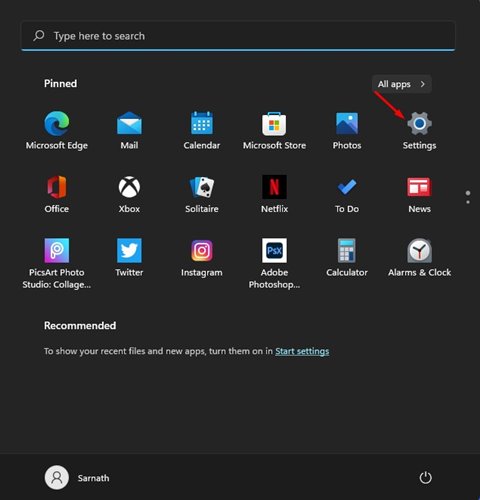
2. Click on the System.

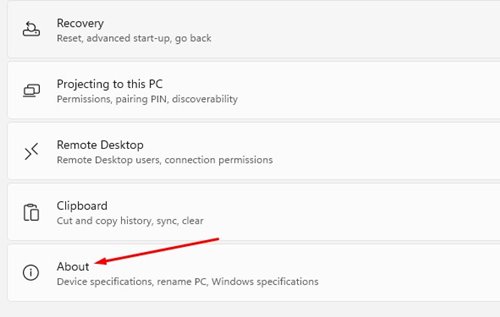
3. Scroll down and click on About.
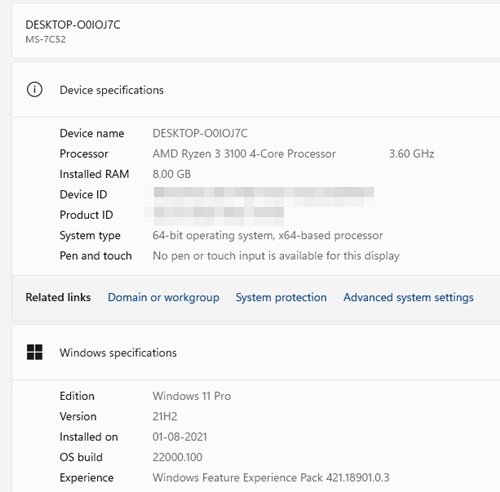
4. You need to look at the Device Specification section. This will list the Processor and Installed RAM.
2. Using the RUN Command
To check the system specifications on Windows 11, use the RUN dialog box.
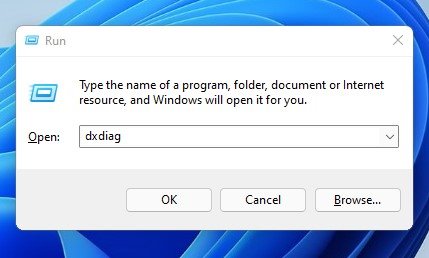
1. Press the Windows Key + R button on your keyboard.
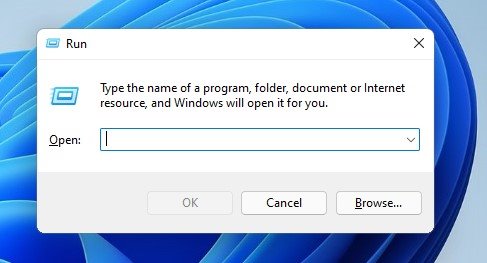
2. Type dxdiag and press Enter.
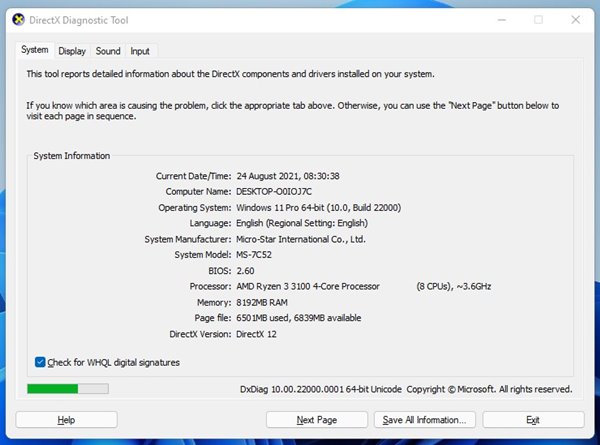
3. The system tab will display Motherboard details, BIOS version, Processor, and RAM.
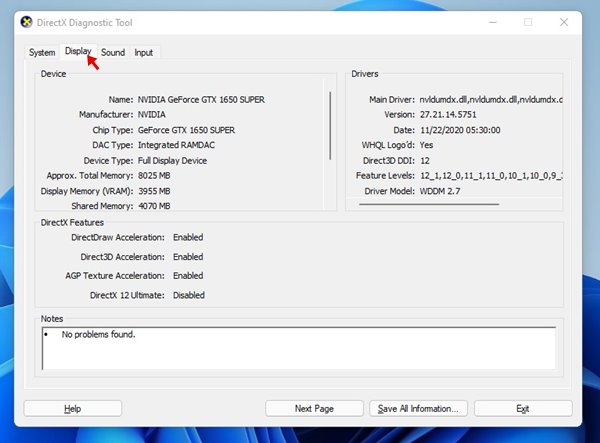
4. Select the Display tab to check the graphics specification of your computer.
3. Using Command Prompt
Like the RUN dialog box, you can use the Command Prompt to check your PC’s specifications.
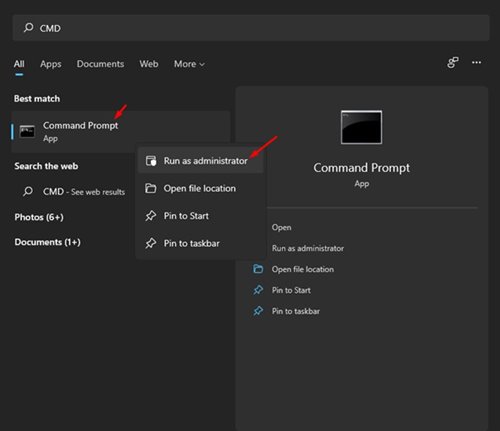
1. Open Windows search and type in CMD. Right-click on the CMD and select Run as administrator.
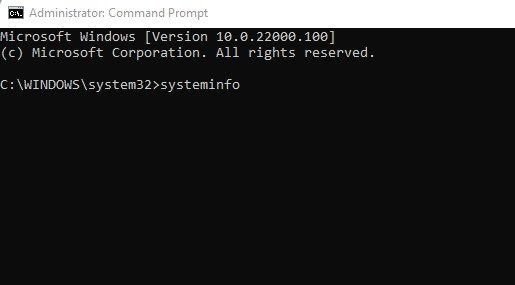
2. Type in systeminfo and hit the Enter button.
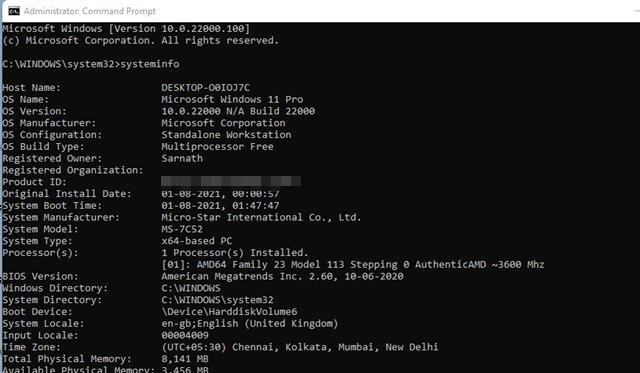
3. This will display information on all your installed components.
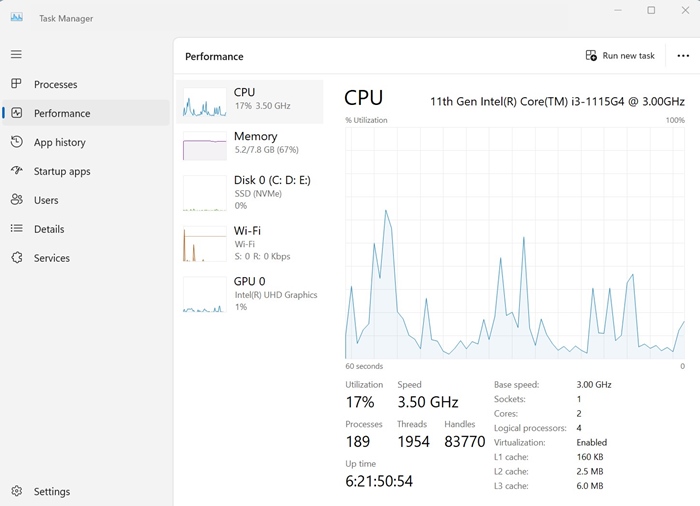
4. Check the PC’s Specs via Task Manager
Windows 11’s Task Manager can be used to obtain crucial information about your PC. While its information isn’t very advanced, it still shows the key information you need.
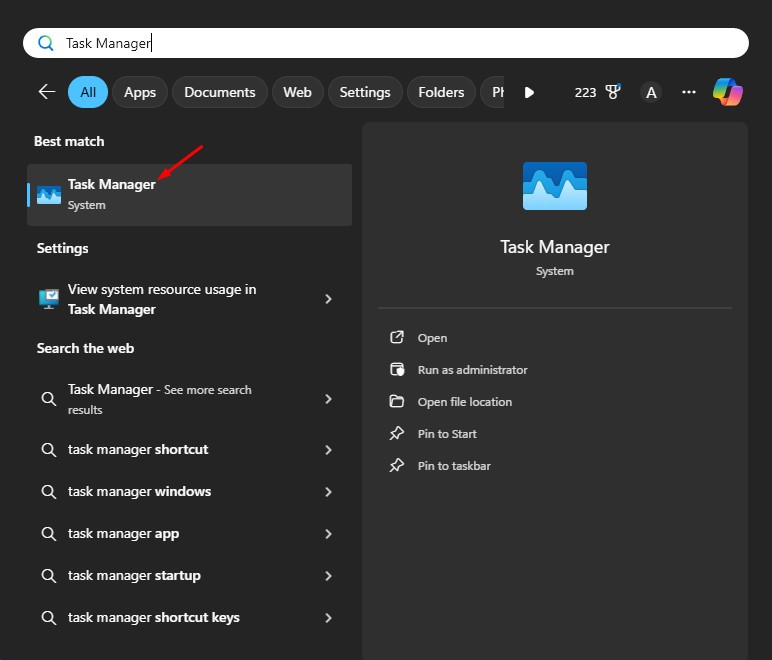
1. Open Windows 11 Task Manager from the Windows Search.
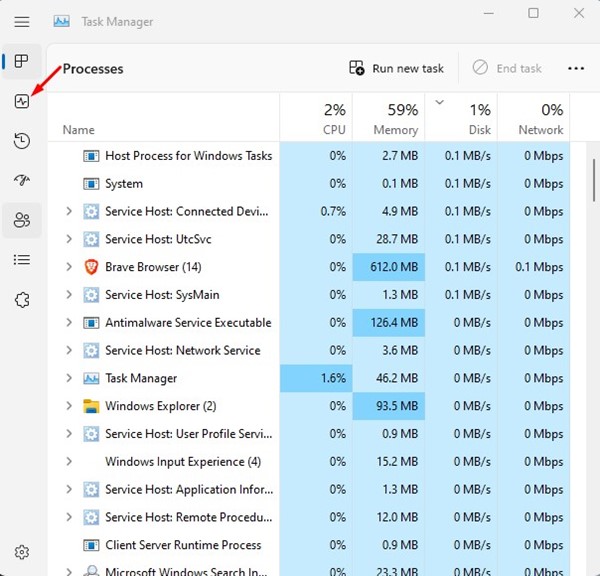
2. Switch to the Performance tab.
3. Switch between CPU, Memory, GPU, WiFi, etc. tabs to gain information.
This guide explains how to check your PC’s full specifications on Windows 11. If you have any questions, let us know in the comment box below.
The post 4 Ways to Check Your PC’s Full Specification On Windows 11 appeared first on TechViral.
from TechViral https://ift.tt/yKYQ7LW

