

Can’t download or update apps from the Google Play Store? It could be either because of no internet, the problem with the Google Account, Play Store’s servers, etc. Problems with the Google Play Store can be fixed easily; you just need to know their root cause. Here’s how you can fix can’t download or update apps from the Play Store.
1. Restart your phone
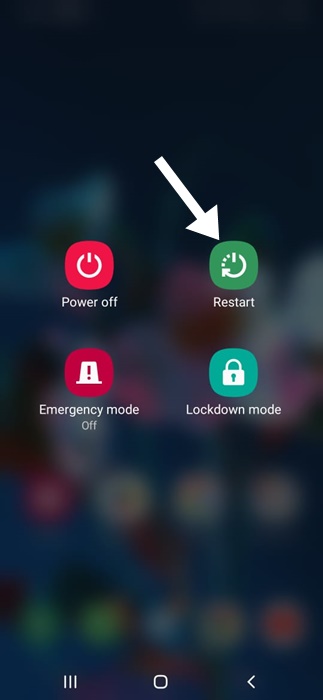
Restarting your smartphone is the first thing you should do to fix this issue. This will fix temporary glitches or connectivity issues that prevent app downloads or updates. Long-press the power button on your Android, then select Restart. After the restart, try downloading or updating apps through the Play Store.
2. Check your internet
Google Play Store requires a stable internet connection to function properly. If your internet is slow or unstable, downloads or updates will fail.
Ensure your internet is working. Switch between WiFi and Mobile Data, or restart your router if needed. After the restart, check your internet by opening a webpage or any other app.
3. Force Stop the Google Play Store
Force stopping will clear the active background processes run by the Google Play Store, possibly eliminating the bugs & glitches contributing to the problem.
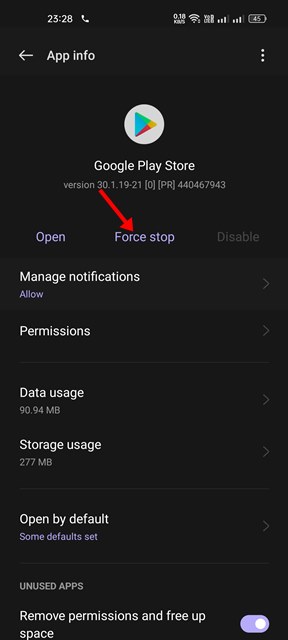
Long-press the Google Play Store icon on your home screen and select App Info. On the App Info screen, select Force Stop.
4. Make sure your phone has enough storage space
If your phone runs out of storage, the downloads or updates may fail. If your phone is low on storage, uninstall the apps and games you don’t use.
You can also delete unnecessary files like photos/videos, documents, etc., to free up storage space.
5. Clear Google Play Store Cache
If you’re still unable to download or update apps from the Google Play Store, it’s best to clear the app cache.
1. Launch the Settings app and select Apps.
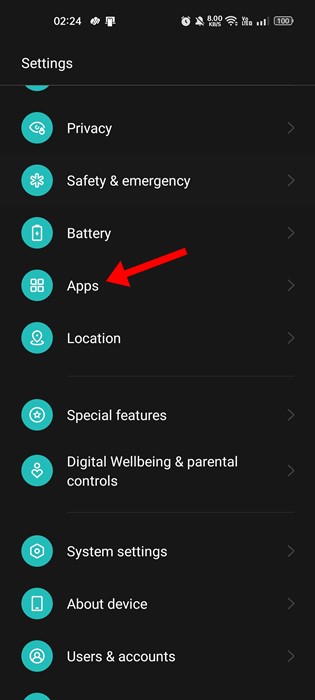
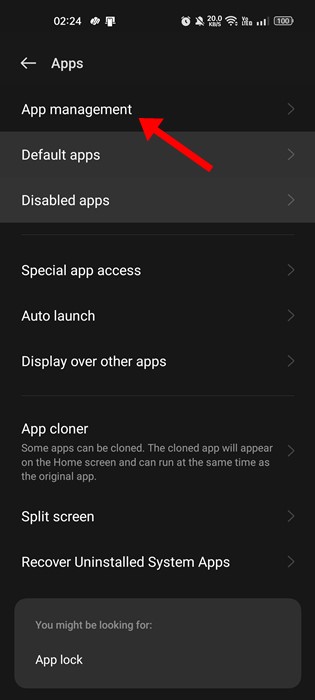
2. Select App Management > Installed Apps > Google Play Store.
3. Tap Storage Usage.
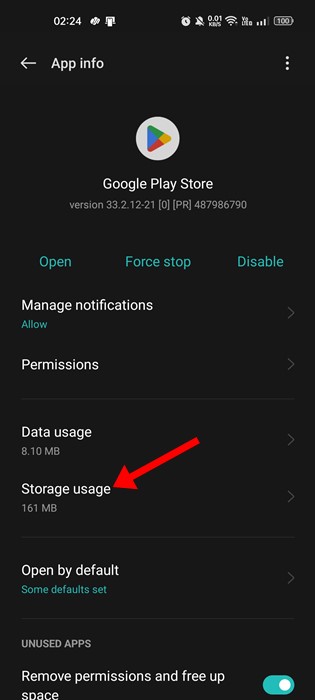
4. On the next screen, tap Clear Cache.
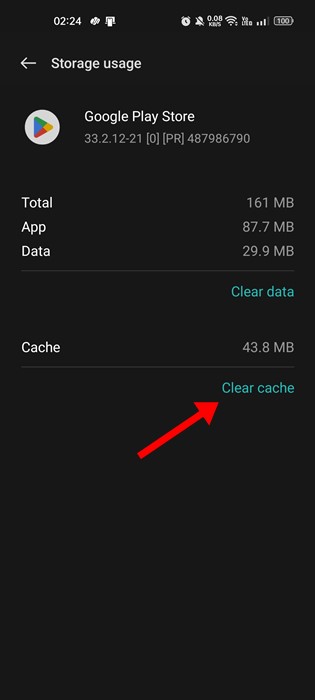
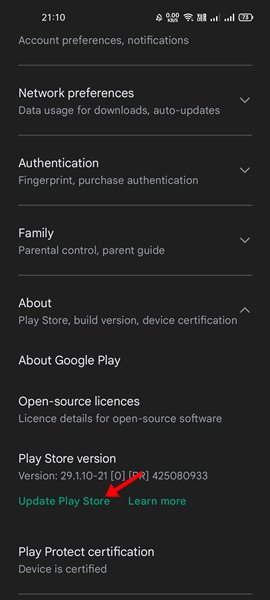
6. Update the Play Store on Android
Even though Google Play Store is set to install the updates automatically in the background, it’s still recommended to force update manually.
1. Launch the Play Store and tap on your profile picture.
2. Select Settings.
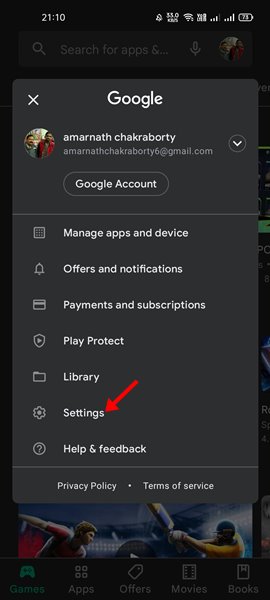
3. Select About.
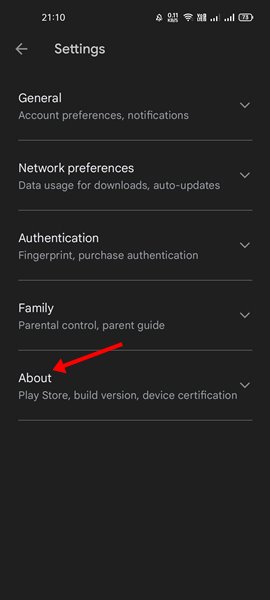
4. Tap Update Play Store underneath Play Store Version.
7. Install the Pending Android Updates
Another good thing you can do is to install all pending Android version updates. This will rule out the possibility of the system-level bugs & glitches, stability issues, etc. So, simply install all pending Android updates from the phone settings.
These are a few simple ways to fix can’t download or update apps from the Google Play Store issue. Let us know if you need more help on this topic in the comments.
The post Can’t Download or Update Apps from Play Store? 7 Fixes appeared first on TechViral.
from TechViral https://ift.tt/Fi56lEv

