

Many users have reported getting Spotify error code 18 while installing the Spotify app on the desktop. The entire error message reads – “The installer is unable to install Spotify because the files to write are in use by another process. Please make sure Spotify is not running and retry”.
So, the error message clearly states that the Spotify installer cannot install Spotify because there’s already an ongoing process in the background. Since the error message itself tells everything about the error, fixing the problem is easy.
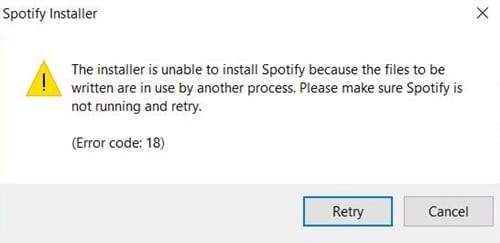
When does the Spotify Error Code 18 occur?
Spotify Error Code 18 mostly occurs when the Windows installer finds that the files the app was trying to write on your computer are already there. It happens when the files that the Spotify installer wants to write are in use by another process.
So, if Spotify is already installed, and you are attempting to install it again, you will receive the error. However, if Spotify isn’t already installed, and you still get this error, here’s what you should do.
1. Install Spotify from the Microsoft Store
The solution is to restart your computer in Safe Mode with networking enabled. To boot in Safe mode, you need to restart your PC; when the PC starts to boot, press F8 and select Safe Mode with networking.
Once you gain access to the File Manager in Safe mode, you must delete all files related to Spotify. Once done, open the Microsoft Store app and download & install the latest version of Spotify.
This simple solution has helped many users fix Unable to install Spotify Error Code: 18 problem. So, before you follow the next methods, try this one first.
2. Close All Spotify Processes from the Task Manager
To fix the error code 18 quickly, you must utilize the Windows Task Manager. The Windows task manager shows us all running processes, and we need to check whether any process related to Spotify is still running.
1. Open Task Manager on your computer and then check the Processes tab.
2. Check whether any process related to Spotify is running. If you find any process, right-click it and select End Task.
3. Close the task manager and open the Spotify installer.
If the error was caused by any running process, you won’t get the error code 18 anymore.
3. Deleting Registry
As we have already mentioned above, some types of files remain even after we uninstall the app from the computer. The uninstalled app might have added some keys to the registry, which might be the reason behind the error code 18 on Spotify. So, the best thing is to use a registry repair like CCleaner, which can effectively scan and fix registry files.
1. Download CCleaner on your Windows computer and launch the app.
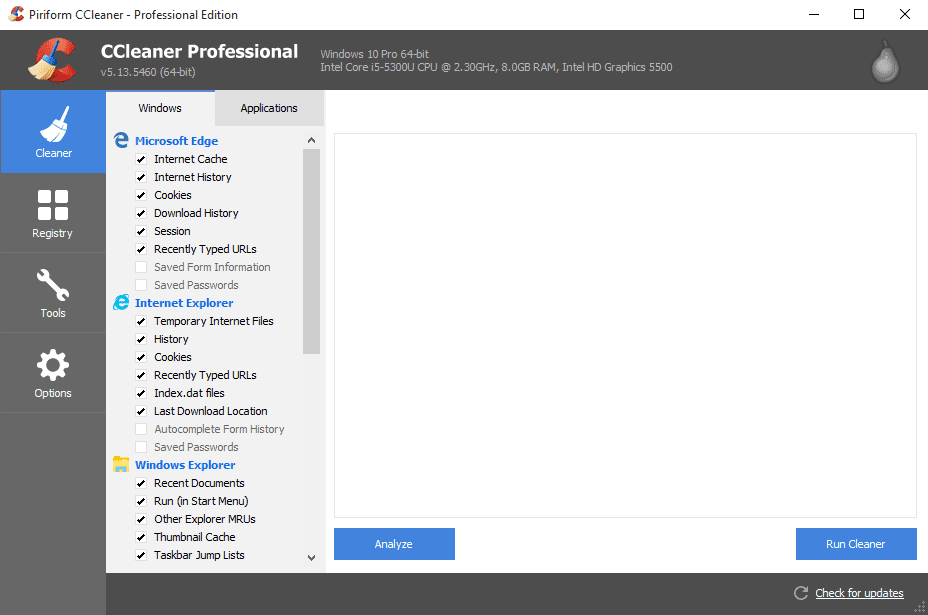
2. You need to click on the Registry, which will open the registry scanner.
3. Click Scan for issues and wait until CCleaner completes the scanning process.
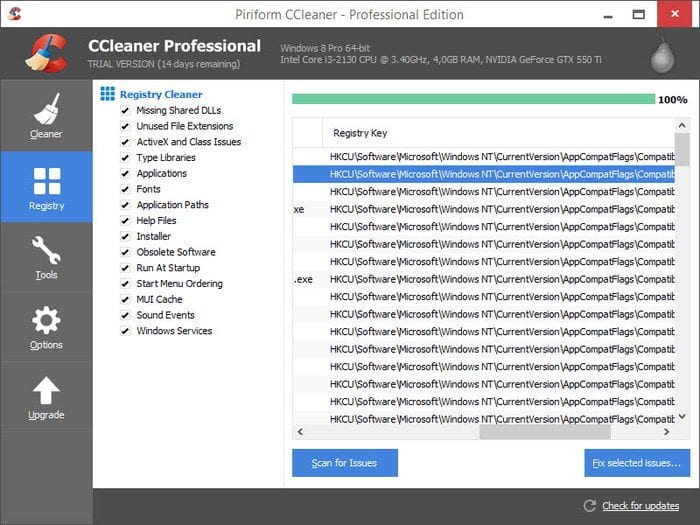
4. The CCleaner will display if it finds anything wrong with the registry files. Click on the Fix selected issues to fix the problem.
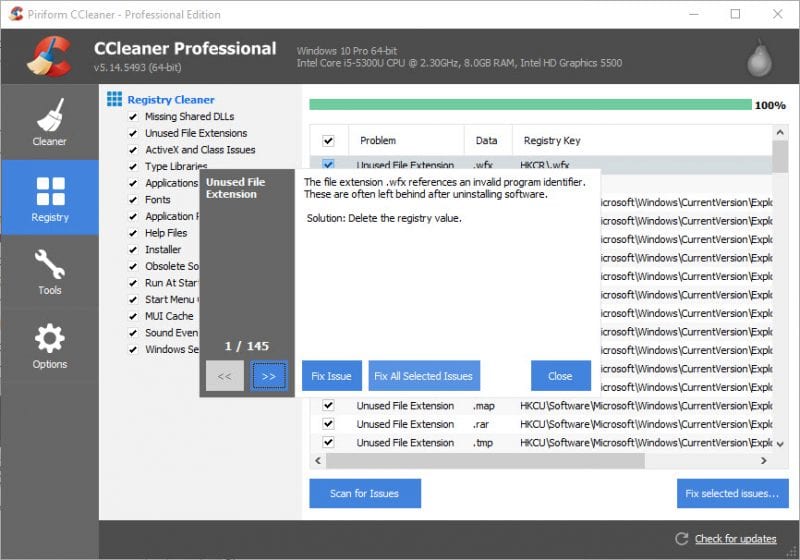
Close CCleaner and restart your Windows computer. After the restart, try installing Spotify again, and you won’t get the error code 18 anymore.
4. Using System Cleanup
System Cleanup is another best feature of the Windows 10 operating system. The feature helps users eliminate the temporary files left by uninstalled apps. This might solve the Spotify error code 18 issue, but these things can help.
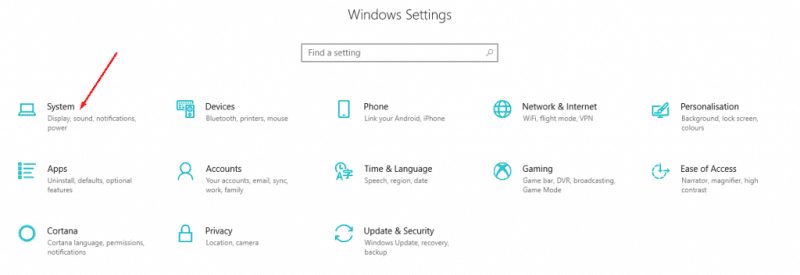
1. Go to the Settings and then click on System.
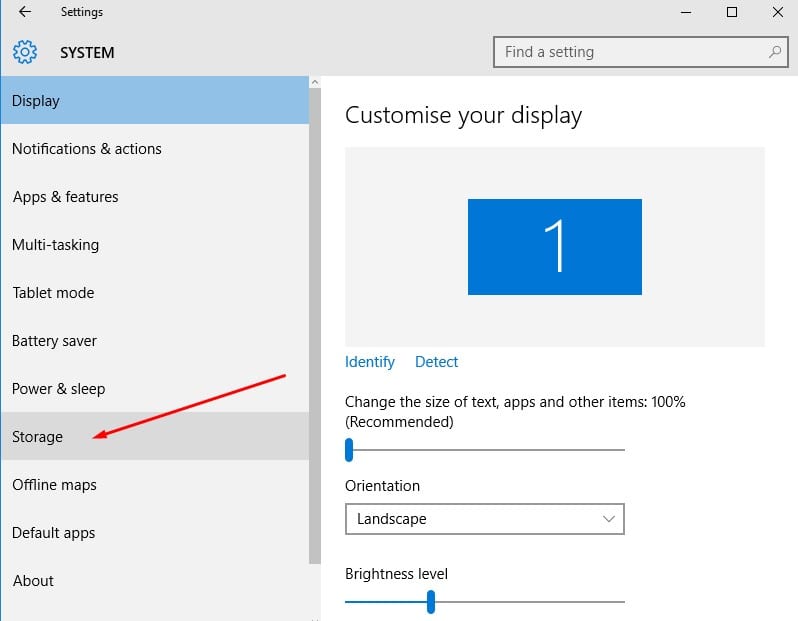
2. Under the System, click on Storage. Under the Storage section, click on free up space, and it will open the scanner.
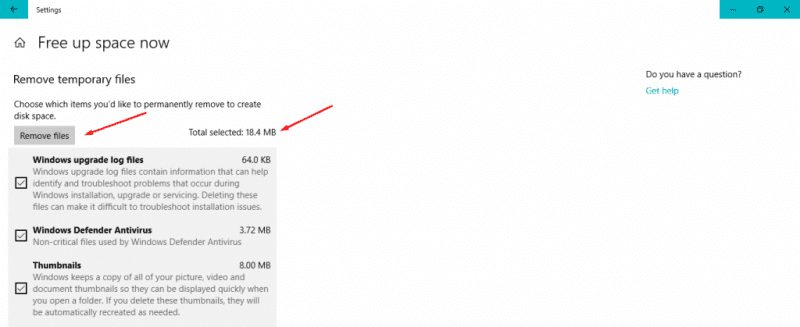
3. Wait a few seconds until the program scans your computer for temporary files. Once done, you will get the option to remove junk files.
This is another best method that you can use to fix error code 18 on Spotify. If the above method hasn’t fixed your problem, follow the next one.
5. Check whether the Steam Client is running or not
Spotify and Steam both utilize the same technology to prevent hackers & invaders from accessing the platform. Sometimes, the Spotify installer mistakes Steam for Spotify, and this is where the problem begins. So, the best option is to check whether the Steam client is running.
1. Check your notification area for the Steam icon.
2. If it is missing from the notification area, open the task manager and check for Steam.
3. If the Task Manager lists any process related to the steam, close it.
After closing Steam, run the Spotify installer. The installation will continue this time, and you won’t get the Spotify error code 18 again.
6. Deleting The App Data
Deleting the app data also seems to fix the Spotify Error Code 18 issue. Therefore, we will share the easiest method to delete the app data from your computer.
1. Press the Windows Logo and R buttons simultaneously. This will open up the RUN dialog box.
2. Under the RUN dialog box, type in %appdata% and click OK.
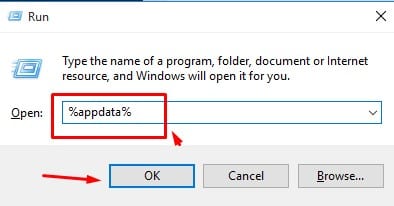
3. It will open up a new folder showing you junk files, folders, and a few temp files. So, select all and delete it.
Note: Make sure to clear your Recycle Bin after deleting the files. Restart your computer and run the Spotify installer. The installation will surely go on this time.
7. Boot Into and Out of Safe Mode
A few users have claimed that they have fixed the error code 18 by doing so. So, you can boot our computer into safe mode and then out of it. Here’s what you need to do.
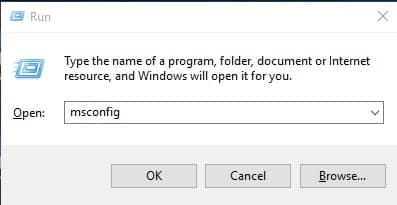
1. Press Windows Key + R on your keyboard. On the RUN dialog box, type in msconfig and then press Enter.
2. You will see the System Configuration Panel. Switch to the Boot Tab.
3. Check the Safe Boot. Click on Apply, then OK.
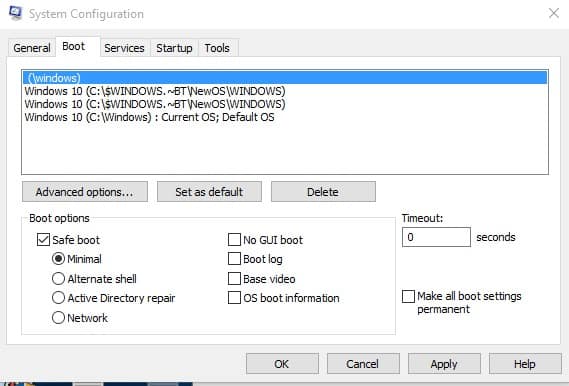
4. Restart your computer, and when your computer boots into safe mode, repeat steps 1 and 2. This time, under the Boot option, uncheck the Safe Boot option.
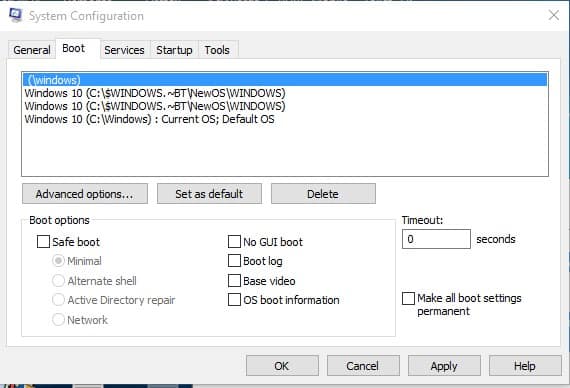
Now, restart your computer. When your computer boots up, run the Spotify Installer. This will probably fix the Spotify Error Code 18.
8. Install Spotify in Safe Mode
If you cannot install Spotify on your PC, you can try running the Spotify installer in Safe mode. The Safe Mode on Windows disables many processes, services, and drivers and only starts the operating system with essential files.
Safe Mode will disable all background processes, apps, drivers, and services that may prevent the Spotify installer from running. Just follow the steps we’ve shared in the previous method to boot your PC into safe mode.
Once the Safe Mode is activated, you must run the Spotify Installer. This time, the installation will be complete without any errors.
It’s worth noting that Spotify Error Code 18 is not a significant issue. Sometimes, a simple restart can also fix the error code from happening. If you have any doubts, let us know in the comment box below.
The post How To Fix Spotify Error Code 18: Unable To Install [Solved] appeared first on TechViral.
from TechViral https://ift.tt/IYxDeUH

