

You have many ways to stop users from changing the desktop background on Windows 11. You can install a third-party app to set a specific wallpaper and lock it, or change the Local Group Policy Editor or Registry Settings to prevent wallpaper change. Here are the two different ways to prevent others from changing your desktop background.
1. Prevent Changing the Desktop Background
In this method, we will make a few changes to the Local Group Policy Editor to prevent others from changing the desktop background.
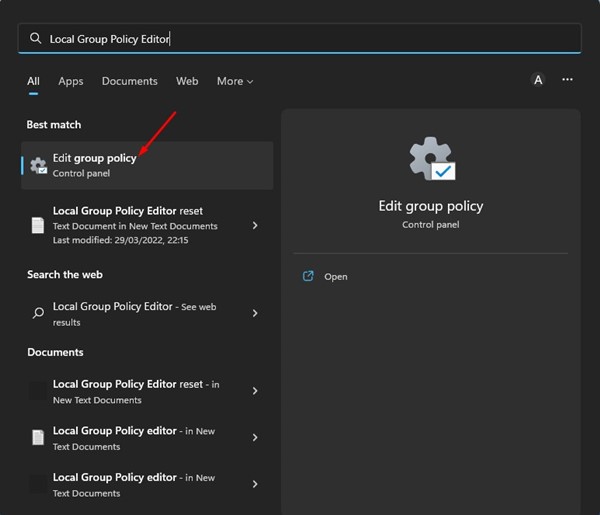
1. Open the Group Policy Editor (Edit Group Policy) from the Windows Search.
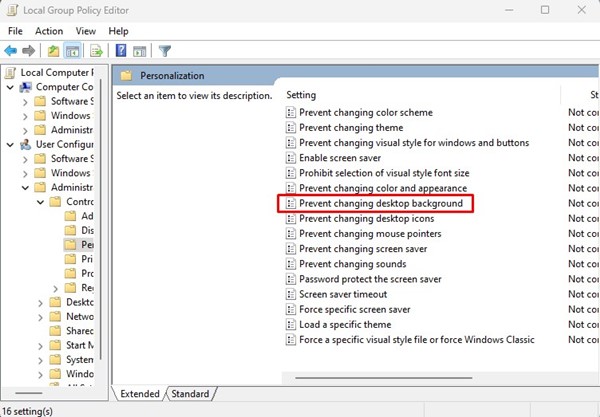
2. Navigate to this path:
User Configuration > Administrative Templates > Control Panel > Personalization

3. Scroll down and double-click on the Prevent changing desktop background policy.
4. Select the Enabled option. Once done, click on Apply and then Ok.
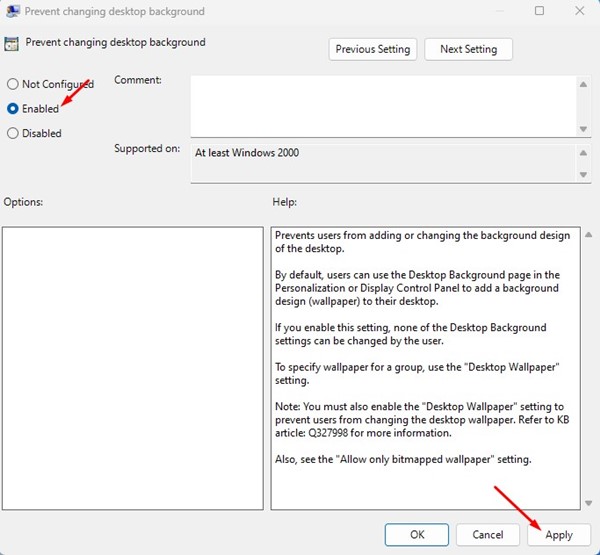
This will block the wallpaper-changing option on your Windows 11. Now the background option on the Personalization page will show “Some of these settings”.
2. Set Specific Wallpaper on Windows 11
You can modify the Local Group Policy to display a specific wallpaper in Windows 11. Doing so will restrict access to the desktop background settings and prevent users from changing the wallpapers.
1. Click the Windows 11 search and type in Local Group Policy Editor. Next, open the Edit group policy app.
2. Navigate to this path:
User Configuration > Administrative Templates > Desktop > Desktop
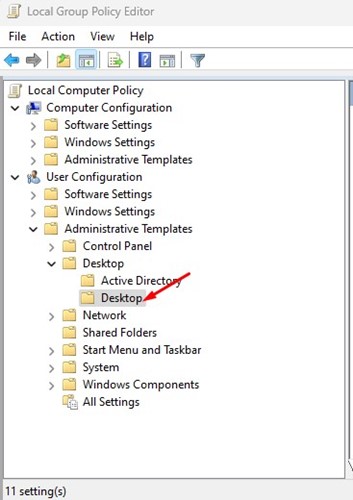
3. Find and double-click on the Desktop Wallpaper option.
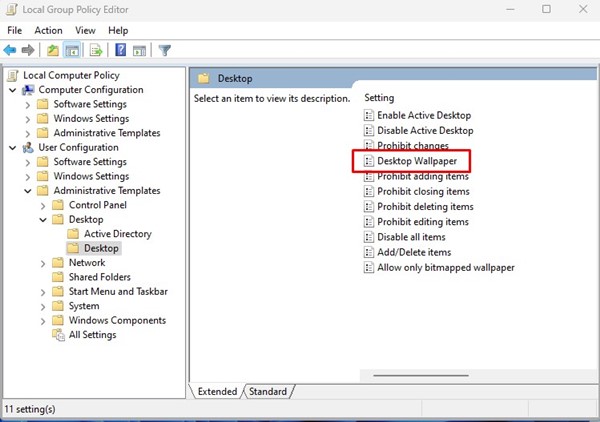
4. On the Desktop Wallpaper policy, select Enabled. Once done, enter the local path of the wallpaper you want to set in the Wallpaper Name field.
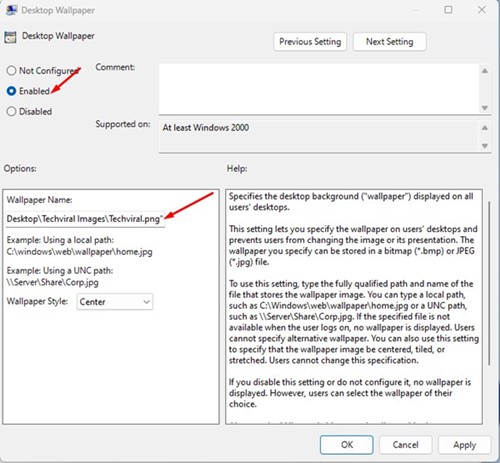
After making the changes, click Apply and then OK. This will prevent others from accessing the desktop background settings in Windows 11.
These are the two best ways to prevent others from changing the desktop background in Windows 11. Select Not Configured in Step 4 on both methods if you want to change the wallpaper again.
The post How to Prevent Others From Changing Your Windows 11 Wallpaper appeared first on TechViral.
from TechViral https://ift.tt/iMRlmxa

