

Compared to third-party backup apps, the File History of Windows 11 is easier to set up and use. Once you configure Windows 11 File History, you need to connect your USB drive to your computer, and Windows 11 will automatically back up the file to that drive.
Use Windows File History To Back Up Windows 11 Data
If you want to use Windows File History to back up Windows 11 data, follow these steps.
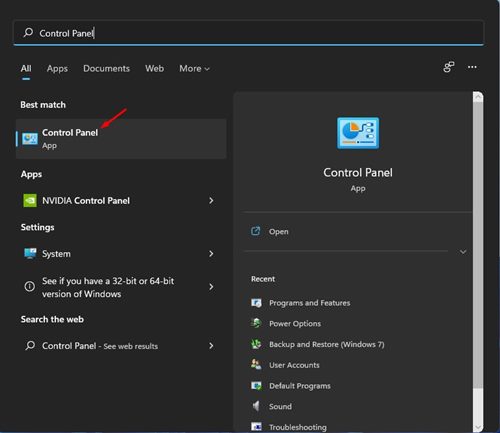
1. Type Control Panel in Windows 11 Search and open it.
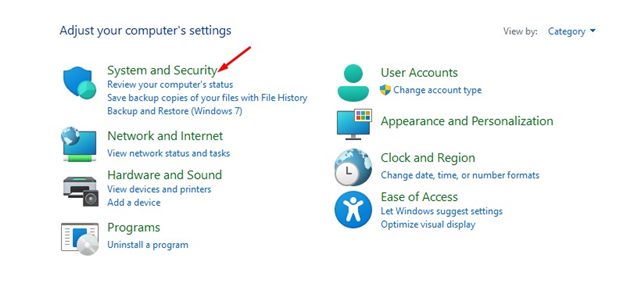
2. Click System and Security.
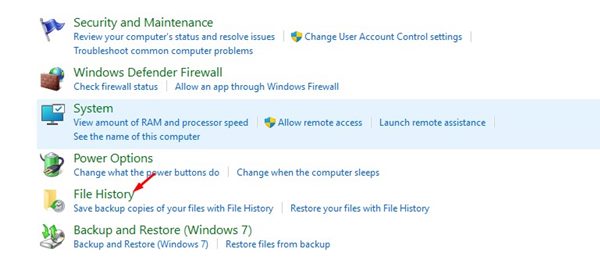
3. Select File History.
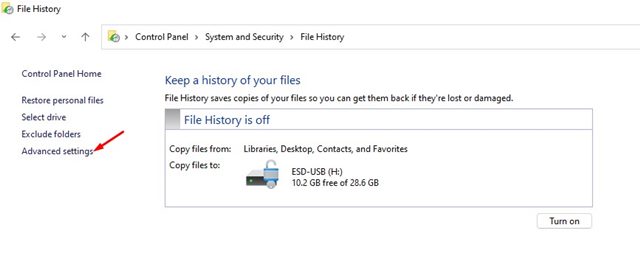
4. Connect an external drive and refresh Windows. Click on the Advanced Settings on the left sidebar.
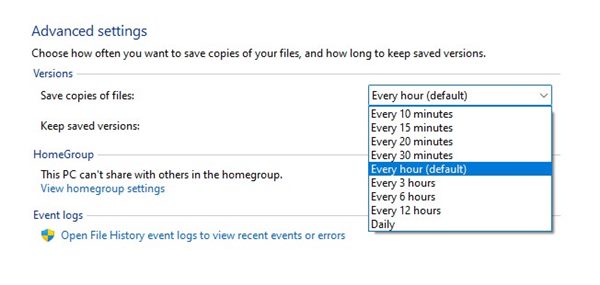
5. You must set a schedule to run the File History on the next screen. The default is Every Hour; you can change the time frame from the drop-down menu.
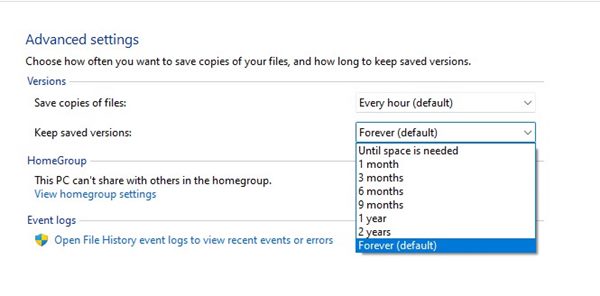
6. Select the dropdown for Keep saved versions and change it to your preference.
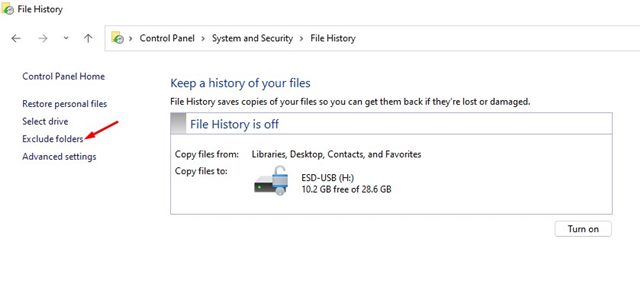
7. If you want to exclude any folder, click the Exclude folders option and add the folder you don’t want to back up.
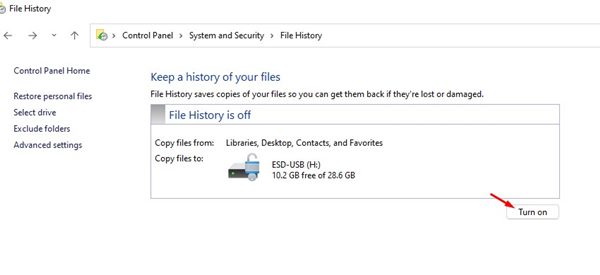
8. You need to return to the main File History screen and click the Turn on Button to enable the feature.
9. To disable the File History, click on the Turn off button.
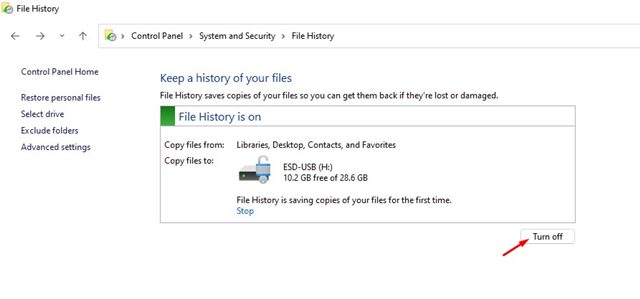
Important: The File History will only back up files from Libraries, Contacts, Desktop, and Favorites folders.
Windows 11 File History vs Backup
Windows 11’s file history feature backs up essential folders such as documents, music, pictures, videos, and desktop folders. It’s not a full-fledged backup tool, but it is excellent for backing up essential folders.
The other option is a System Restore point or Backup & Restore, which creates a restore point when you install a new driver, app, or Windows Update. Once a restore point has been created, it can revert the system state to resolve the problems.
The System Restore point won’t affect the files, but it removes all Settings, Apps, Drivers, and Updates installed after the restore point was created.
We already have a detailed guide on how to back up Windows 11. In that guide, we have shared all the ways to back up the data stored on a Windows 11 PC.
Setting up File History on Windows 11 is pretty straightforward. This feature allows you to back up your Windows 11 to an external drive. If you have any doubts, let us know in the comment box below.
The post How to Use Windows File History To Back Up Windows 11 Data appeared first on TechViral.
from TechViral https://ift.tt/yHEOp8t

