

The Microsoft Edge for PC keeps closing and opening randomly? The problem mainly appears while launching the Edge browser for the first time after a restart. So, if you’re a Microsoft Edge user facing similar issues, here’s what you should do.
1. Check Third-Party App Interference
Third-party app interference is the leading cause of Microsoft Edge closing upon opening. You need to recall whether you’ve just installed a third-party software or game and started to face the problem.
If it is, you need to remove the software or game from the PC. If you can’t recall the apps/games, you can prevent those apps from running on Startup from the Task Manager> Startup > Disable (apps).
2. Disable the VPN or Antivirus Software
Third-party security programs often come with a firewall system that can block Microsoft Edge from making a connection.
The same goes for VPN apps. So, you need to turn off the VPN software, Proxy settings, and third-party Antivirus software you’re using on your computer.
3. Disable the Extensions You Use on Microsoft Edge
If you can keep Microsoft Edge open on your computer, you can disable the extensions installed on the web browser.
1. Launch the Microsoft Edge browser on your computer.
2. Click on the three dots at the top right corner.

3. Select Extensions.
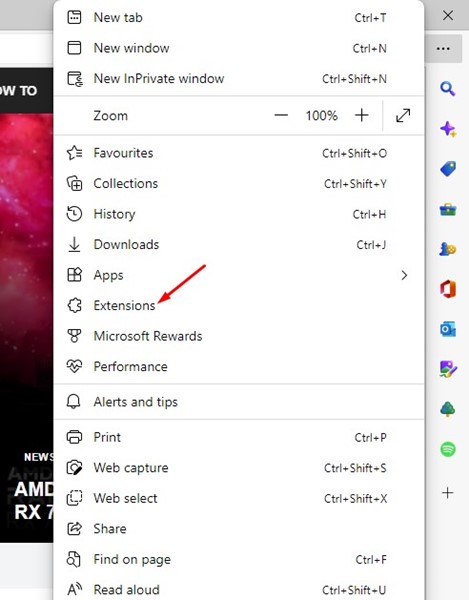
4. Turn off the extensions you don’t use or feel suspicious about.
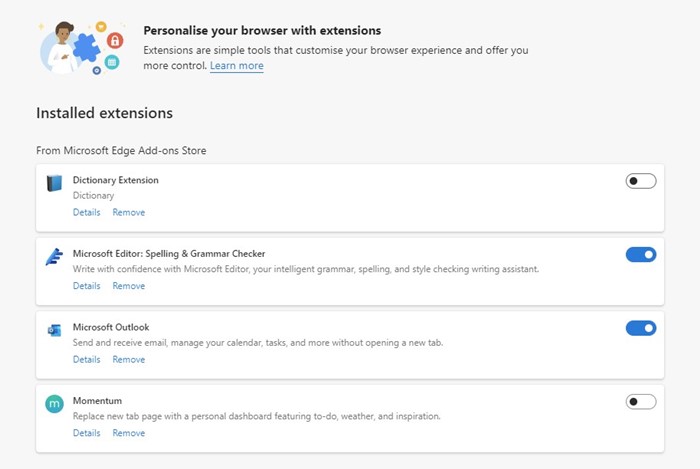
After making the change, relaunch the Microsoft Edge browser and check whether it still closes randomly.
4. Clear the Microsoft Edge Cache
An outdated or Corrupted Edge browser cache is another prominent reason for the browser keeps closing and opening randomly issue. You can try clearing the existing cache file and see if it helps.
1. Open the Microsoft Edge browser on your computer.
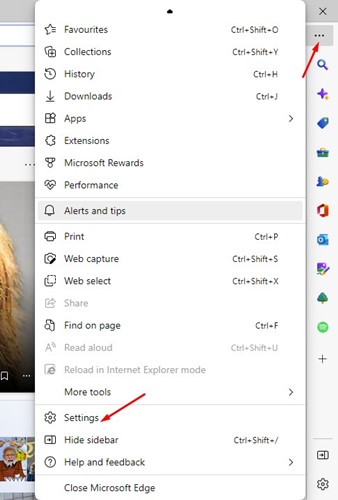
2. Click on the three dots (Edge Menu).
3. Click on Settings.
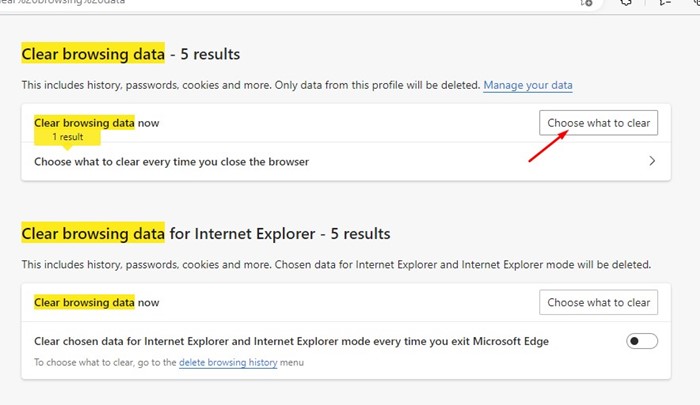
4. Type in Clear browsing data in Settings.
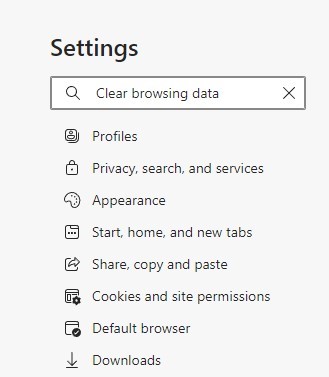
5. Click on the Choose what to clear button.
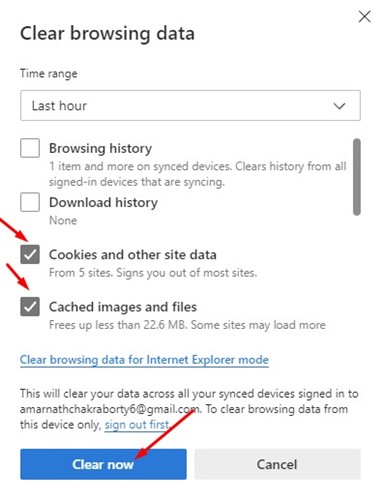
6. At the Clear browsing data prompt, select Cookies and other site data, Cached images, and files. Once selected, click Clear Now.
5. Repair the Microsoft Edge Browser
The next best thing you can do to fix Microsoft Edge, which keeps closing and opening by itself, is to repair the web browser.
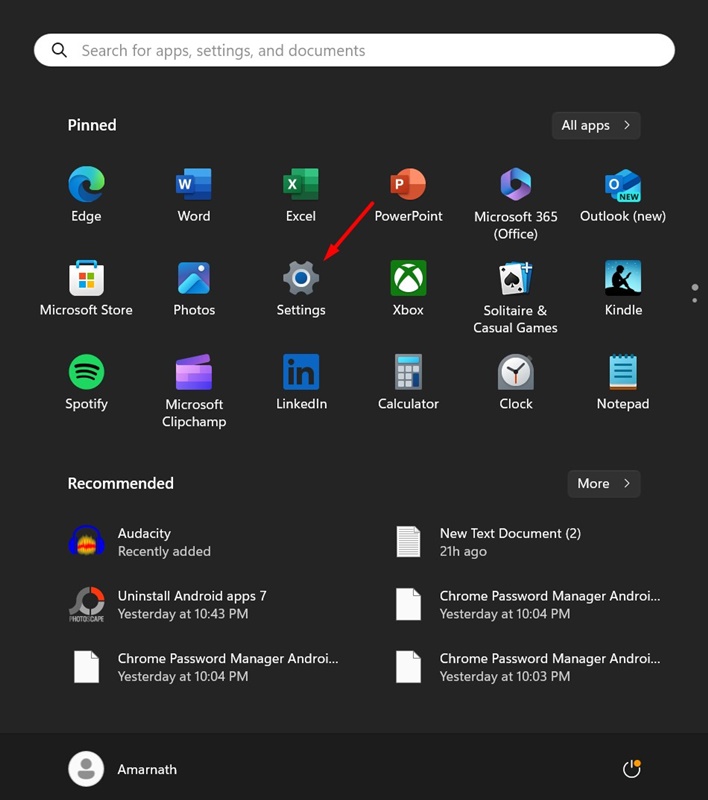
1. Click the Windows 11 Start button and select Settings.
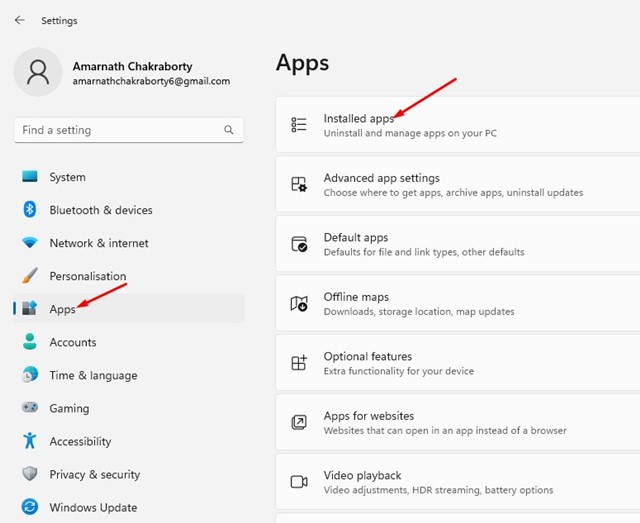
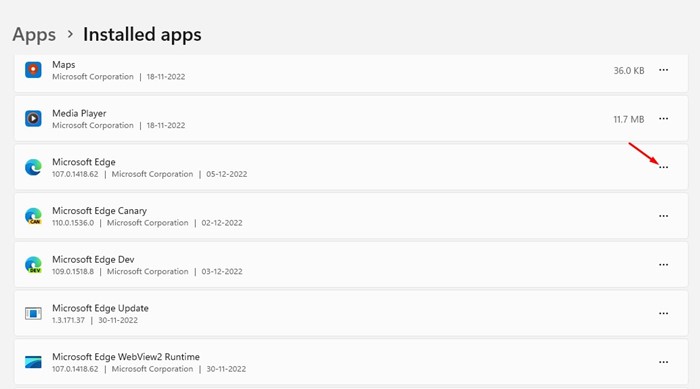
2. Navigate to the Apps > Installed Apps.
3. Find the Microsoft Edge browser and click on the three dots next to it.
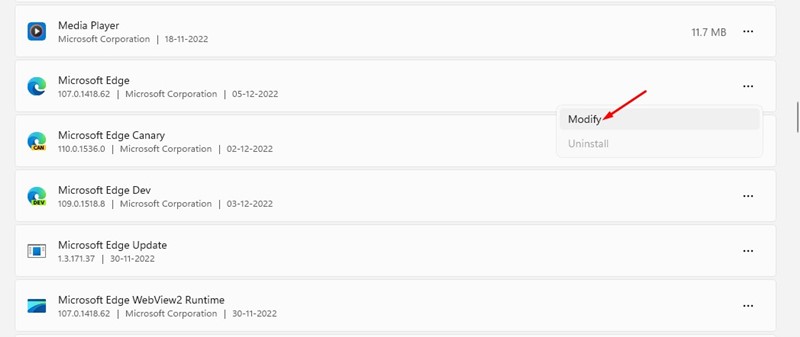
4. Select Modify.
5. On the Repair Microsoft Edge prompt, click on Repair.
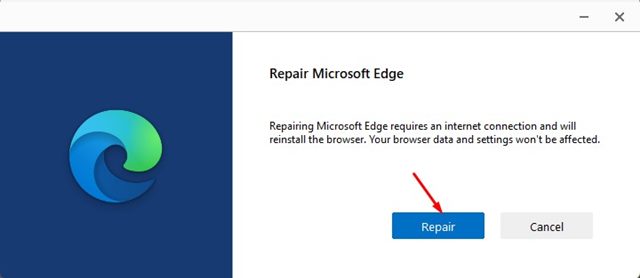
This will repair the Microsoft Edge browser on your computer. After the process, continue using the web browser and check if the issue persists.
6. Delete the LevelDB Folder
Many Microsoft Edge users have found the fix for the browser closing immediately upon opening the issue. You can try deleting the LevelDB folder from the following path.
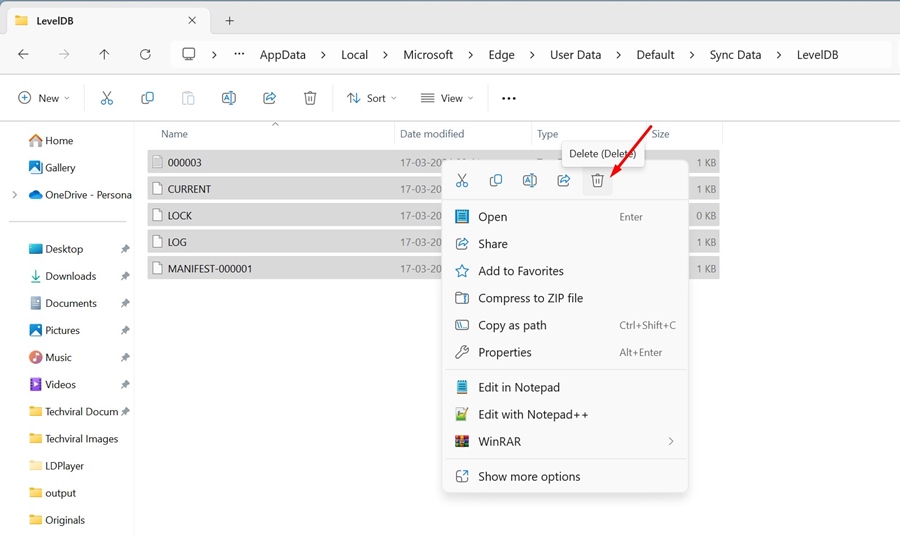
- Open the File Explorer on your Windows 11 PC.
- Navigate to the path we have shared below:
C:\Users\username\AppData\Local\Microsoft\Edge\User Data\Default\Sync Data\LevelDB
Note: Replace <username> with the actual username of your Windows user account.
- Delete all files present in the LevelDB folder.
After deleting the files in that folder, launch the Microsoft Edge browser and check whether you are still facing the issue.
7. Scan your PC with Malwarebytes
Even though Windows Security is excellent, some malware can still go through the security protection and create unusual problems. The Microsoft Edge browser may be infected with malware; hence, it automatically closes and opens.
You should perform a full PC scan with Malwarebytes, which is more powerful than Windows Security.
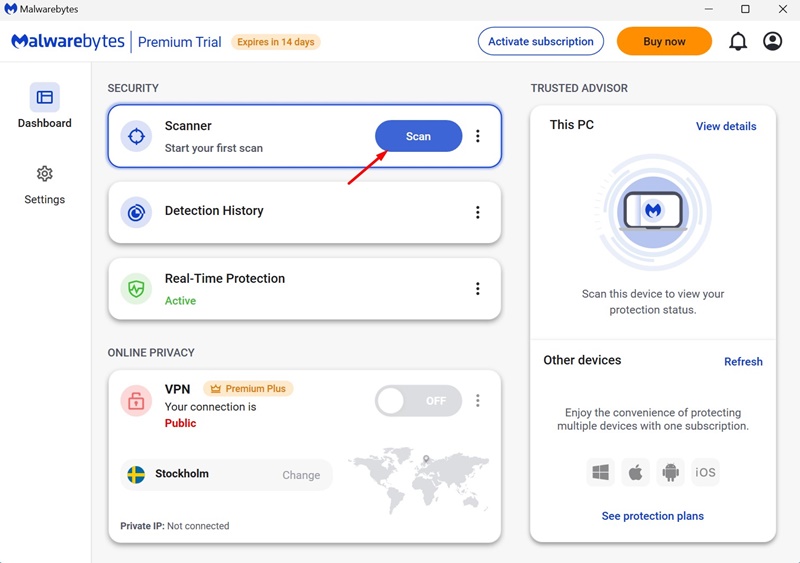
1. Download & install the latest version of Malwarebytes on your computer.

2. Launch the app and switch to the Dashboard.
3. Click on the Scan button beside the Scanner.
8. Perform a Clean Boot
A clean boot will disable all third-party processes and run only on selected Microsoft processes. Check whether the Microsoft Edge keeps opening and closing issue is fixed on Clean Boot.
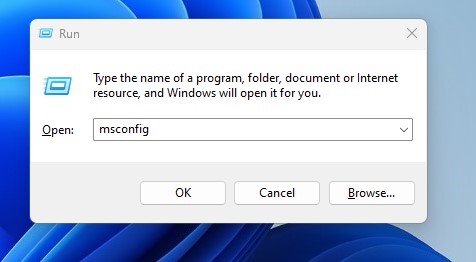
1. Press the Windows Key + R to open the RUN dialog box. On the RUN dialog box, type msconfig and press Enter.
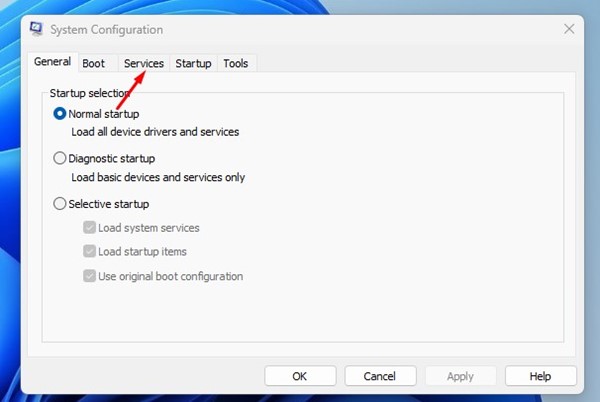
2. Switch to the Services.
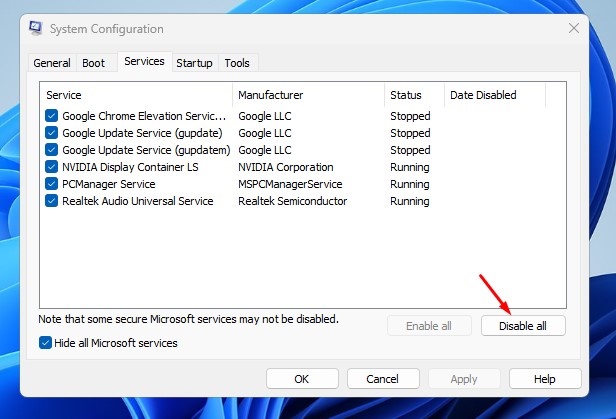
3. Check the Hide all Microsoft Services and click Disable all.
4. Open Task Manager and switch to Startup. On the Startup, right-click on the applications and select Disable.
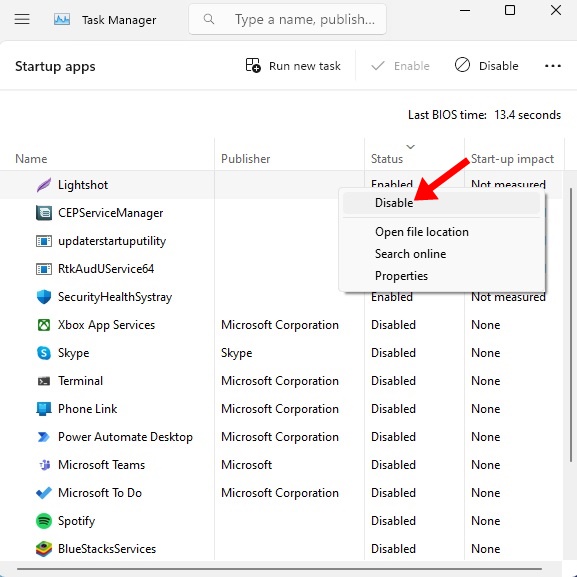
5. Close Task Manager and click Apply.
After making the change, restart your PC. This will clean boot Windows 11. Now you need to check if Microsoft Edge still acts weird.
These are some of the best and most effective methods to fix Microsoft Edge’s keeping opening and closing issue on Windows. Let us know if you need more help on this topic in the comments.
The post Microsoft Edge Keeps Closing and Opening? 8 Ways to Fix it appeared first on TechViral.
from TechViral https://ift.tt/OafkK3e

