

Did you know some files and folders remain even after uninstalling an app? These are known as leftover files; over time, they can fill up the storage and slow down your device. In this article, we will share some of the best methods for removing leftover files and folders after uninstalling apps on Android.
1. Clean it By Yourself
If you don’t want to install third-party apps to clean those junk files, manually clean the leftover files before the uninstallation process.
1. Open the Device Settings and choose Apps.
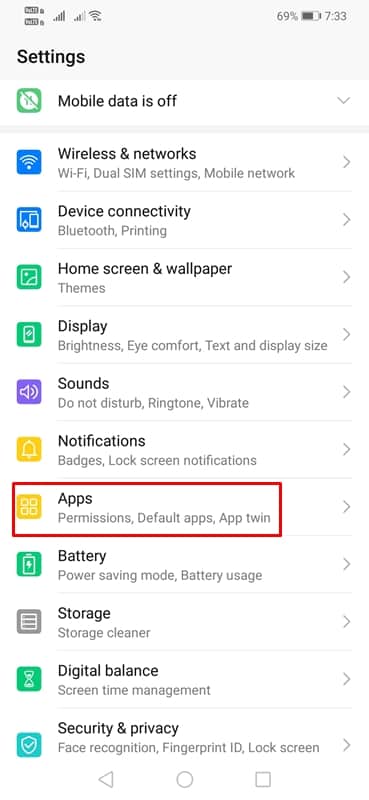
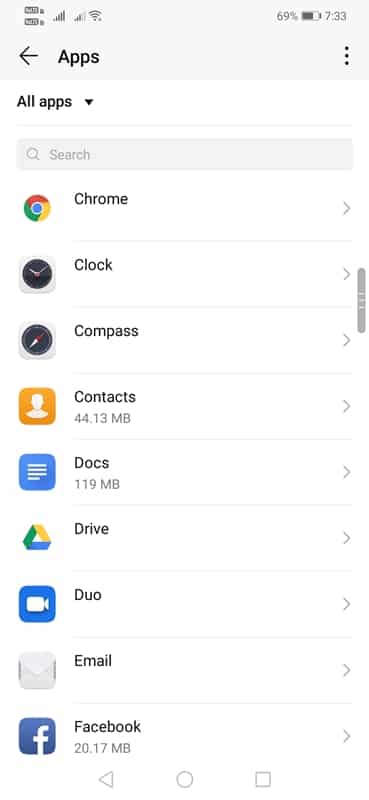
2. Pick the app that you are about to uninstall
3. Tap on the Clear data and Clear Cache.
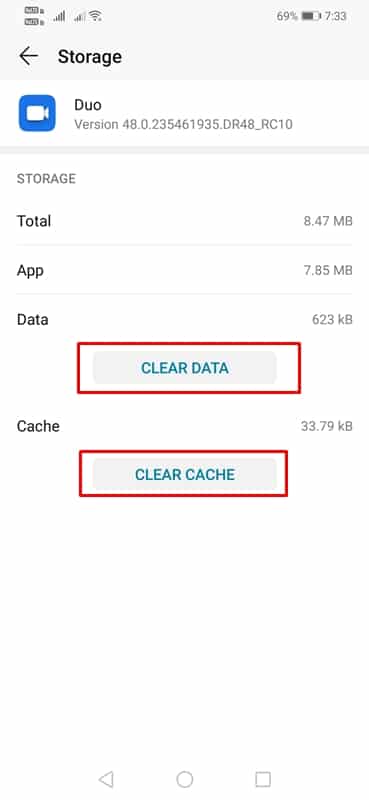
This will wipe out the additional data that the app has already installed. Now, you can uninstall the app without worrying about the leftover files and folders.
2. Remove Leftover files using SD Maid
This great app can be used to remove leftover files and folders from your Android device. It is generally excellent for cleaning up storage space and speeding up Android.
1. Download & Install SD Maid on your Android.
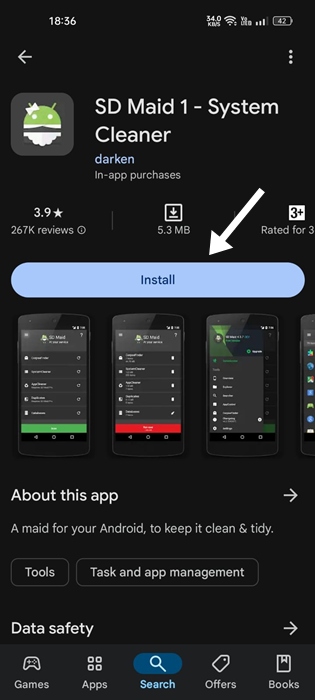
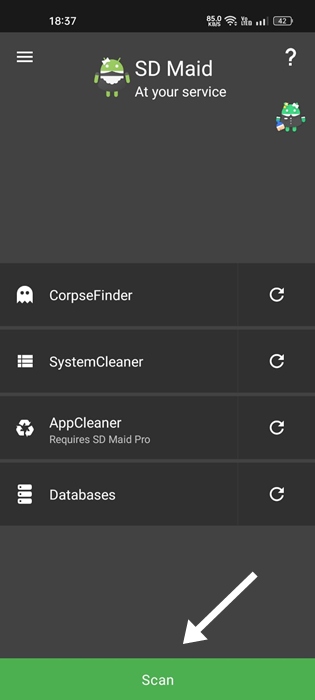
2. When the app installs, open it. On the main screen, tap Scan.
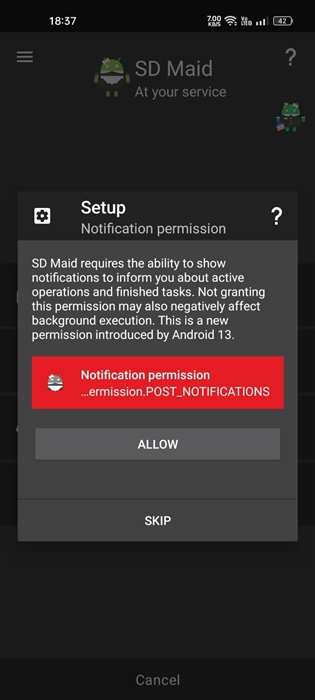
3. Grant the permissions that the app asks for. Grant all permissions.
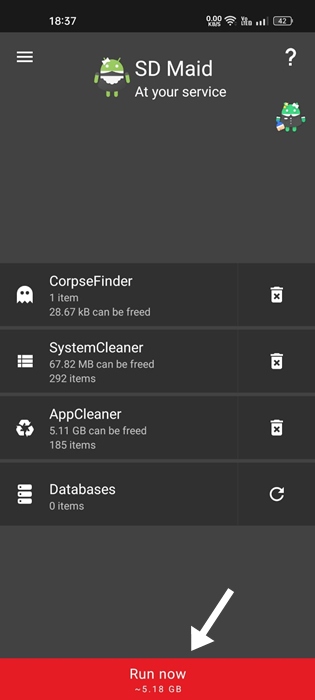
4. The app will automatically analyze the files that can be deleted. Tap the Run Now button at the bottom.
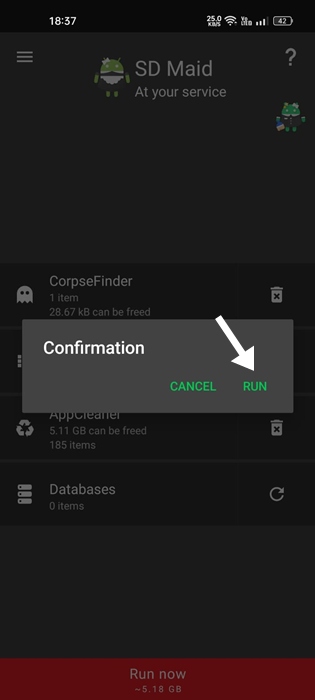
5. On the confirmation prompt, tap Run.
3. Using Revo Uninstaller Mobile
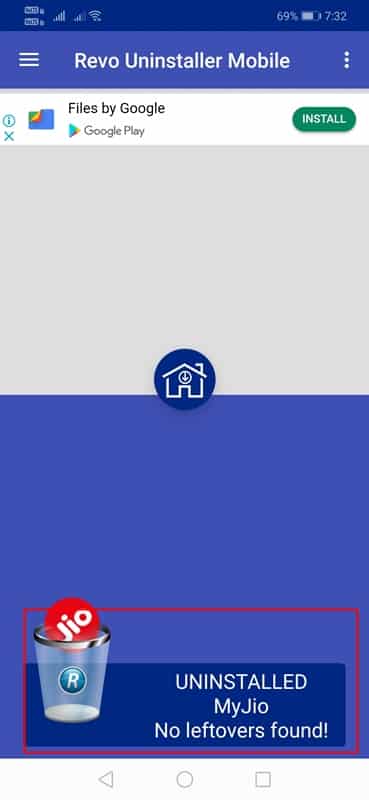
Revo Uninstaller Mobile not only uninstalls apps but also removes the leftover files automatically. Here’s how you can use Revo Uninstaller Mobile to remove leftover files & folders after uninstalling apps.
1. Download & install Revo Uninstaller Mobile.
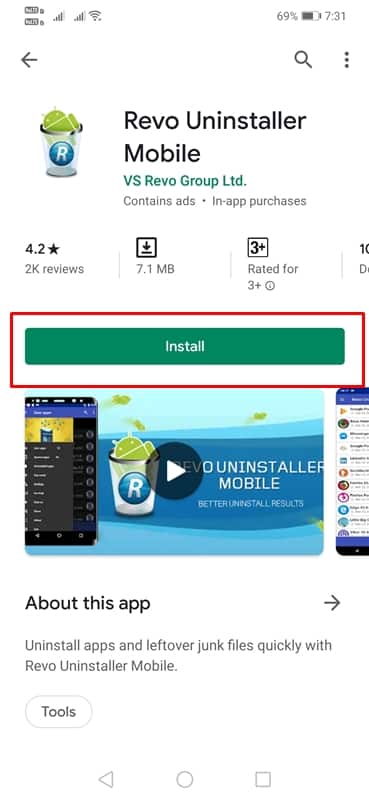
2. Launch the app from your Android app drawer.
3. It will show you the list of apps installed on your device.
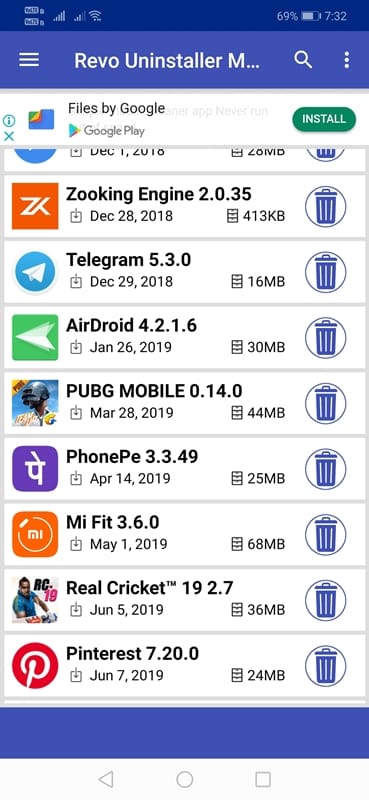
4. Select the app that you want to uninstall.
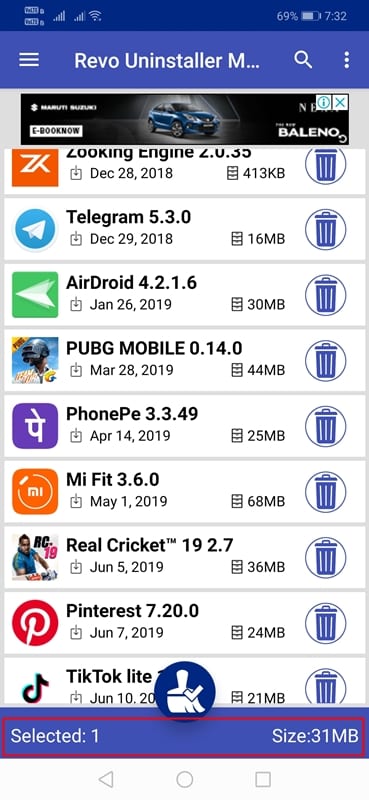
5. Tap on the Clean icon on the screen.
6. Select Uninstall.
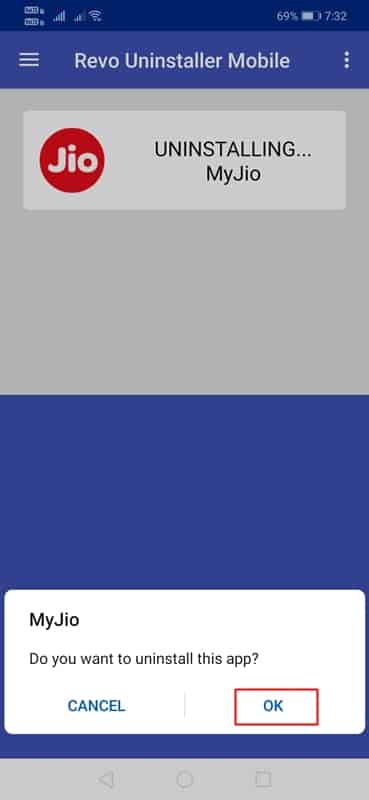
6. Wait for a few seconds until Revo Uninstaller uninstalls and removes the leftover files.
4. Using Files by Google
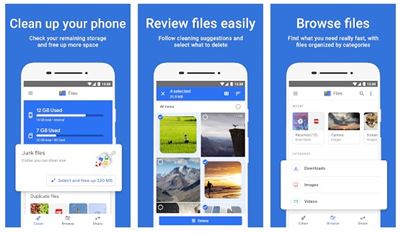
Files by Google is a file manager app made by Google for Android smartphones. With Files by Google, you can free up your storage space, find files faster, share files offline, back up files to the cloud, and more.
The app also has a storage cleaner that cleans junk and leftover files from your system. Also, it allows you to share pictures, videos, and other file types via a WiFi network.
These are the best methods to remove leftover files and folders from the Apps on your Android smartphone.
I hope this article helped you! Please share it with your friends as well. In the comment box below, let us know if you know other methods to eliminate the leftover files.
The post How To Remove Leftover Files After Uninstalling Apps on Android appeared first on TechViral.
from TechViral https://ift.tt/eOvTbzL

