

A few Chrome extensions might modify the Chrome settings and prevent it from starting. Some malicious extensions can even crash tabs in the Chrome browser. If you’re looking for ways to deal with the Chrome extensions issue, it’s best to start Chrome without extensions. Here’s how you can do it.
Start Chrome Without Extensions
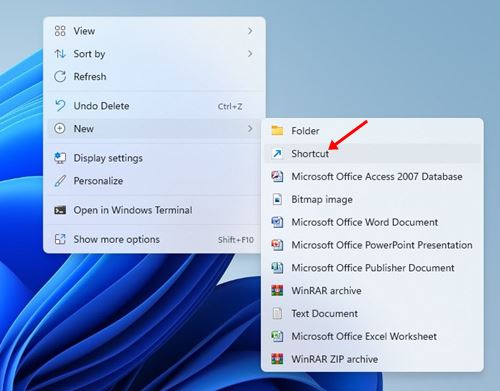
1. Right-click anywhere on your screen and select New > Shortcut.
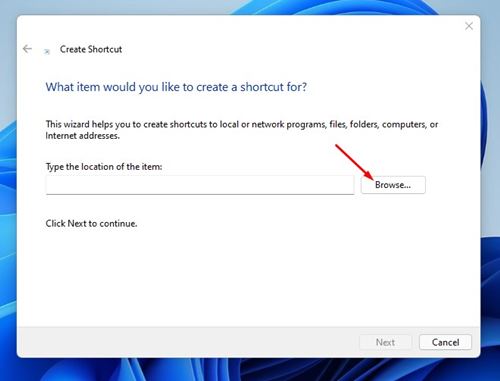
2. Click on Browse.
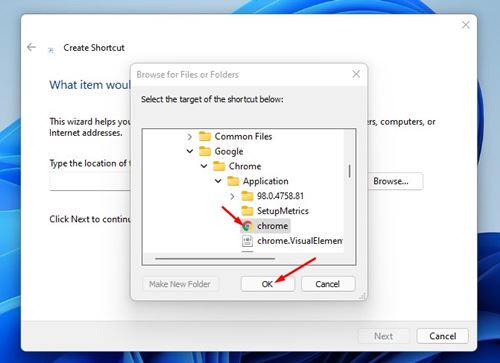
3. Navigate to the location where the Google Chrome browser is installed. Select the Chrome.exe file and click OK.
4. Click the text input box just after the last quotation mark, press space once, and add the following text: –disable-extensions
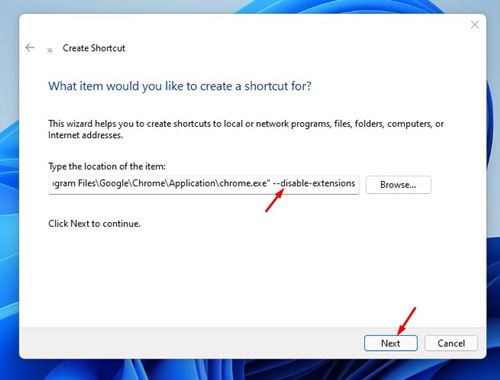
5. The final result would look something like this:
"C:\Program Files\Google\Chrome\Application\chrome.exe" --disable-extensions
6. Click on Next.
7. Enter the name of your new shortcut. Name it like Google Chrome (No Extensions), and click Finish.
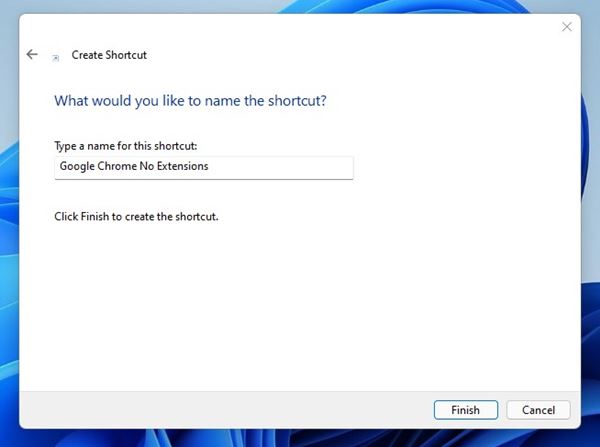
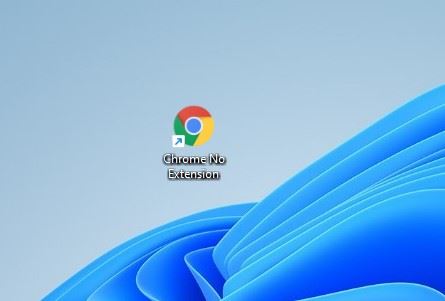
8. You will find a new ‘Google Chrome (No Extensions)’ shortcut on the desktop. Double-click on this shortcut to launch Chrome without any extensions.
Run Chrome in Incognito Mode
The Incognito mode of the Google Chrome browser turns off all extensions. So, if you want to start Chrome without extensions on Windows, you can try running it in incognito mode.
1. Right-click on a blank space on your desktop and select New > Shortcut.
2. Click on the Browse button.
3. Browse to the location where Chrome is installed and select the Chrome.exe file. Once selected, click Ok.
4. On the type the location of the item field, just after the last quotation mark, press space once, and add the following text: -incognito
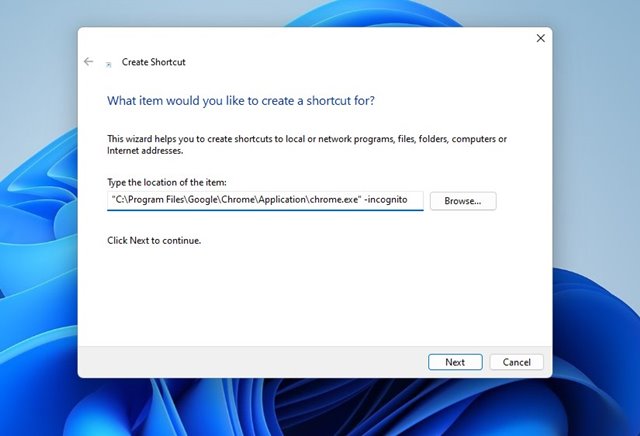
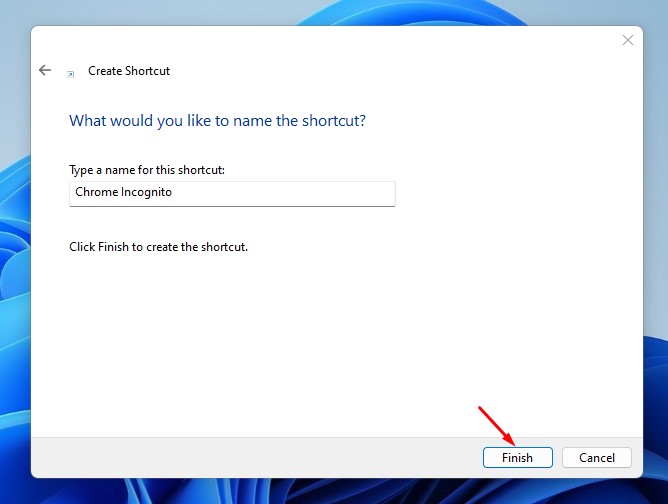
5. Click on Next. Then, on the Create Shortcut prompt, type the name for the shortcut and click Finish.
6. When you want to run Chrome without extensions, double-click the newly created shortcut. This will open the browser in incognito mode with no extensions enabled.
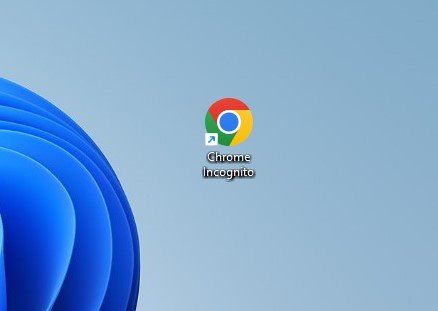
If your Chrome browser is not opening due to a malicious extension, you can use this shortcut to launch Google Chrome. After launching Chrome, open the Extension page and remove the extension, preventing the browser from launching correctly. If you have any doubts, let us know in the comment box below.
The post How to Start Chrome Without Extensions on Windows 11 appeared first on TechViral.
from TechViral https://ift.tt/TeHUX3V

