

WiFi Signal Strength is a crucial factor in internet speed and stability. Here are some of the best ways to check WiFi signal strength on Windows 11.
1. Check WiFi Signal Strength from the Taskbar
You can quickly check the WiFi signal strength on Windows 11 via the Action Center.
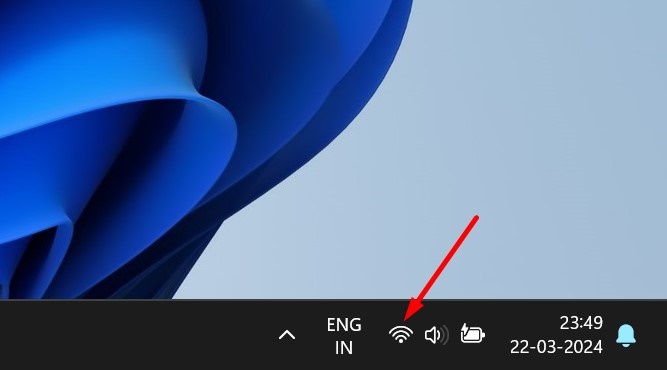
1. Click the Network Icon in the bottom right corner of the screen.
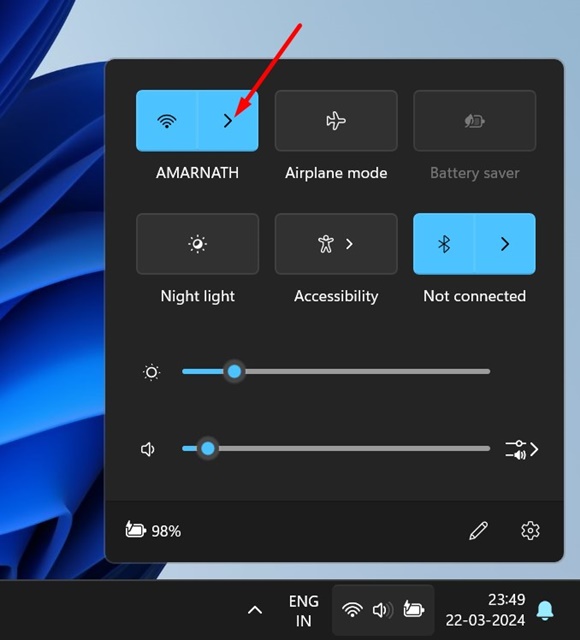
2. Click on the arrow icon beside the WiFi networks.
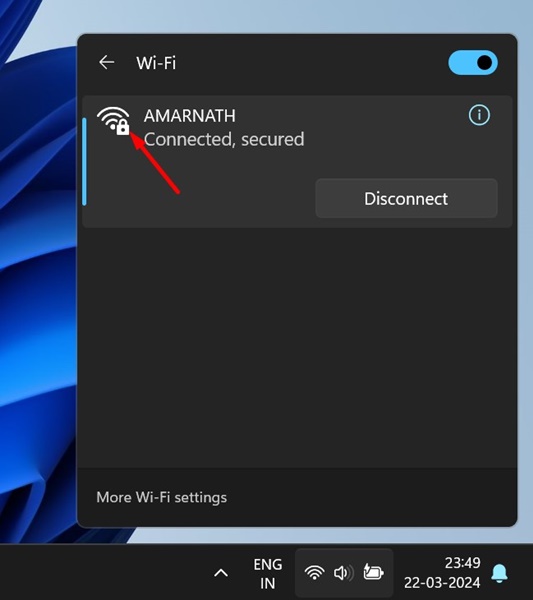
3. You can check the signal strength by looking at the number of bars beside the WiFi network you’re connected to.
2. How to Check WiFi Signal Strength from Settings
The redesigned Settings app of Windows 11 tells you many details about the WiFi, including its signal strength.
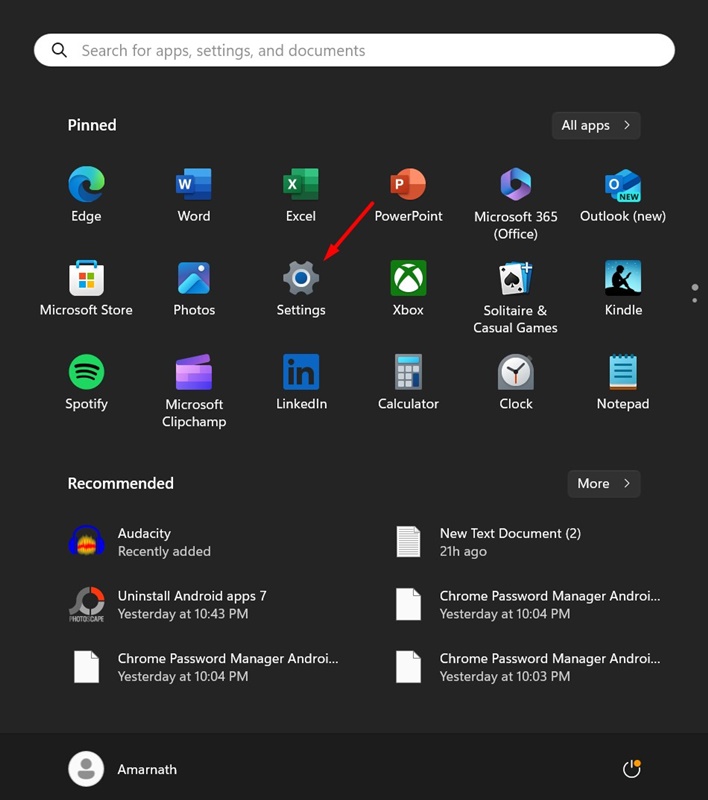
1. Click on the Windows 11 Start button and select Settings.
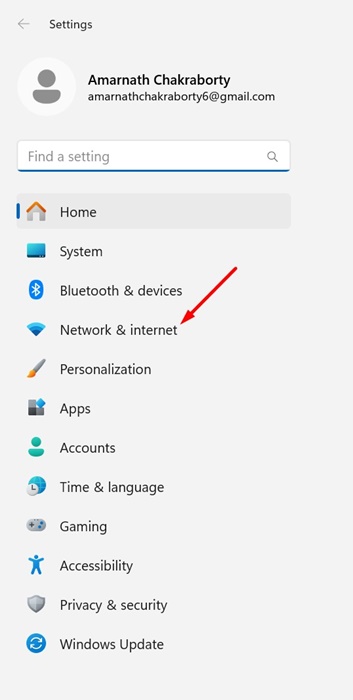
2. Switch to Network & Internet.
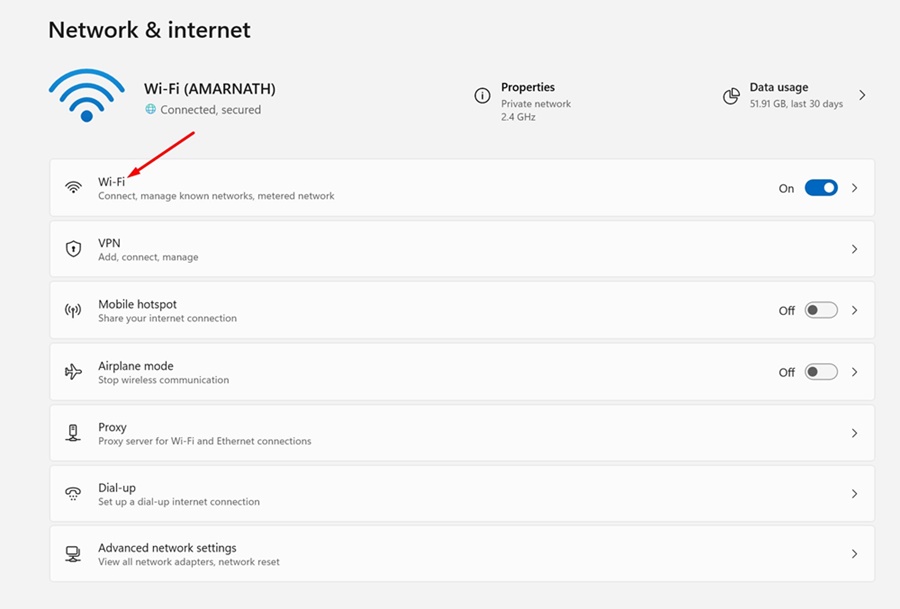
3. Click WiFi.
4. Check the number of signal bars that appear next to the WiFi network you’re currently connected to.
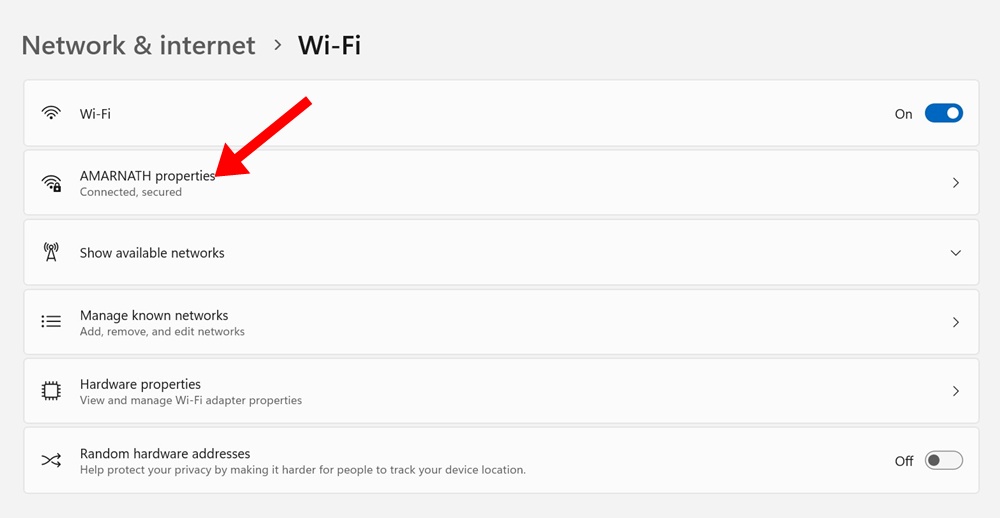
If you have fewer than four bars, it means the WiFi signal strength is poor. All for bars means the signal strength is excellent.
3. Check WiFi Signal Strength from the Control Panel
If you cannot access the Action Center, you can also check the WiFi quality from the Control Panel.
1. Open the Control Panel app.
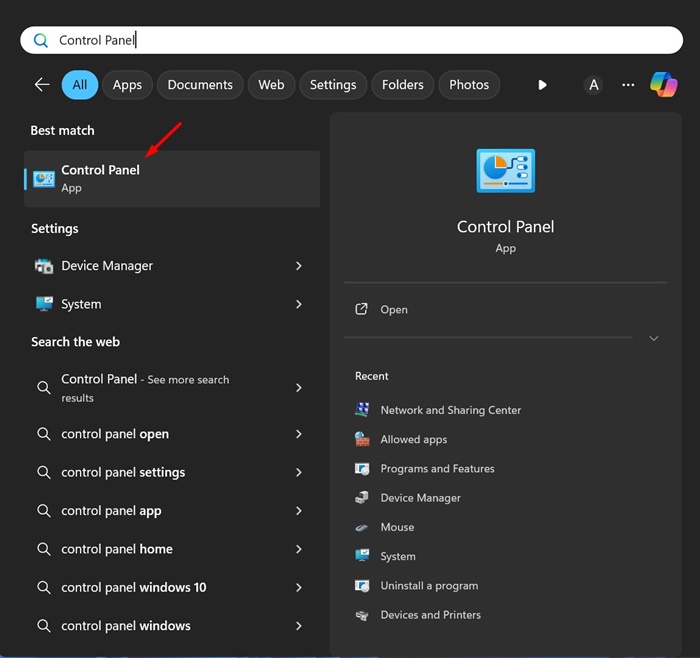
2. Click on Network and Sharing Center.
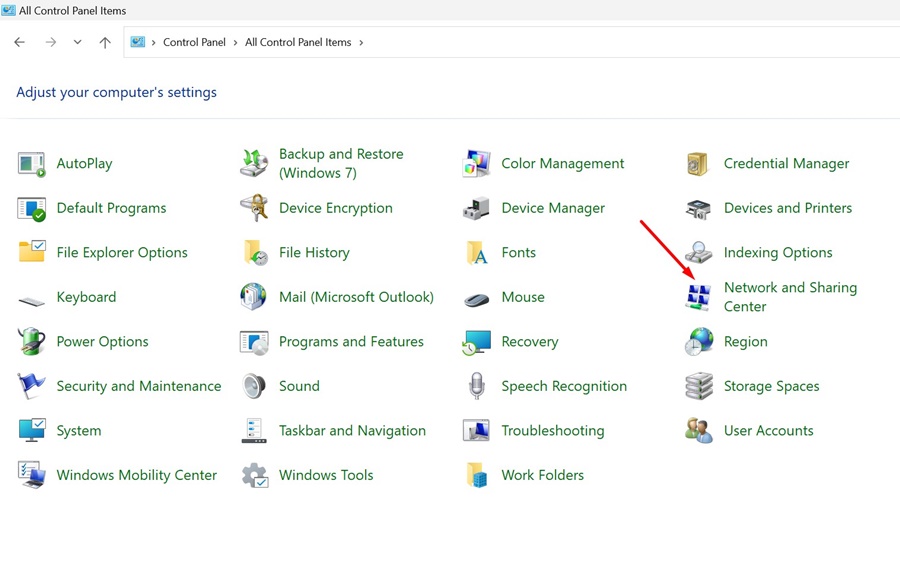
3. You can see the WiFi network you’re currently connected to.
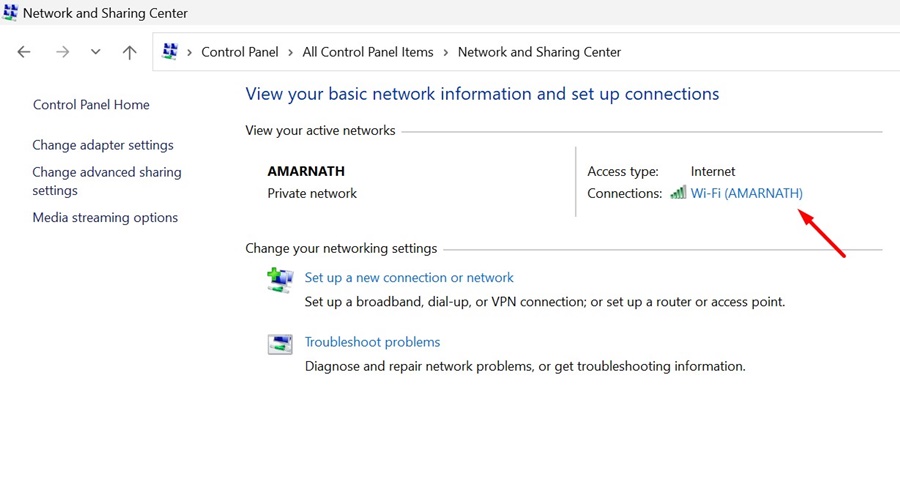
4. The WiFi Signal Strength will appear next to your connected network.
4. Check WiFi Signal Strength via PowerShell
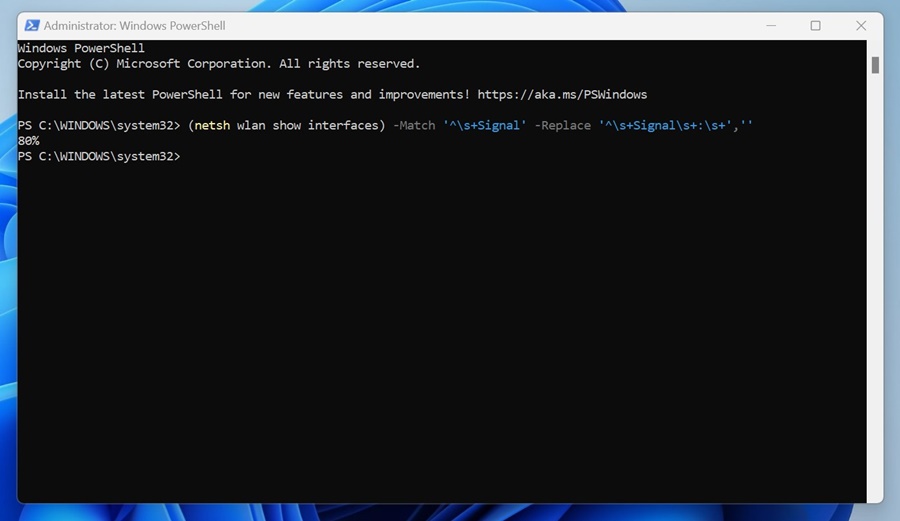
PowerShell utility can also be used to find the percentage of the WiFi signal strength.
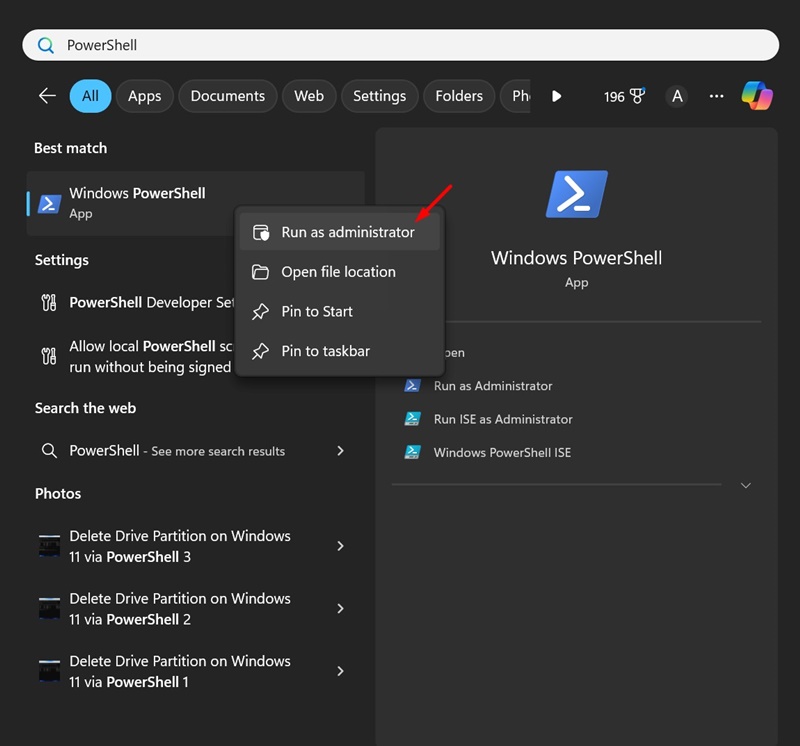
1. Type in PowerShell in the Windows 11 Search. Next, right-click on Windows PowerShell and select Run as administrator.
2. Execute this command:
(netsh wlan show interfaces) -Match '^\s+Signal' -Replace '^\s+Signal\s+:\s+',''
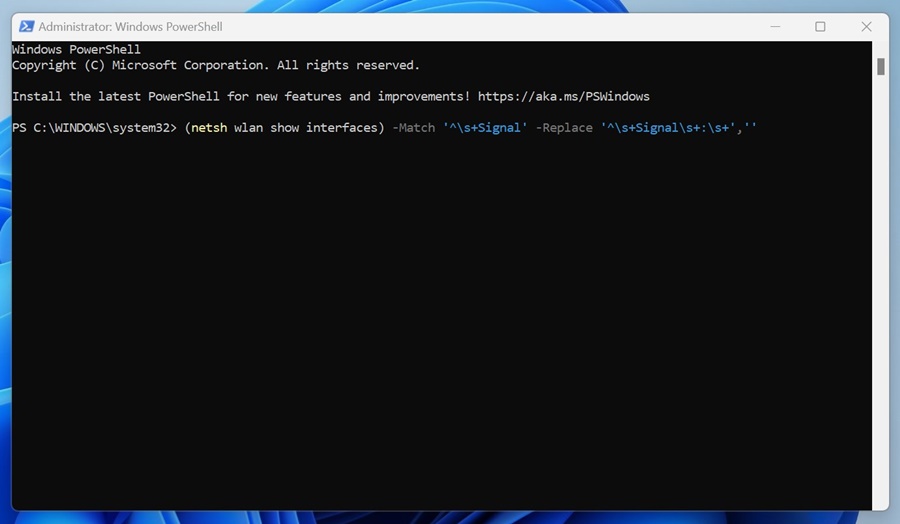
3. The command will show you a percentage from 0 to 100. The 0 percent means no signal, and the 100 percent means the WiFi Signal Strength is excellent.
These are some simple methods for checking the WiFi Signal Strength on Windows 11. Let us know if you need more help with this topic.
The post How to Check WiFi Signal Strength on Windows 11 appeared first on TechViral.
from TechViral https://ift.tt/J6tr2wK

