

You can hide a specific drive in your Windows 11 PC. For that, you need to make some changes to the Local Group Policy Editor. Here’s how you can hide a specific drive in Windows.
1. Press the Windows Key + R button together to open the RUN dialog box.
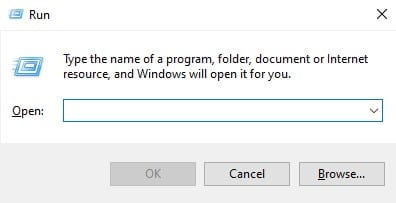
2. Enter the term gpedit.msc and press Enter.
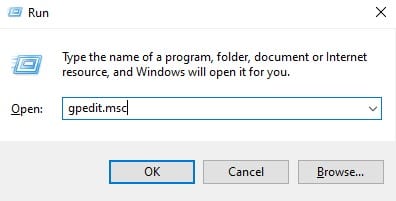
3. The above command will open the Local Group Policy Editor.
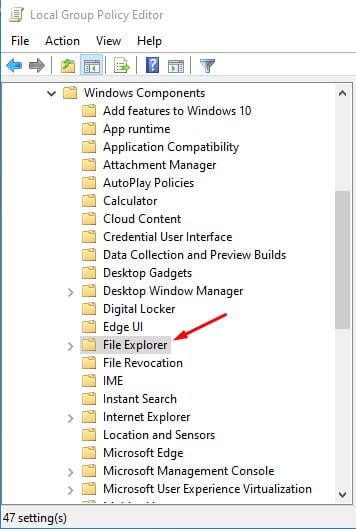
4. Navigate to the path: User Configuration > Administrative Templates > Windows Components > File Explorer.
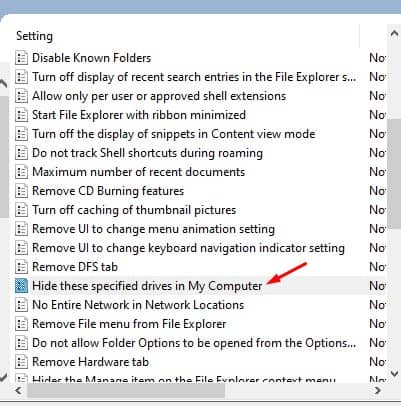
5. Find and double-click on the option Hide these specified drives in My Computer.
6. Select Enabled. Pick one of the following combinations, choose the drive you want to hide.
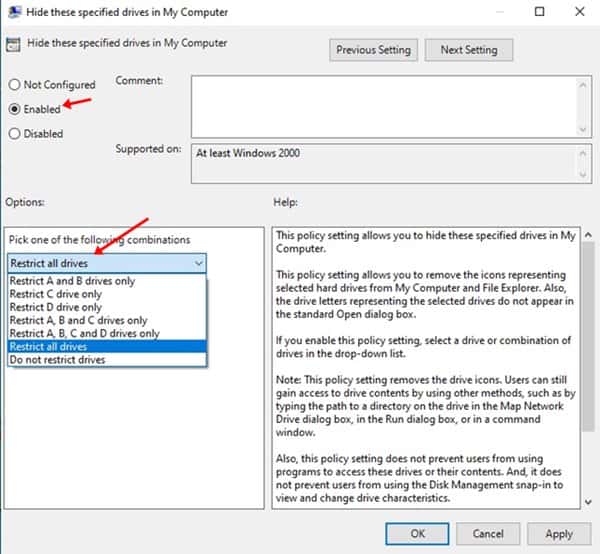
7. You can hide multiple drives from the same page. Once done, click on Apply and Ok.
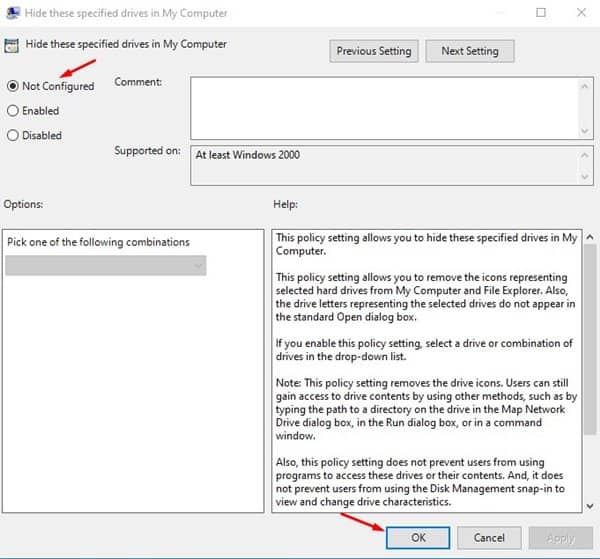
8. To revert the changes and unhide the drives, select Not Configured on Step no. 6.
This article is all about how to hide specific drives in Windows. I hope this article helped you! Please share it with your friends also. If you have any doubts related to this, let us know in the comment box below.
The post How to Hide Any Specific Drive in Windows appeared first on TechViral.
from TechViral https://ift.tt/0vnqd1g

