

The Secure Frame Server Helper, also known as fslso.exe, is a process that runs when the facial recognition feature is used with Secure Biometrics Windows Services. What this process does is still questionable because it’s not clear yet, but it’s related to the facial recognition feature. This process can sometimes raise your CPU usage. If it’s currently doing so, here’s what you should do.
1. Restart your PC

It’s possible that Windows downloaded some updates in the background, but the installation is pending a restart.
When this happens, the process may get stuck in the background due to some conflicts. So, it’s best to restart your computer.
Restarting will also remove the bugs and glitches that may be preventing the Secure Frame Server Helper process from functioning properly.
2. Disable Windows Hello for Sign-in Options
Disabling the Windows Hello sign-in option has helped many users fix the Secure Frame Server Helper high CPU usage problem.
1. Press the Windows Key + R button on your keyboard.
2. Type gpedit.msc and press Enter.
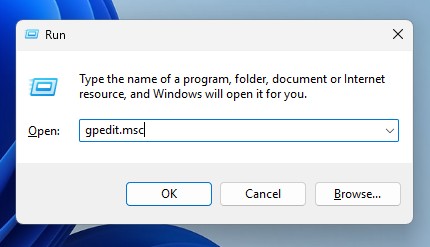
3. Navigate to this path:
Computer Configuration -> Administrative Templates -> System -> Logon.
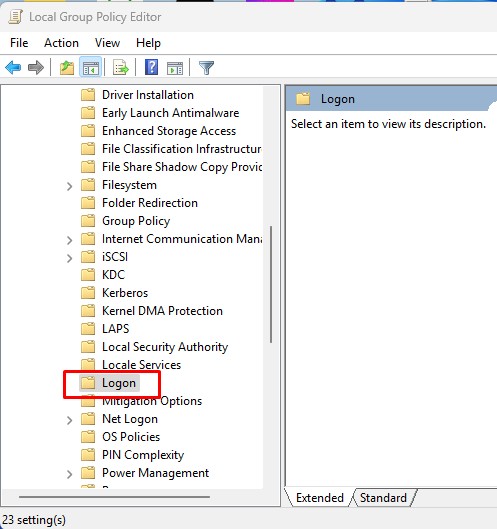
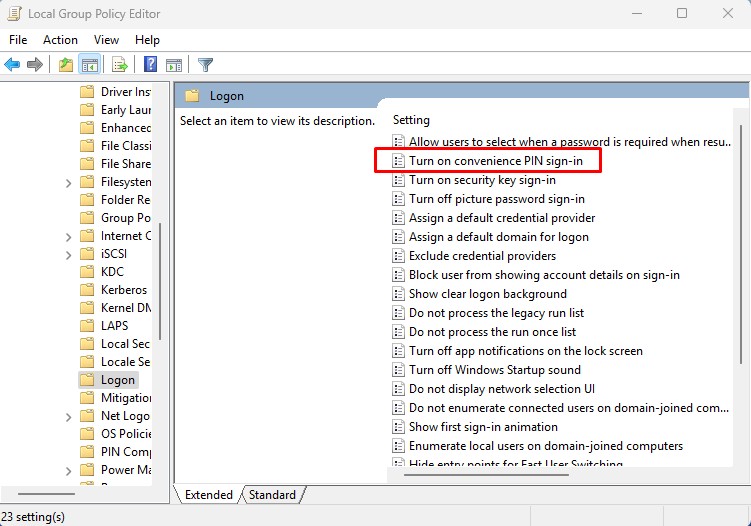
4. Double-click on Turn on convenience PIN sign-in.
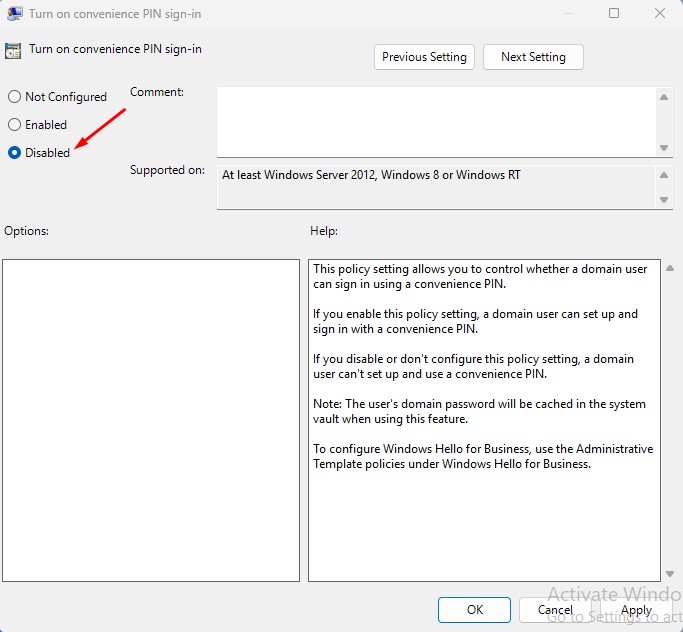
5. Select Disabled.
6. You also need to disable the other Windows Hello Options in the Logon folder of Local Group Policy Editor.
3. Run a Microsoft Defender Offline Scan
Malicious programs can affect the secure frame server helper process, causing it to use too many CPU resources. To reduce the possibility of a malware attack, you need to run the Microsoft Defender Offline Scan.
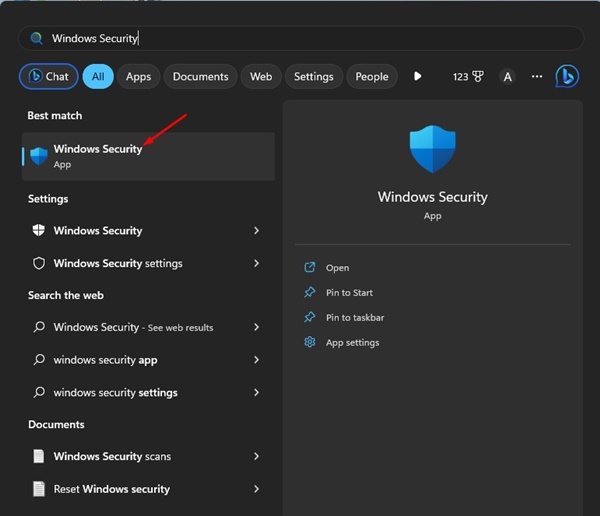
1. Open the Windows Security app from the Windows Search.
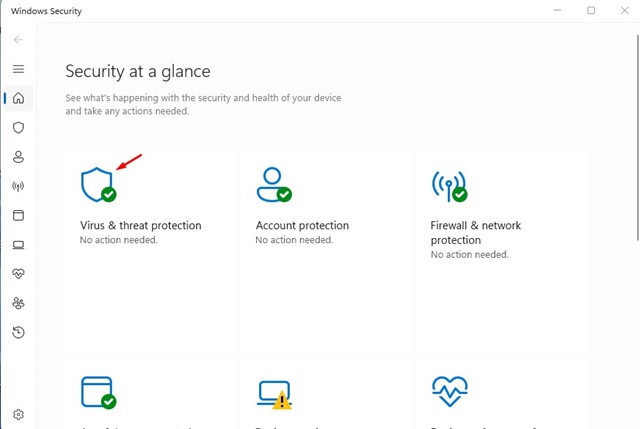
2. Switch to Virus & threat protection.
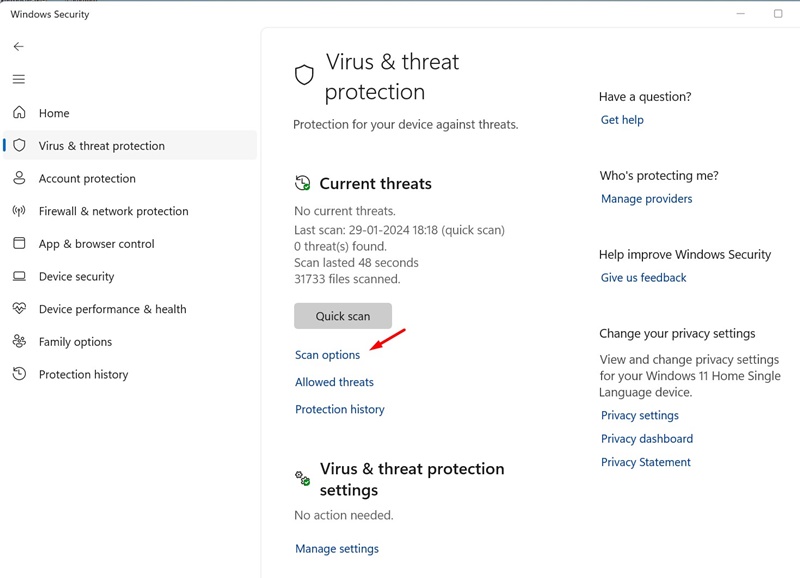
3. Click Scan options.
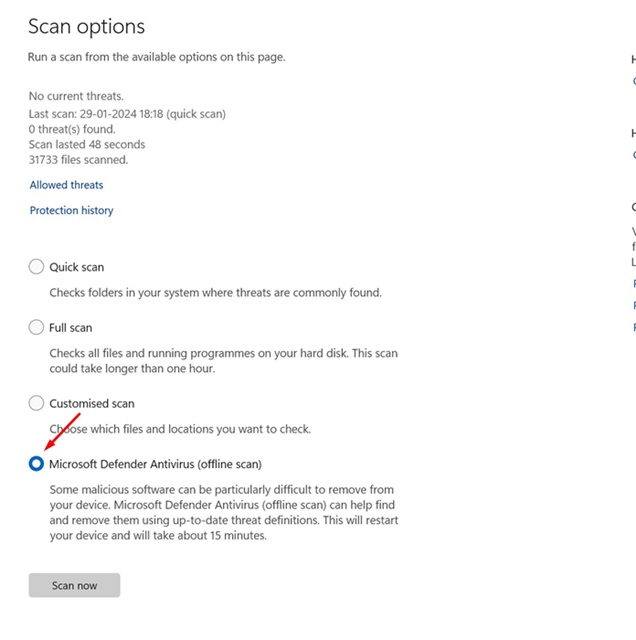
4. Select Microsoft Defender Antivirus (Offline Scan) and click Scan Now.
5. On the Save your work confirmation prompt, click Scan.
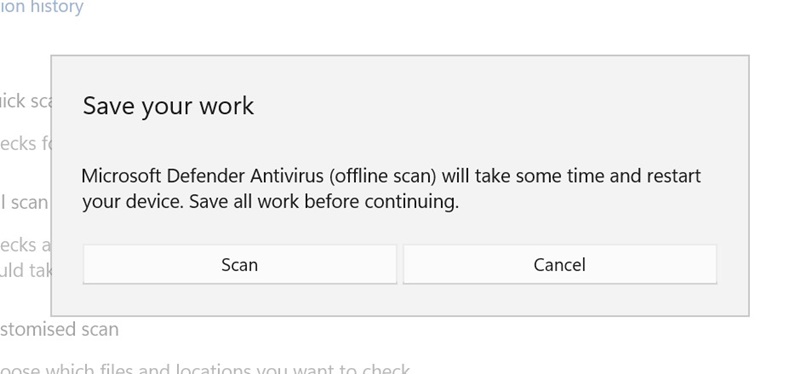
Your device will restart into WinRE, and the offline scan will run. The scan will take around 15 minutes to complete.
4. Turn Off the AVG Antivirus
The Secure Frame Server Helper problem is mainly faced by users who are using AVG antivirus. The problem is usually linked to the use of AVG antivirus, and disabling it would free up resource consumption.

To disable AVG Antivirus, right-click on the icon in the system tray. On the right-click menu, turn off the toggle next to Protection.
5. Uninstall the AVG Antivirus
If disabling the AVG Antivirus didn’t fix the problem of Secure Frame Server Helper (fslso.exe) causing high CPU usage, you need to uninstall it.
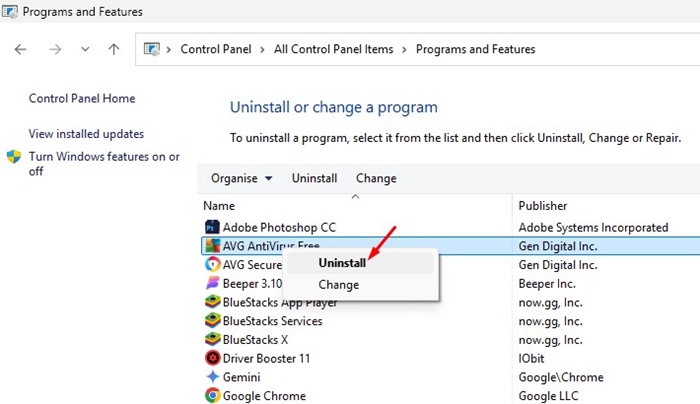
Simply head to the Control Panel, right-click on AVG Antivirus, and select Uninstall. After uninstalling, restart your computer and check whether the fslso.exe process still causes extremely high CPU usage.
These are a few simple ways to fix Secure Frame Server Helper (fslso.exe) high CPU usage on Windows. If you need more help on this topic, let us know in the comments.
The post Secure Frame Server Helper High CPU Usage: How to Fix it appeared first on TechViral.
from TechViral https://ift.tt/dBiyMSa

