

While troubleshooting BSOD errors, the technician might ask you to provide the startup and shutdown history. Here’s how you can check the startup and shutdown history in Windows 11.
1. Track Startup & Shutdown History via Event Viewer
We will use the Windows Event Viewer utility to track startup and shutdown history in this method.
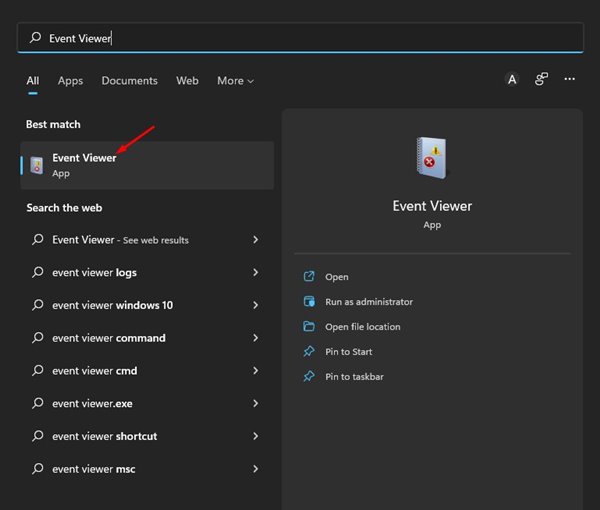
1. Open Event Viewer from the Windows Search.
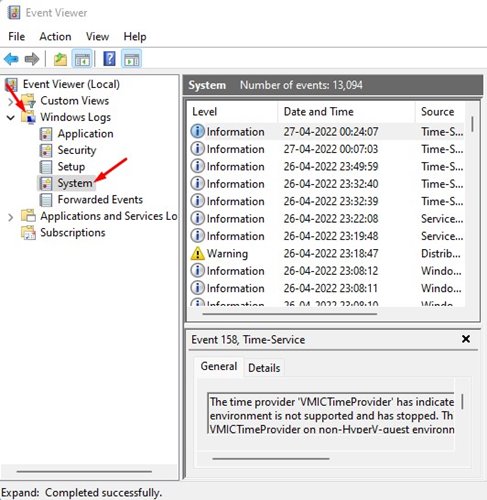
2. Navigate to the Windows Logs > System.
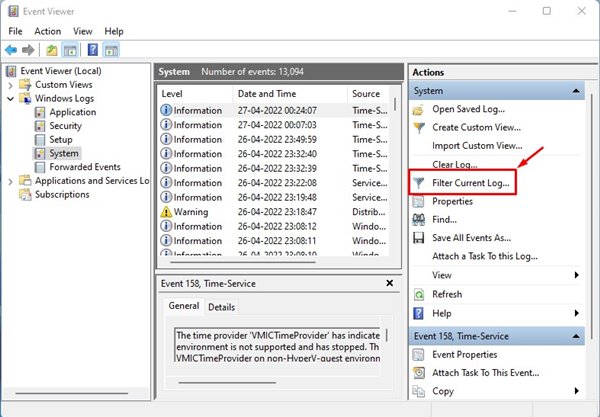
3. Double-click the Filter Current Log.. option on the right pane.
4. Type the Event ID to check the Startup and shutdown logs. Enter the IDs 6005 and 6006. Once you’ve done that, click Ok.
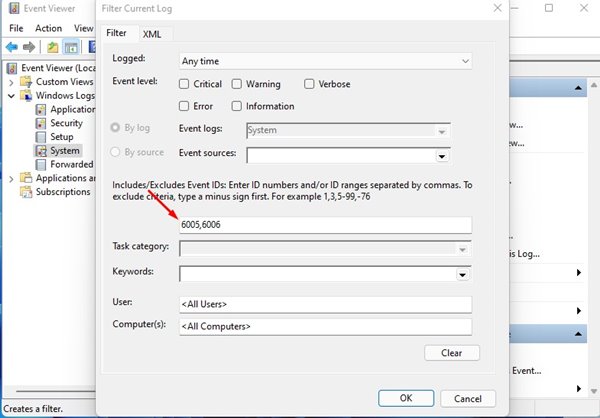
- ID 6005: This showed the event log when it was started (Windows 11 Startup)
- ID 6006: This shows when the event log has stopped (Windows 11 Shutdown)
5. You will see all your Startup and Shutdown history of Windows 11.

Other Event ID to look for?
You should also look at the following ID numbers to check the startup and shutdown history.
41: This event is triggered when the device doesn’t restart correctly using the clean shutdown first. You will see this if your PC stops responding, crashes, or loses power unexpectedly.
1074: This event is triggered when a manual shutdown or restart is initiated. You will also notice it when your PC restarts automatically to apply updates.
6008: This event indicates that the previous device shutdown was unexpected. If the Event ID 41 appears, you will also see 6008.
2. Check Startup & Shutdown History via Command Prompt
If you’re comfortable handling the Command Prompt, here’s how you can use it to check the Startup & Shutdown history.
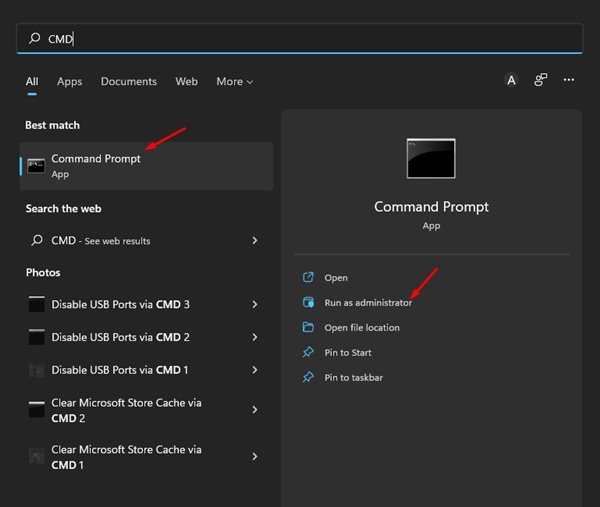
1. Type in Command Prompt in Windows Search. Right-click on the Command Prompt and select Run as administrator.
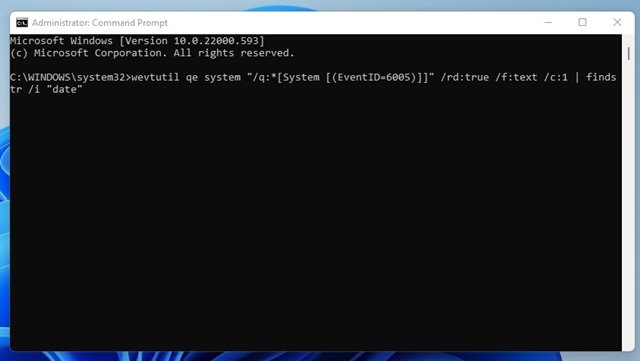
2. Execute the command:
wevtutil qe system "/q:*[System [(EventID=6005)]]" /rd:true /f:text /c:1 | findstr /i "date"
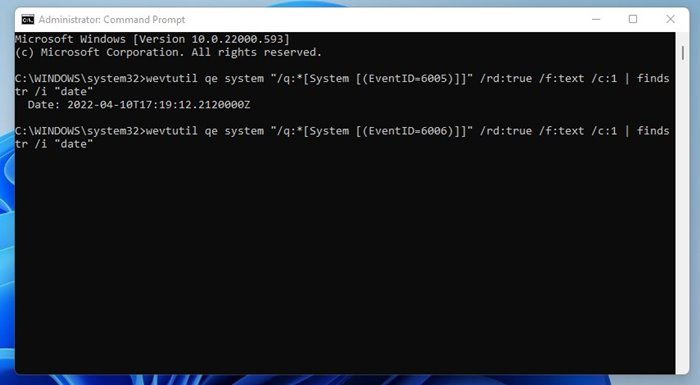
3. If you wish to check the Shutdown history, execute the command:
wevtutil qe system "/q:*[System [(EventID=6006)]]" /rd:true /f:text /c:1 | findstr /i "date"
You can also use third-party apps to track the same thing, but third-party apps also collect data from your Event Viewer. If you need more help on this topic, let us know in the comments.
The post How to Check Startup and Shutdown History in Windows 11 appeared first on TechViral.
from TechViral https://ift.tt/LiZ9CM1

