

On Windows 11, combining multiple images into a PDF format is pretty easy since it natively supports printing to a PDF file. Here are some of the best free ways to combine multiple images into one PDF.
1. Combine Multiple Images into One PDF Using Microsoft Print to PDF
1. Put all images into a single folder and rename the files in alphanumerical order.
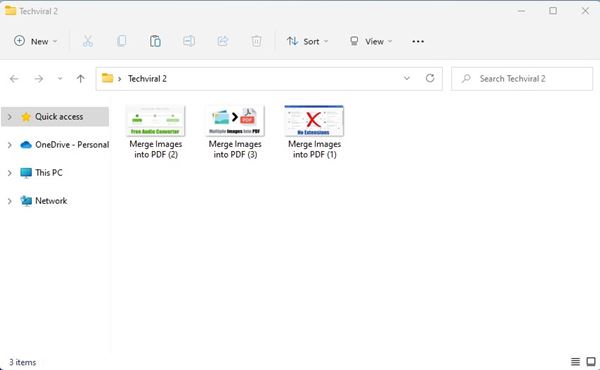
2. Hold the CTRL key and select the images you want to combine into a PDF.
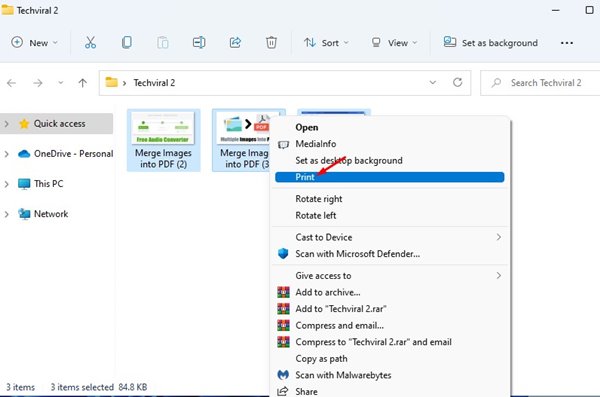
3. Right-click on any highlighted image and select Print.
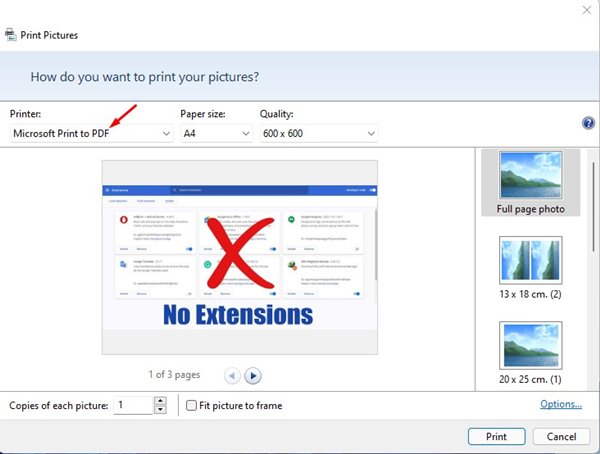
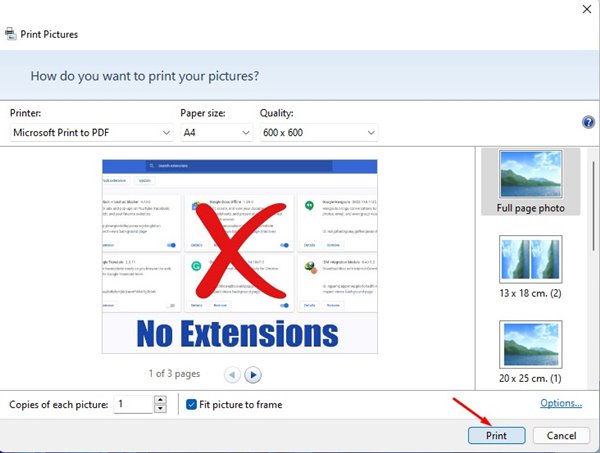
4. The Print Pictures window will open. Under the Printer, select Microsoft Print to PDF.
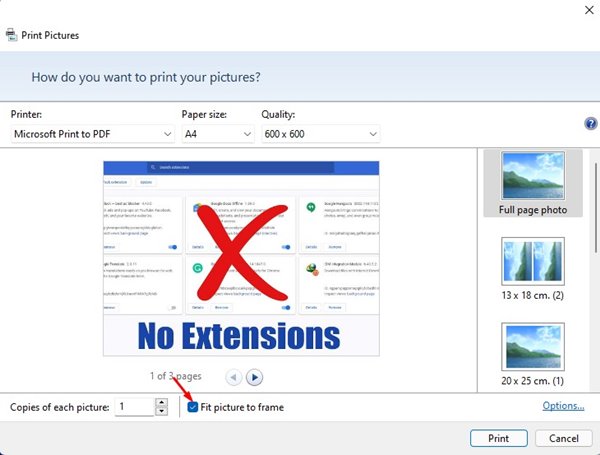
5. If your images don’t appear correctly in the preview, uncheck the Fit picture to frame box.
6. Once done, click Print. Select the save location & enter the name. Once done, click Save.
2. Combine multiple images into one PDF Online – SmallPDF
SmallPDF has a PDF tool to merge multiple images into a single PDF file. Here’s how to use it.
1. Open your favorite web browser and this webpage.
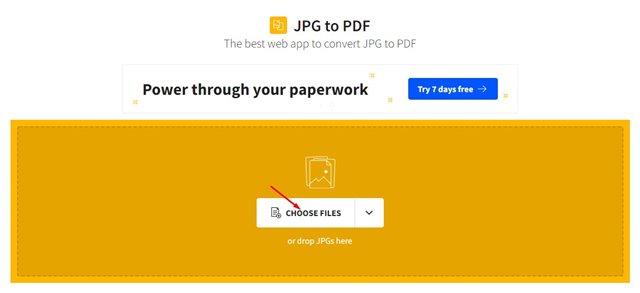
2. Click Choose files.
3. Select the image files you want to merge.
4. Click on Convert.
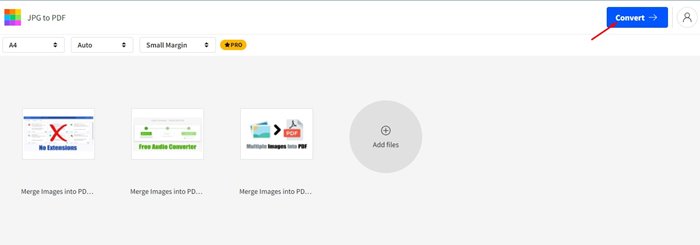
5. Wait until the web tool combines images into PDFs.
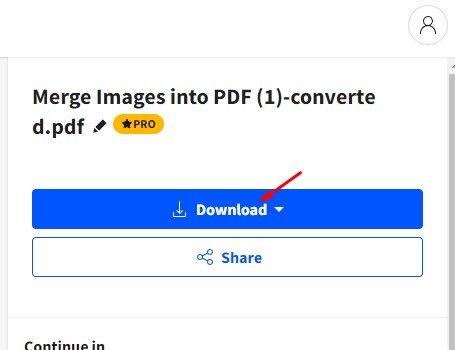
6. Click the Download button to download the PDF file.
3. Merge Multiple Images to PDF using XConvert
Xconvert is a free web tool for converting and merging JPG, PNG, and other image files to PDF online. Here’s how you can use it.
1. Open your web browser and visit this webpage.
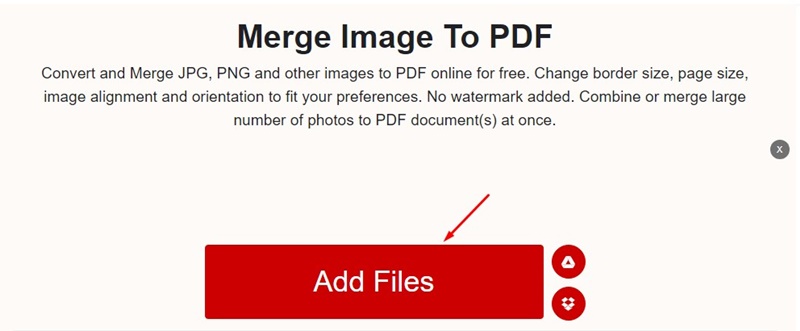
2. Click Add Files and select the image files you want to merge into a PDF.
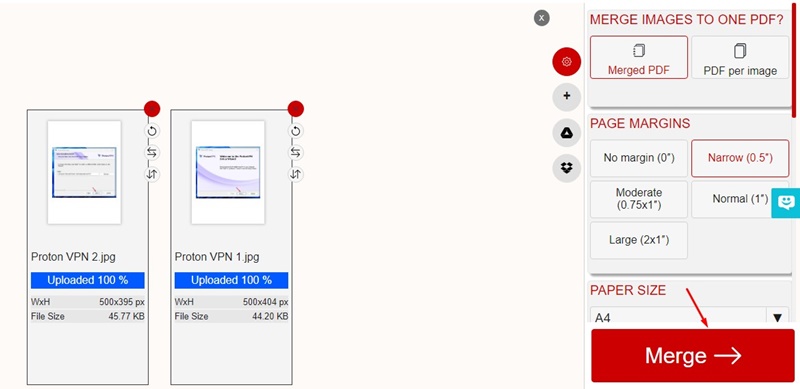
3. Make the adjustments like Page Margins, Paper Size, etc., and click Merge.
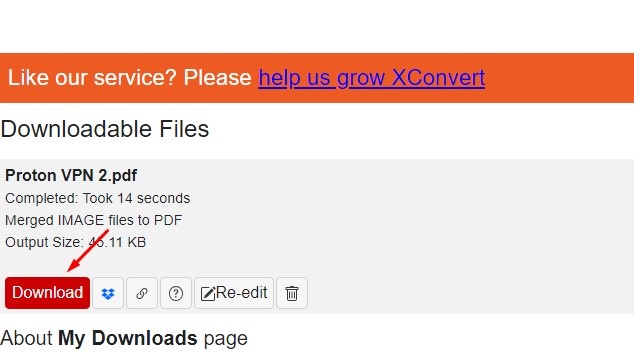
4. Once merged, you will get the output files. Click the Download button to download the PDF files containing your images.
Frequently Asked Questions:
How do I put multiple pictures into one PDF?
You can follow the three methods we shared to put multiple pictures into one PDF. All three methods use a free tool for the purpose.
Merging Pictures into a PDF loses quality?
There will be some loss in picture quality once you choose to merge it into a PDF. The images are compressed to fit on a single PDF file.
How do you merge multiple images into a PDF without losing quality?
You can merge multiple images into a single PDF without visible quality loss, but you will need premium PDF management tools for that.
Can I merge multiple images into a PDF without the internet?
Yes, the Microsoft Print to PDF feature of Windows is free to use. You can merge multiple images into a PDF without connecting to the Internet.
Combining multiple images into one PDF file is pretty easy on Windows 11. You can use these methods to convert your images into PDFs. If you have any doubts, let us know in the comment box below.
The post How to Combine Multiple Images into One PDF appeared first on TechViral.
from TechViral https://ift.tt/9GUHCqI

