

The iPhone’s ability to connect to the network you’re once connected to, even when you’ve switched location, can drain the battery life and extend the connection time. If you don’t want your iPhone to reconnect to a specific WiFi network, you should forget the network.
1. Forget a WiFi network on iPhone
We will utilize the iPhone Settings app to forget a WiFi network.
1. Launch iPhone Settings.
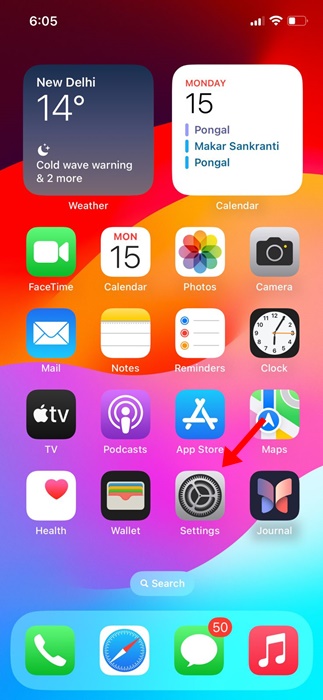
2. Tap WiFi.
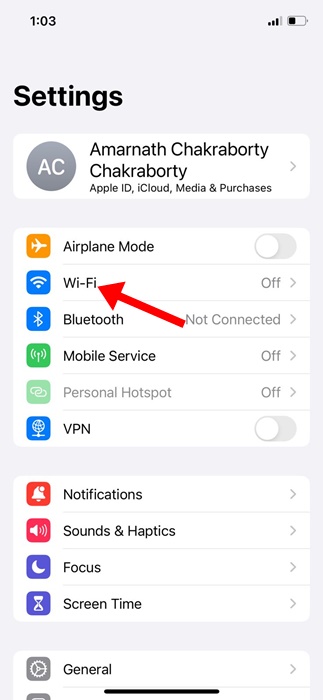
3. You will find all the WiFi networks you were once connected to.
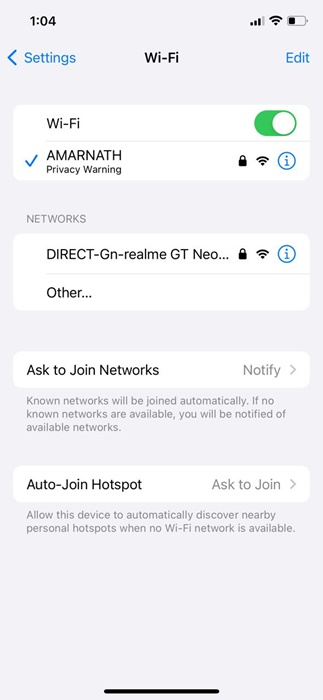
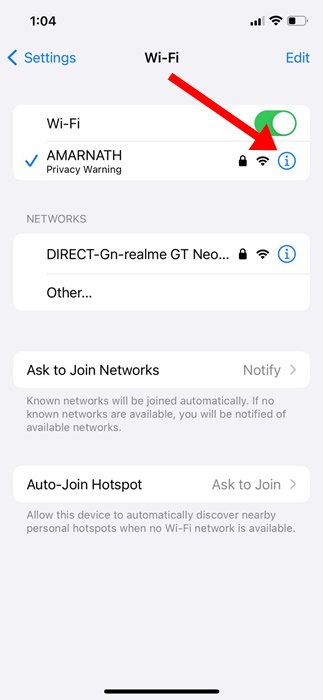
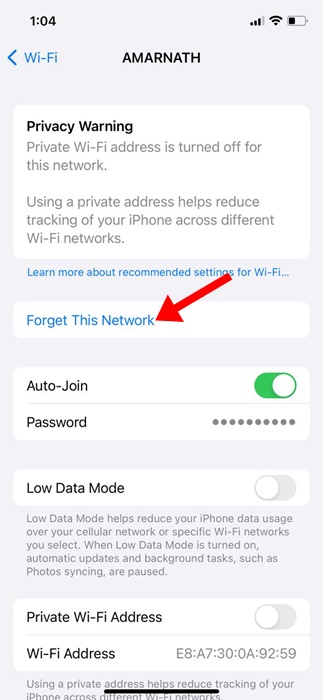
4. Simply tap the (i) button beside the WiFi network name you want to forget.
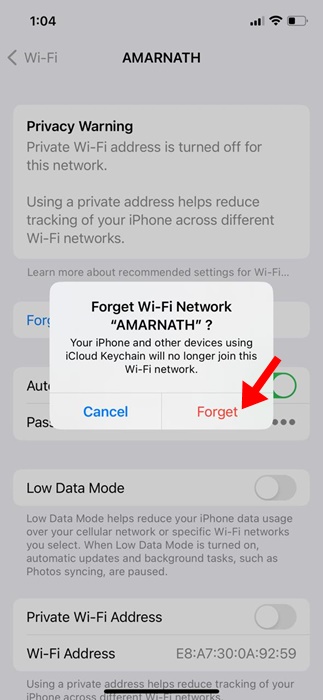
5. Tap the Forget This Network.
6. Tap on Forget.
2. How to Stop Auto Join for WiFi network on iPhone
If you don’t want to forget a WiFi network, disable the Auto-Join feature for that specific network.
1. Launch the Settings app.
2. Tap on WiFi.
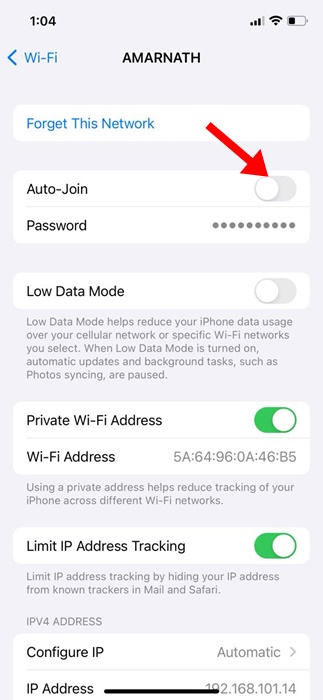
3. Tap on the (i) next to the WiFi network you want to disable auto-join.
4. Turn off the toggle for Auto-Join.
3. How to Reconnect to a WiFi Network on an iPhone
If you’ve changed your mind and plan to reconnect to a WiFi network you’ve forgotten, here’s what you should do.
1. Launch the Settings app and tap WiFi.
2. Find the network you want to connect to.
3. Tap on the WiFi network and type in the WiFi network password. Tap Join at the top right corner.
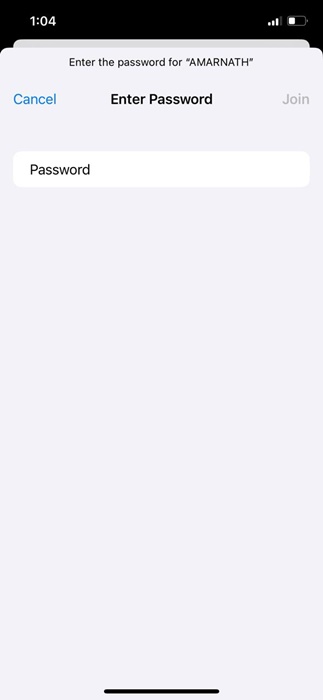
This will reconnect you to the WiFi network again. Once connected, your iPhone will remember the WiFi network again.
These are some simple steps to forget a WiFi network on an iPhone. Let us know if you need more help forgetting a WiFi network on your iPhone.
The post How to Forget a WiFi Network on an iPhone appeared first on TechViral.
from TechViral https://ift.tt/hAgVBei

