

If you’ve been keeping up with the latest tech news, you may already know that Google Chrome has been making headlines recently. According to reports, Chrome has been silently installing a 4GB AI model on devices without notifying users or asking for permission.
Google has been installing Gemini Nano – an AI model that runs on your device instead of in the cloud. What’s worrying is that the file that it silently adds for its AI model to run is approximately 4GB in size.
This means that if you’ve been using the latest version of Google Chrome, you might be losing that extra 4GB specifically for this feature. That extra storage space is given just to get features such as ‘Help me Write’ and ‘Scam detection’.
How to Remove Gemini Nano from Chrome and Free Up Storage Space
Google already said that it’s rolling out the option to turn off and remove the AI model directly in the Chrome Settings.
Once you disable it, the Gemini Nano model will no longer download or update.
1. Launch the Chrome browser on your computer.
2. Next, click the three dots (Chrome Menu) and select Settings.
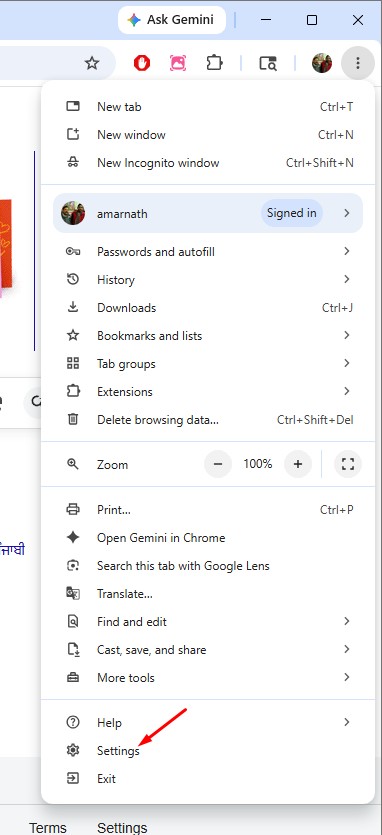
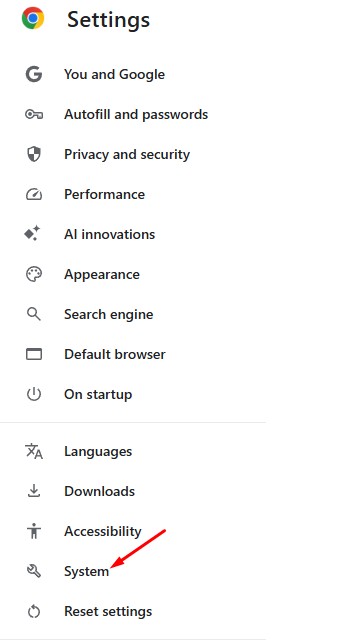
3. On the Settings, switch to the System tab.
4. Now, in the On-device AI section, turn off the On-device AI toggle.
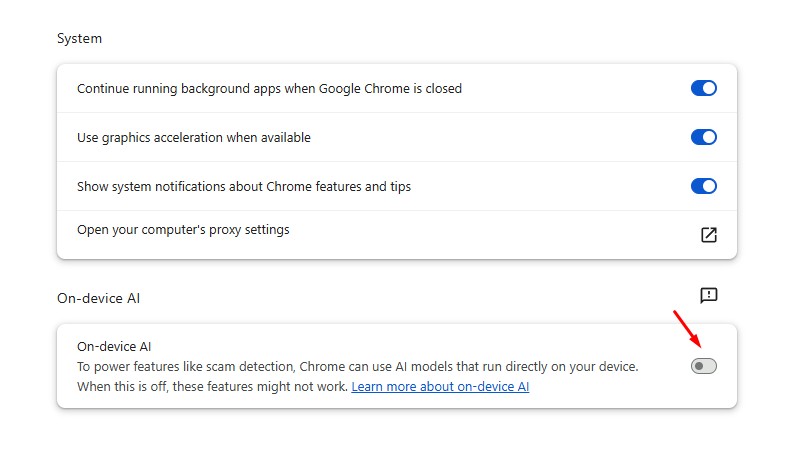
Once you disable the feature, the ‘weights.bin’ file that had been taking up to 4GB of storage space will be deleted. Also, the features like Scam Detection will stop working.
Note: If you don’t see this ‘On-Device AI’ toggle, you should wait for a few more days or weeks. It’s gradually rolling out to all users.
This article explains how to disable the Chrome Gemini Nano AI model and free up 4GB of storage space. If you need more help on this topic, let us know in the comments. Also, if you find this guide helpful, don’t forget to share it with your friends.
The post How to Remove Gemini Nano from Chrome and Free Up Storage appeared first on TechViral.
from TechViral https://ift.tt/yWwDZ8e

