

Usually, the ‘Verifying Update’ process takes a few seconds or minutes to complete, but if it’s taking longer, your iPhone could be stuck in the process. The process may get stuck for several reasons, such as an Apple Server issue, software bugs, glitches, unstable internet, or insufficient storage space.
Now that you know why your iPhone is stuck on the ‘Verifying Update’ screen, it’s time to troubleshoot it.
1. Check Apple’s System Status
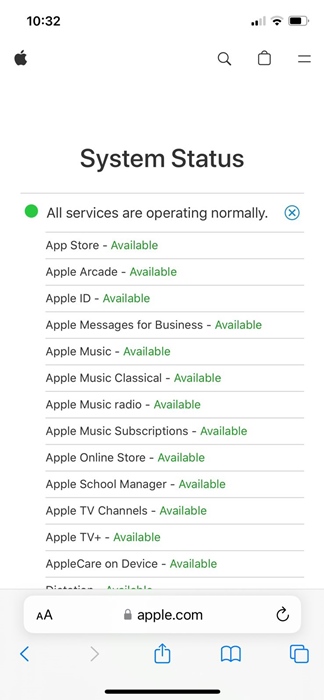
Like all web services, Apple’s official servers are often down for maintenance; when they are, iOS updates may encounter problems verifying or installing them.
Visit this webpage and check the System Status for iOS services. If any essential services are down, you need to wait it out.
2. Hard Restart iPhone
If you can’t get past the ‘Verifying Update’ screen on your iPhone, don’t panic. A hard reset of the iPhone could be the perfect solution.
1. Press & release the Volume Up button on your iPhone
2. Press & release the Volume Down button on your iPhone.
3. Press & hold the Side/Power button until the Apple Logo appears.
3. Delete the iOS Update
Once you get past the ‘Verifying Update’ screen, you must delete the iOS update first.
1. Launch the Settings app.
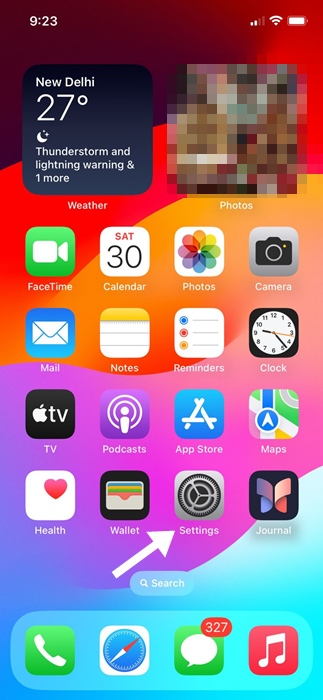
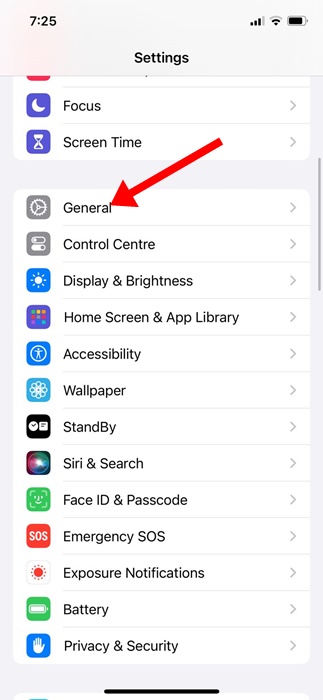
2. Tap General.
3. Tap iPhone Storage.
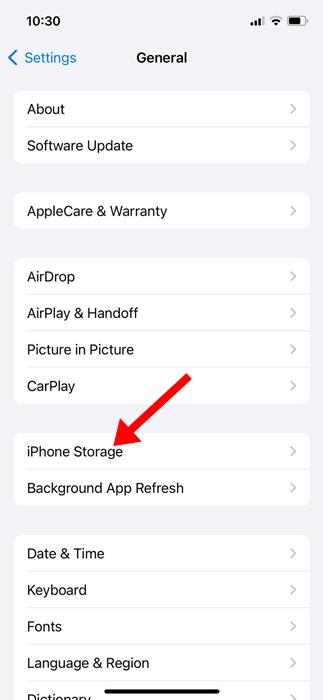
4. Find the iOS update in the list.
5. Select the iOS update and tap Delete Update. (Not all iOS versions will have this option).
4. Launch the iPhone Update tool again
After deleting the previously downloaded update, you should try to install the pending iOS updates again.
1. Make sure to connect your iPhone to a stable WiFi network.
2. Open the Settings app.
3. Scroll down and tap General.
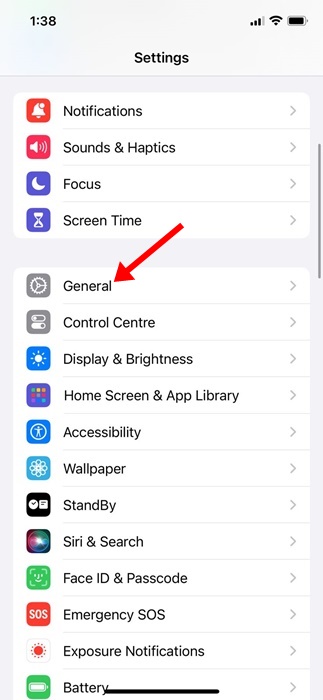
4. Tap Software Update.
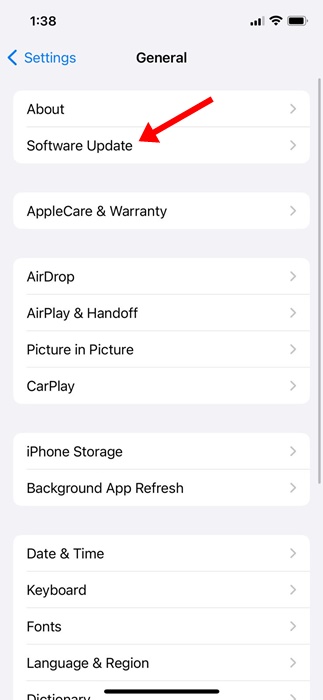
You will now be able to see the pending updates. Re-download and install the latest updates on your iPhone.
5. Reset the Network Settings on your iPhone
To avoid getting the ‘Verifying Update’ screen again, resetting the Network Settings on your iPhone is recommended. Incorrect Network Settings or no internet are the leading causes of iPhones being stuck on the ‘Verifying Update’ screen; hence, you should reset your iPhone’s network settings.
Remember that resetting the Network settings will remove the saved WiFi network, Bluetooth devices, and every other manual setting you’ve made to the network.
1. Launch Settings.
2. Tap General.
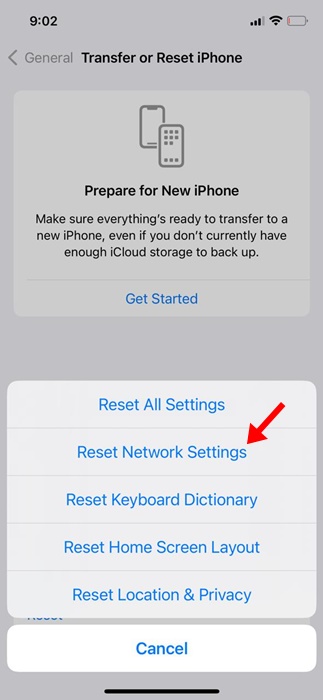
3. Tap Transfer or Reset iPhone.
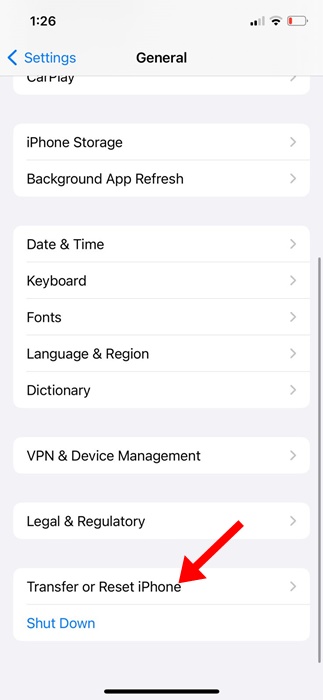
4. Tap Reset.
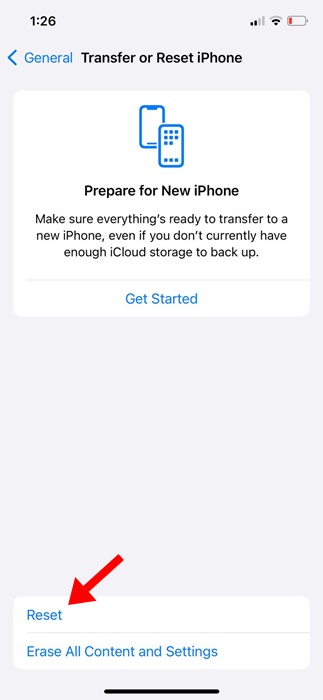
5. Select Reset Network Settings.
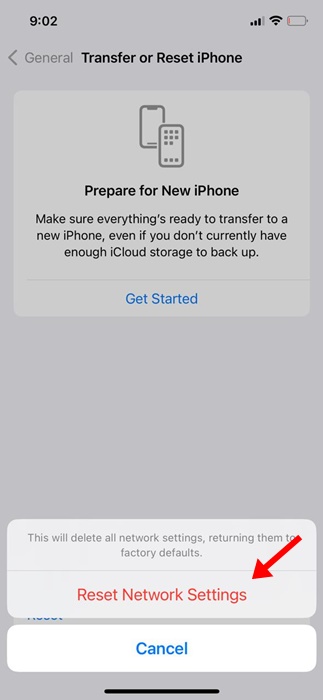
6. Tap on Reset Network Settings on the confirmation prompt.
These are a few simple methods to fix iPhones stuck on ‘Verifying Update’ and won’t turn off the screen. Let us know if you need more help in fixing iPhone update problems.
The post iPhone Stuck on Verifying Update? Try these 5 Fixes appeared first on TechViral.
from TechViral https://ift.tt/biLmWoK