

A purple screen of death usually appears for several reasons. Below, we have highlighted some of the most common causes.
- The use of overclocking softwares.
- Hardware Failures.
- Incorrect software settings.
- Corrupted Windows System Files.
- Outdated Graphics Card Drivers.
- Hard Disk errors.
- Outdated operating system.
Since the actual cause of PSOD is still unknown, we have to rely on these troubleshooting methods to resolve the issue on Windows computers.
1. Shut down your computer
A shutdown or restart may refresh the drivers and rule out driver-related issues. Also, shutting down the PC will give the hardware components time to cool down, which may fix the problem for you. So, before following the next troubleshooting methods, shut down your computer and let it sit for a few minutes.
2. Remove USB Peripherals
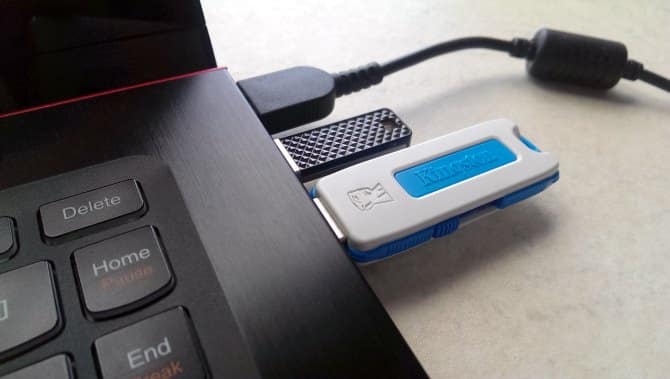
Corrupted hardware drivers can trigger both the Blue Screen of Death and the Purple Screen of Death. Let’s say you have just plugged in a keyboard or mouse, and Windows failed to install the required drivers for the proper functioning of those devices.
In that case, your system will run into issues whenever you try to use it. So, make sure to remove the connected USB peripherals and then start your computer.
3. Disable the Overclocking Software
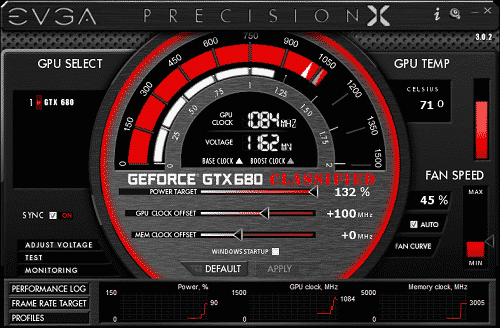
If you have changed your processor’s clock rate, modified the voltage, etc., it’s time to roll back all changes. The Purple screen of death usually appears when you use PC overclocking tools.
After restoring the default settings, you must also turn off the overclocking software. Many Windows users have claimed to fix PSOD by turning off their overclocking softwares. So, you can try that as well.
4. Clean the Heat Sink
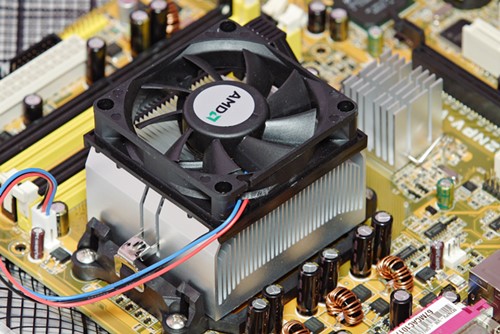
Another reason for the purple screen of death on Windows is a clogged heat sink. A clogged heat sink can trigger excessive heat generation and cause the GPU to choke.
If the Purple Screen of Death still appears on your computer, you should clean the device’s heat sink. If you don’t know where to start, you can take your device to a local technician and ask them to clean the heat sink.
5. Update the GPU Driver
An outdated or corrupted GPU driver is also a prominent reason for the Purple Screen of Death. You should update the GPU drivers to rule out potential issues.
1. Open Device Manager from the Windows Search.
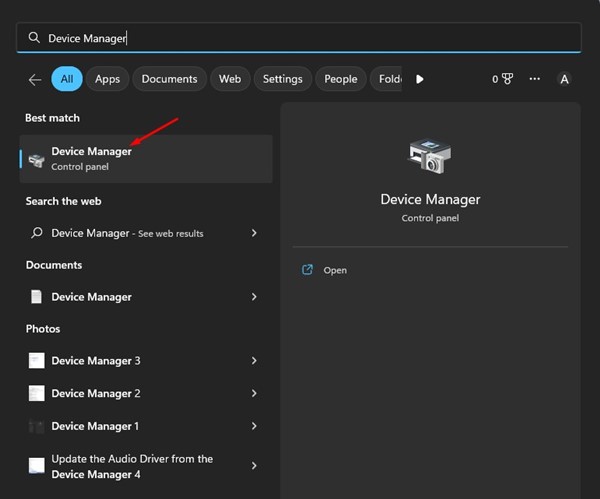
3. Expand the Display Adaptors.
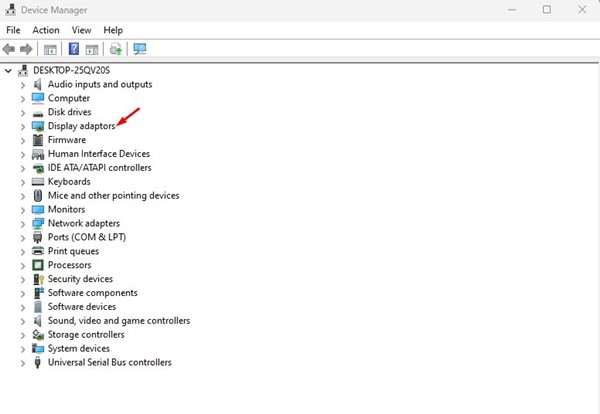
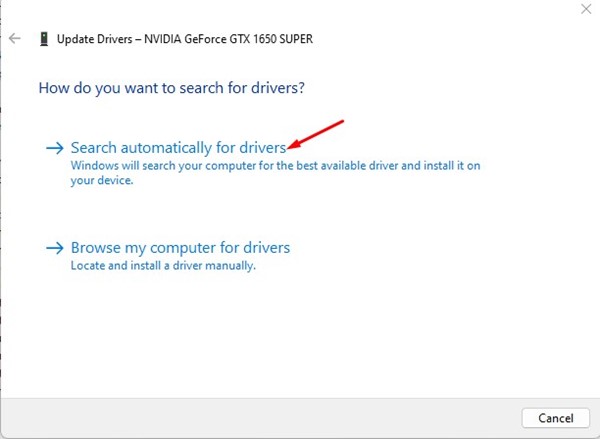
4. Right-click on your GPU and select Update Driver.

5. Select Search automatically for drivers.
6. Run the System File Checker
The Windows System File Checker tool is designed to find and fix corrupted system files. You should run this scan from the Command Prompt.
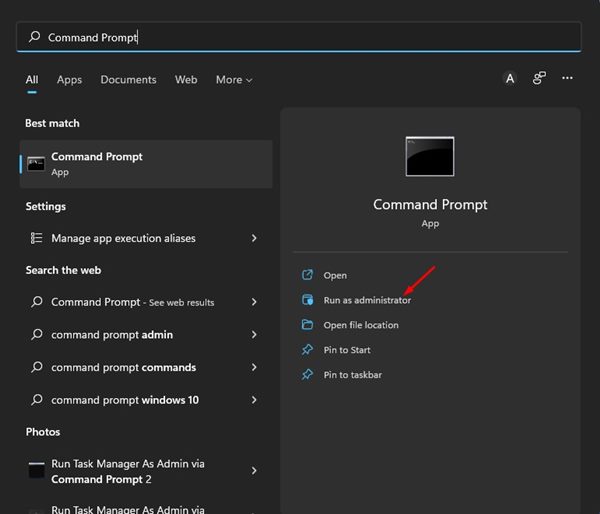
1. Click on Windows Search and type in Command Prompt.
2. Right-click on the Command Prompt and select Run as administrator.
3. Execute the command:
sfc /scannow
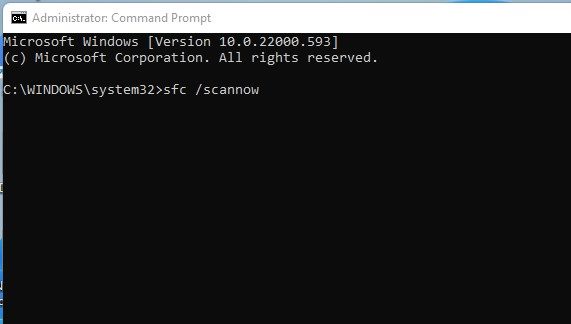
4. Wait until the SFC tool scans and finds the corrupted system files.
Make sure to restart your Windows computer.
7. Scan and Fix Hard Drive Errors
Like the System File Checker utility, you can also run the CHKDSK command-line tool to scan and fix the hard drive errors. If a PSOD on Windows appears due to a hard drive issue, the Check Disk Utility will fix it.
1. Click on Windows 11 search and type Command Prompt.
2. Right-click on the Command Prompt and select Run as administrator.
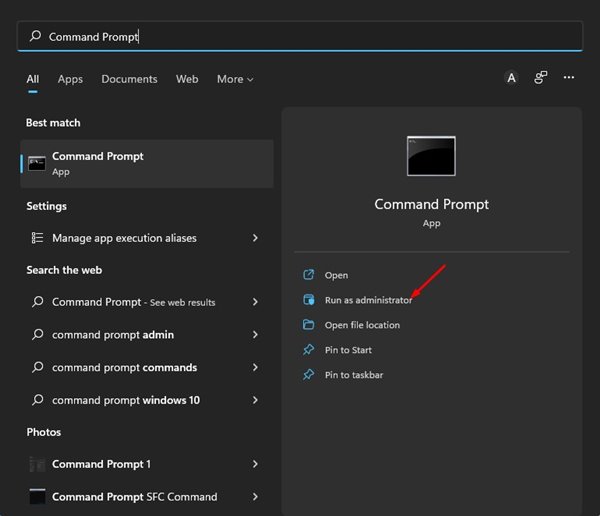
3. Enter this command:
chkdsk C: /f
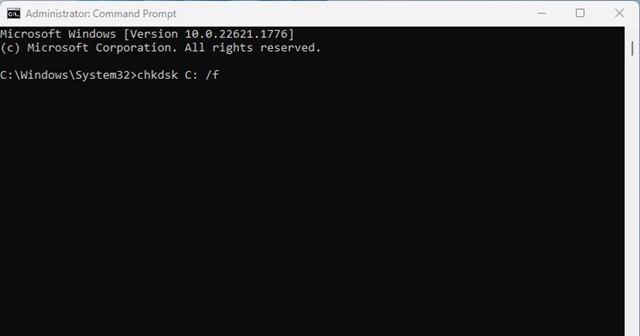
The check disk utility will now scan and fix all hard drive-related errors.
8. Run the App in Compatibility Mode
Let’s say the PSOD error appears only after launching a specific app. If this happens, it’s sure that the app you’re trying to run has a compatibility issue. To rule out compatibility issues, you should run the app in Compatibility mode.
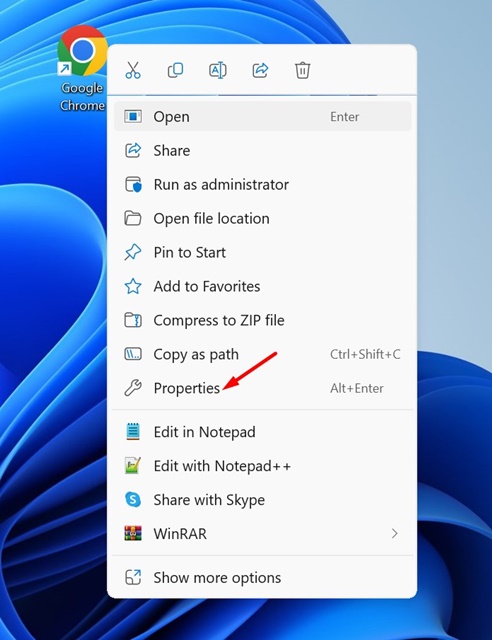
1. Right-click on the app icon and select Properties.
2. Switch to Compatibility.
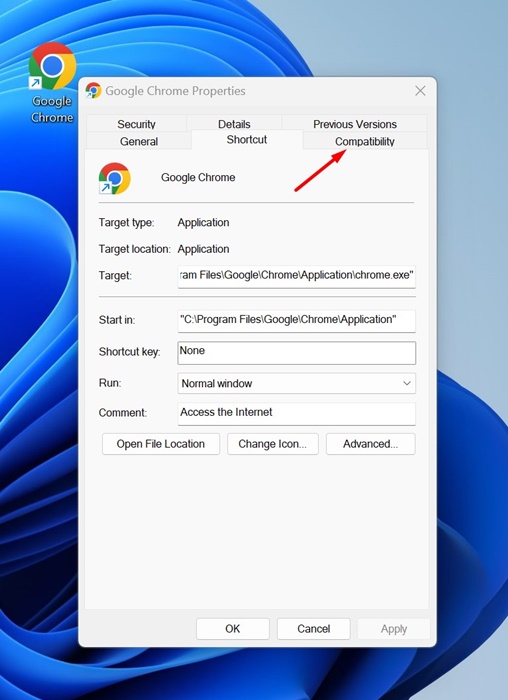
3. Check the ‘Run this program in compatibility mode for‘ option.
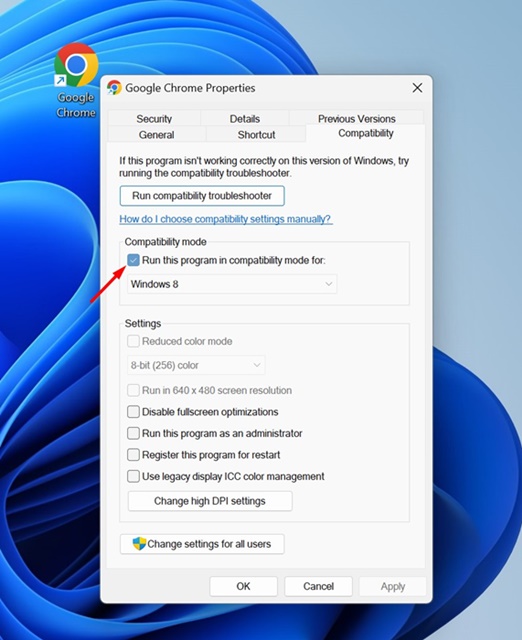
4. Expand the drop-down in the Compatibility Mode and choose a Windows version older than the one you’re using.
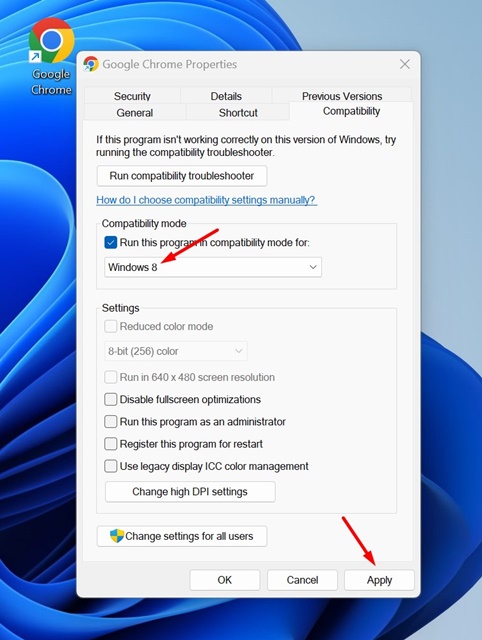
5. Click Apply and then OK.
This will always run the app you’ve picked in compatibility mode.
9. Perform a System Restore
If the Purple Screen of Death issue is still unresolved, you can roll back your system to a point where it works fine. To do that, you need to perform a system restore.
1. Open the Recovery app from the Windows Search.
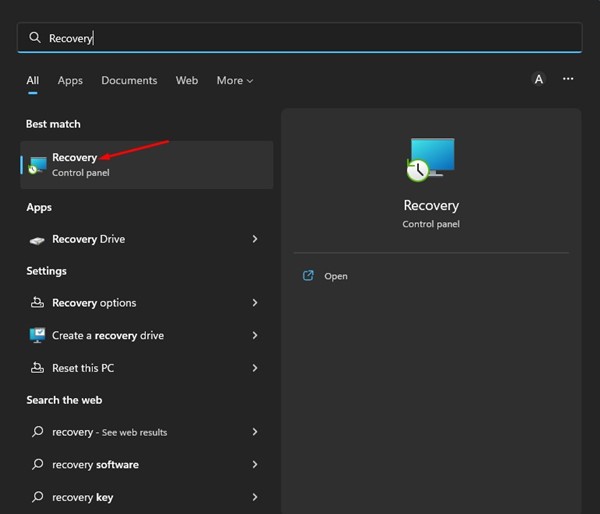
2. Click on Open System Restore.
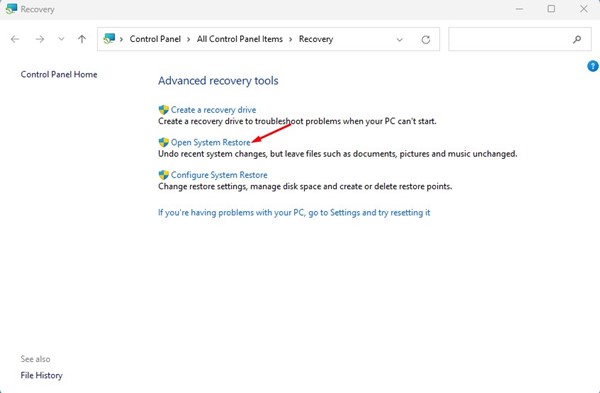
3. Select the Restore point you want to use and click Next.
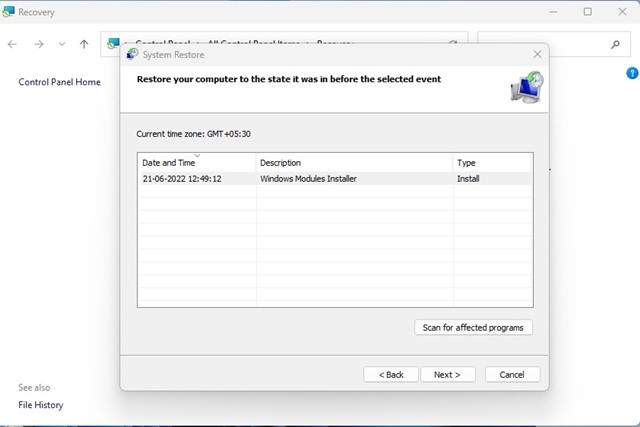
4. Confirm the Restore point and click Finish.

This will restore your Windows PC to your selected restore point.
Purple Screen of Death on Windows 10/11 can be annoying and challenging to fix since the actual reason for the error is unknown. However, our shared methods will help you quickly resolve PSOD on Windows.
The post How to Fix Purple Screen of Death on Windows appeared first on TechViral.
from TechViral https://ift.tt/BHf75br