

You may want to crop a picture into a circle for various reasons. First, a circled image usually looks appealing and can draw the viewer’s attention. You may even want to crop a picture into a circle before sharing it to make it more visually appealing. Whatever the reason, cropping a picture into a circle on Windows is pretty easy. Here’s how you can do it.
1. Crop a Picture into a Circle in Word
1. Open a Microsoft Word document and click Pictures.
2. Insert the image you want to crop into a circle.
3. Select the Crop function at the top-right corner and select Crop to Shape

4. You will see all available sets of shapes. Select the Circle available under the Basic shapes.

5. This will immediately crop your image into a circle. You can drag the corners to adjust the size of the image.

2. Crop a Picture into a Circle using PhotoScape
PhotoScape is one of the best and most lightweight photo editing tools available for PC. You can use it to crop a picture into a circle on Windows.
1. Download & install the PhotoScape application on your computer.
2. Once installed, open the PhotoScape application and click on the Editor.

3. Select the image you want to crop into a circle.
4. Switch to the Crop tool.

5. In Crop, check the Crop Round Image.

6. Draw the area on the picture you want to crop into a circle.

7. After making the changes, click Crop.

8. Once done, save the cropped image on your computer.

3. Crop a Picture into a Circle in Photoshop
Photoshop may not be for everyone because it’s complicated to use, but it does have every photo editing feature & tool you may need. In Photoshop, you can easily crop a picture into a circle. Here’s how to do it.
1. Open Photoshop on your computer and insert the image you want to crop.
2. Now select the Elliptical Marquee Tool in the right menu bar.
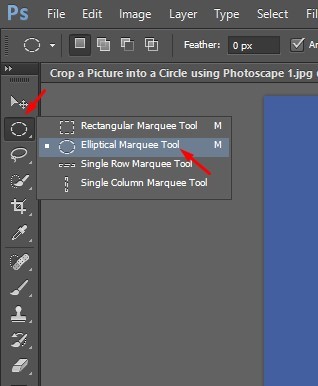
3. Draw the portion using the Elliptical Marquee tool on the image you want to crop.

4. Once done, click the Add a mask button.
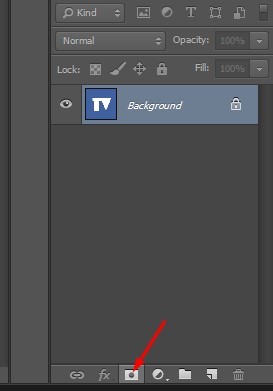
5. Select the new layer mask you’ve just created.

6. Once selected, click on the Image tool and select Crop.
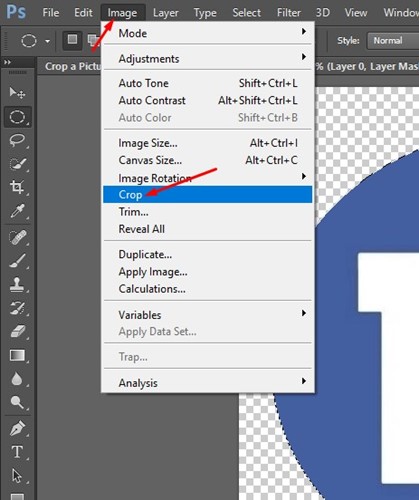
7. This will crop the picture into a circle.
8. To save the cropped image, click on File > Save As.

4. Crop a Picture into a Circle using Fotor Photo Editor
Fotor Photo Editor is a free web tool for editing images. It has free and premium plans, but the photo crop feature is available on the free version. Here’s how to crop a picture into a circle using Fotor Photo Editor.
1. Open your favorite web browser and visit the fotor.com website.
2. When the site opens, click the Open Image button and select the picture you want to crop.

3. Expand the Crop tool on the left and select Circle.

4. Select the portion of the image you want to crop.
5. Click the Apply button to crop the picture.

6. Once the picture is cropped into a circle, click the Download button at the top to download it on your computer.

5. Crop a Photo Into a Circle Using Adobe Online Editor
You can use the Adobe Express online editor to crop your pictures into a circle.
1. Launch your favorite web browser and visit this website.
2. When the site opens, click on the Upload your photo button.

3. On the Media tab, click on the Upload from device button and select the photo you want to crop.
4. Once uploaded, click on the Crop tool.

5. Select a Circle on the Shapes.
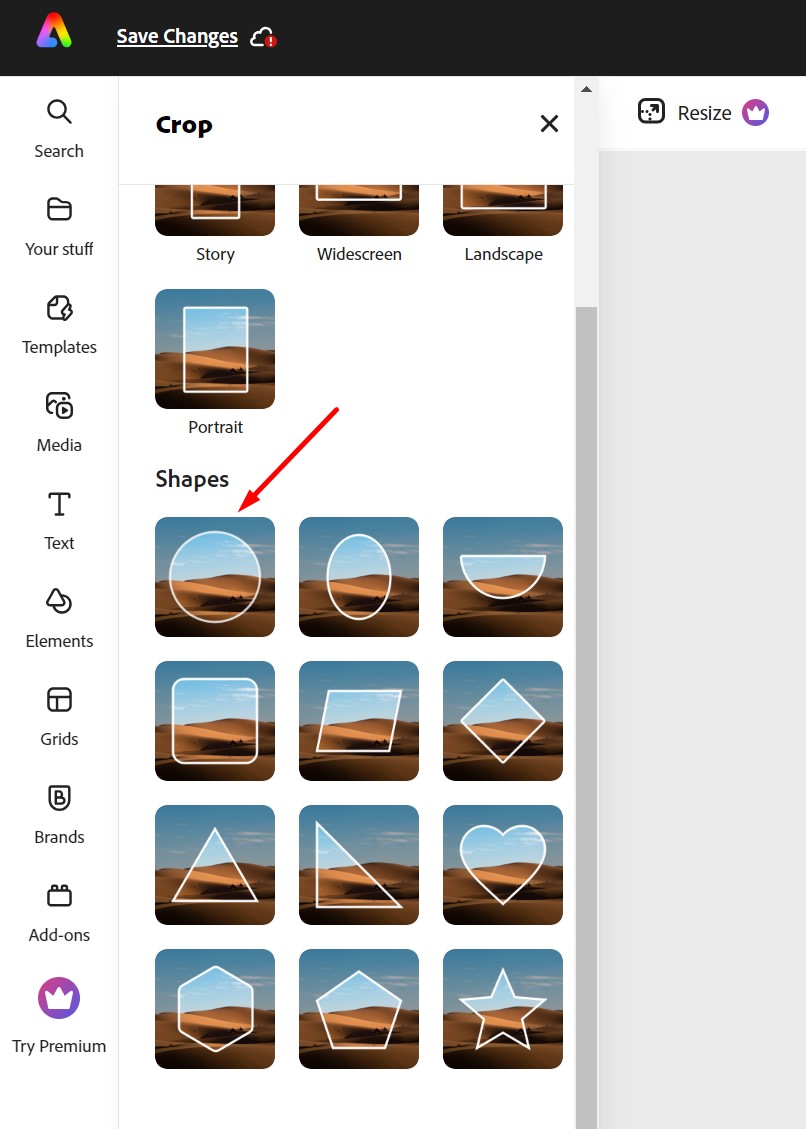
6. This will immediately crop your photo into a circle. Once cropped, click on the Download button at the top of the screen.

Also Read: How to Put Two Pictures Side by Side On Windows
These are a few of the best ways to crop a picture into a circle on PC. The Fotor photo editor method will work even if you use a Mac, Android, or iPhone because it runs on a web browser. If you need more help cropping a picture into a circle, let us know in the comments.
The post 5 Best Ways to Crop a Picture into a Circle on PC appeared first on TechViral.
from TechViral https://ift.tt/TwdOYMe