

If you have specific programs that you often use and require administrator privileges, it’s best to set those apps to always run as an administrator. In this way, you will save some time & hassle. Here are different ways to always run apps as administrator on Windows 11.
1. Set Apps to Always Run as an Administrator
In this method, you need to always make changes to the app’s advanced properties to run it as an administrator. You need to do this for every app you want to always run as an administrator.
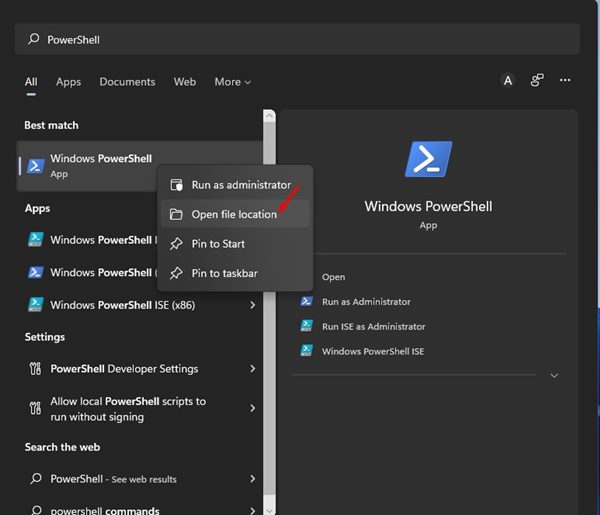
1. First, open the Windows 11 search and type in PowerShell (Your app name).
2. Right-click on PowerShell and select Open File Location.
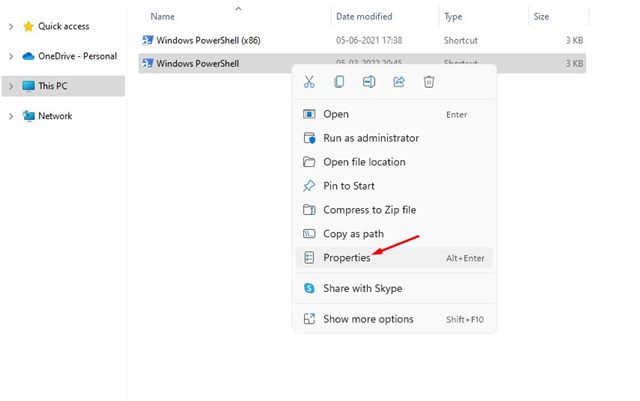
3. In the App’s installation folder, you need to right-click the app shortcut and select Properties.
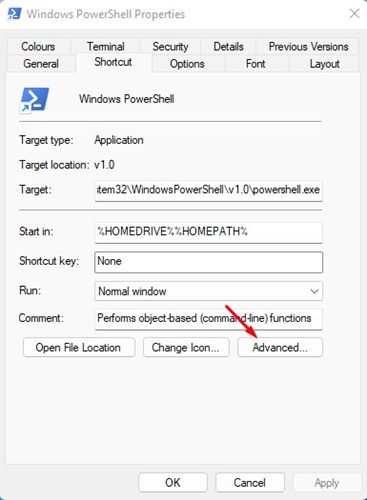
4. Click on Advanced.
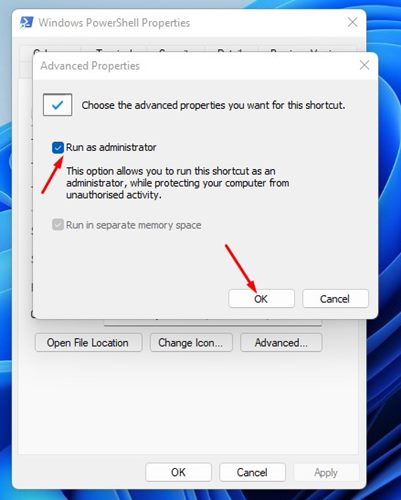
5. In Advanced Properties, check the Run as administrator option. Once done, click Ok.
2. Always Run Apps as Administrator by Modifying Compatibility Settings
We will make some changes to the Compatibility settings of the app to grant it admin rights.
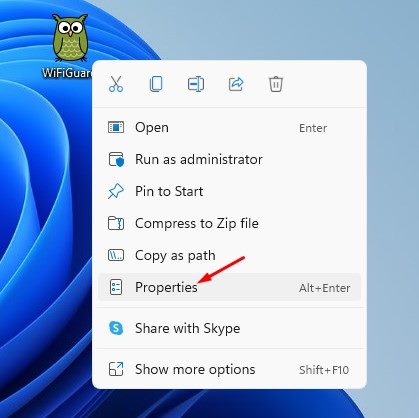
- Right-click on the program you want to always run as Administrator and select Properties.
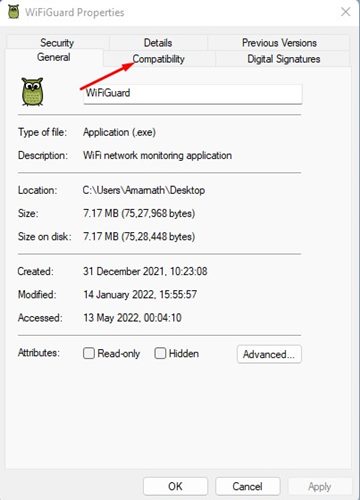
2. On the App Properties page, switch to the Compatibility tab.
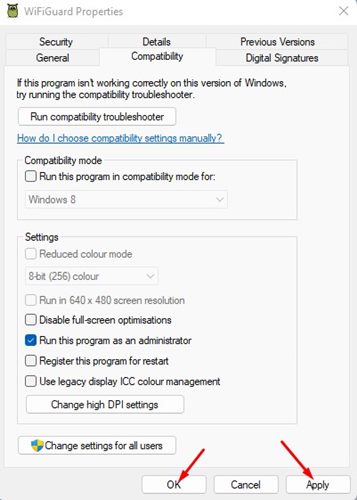
3. Check Run this program as an administrator and click OK.
3. Use the Administrator Account
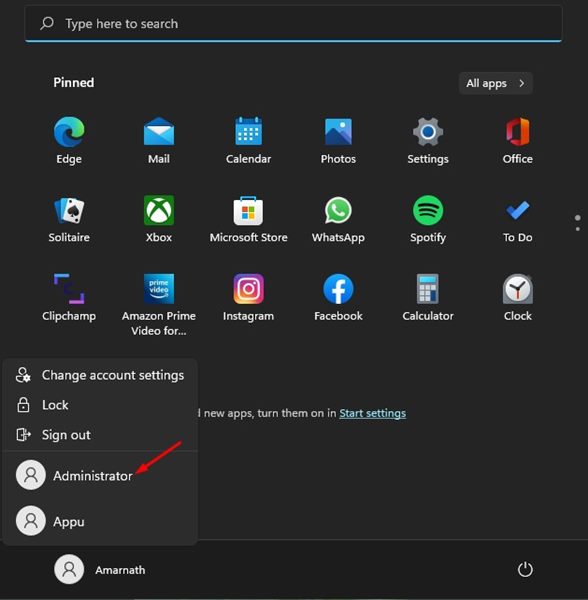
If you want to run all apps with elevated privileges, you need to start using the Administrator account. When you sign in with the Administrator account, all apps and programs will run as an administrator, and you won’t see the UAC prompt anymore.
However, since an Administrator account has elevated rights for everything, it can pose a security risk. This is the only reason the Administrator Account is kept hidden from users on Windows 11.
If you want to enable the Administrator account on Windows 11, you must follow our guide to Enable Administrator Account on Windows 11.
These are the three best ways to always run apps/programs as an administrator in Windows 11. Although it’s easy to always run apps as an Administrator on Windows 11, make sure you don’t provide admin access to apps you don’t trust.
The post How to Always Run Apps as Administrator on Windows 11 (3 Methods) appeared first on TechViral.
from TechViral https://ift.tt/7xrB2ag