

Windows 11 automatically downloads the latest device drivers during Windows updates and installs them. However, specific drivers must be installed manually to ensure the device’s proper functioning.
After installing the device drivers manually, you can use the Command Prompt utility of Windows 11 to create a backup of all drivers installed on your system. If you create a backup of your installed drivers, you can use them in need.
This article will share a step-by-step guide on backing up drivers using the Command Prompt in Windows 11.
1. How to Backup Drivers using Command Prompt
We will use Windows 11’s Command Prompt utility to back up all installed drivers. The process might take time, but it does the job of premium software for free.
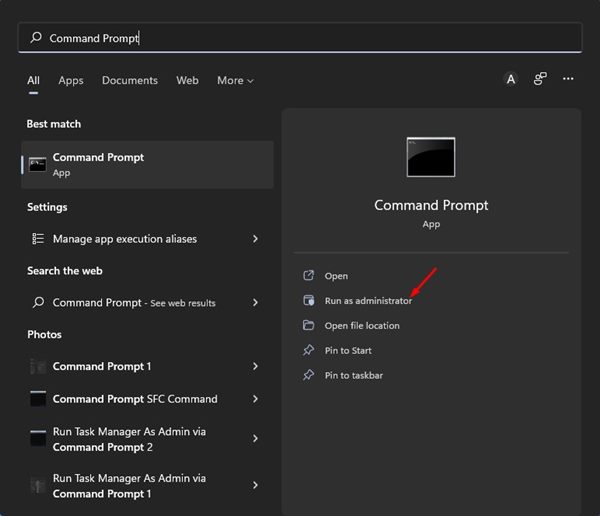
1. Click on the Windows 11 Search and type in Command Prompt. Right-click on CMD and select Run as administrator.
2. On the Command Prompt window, execute the command shared below:
dism /online /export-driver /destination:"<destination_folder>"
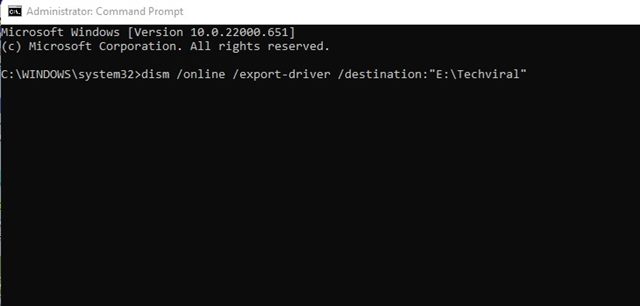
Important: Make sure to replace “<destination_folder>” with the destination path where you want to save the backup file.
3. Command Prompt will take a few seconds to scan all installed drivers. Once scanned, it will back up the driver.
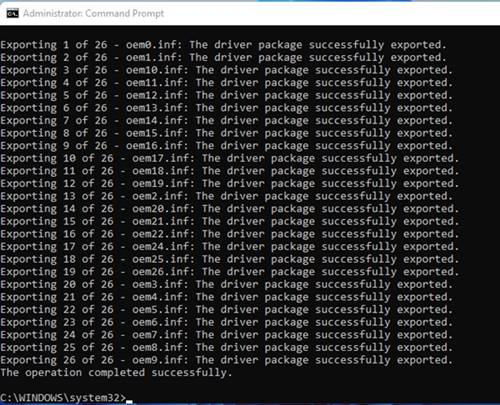
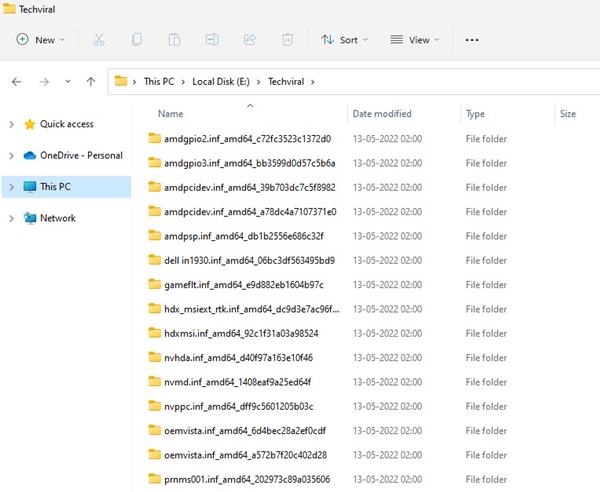
4. To confirm the driver backup, open the destination folder. You will see all your driver files in the folder.
2. How to Restore Drivers on Windows 11
If you wish to restore the device drivers, follow these steps.
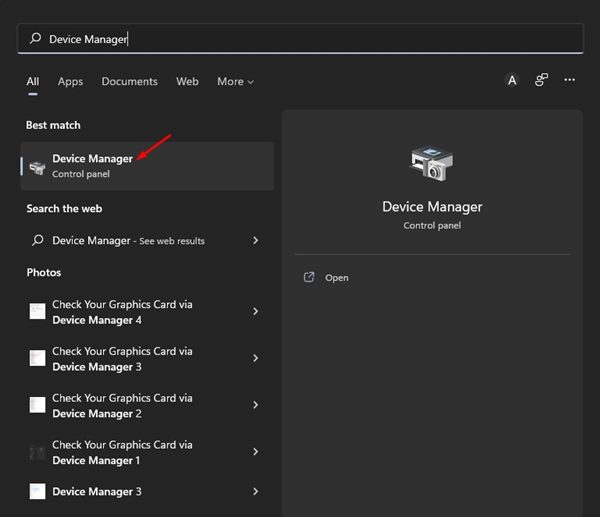
1. Click on the Windows 11 search and type in Device Manager. Next, open the Device Manager app from the list.
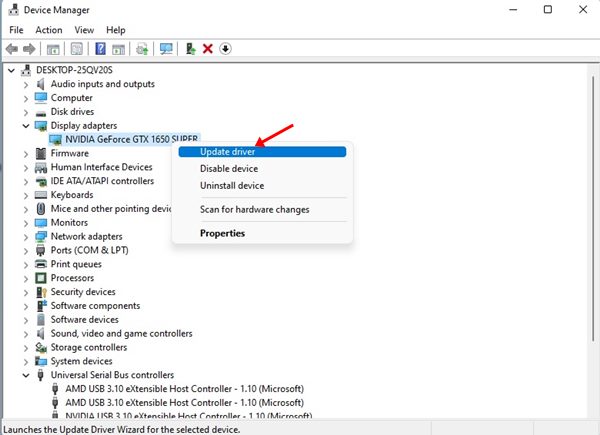
2. In Device Manager, right-click on the device you want to install the driver for. On the context menu, select Update driver.
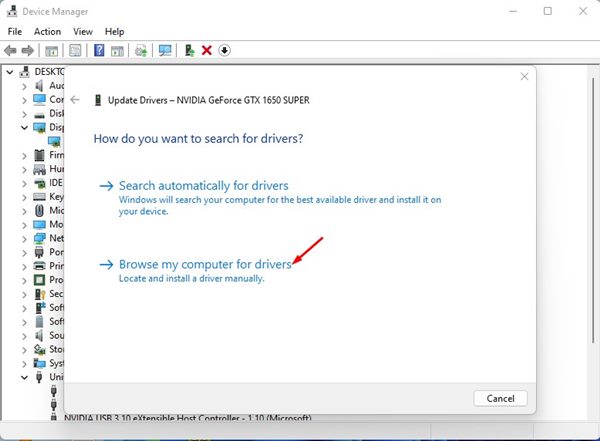
3. On the Update Drivers Window, select Browse my computer for driver software
4. On the next Window, click the Browse button and select the folder where the driver backup files have been stored.
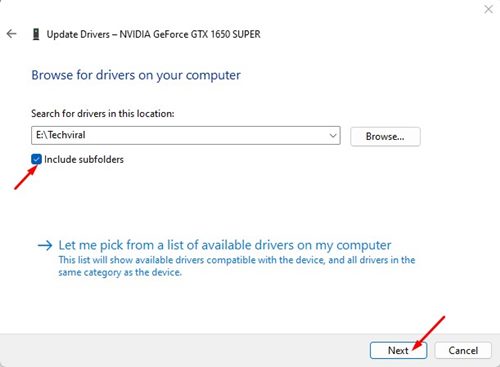
5. If the backup file is stored in a subfolder, check the Include subfolders option. Once done, click Next.
6. The Device Manager will automatically scan the folder and install the appropriate driver.
It’s pretty easy to back up drivers using Command Prompt on Windows 11. If you find this method complicated, you can use third-party driver updater software to update all your Windows 11 PC device drivers.
The post How to Backup and Restore Drivers in Windows 11 using CMD appeared first on TechViral.
from TechViral https://ift.tt/dzuOCBq