

Some apps can see specific information about the other apps running on your device. For example, the Task Manager app on Windows 11 can show you information about every other running app on your system.
Usually, Windows carefully isolates the apps so they don’t interfere with each other. However, malicious apps can sometimes make their way to your device and use the App Diagnostic data to grab information about other running apps.
Hence, it’s always best to check which apps have access to your App Diagnostic data in Windows 11. You need to check this detail periodically to avoid giving away your data to threat actors.
What type of Data is available in App Diagnostic
Before enabling or disabling the app diagnostic, it’s best to know what kind of information is available in the app diagnostic. The information available in app diagnostics is as follows:
- The name of the apps running in the background
- The package name of each running app
- Name of the user account where the app is running
- Memory usage of the app and other process-level information.
These are the pieces of information made available in the app diagnostic data.
How to Disable App Diagnostic on Windows 11
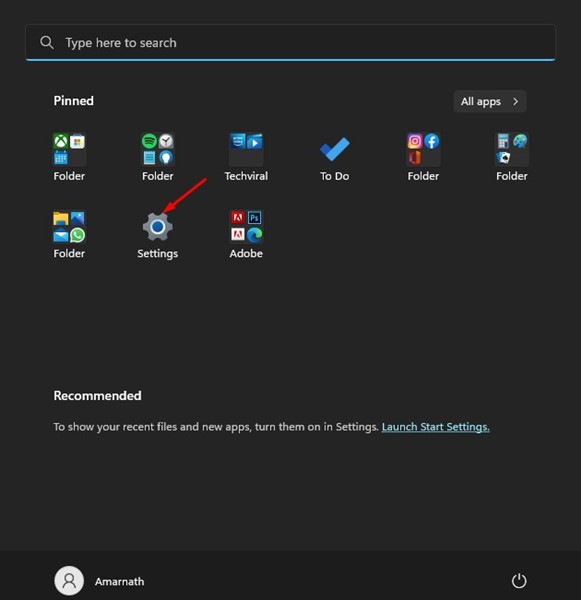
1. Click on the Windows 11 Start button and select Settings.
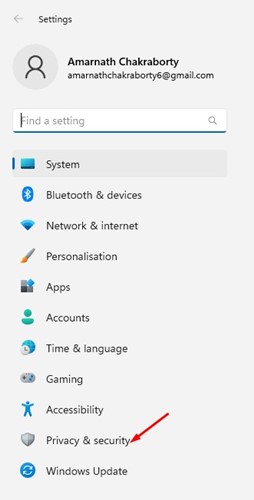
2. Click on the Privacy & security option.
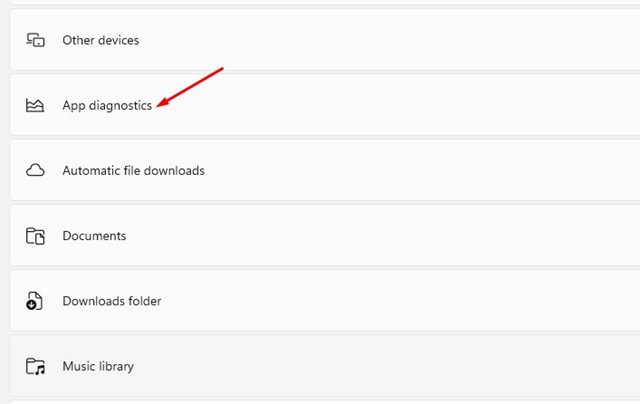
3. Scroll down and click on App diagnostics.
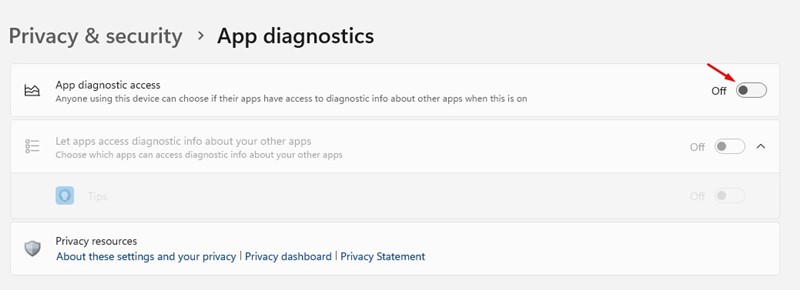
4. Disable the toggle for App diagnostic access on the App diagnostics page.
Turn off App Diagnostics for Specific Apps on Windows 11
If you want, you can turn off app diagnostics for specific apps on Windows 11.
- Click on the Windows 11 Start button and select Settings.
2. Click on the Privacy & security tab on the left.
3. Scroll down to the end and click on App Diagnostics.
4. Now enable the toggle for App diagnostic access.
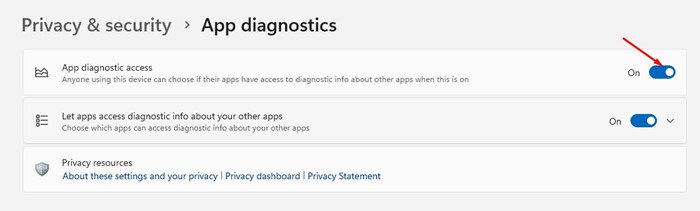
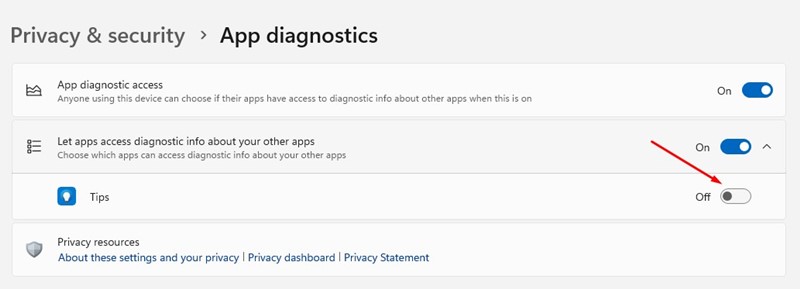
5. Expand the Let apps access diagnostic info about your other apps section. Now turn off the toggle switch next to the application name you don’t want to access App diagnostics.
Also read: How to Improve Apps’ Performance With Windows 11’s Game Mode
That’s all about how to turn off app diagnostics for apps on Windows 11. You should turn off this option if you often download apps from third-party sources. If you need more help with app diagnostics, let us know in the comments below.
The post How to Disable App Diagnostics in Windows 11 appeared first on TechViral.
from TechViral https://ift.tt/WO753LR