

If you are using BitLocker on your Windows 11 computer to lock your HDD/SSD, you may know that the disk encryption tool automatically locks your drive when you restart your PC. Even without restarting, you can force BitLocker to lock the encrypted drives. However, sometimes, you may want BitLocker to auto-unlock your locked drives for some reason.
There are multiple ways to enable the BitLocker Auto Unlock feature. Below, we have shared some of the best ways to enable auto-unlock for BitLocker drives.
1. Enable Auto Unlock via BitLocker Manager
This method will use the BitLocker Manager to enable auto-unlock for the protected drives.
1. Click the Windows 11 search and type in Control Panel. Next, open the Control Panel app from the list of matching results.
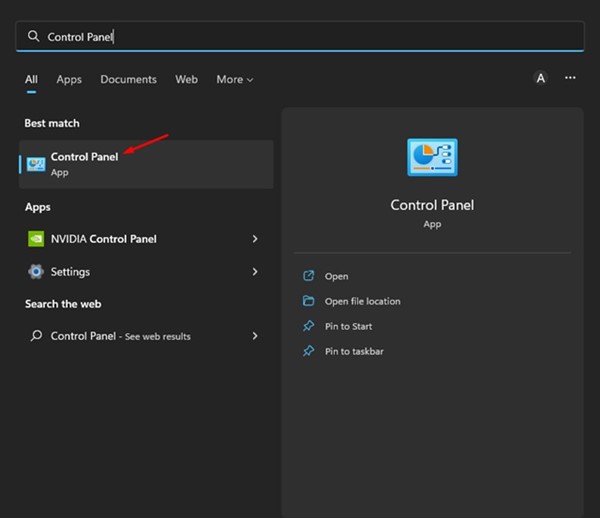
2. Click on the System and Security tab in Control Panel.
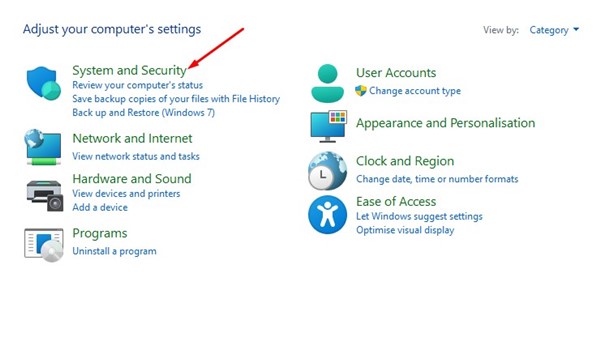
3. On the System and Security screen, click on BitLocker Drive Encryption.
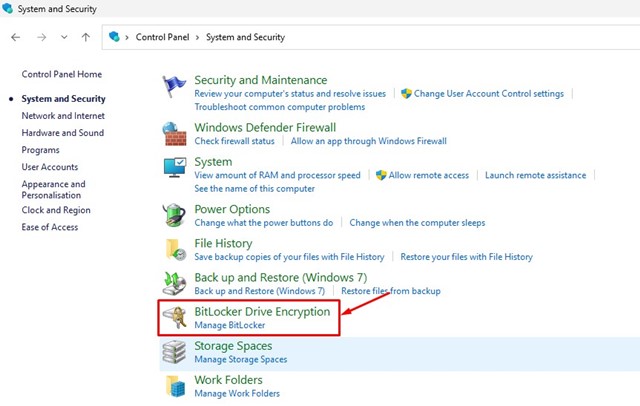
4. Now expand the drive where BitLocker is turned on.
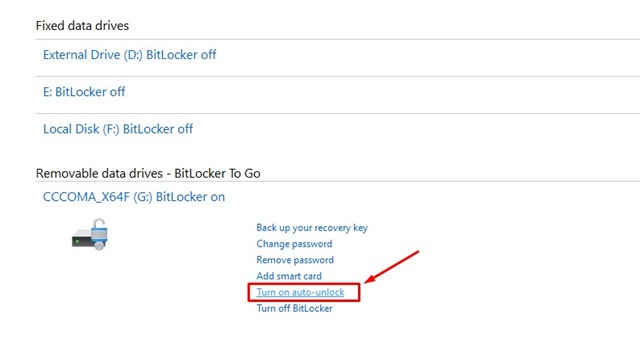
5. To enable auto-unlock, click on the Turn on auto-unlock link.
2. Enable Auto Unlock for BitLocker drives via CMD
This method will use the Command Prompt utility to enable the auto-unlock feature.
1. Click on the Windows 11 search and type in Command Prompt. Next, right-click on CMD and select Run as administrator.
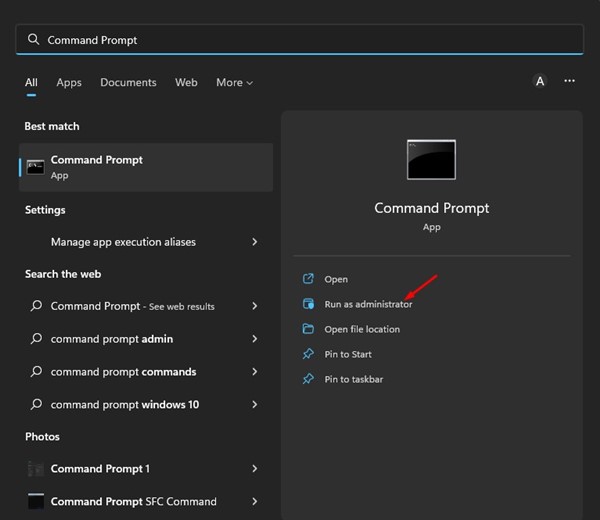
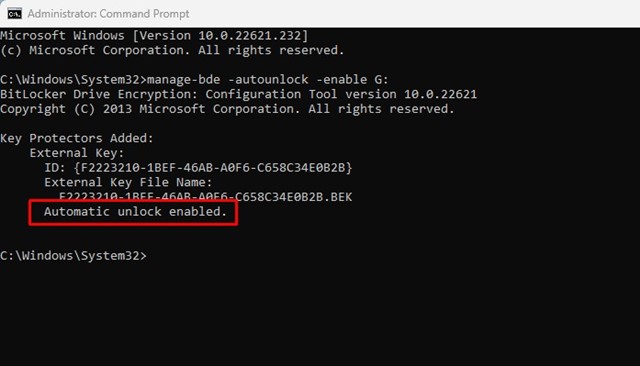
2. In Command Prompt, type manage-bde -autounlock -enable G: and press Enter.

Important: Make sure to replace ‘G’ with the drive letter assigned to your removable or fixed data drive.
3. Now Command Prompt will show you a success message that reads Automatic unlock enabled.
3. Enable Auto-Unlock for Drive on BitLocker Password Prompt
Windows 11 allows you to enable Auto-unlock for a drive while you’re unlocking it. You need to open File Explorer and double-click on the locked drive.
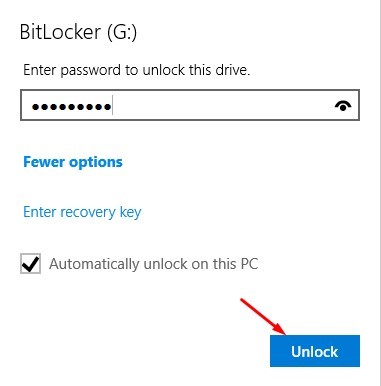
You will be asked to enter the password to access the drive. Enter the password, and check the Automatically unlock on this PC option. Once done, click on the Ok button.
Also read: Windows 11 Free Download Full Version
BitLocker is a great feature; you should use it to protect your removable or fixed data drives. So, these are the few best ways to enable auto-unlock for BitLocker drives in Windows 11. If you need more help related to BitLocker’s Auto-Unlock, let us know in the comments.
The post How to Enable BitLocker Auto Unlock on Windows 11 appeared first on TechViral.
from TechViral https://ift.tt/P8INObm