

On Windows 11, you can hide the taskbar to get some extra screen space. If you don’t want to turn off the taskbar completely, you can enable auto-hide, which keeps it hidden until you hover over it.
There are several ways to hide and show the taskbar on Windows 11. In this guide, we will cover some of the best ways to hide and show the taskbar in Windows 11.
1. Hide & Show Taskbar in Windows 11 via Settings
We will use the Settings app in Windows 11 to hide or show the Taskbar. Here are some of the simple steps you need to follow.
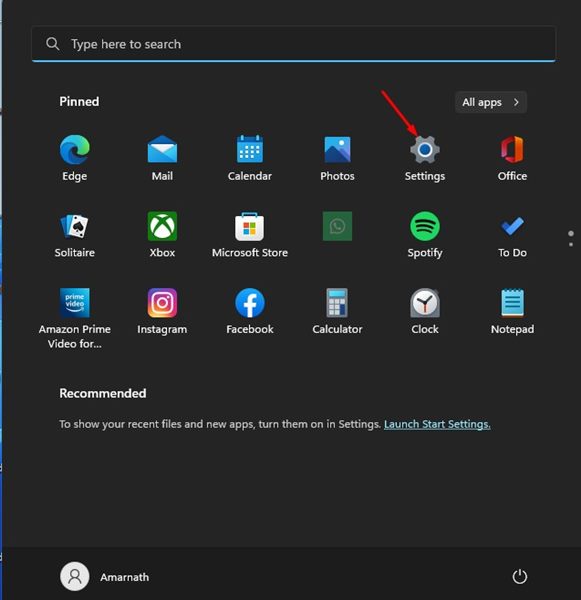
1. Click on the Windows 11 Start button and select Settings.
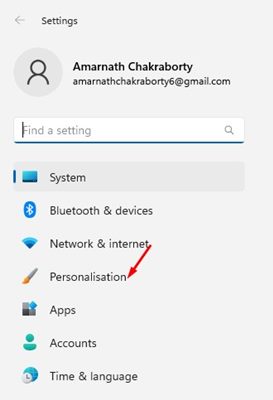
2. In the Settings app, click on the Personalization tab.
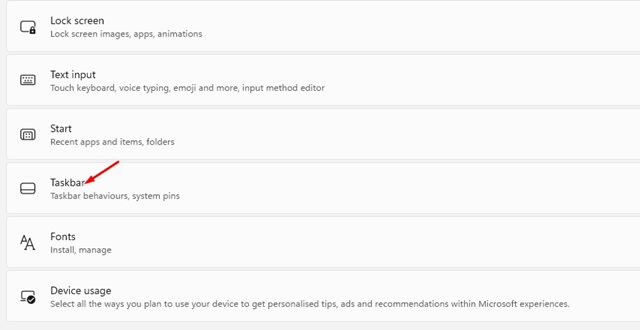
3. On the right pane, scroll down and click on the Taskbar.
4. On the Taskbar, expand the Taskbar behaviours section and check the Automatically hide the taskbar option.
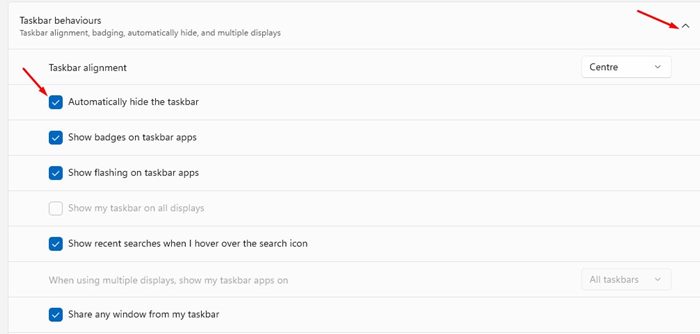
You need to hover your mouse cursor over the taskbar area to show the taskbar again.
2. Hide & Show Taskbar in Windows 11 via Registry
If you are using a non-activated version of Windows 11, you need to follow this method to hide or show the taskbar in Windows 11.
1. Click on the Windows 11 search and type in Registry. Next, open the Registry Editor from the list.

2. In the Registry Editor, navigate to the following path:
Computer\HKEY_CURRENT_USER\Software\Microsoft\Windows\CurrentVersion\Explorer\StuckRects3
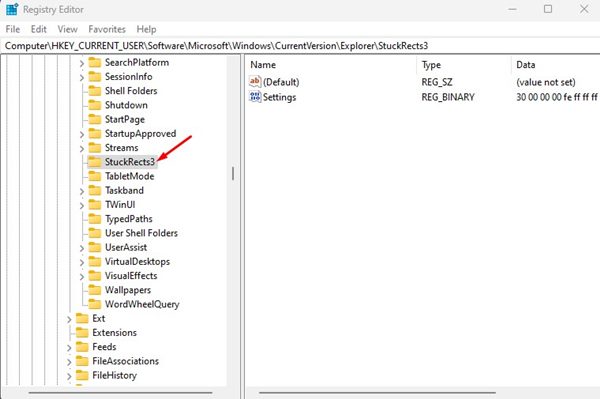
3. On the right, double click on Settings. In Edit binary value, double click on the first entry beside 00000008 Value Data.
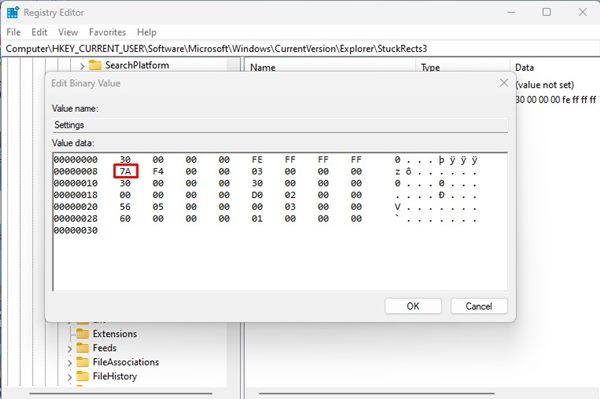
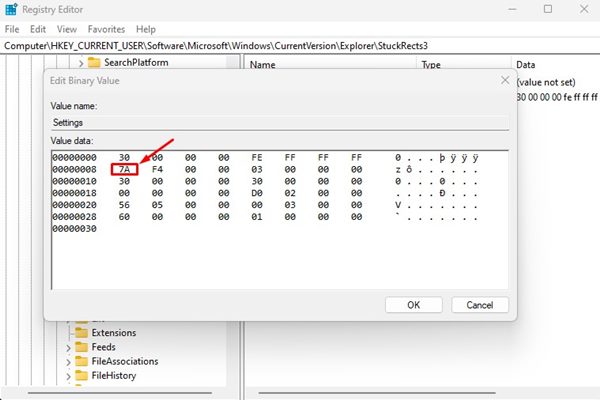
4. Replace the entry 7A with 7B. Once done, click on the Ok button.

Now restart your computer to apply the changes. After the restart, you will no longer see the Taskbar. If you wish to show the taskbar again, repeat the steps and replace the 7B entry with 7Ainn Step 4.
3. Auto Hide Taskbar in Windows 11 via PowerShell
You can even utilize the PowerShell utility on Windows 11 to enable auto-hide for the taskbar.
1. Click on the Windows 11 search and type in PowerShell. Right-click on PowerShell and select Run as Administrator.
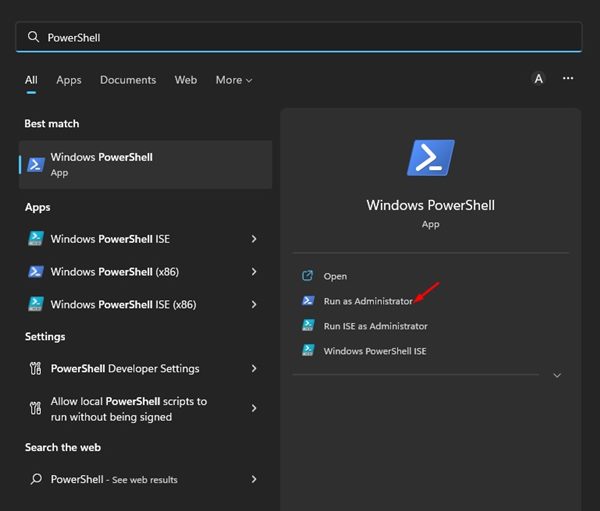
2. In PowerShell, execute the command:
&{$p='HKCU:SOFTWARE\Microsoft\Windows\CurrentVersion\Explorer\StuckRects3';$v=(Get-ItemProperty -Path $p).Settings;$v[8]=3;&Set-ItemProperty -Path $p -Name Settings -Value $v;&Stop-Process -f -ProcessName explorer}
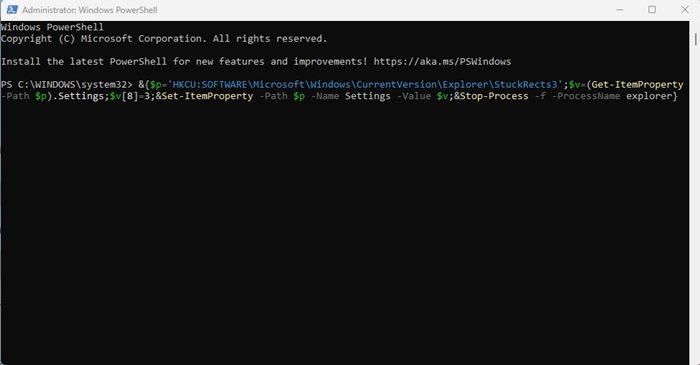
3. The above command will enable auto-hide for the taskbar on Windows 11.
4. If you wish to disable the auto-hide feature for the taskbar, execute this command:
&{$p='HKCU:SOFTWARE\Microsoft\Windows\CurrentVersion\Explorer\StuckRects3';$v=(Get-ItemProperty -Path $p).Settings;$v[8]=2;&Set-ItemProperty -Path $p -Name Settings -Value $v;&Stop-Process -f -ProcessName explorer}
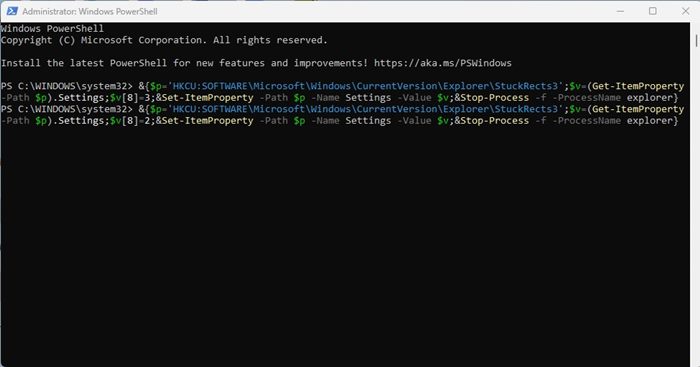
The methods would work even on Windows 10. You can also use third-party taskbar customization tools to enable/disable the taskbar on Windows 11.
The post How to Hide & Show the Taskbar in Windows 11 appeared first on TechViral.
from TechViral https://ift.tt/8ptuafk