

As Windows 11 downloads & installs updates automatically in the background, you might encounter problems during the installation process. You might even be forced to restart your PC out of nowhere.
So, if you are dealing with such problems, you are reading the right guide. In this article, we share a step-by-step guide on how to stop automatic updates on Windows 11.
1. Stop Automatic Updates via Settings
In this method, we will use the Windows 11 Settings app to stop automatic updates.
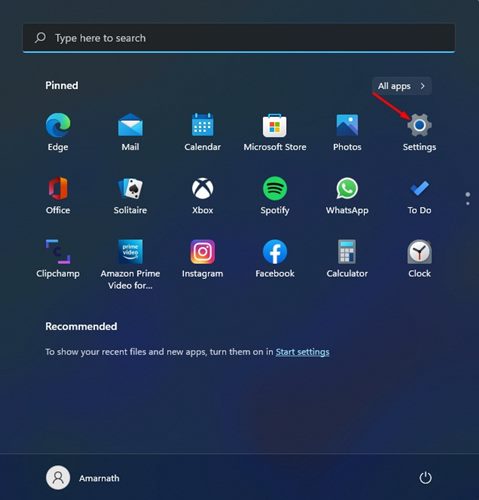
1. Click on the Windows 11 Start button and select Settings.
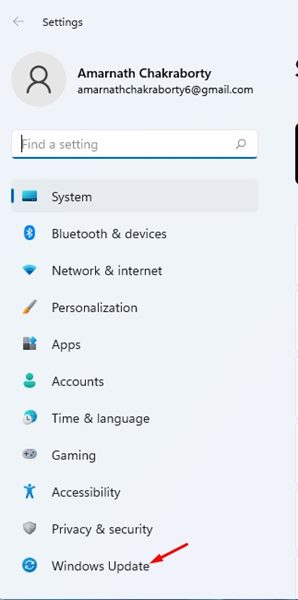
2. Click on Windows Updates.
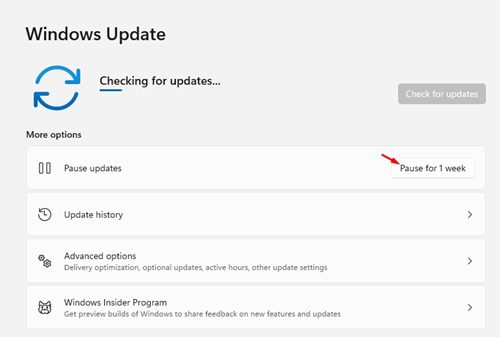
3. Click on the Pause for 1 week option.
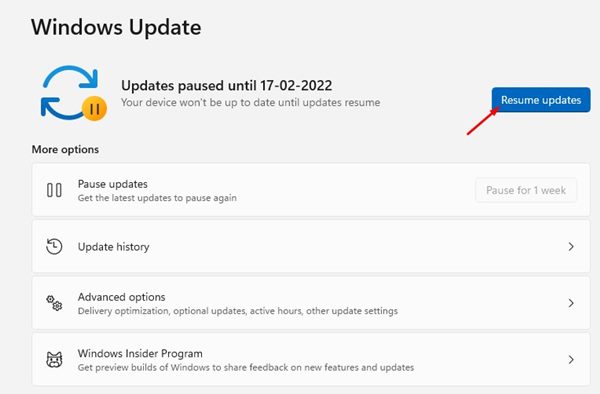
4. This will pause the updates. If you ever wish to resume the updates, click on Resume updates.
2. Stop Automatic Updates via Registry
In this method, we will use the Windows Registry to stop the Automatic updates.
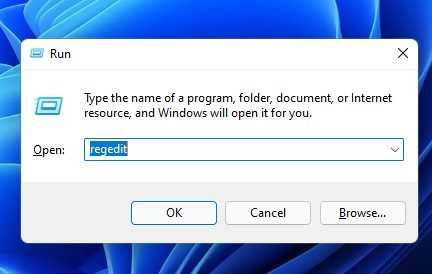
1. Press the Windows Key + R to open the RUN dialog box. In the RUN dialog box, type regedit and press Enter.
2. This will open the Registry Editor. You need to navigate to the following path:
HKEY_LOCAL_MACHINE\SOFTWARE\Policies\Microsoft\Windows
3. Right-click on the Windows folder and select New > Key.
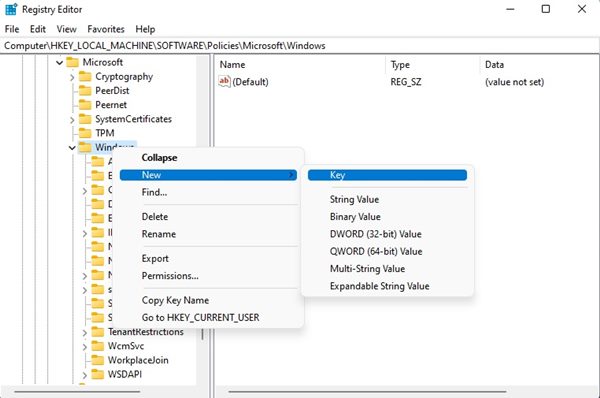
4. Name the new key WindowsUpdate. Once done, right-click on the WindowsUpdate folder and select New > Key.
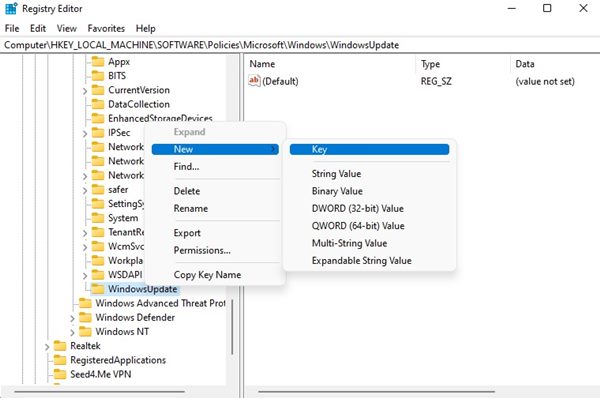
5. Name the new key folder AU. Right-click on the AU folder and select New > DWORD (32-bit Value)

6. Name the new DWORD 32-bit key NoAutoUpdate.
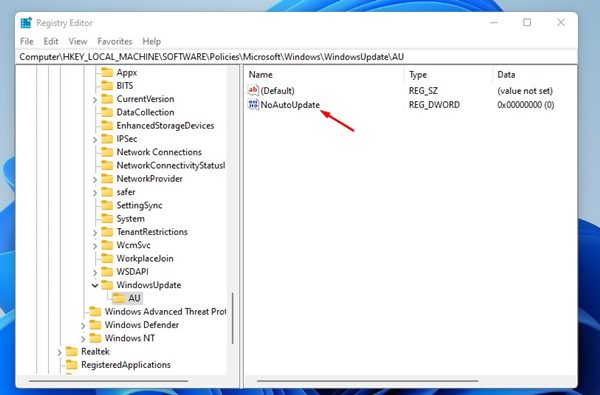
7. Double-click on NoAutoUpdate and change its Value data to 1.
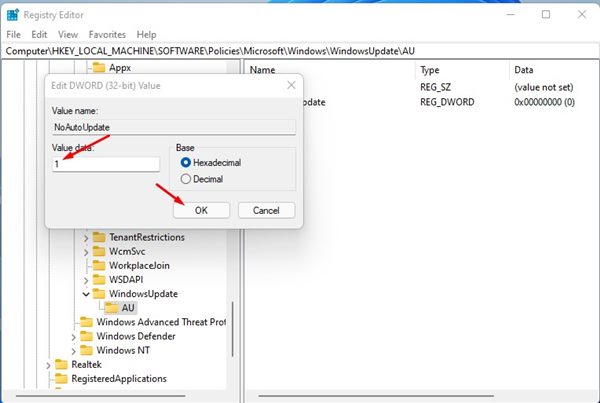
8. Once done, click OK.
3. Stop Automatic Updates via Group Policy Editor
In this method, we will use the Group Policy Editor to stop automatic Windows 11 updates.
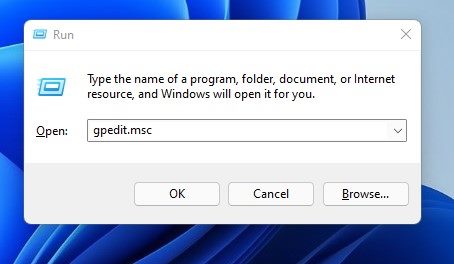
1. Press the Windows Key + R to open the RUN dialog box. In the RUN dialog box, type gpedit.msc and press Enter.
2. In the Local Group Policy Editor, navigate to the following path:
Computer Configuration > Administrative Templates > Windows Components > Windows Update > Manage end user experience
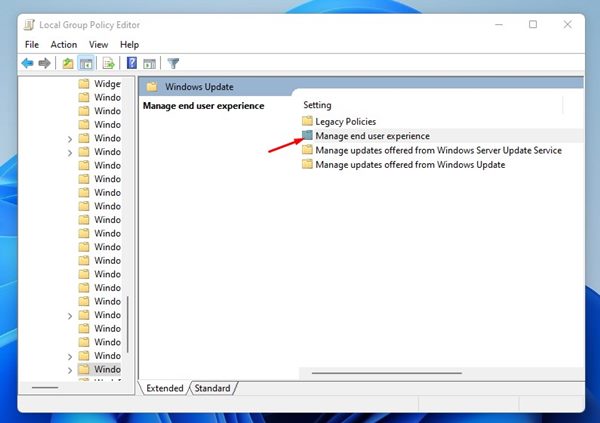
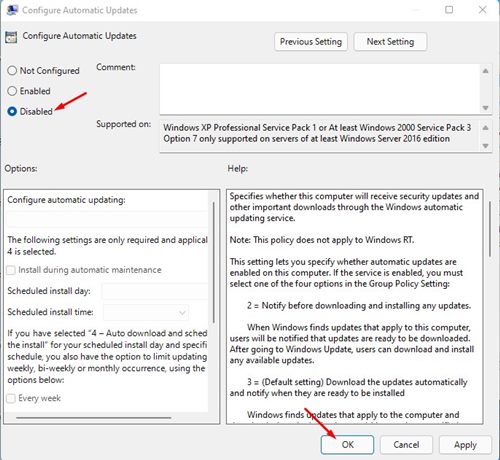
3. Find the Configure Automatic Updates policy.

4. Double-click on the policy and select the Disabled option. Then, click OK.
It’s pretty easy to stop automatic updates on Windows 11, and we are pretty sure that these methods will help you achieve that. I hope this article helped you! Please share it with your friends as well. If you have any doubts related to this, let us know in the comment box below.
The post How to Stop Automatic Updates on Windows 11 (3 Best Ways) appeared first on TechViral.
from TechViral https://ift.tt/rFmRM49