

You can use Windows Package Manager (Winget) to uninstall UWP and classic desktop apps from your Windows 11 computer. If you don’t know, Winget, or Windows Package Manager, is a command-line tool that allows users to discover, install, upgrade, remove, or configure applications on Windows.
It’s a great command-line tool that you should use. Previously, we shared a detailed guide on how to install multiple programs on Windows 11 using winget. Today, we will discuss uninstalling UWP or classic desktop apps on Windows 11 via the Winget command tool.
Uninstall Apps on Windows 11 Using Winget Command
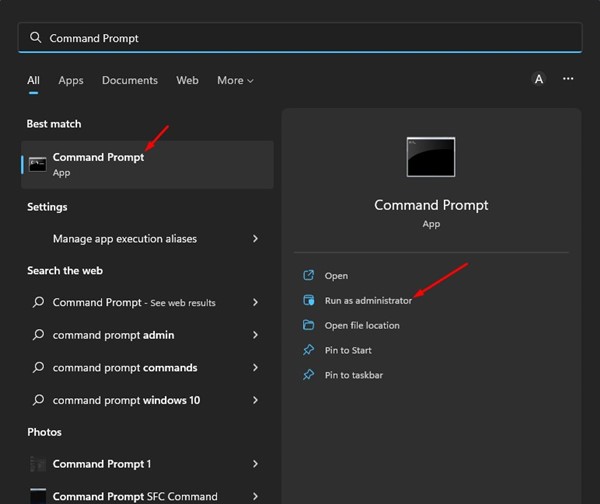
1. Click on the Windows search and type Command Prompt. Right-click on Command Prompt and select Run as administrator.
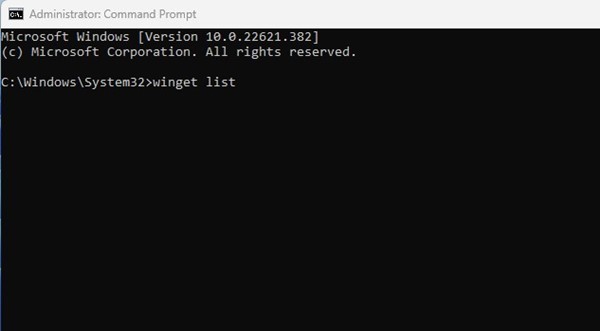
2. Execute the command winget list in Command Prompt and press Enter.
3. You will see the list of all apps installed.

4. Note the App name displayed on the left side.
5. Execute the command winget uninstall "APP-NAME"
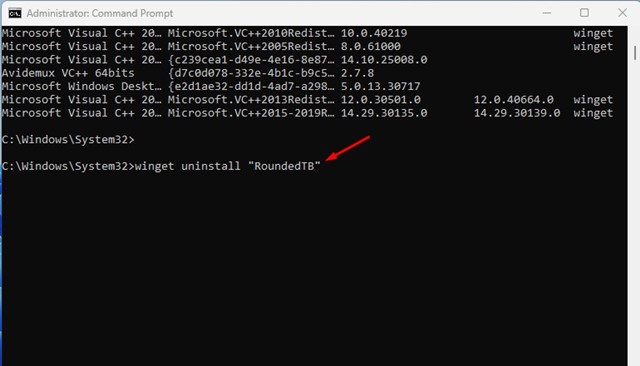
Important: Replace APP-NAME with the application name you want to uninstall. For example: winget uninstall “RoundedTB”
6. If Winget fails to recognize the app, you must uninstall it with its App ID. The app ID is displayed just beside the App name.
7. To uninstall an app with its App ID, execute the command:
winget uninstall --id "APP-ID"
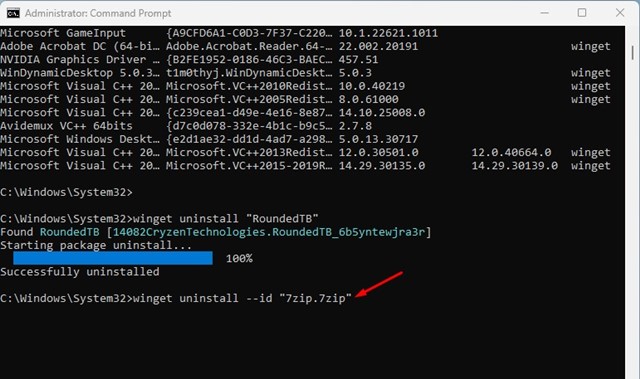
Important: Replace APP-ID with the App ID of the application you want to uninstall. For example, winget uninstall –id “7zip.7zip”
8. If you want to remove a specific version of an app, note down the version number for the app using the winget list command.
9. Once done, execute the command:
winget uninstall "APP-NAME" --version x.xx.x
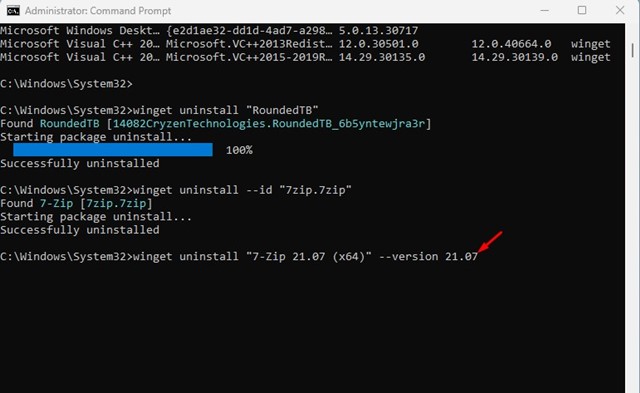
Important: Replace APP-NAME with the application name you want to uninstall. And replace x.xx.x at the end with the version number. For example, ‘winget uninstall “7-Zip 21.07 (x64)” –version 21.07’
This is how you can uninstall apps in Windows 11 by using the Winget command. If you don’t want to use the winget command, you can use other ways to uninstall apps on Windows 11.
This guide is all about how to uninstall apps in Windows 11 using winget command. If winget fails to uninstall an app, you need to try software uninstallers for Windows. If you need more help uninstalling apps in Windows 11, let us know in the comments below.
The post How to Uninstall Softwares on Windows 11 Using CMD appeared first on TechViral.
from TechViral https://ift.tt/ETrntdi