

While making certain changes to the system settings on Windows 11, you might have come across a UAC prompt asking you to confirm the action. The UAC prompt appears when you try to do something that requires administrative privileges.
You can disable UAC prompts on Windows 11, but it’s not a good option, as doing so will invite many security risks. The other option is to enable the Administrator account on Windows 11, which will bypass the UAC prompts.
However, before enabling the administrator account on Windows 11, you first need to check whether you already have administrator rights or not. Although the administrator account on Windows 11 must be enabled manually, it’s still best to check whether the admin account is already enabled.
1. Check Account type via Settings
In this method, we will use Windows 11’s Settings app to check if the user account is an administrator account.
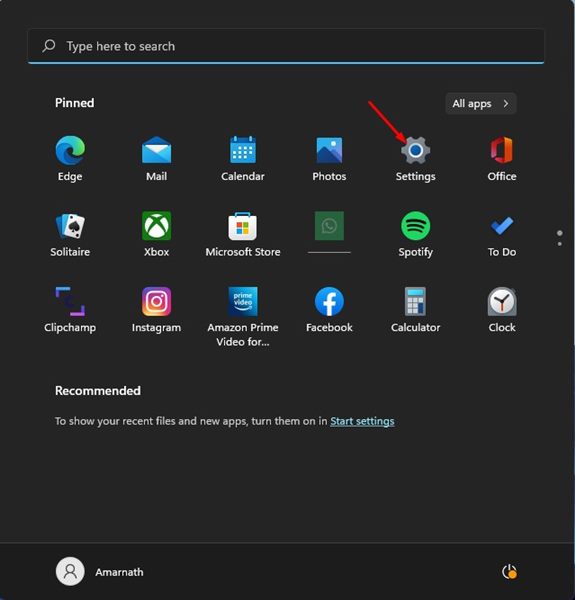
1. Click on the Windows 11 Start menu and select Settings.
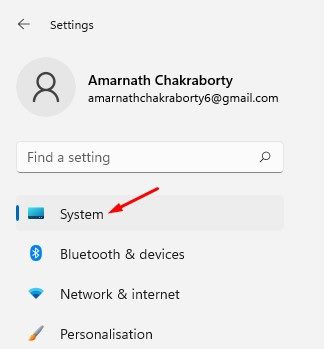
2. In the Settings app, switch to the System tab.
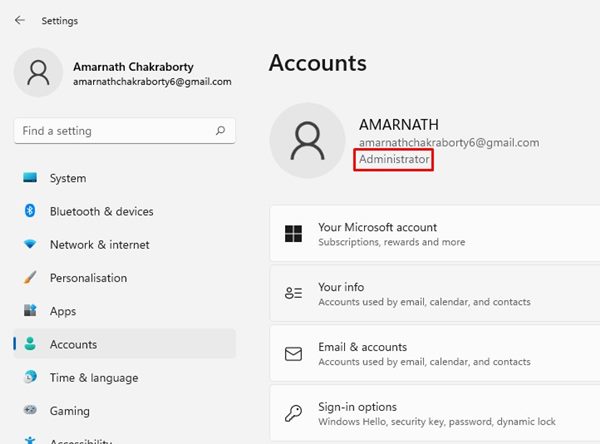
3. On the right pane, you will see the user account details. If the ‘Administrator’ text appears, it indicates you are using an administrator account.
2. Check if you have admin rights via Control Panel
In this method, we will use the Control Panel to check if the user account is an administrator account.
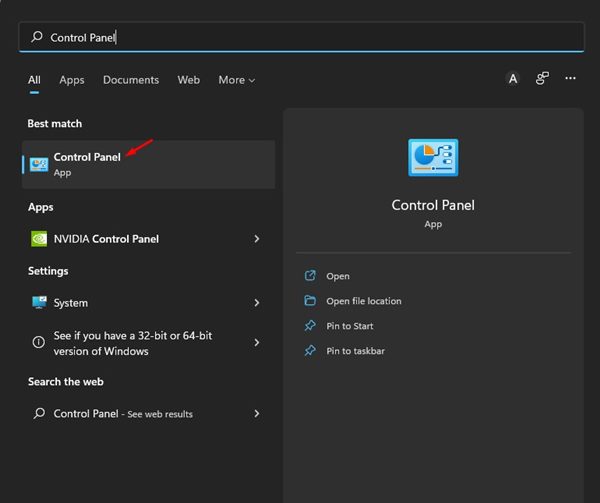
1. Click on the Windows 11 search and type in Control Panel. Open Control Panel from the list of options.
2. In Control Panel, click on User Accounts.
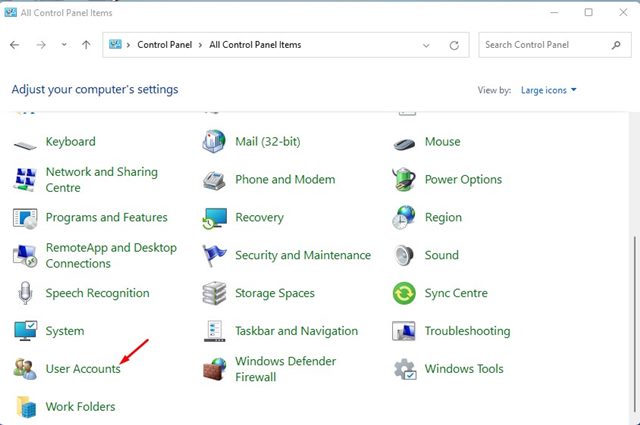
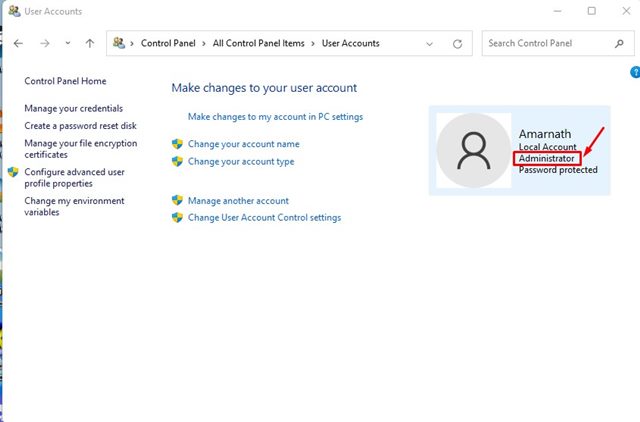
3. On the User Accounts page, look at the right side. If your account is an admin account, you will see the ‘Administrator’ text below the user account name.
3. Check if your Windows 11 Account is an Administrator account via CMD
We will utilize the Command Prompt utility to check if the Windows 11 account is an administrator account in this method.
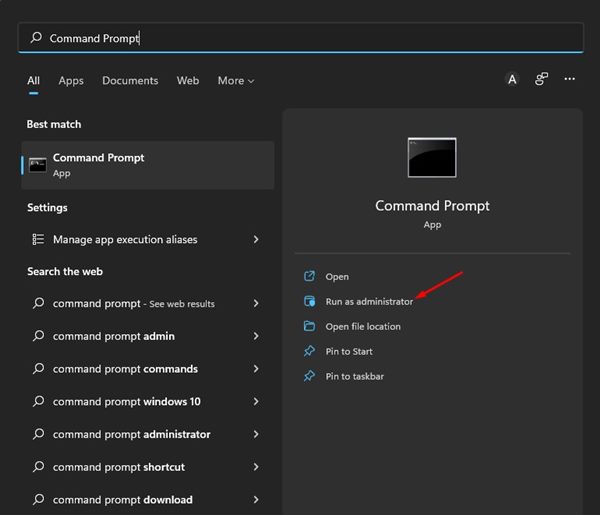
1. Click on the Windows 11 search and type in Command Prompt.
2. Right-click on Command Prompt and select Run as administrator.
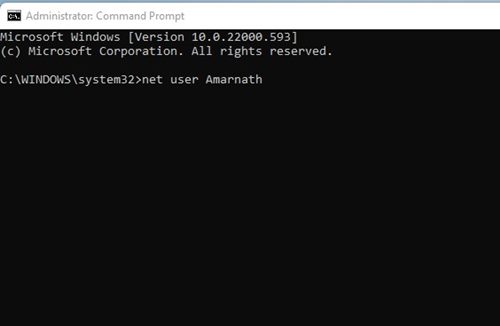
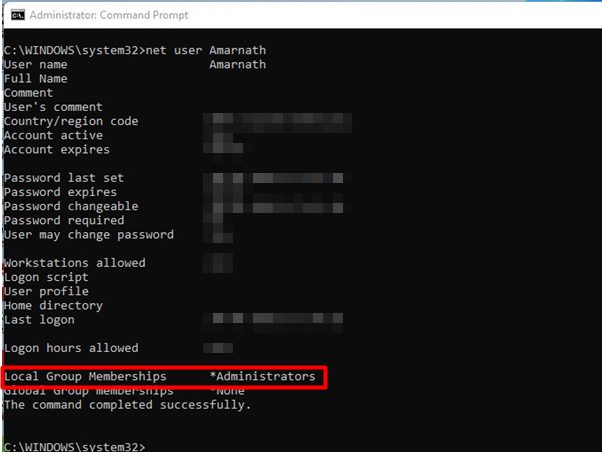
3. In Command Prompt, type in net user accountname and press Enter.
Note: Replace the accountname with your account name. For example, “net user techviral“.
4. The Command Prompt will display a lot of information. You need to check the Local Group Memberships field to check the account type. If the Local Group Membership status shows *Administrators, your current account has admin rights.
These are a few of the best methods to help you check if your user account is an administrator account. If you are using a standard account and wish to enable the administrator account.
The post How to Check If You Have Administrator Rights in Windows 11 appeared first on TechViral.
from TechViral https://ift.tt/ZqGmDgW