

Hibernate Mode is useful as it allows users to take a quick or short break from their work without stressing about any data loss. Another thing is that Hibernate mode consumes less power than Sleep mode; hence, it can also save your laptop’s battery life.
Although the feature is good, it has one major flaw – it saves your data to the hard disk, resulting in the PC taking more time to wake up than in Sleep mode. So, if you don’t prefer using the Hibernation mode in Windows 11, it’s best to turn off the feature entirely.
1. Disable Hibernation Mode via Power Plan Settings
We will use the Power Plan Settings of Windows 11 to disable the Hibernate Mode in this method.
1. Click on the Windows 11 search and type in Control Panel. Next, open Control Panel from the list of options.
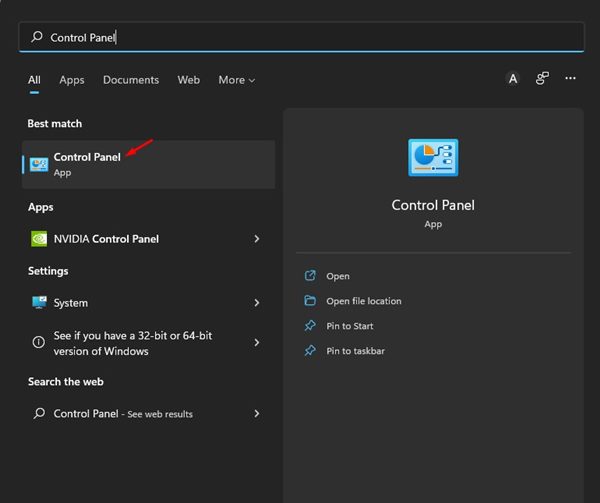
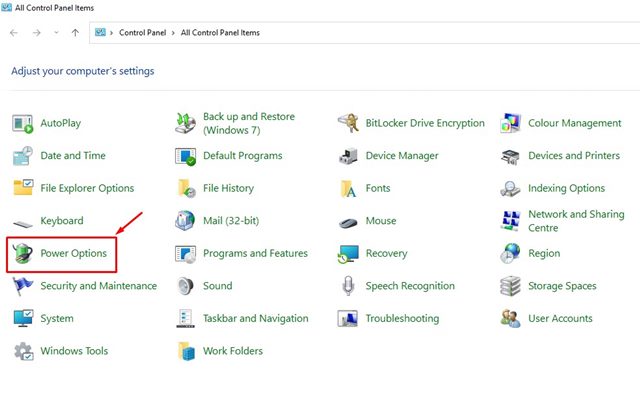
2. In Control Panel, click on Power Options.
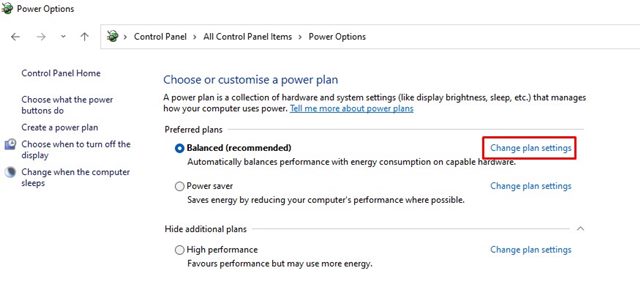
3. In Power Options, click on the Change plan settings link beside the active plan.
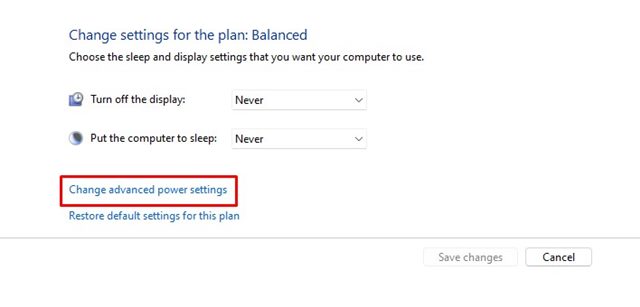
4. On the next screen, scroll down and click on the Change advanced power settings link.
5. This will open the Power Options Advanced Settings. Here, you need to expand the Sleep option and then expand Hibernate after.
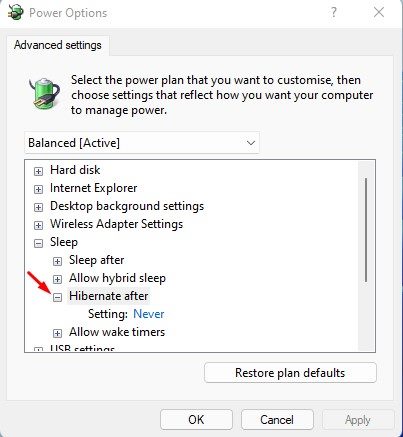
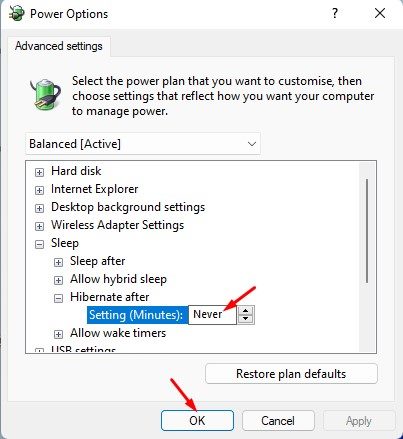
6. To disable the hibernate mode, select ‘Never’ for both On Battery and Plugged in. Once done, click on the Ok button.
2. Disable Hibernate Mode via Registry
We will use the Registry Editor to disable the Hibernate mode in this method.
1. Click on the Windows 11 search and type in Registry Editor. Next, open Registry Editor from the list.
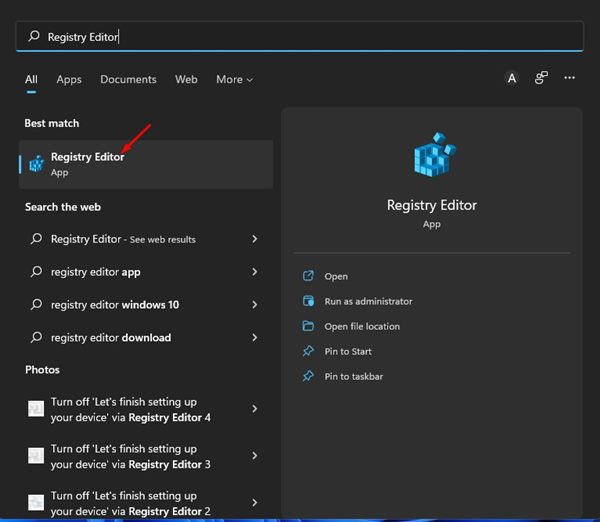
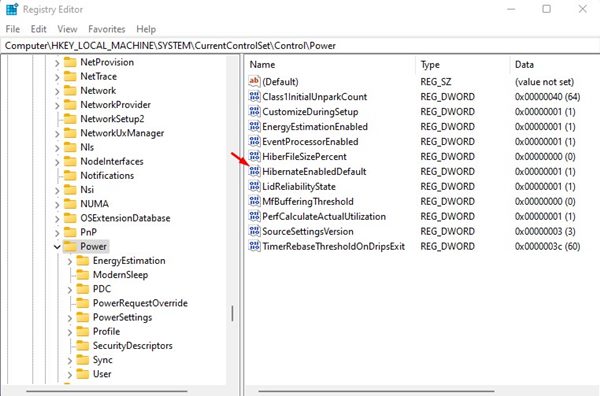
2. In Registry Editor, navigate to the following path:
Computer\HKEY_LOCAL_MACHINE\SYSTEM\CurrentControlSet\Control\Power
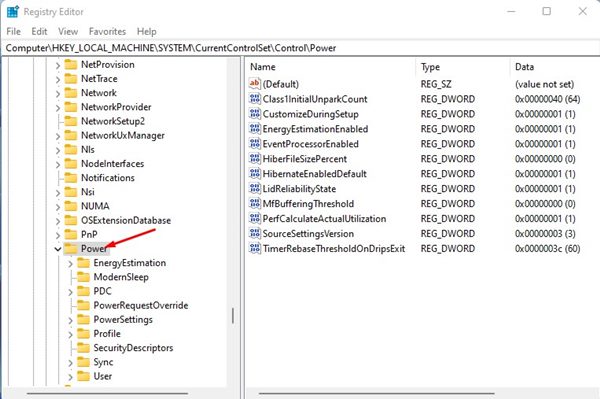
3. In the right pane, double-click the HibernateEnabledDefault key.
4. Enter 0 in the Value data field and click on the Ok button.
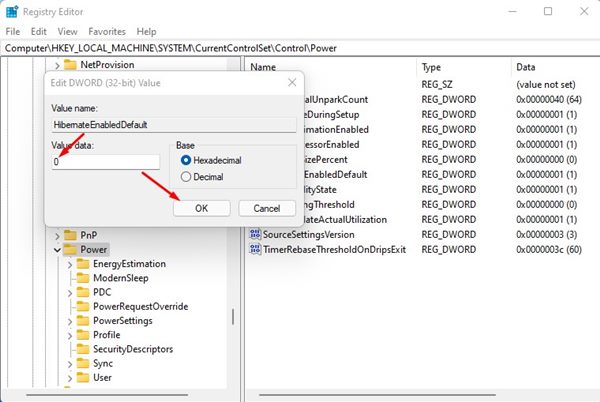
After making the above changes, restart your computer. After the restart, you won’t find the Hibernate option in the Power menu of Windows 11.
3. Disable Hibernate Mode on Windows 11 via Command Prompt
You can even use the Command Prompt utility on Windows 11 to disable the Hibernate mode. You need to follow some of the simple steps we have shared below.
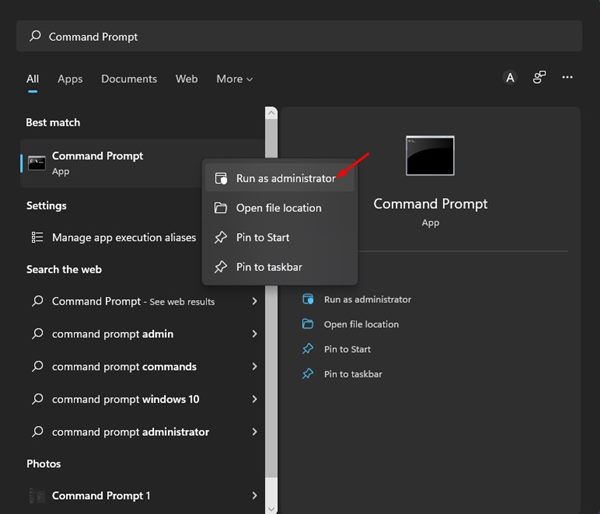
1. Click on the Windows 11 search and type in Command Prompt. Next, right-click on Command Prompt and select Run as administrator.
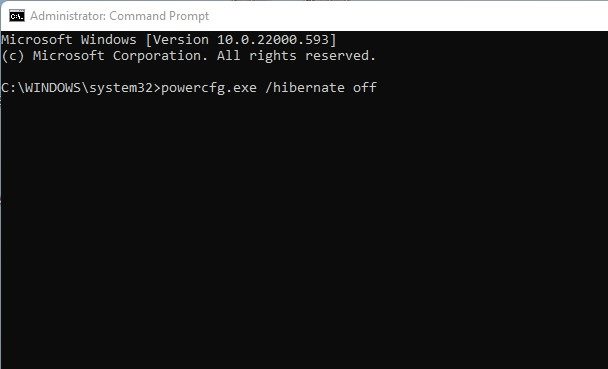
2. In Command Prompt, type powercfg.exe /hibernate off and press Enter.
All you need to do is disable the Hibernation mode on your Windows 11 computer/laptop. We have shared the easiest methods to turn off Hibernation mode entirely on a Windows 11 device. If you want to enable it again, follow our guide to Enable Hibernate Mode in Windows 11.
The post How to Disable Hibernate Mode in Windows 11 (3 Methods) appeared first on TechViral.
from TechViral https://ift.tt/EAL86Mb