

Are you struggling with internet bandwidth management and looking for a solution? Don’t worry, we are here to help! If you are using Windows 11 and have limited internet bandwidth, it’s very important to check apps that use the internet by following these methods.
1. Check Apps Using the Internet using Task Manager
Task Manager is an ultimate utility that allows you to track all apps and services running in the background. With the Task Manager, you can easily determine which apps use internet data in real time.
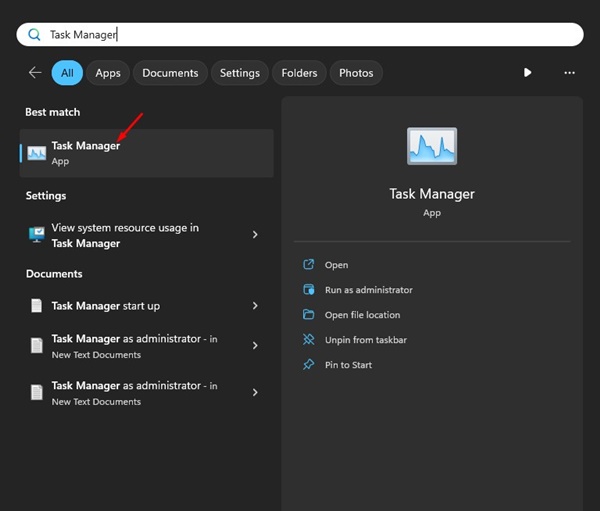
1. Open Task Manager from the Windows 11 Search.
2. When the Task Manager opens, click on the Network Column.
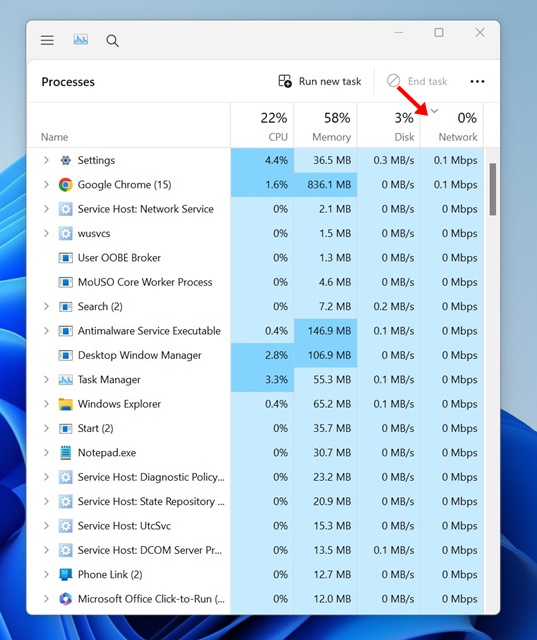
3. You will see all apps running in the background and connecting to your internet.
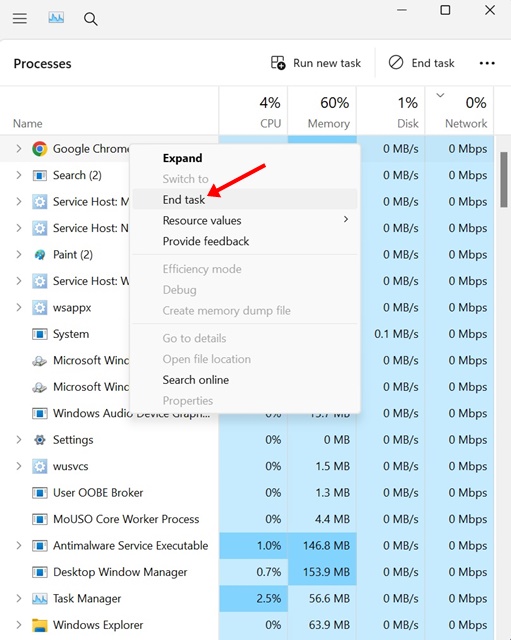
4. If you don’t want a specific app to connect to the internet, right-click on the App name and select End Task.
2. Check Apps Using the Internet Using Resource Monitor
Resource Monitor is an advanced version of the Task Manager app available for Windows. You can use it to check which apps are using the internet.
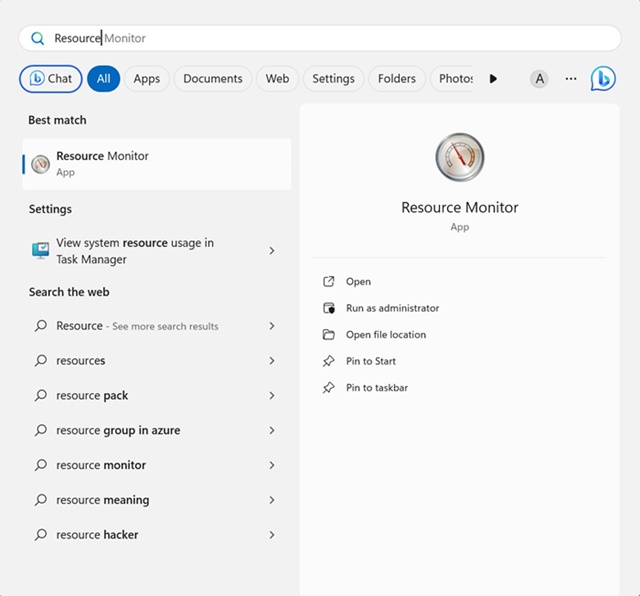
1. Open the Resource Monitor app from the Windows 11 search.
2. When the Resource Monitor opens, switch to Network.
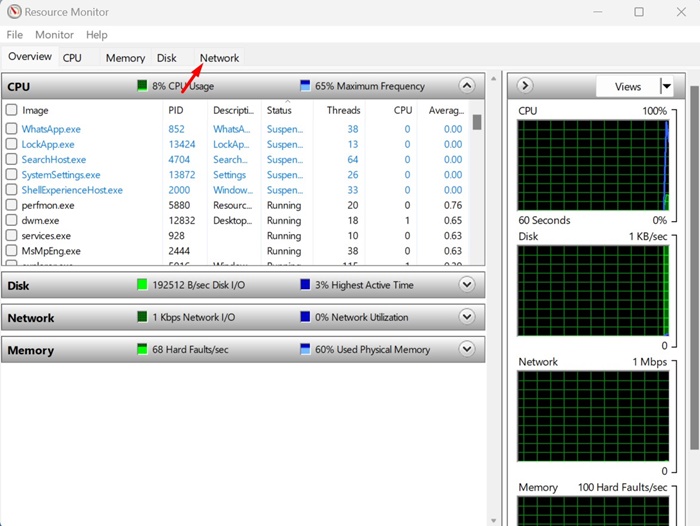
3. You need to take a brief look at the Network Activity. You can see which apps are running in the background and connecting to the internet.
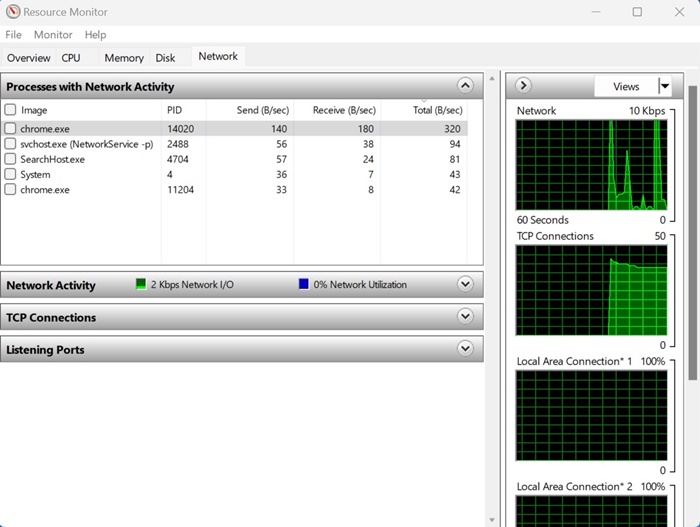
4. The Send on the Network Activity indicates the upload speed, the Receive is the download speed, and the Total is the sum of both speeds.
3. Check the Total App Usage on Windows 11 via Settings
In this method, we will use the Windows 11 Settings app to check the total data usage of apps. Here’s what you need to do.
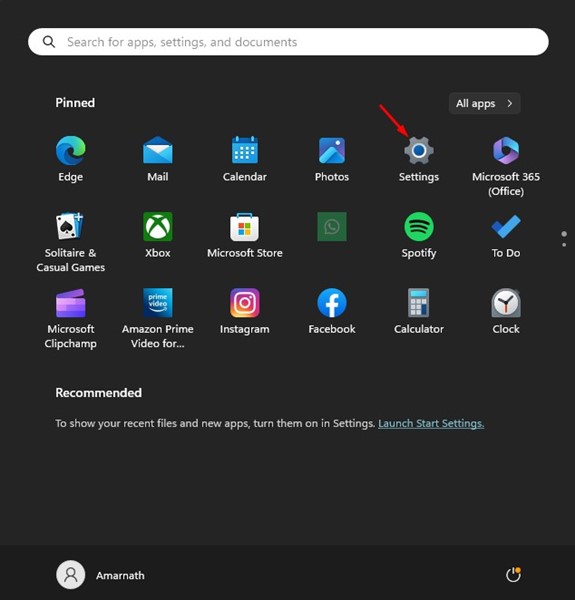
1. Click on the Windows 11 Search and select Settings.
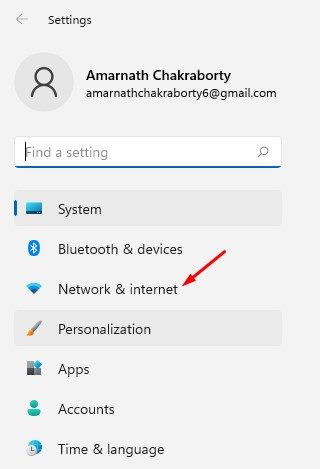
2. Switch to the Network & Internet.
3. Click on the Data Usage.
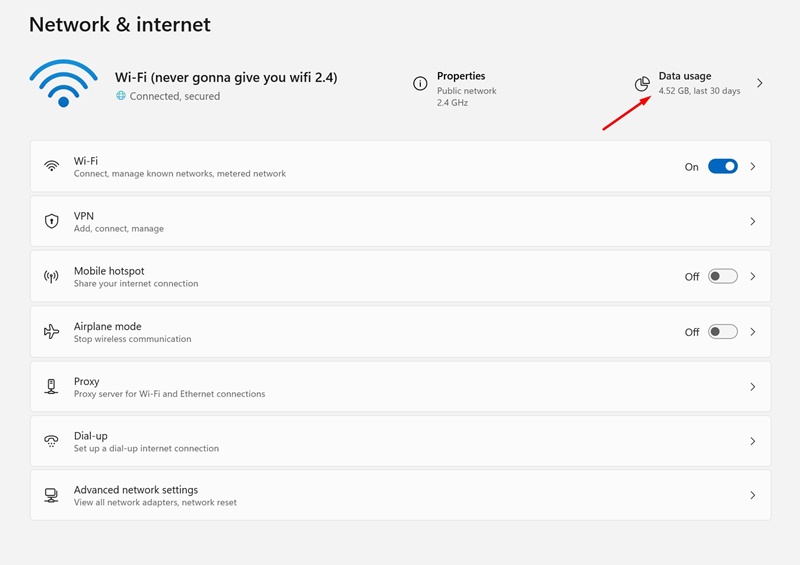
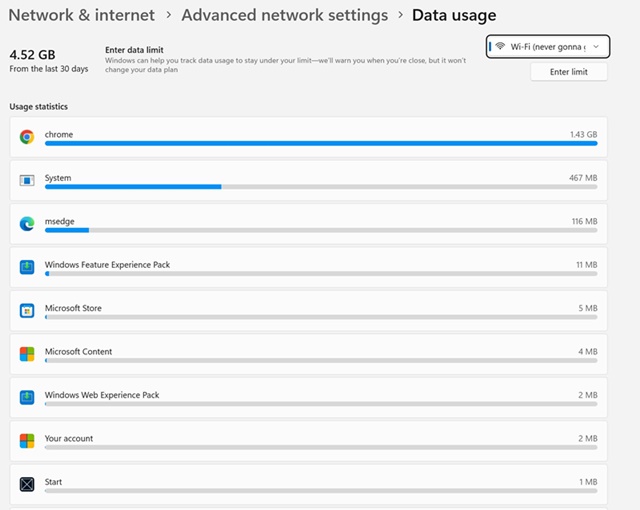
4. Set the time frame of the Filter by drop-down. On the Usage Statistics, you can see the total data usage of apps on your Windows 11.
How to Limit Data Usage on Windows 11?
If you have limited internet bandwidth, it’s best to limit data usage to avoid the extra charges. On Windows 11, you get an option to limit data usage.
When the data usage limit is reached, Windows 11 stops the internet consumption. So, if you can’t track which apps are using the internet in the background, it’s best to set up a data usage limit.
This way, you won’t have to worry about excess background data usage.
1. Click on the Windows 11 Start Button and select Settings.
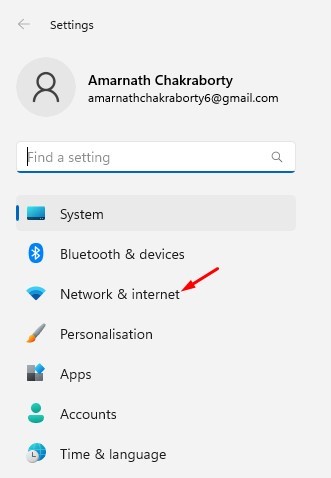
2. Switch to the Network & Internet.
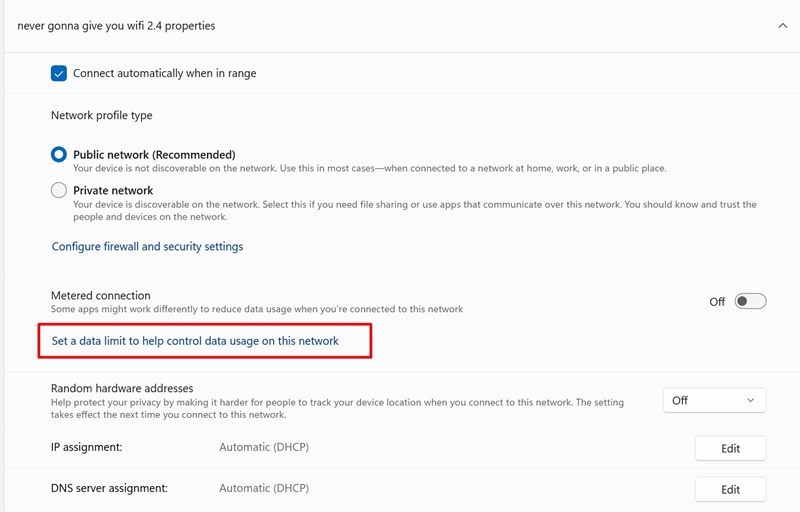
3. Now select your network and click on Set a data limit to help control data usage on this network.
4. Click the Enter limit button at the top right.
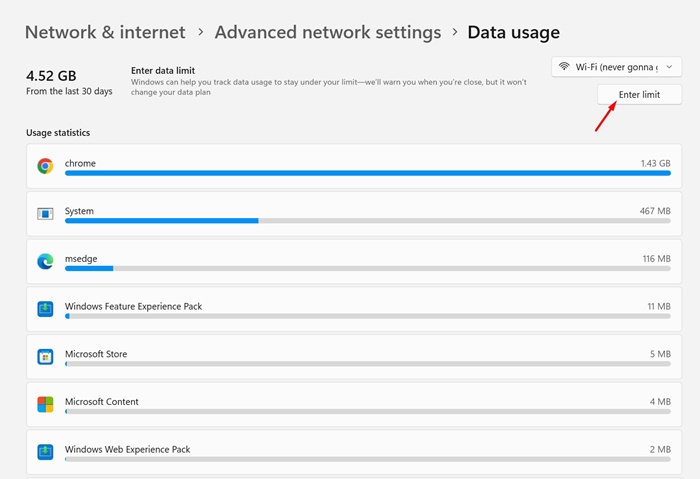
5. Set the Limit Type, Reset Data, and the Data Limit. Once done, click on Save.
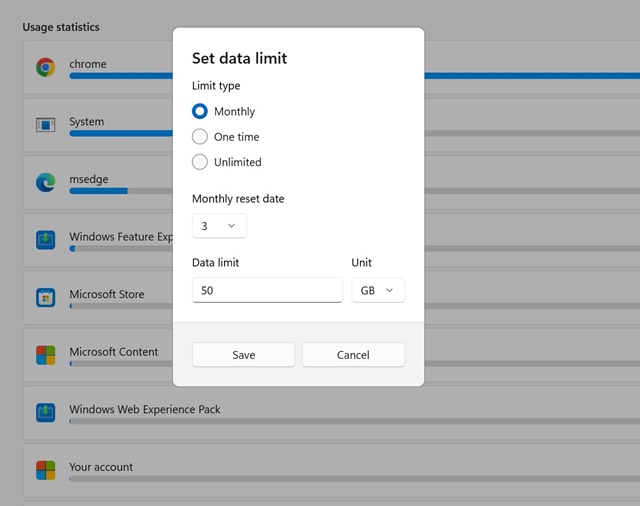
Windows 11 will notify you when the data limit is about to be reached. The data limit counter will be reset after the number of days you’ve selected.
If you don’t want to limit the data usage, you can use the Windows Defender application to block internet access to apps on Windows 11.
We have shared a detailed guide on blocking internet access to apps on Windows 11. Make sure to go through that article to know the steps.
This guide is about how to check which apps are using the internet on Windows 11. You can follow these methods to easily find apps that silently steal your internet bandwidth. Let us know if you need more help managing internet bandwidth on Windows 11.
The post How to Check Apps Using Internet on Windows 11 (4 Methods) appeared first on TechViral.
from TechViral https://ift.tt/J5djD6C

