

An email group is a collection of email addresses to which emails are sent at once. You can take them as WhatsApp groups, adding members and sending messages to everyone at once.
Email groups in Gmail are helpful if you want to send the same message to multiple email addresses simultaneously.
How to Create Email Groups in Gmail?
Gmail doesn’t have an option to create email groups, but you can use Google Contacts to create a group of contacts and use it on Gmail. Here’s what you need to do.
1. Launch your favorite web browser and visit the Google Contacts website.
2. Log in with the Google account that you use with Gmail.
3. You can see all contacts saved on Google Contacts.
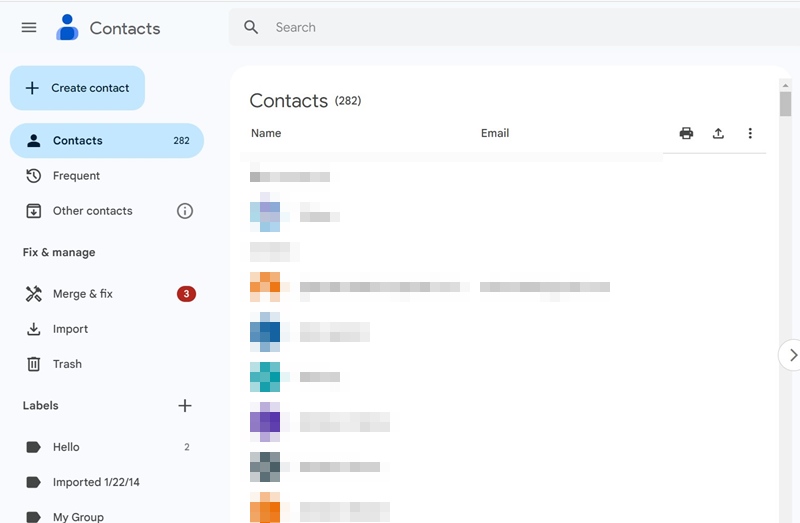
Important: Some contacts may not have email addresses. If you don’t have any contacts saved, go to the ‘Frequently Contacted’ page. You will be able to see the contacts that you email often.
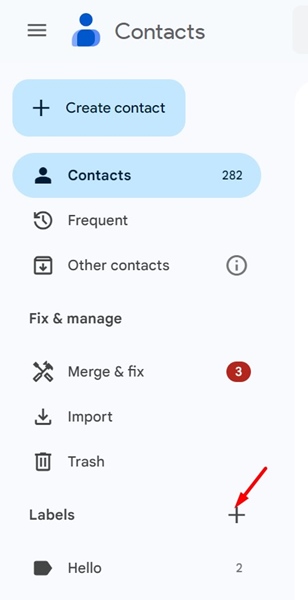
4. When Google Contacts opens, click the (+) icon beside the Labels. Or else, click on Create Label.
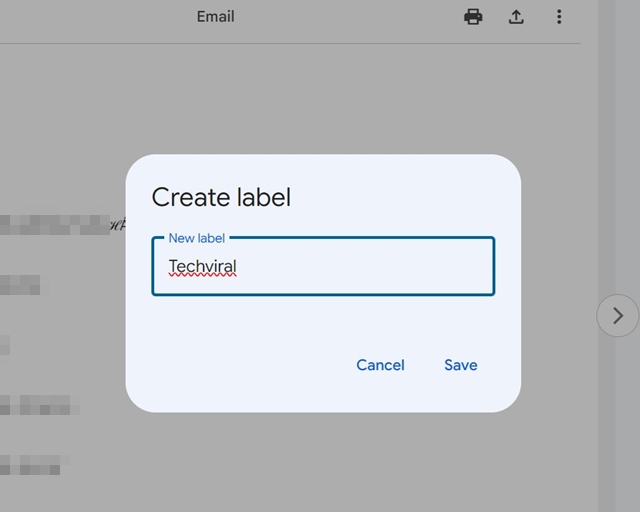
5. Enter the name for the Contact Label and click Save.
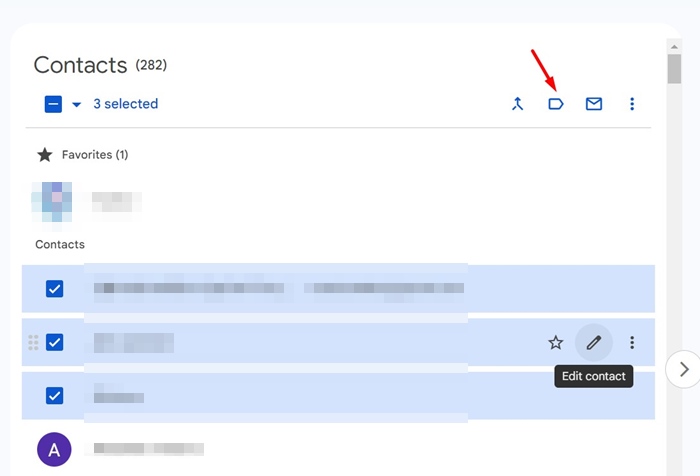
6. Switch to the Contacts tab and start selecting the contacts you want to add to your Email group.
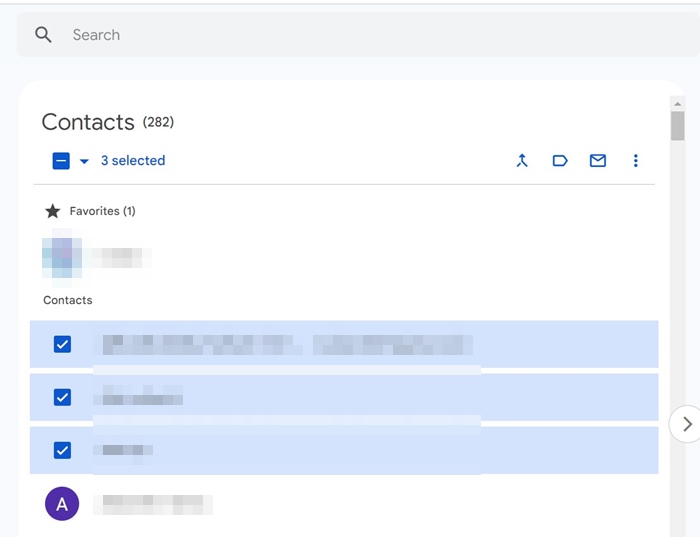
7. Click the Manage Labels icon at the top right corner.
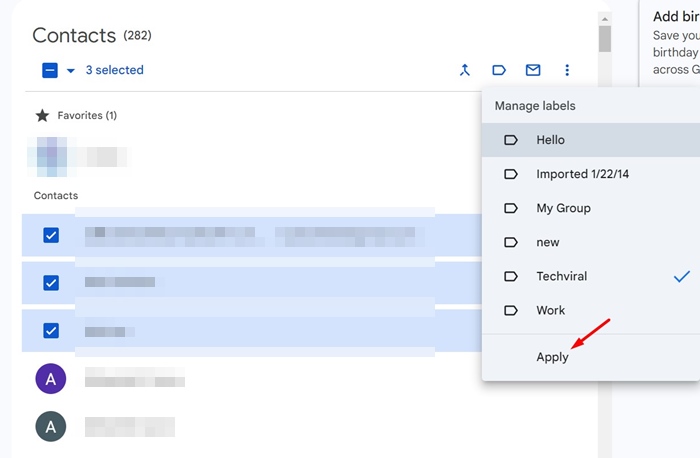
8. Select the label you’ve just created and click Apply.
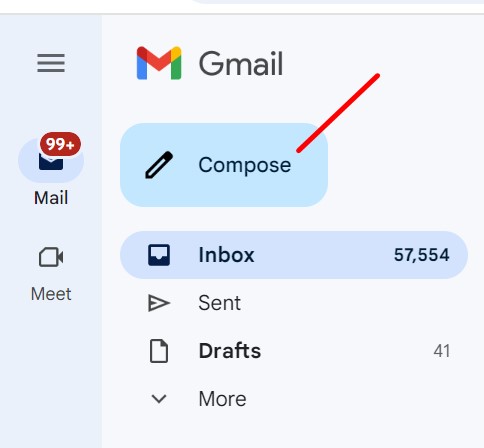
9. Open a new tab and open Gmail.
10. Compose a new email.
11. On the ‘To:’ field, start typing the contact label you have created. The contact label will appear; select it.
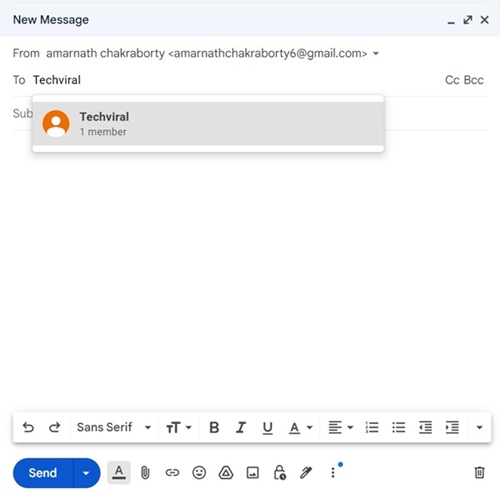
12. Once you select the label, the email addresses will be added to the To field.
13. You can now type the email message and click on Send. This will send the message to multiple users.
That’s how easy it is to create email groups in Gmail. If you need more help creating email groups in your Gmail account, let us know in the comments.
The post How to Create Email Groups in Gmail appeared first on TechViral.
from TechViral https://ift.tt/RpU5OZ6

