

When the Windows Services app encounters issues, it may fail to open or prevent you from modifying the Windows Services. If you cannot access Services on Windows 11, here’s what you should do.
1. Restart your Windows 11

Before trying anything else, you need to restart your Windows 11 computer once. Restarting helps by releasing apps & processes from Memory.
Restarting is a good idea if you’ve not done it for a while. After the restart, click on Windows Search, type Services, and select the Windows Services app.
2. Run Windows Services as an Administrator
Many Windows 11 users have claimed to resolve the Service app not opening problem by running it as an administrator. You can try doing it as well.
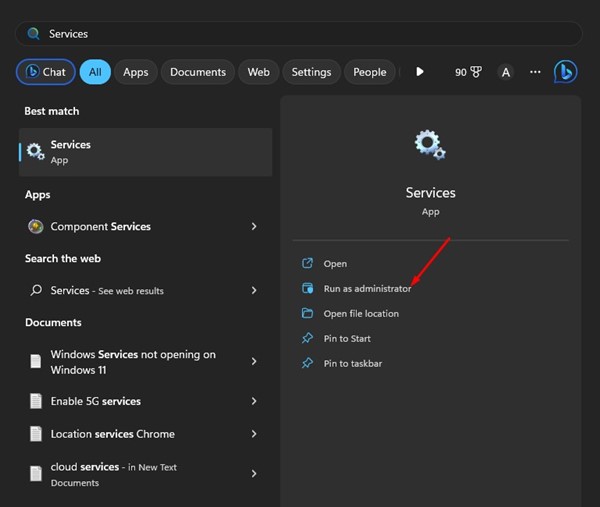
1. Click on Windows Search and type Services.
2. Right-click on the Services and select Run as administrator.
3. Try Running Windows Services through Command Prompt
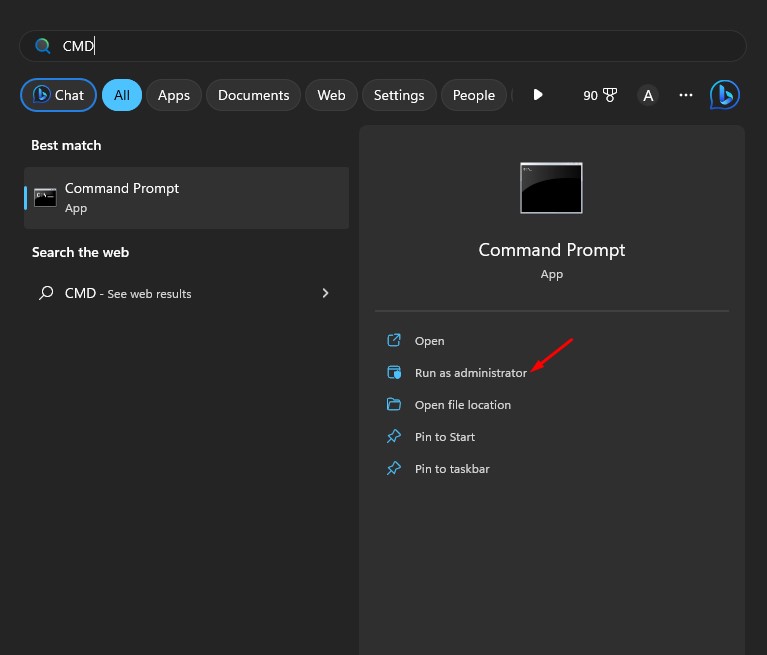
If the Services.msc app is not opening directly; you can try opening it from the Command Prompt.
1. Press the Windows Key on your keyboard and type Command Prompt. Right-click on the Command Prompt and select Run as administrator.
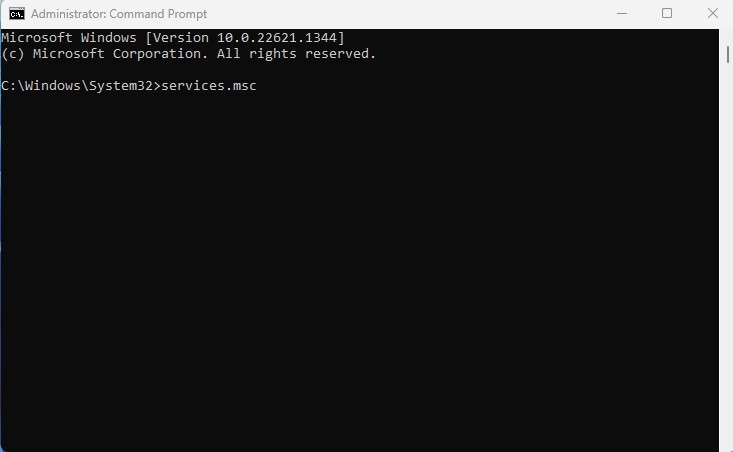
2. Type the services.msc command and press Enter.
4. Select Microsoft Management Console as the default app for .msc files
Microsoft Management Console is a component of Windows that provides users with an interface for configuring the system. It’s responsible for displaying all Windows services running on your device. When the Microsoft Management Console is not set as the default for .msc files, the Services.msc will fail to open. Here’s how to fix it.
1. Open the Settings app on your Windows 11 device.
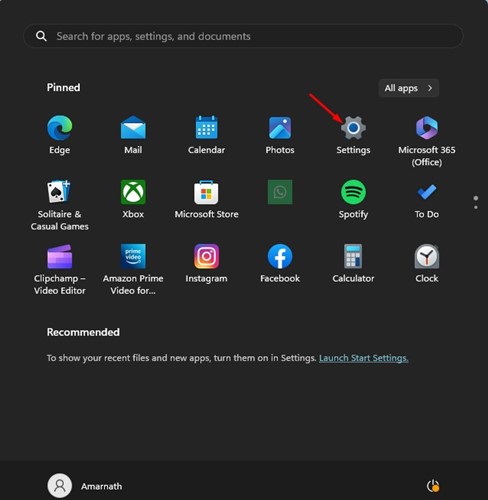
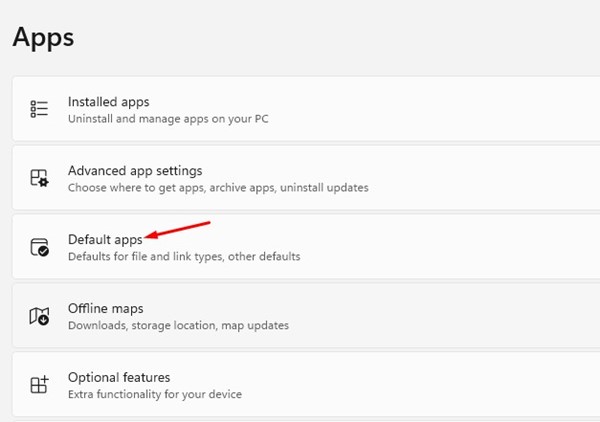
2. Select Apps. On the right side, choose Default apps.
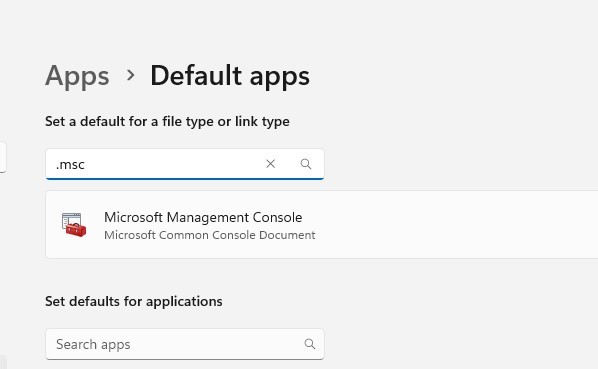
3. On the Default Apps, search for .msc and open the Microsoft Management Console.
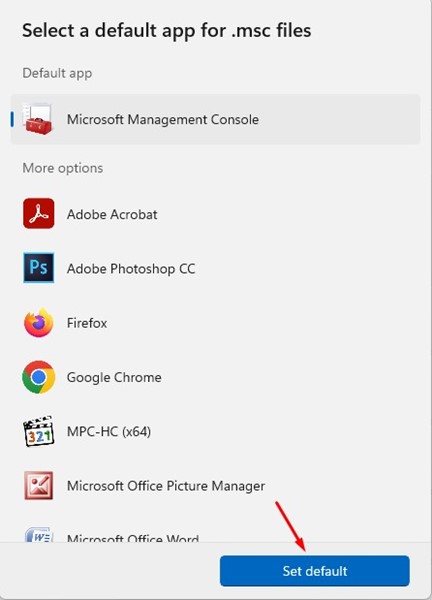
4. Click the Set Default option on the Set Default app for .msc files.
5. Run Windows’ Built-In Troubleshooters
Windows Services not opening on Windows 11 may indicate system maintenance issues. You can easily resolve this by using the System Maintenance Troubleshooter. Here’s how.
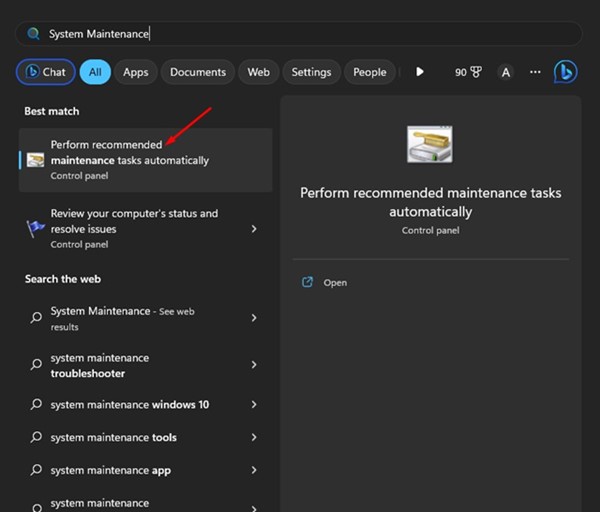
1. Click on Windows 11 search and type in System Maintenance.
2. From the list of options that appears, select Perform recommended maintenance task automatically.
3. Check the Apply Repairs automatically option.
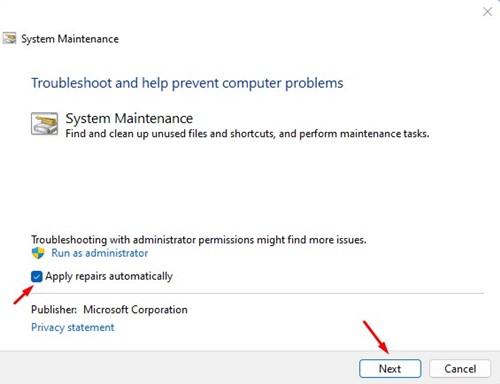
4. Click on Next.
6. Run the SFC Scan
System file corruption is another prominent reason for Services not opening on Windows 11. You can quickly repair the corrupted system files by running the System File Checker utility.
1. Click on the Windows Search and type in Command Prompt. Next, right-click on the Command Prompt and select ‘Run as administrator’.
2. Type in the given command and press Enter.
sfc /scannow
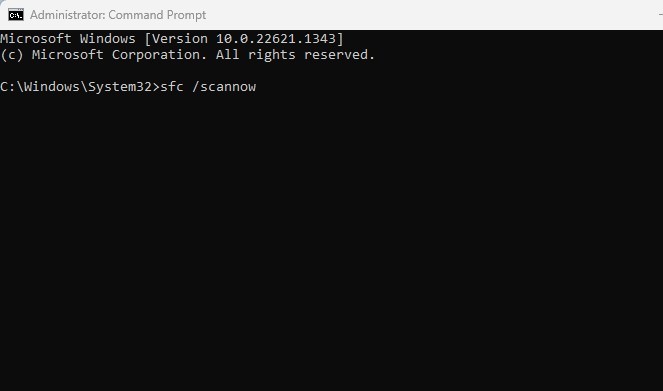
3. You need to wait patiently until the scan is completed. If SFC returns an error, you must run the DISM tool by executing these commands individually.
DISM /Online /Cleanup-Image /CheckHealthDISM /Online /Cleanup-Image /ScanHealthDISM /Online /Cleanup-Image /RestoreHealth
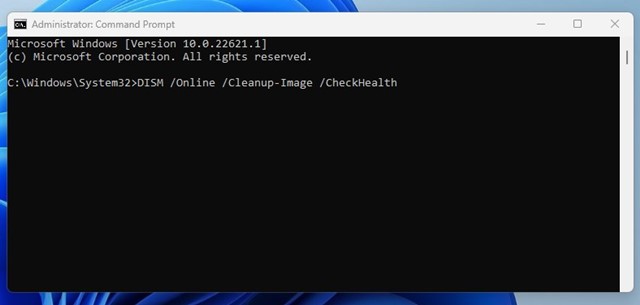
After performing the above steps, restart your Windows 11 computer. This should fix the Services app not opening on Windows 11.
7. Run a Full Antivirus Scan
Malware may be preventing you from accessing the Services to avoid detection. If the Windows Services app is still not opening, running a full antivirus scan with Windows Security is a good choice.
1. Open the Windows Security app from the Windows Search.
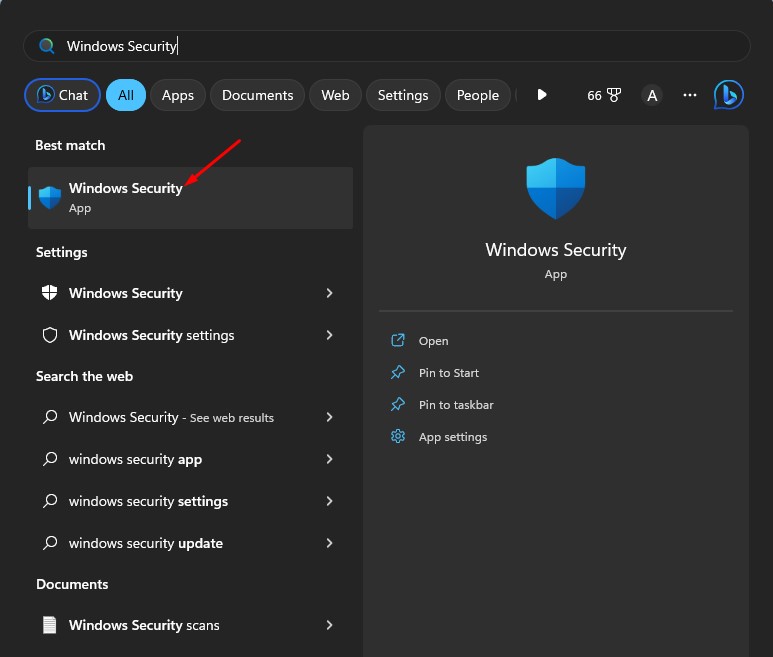
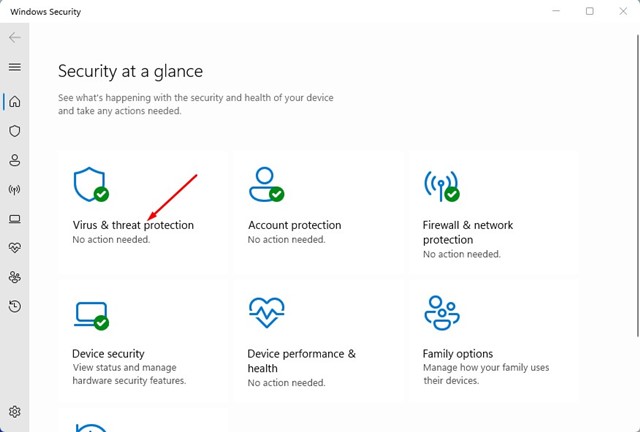
2. Click on the Virus & Threat Protection tab.
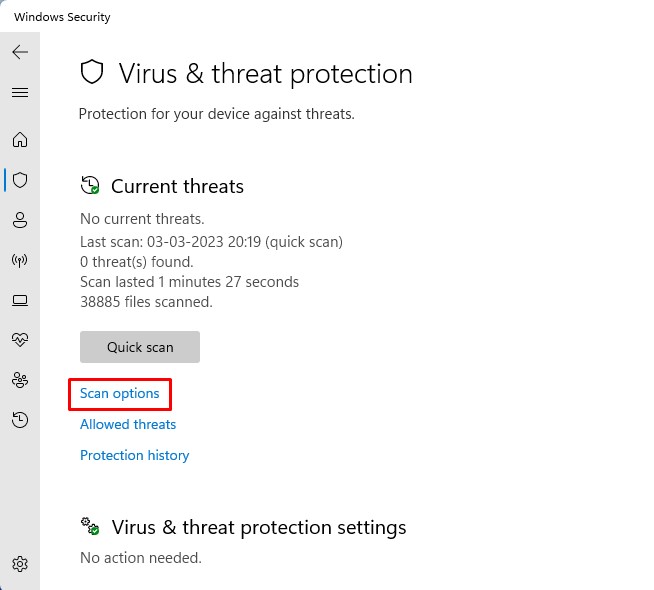
3. Click on the Scan options.
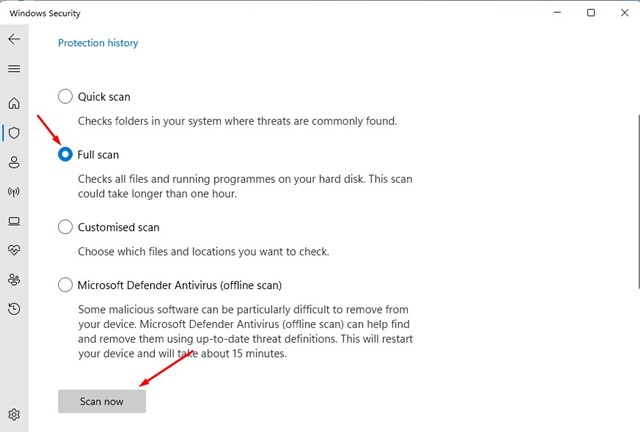
4. Select Full Scan and click Scan Now.
After running a full scan, restart your PC and reaccess the Windows Services app.
8. Perform a System Restore
If Services.msc is still not opening, you can try rolling back your PC to the date when the Services app was running fine. If you have a System Restore point available, you can roll back your PC to the date the Services app opens. Here’s what you need to do.
1. Open the Recovery app from the Windows Search.
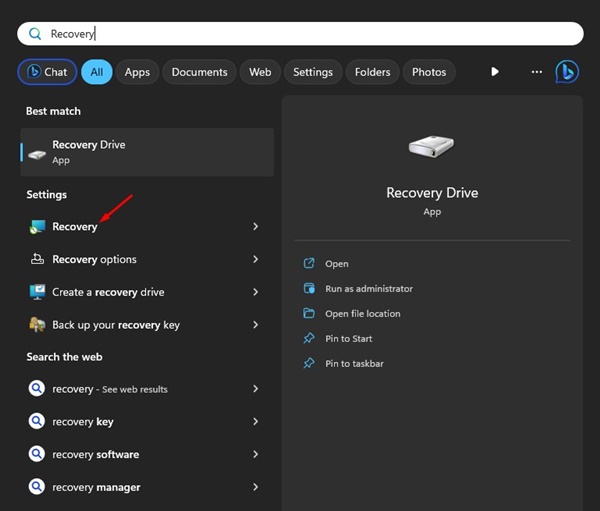
2. Click on Open System Restore.
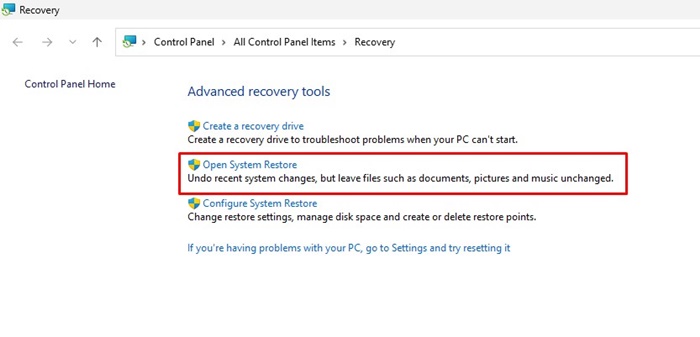
3. Select Choose a different restore point and click Next.
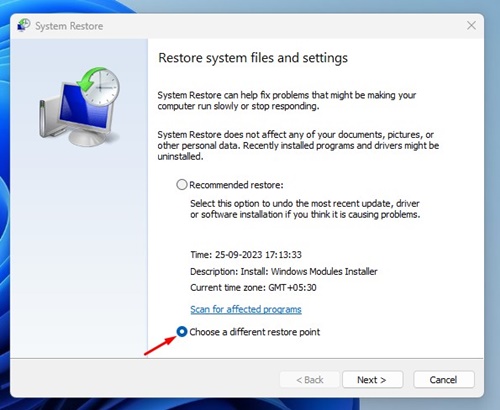
4. On the next screen, pick the restore point of a date and click Next.
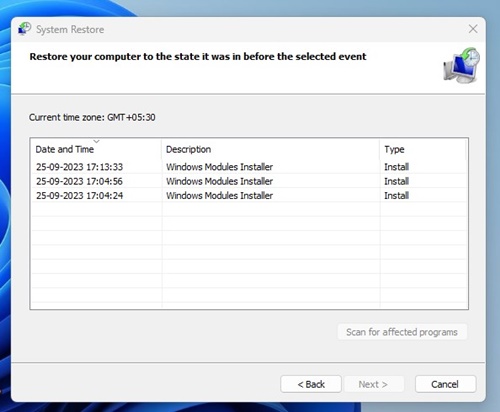
5. On the confirm your restore point, click Finish.
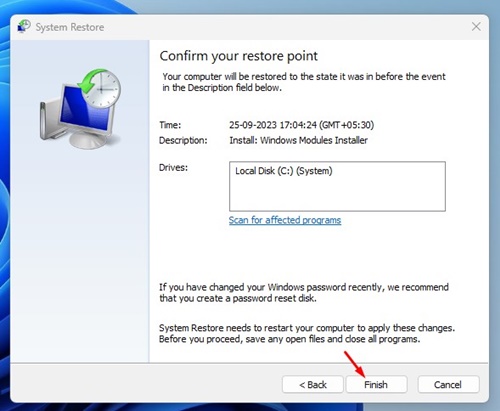
Wait until the Recovery app restores your PC. This process may take a while to complete.
9. Reset Windows 11
If nothing helps, resetting Windows 11 is the only option left. Resetting Windows 11 will fix most Windows 11 problems, including system apps like Services.msc not opening.
However, resetting will remove all user-made settings and important registry & local group policy settings. So, back up all your essential files before resetting your computer.
There are multiple ways to reset Windows 11 computers, but the easiest one is to use Settings. Here’s a detailed guide on how to reset a Windows 11 PC using Settings.
These are some of the best ways to fix Services.msc not opening on Windows 11. If you need more help resolving Services.msc not opening in Windows, let us know in the comments.
The post 9 Best Ways to Fix Services.msc not opening on Windows appeared first on TechViral.
from TechViral https://ift.tt/EoORlgu

