

While expanding or creating a new drive partition is fairly easy on Windows 11, what if you want to delete a drive partition? To delete a drive partition on Windows 11, you will have to follow these methods.
1. Delete Drive Partition using Settings
We will utilize the Windows 11 Settings app to delete a drive partition. Here’s what you need to do.
1. Launch the Settings app on Windows 11.

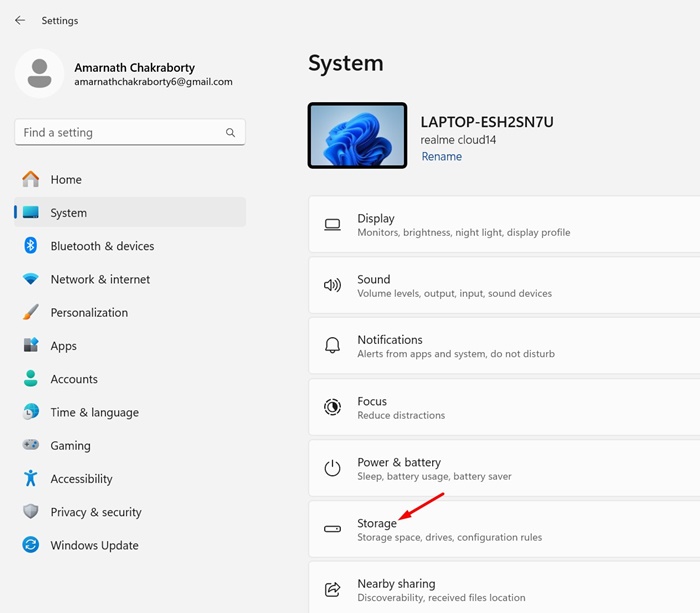
2. Switch to the System > Storage.
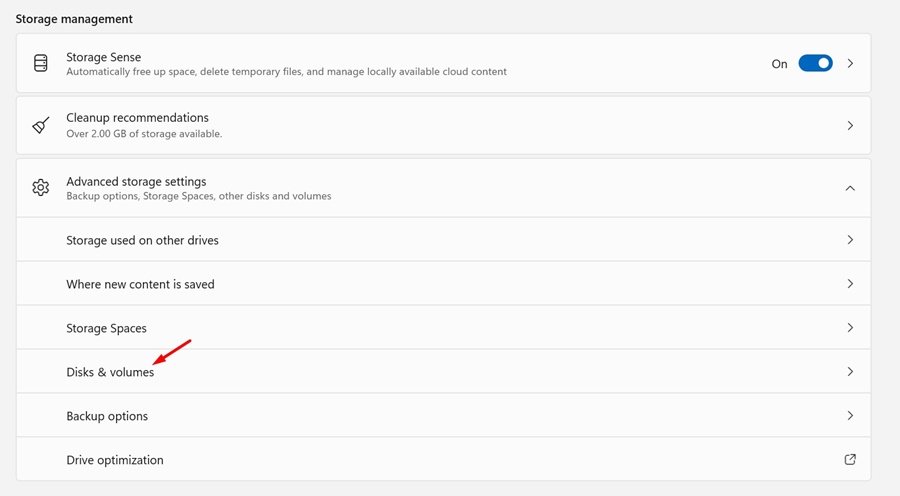
3. Expand the Advanced Storage Settings. Next, click Disks & Volumes.
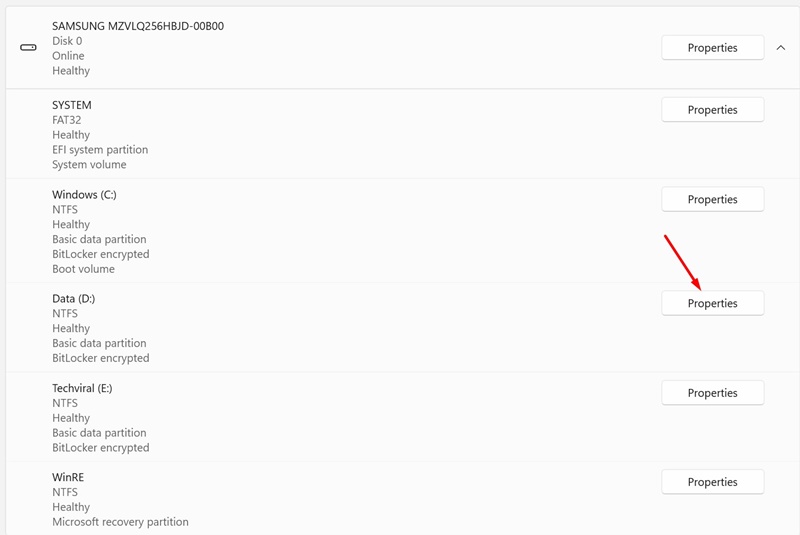
4. Click on the Properties next to the drive you want to delete.
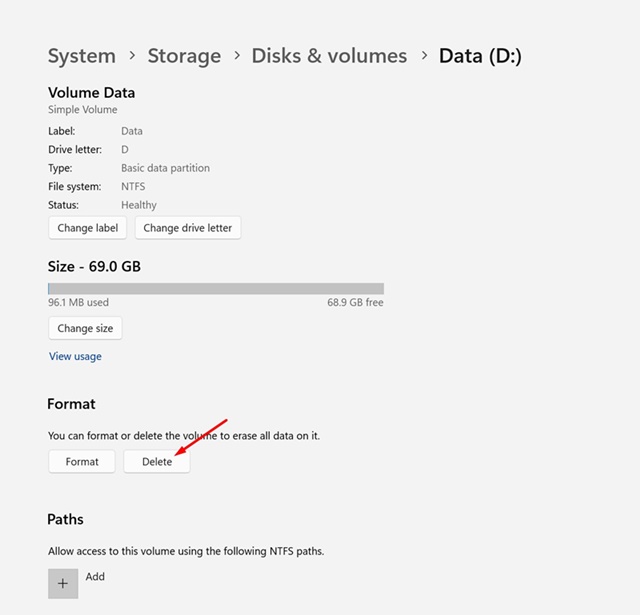
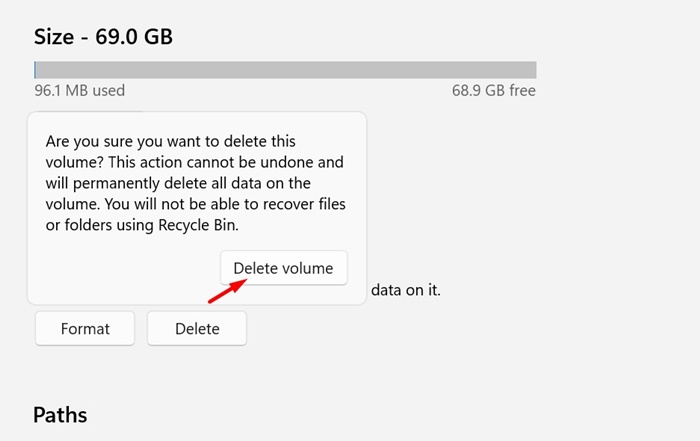
5. In the Format section, click Delete.
6. Select Delete Volume.
2. Delete Drive Partition using Disk Management Utility
You can even use the Disk Management utility to delete a drive partition on Windows 11.
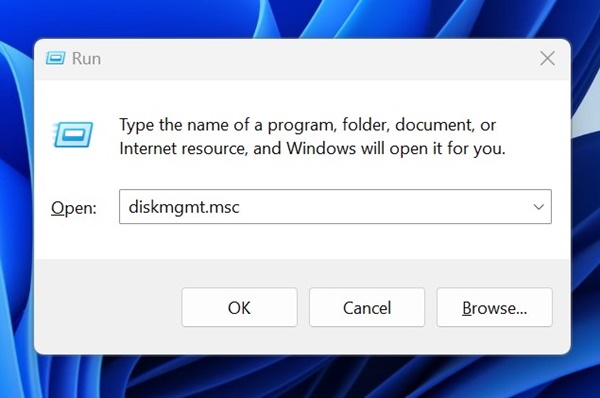
1. Open the RUN dialog box (Windows + R). On the Run dialog box, type diskmgmt.msc and press Enter.
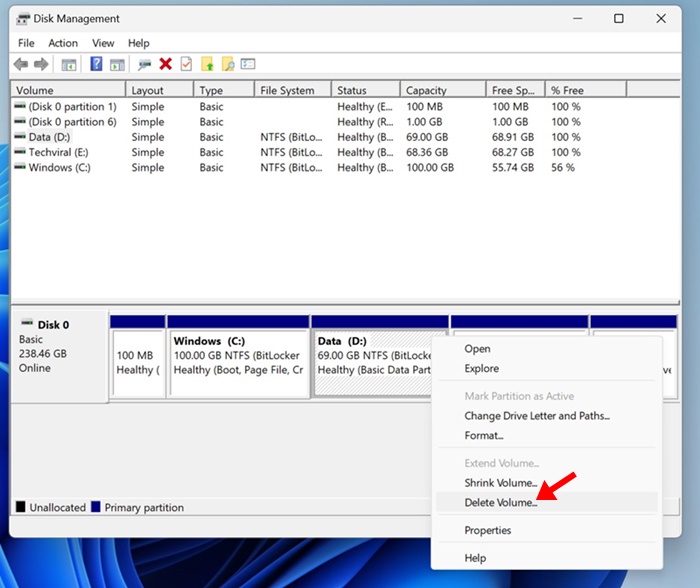
2. Right-click on the partition you want to delete.
3. Select Delete Volume.
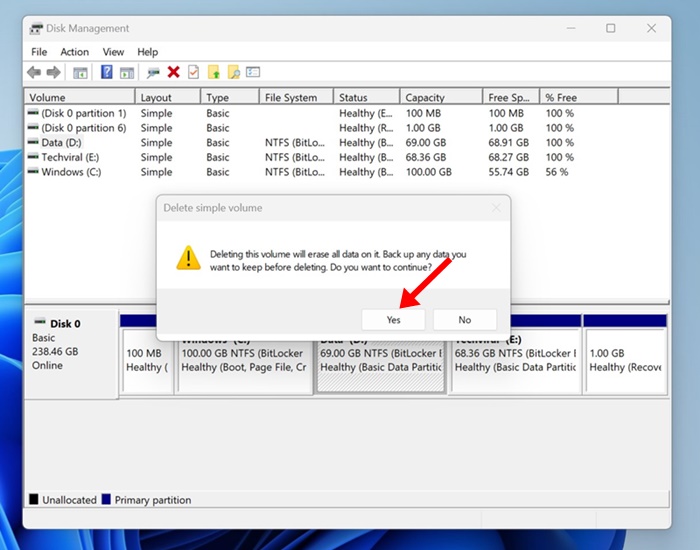
4. On the confirmation prompt, click on Yes.
3. Delete Drive Partition on Windows 11 via PowerShell
Windows PowerShell is another great utility that you can use to delete a drive partition on Windows 11.
1. Type PowerShell in Windows 11 search and select Run as administrator.
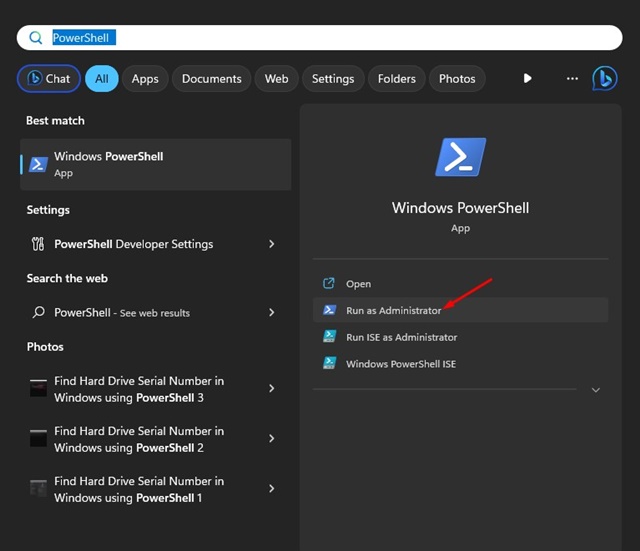
2. Execute this command:
Get-volume
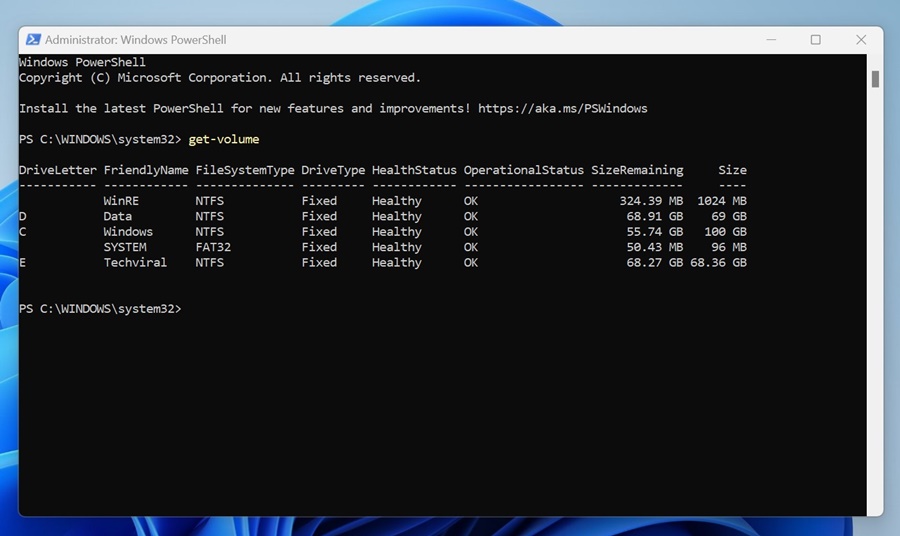
3. You will see a list of all drives available. Note the letter assigned to the drive you want to delete in the DriveLetter column.
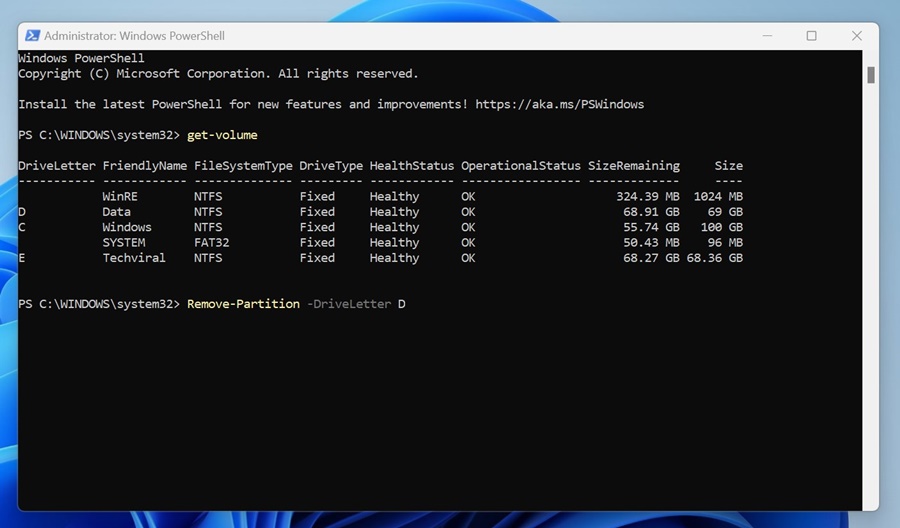
4. Execute the given command by replacing the X with the actual drive letter.
Remove-Partition -DriveLetter X
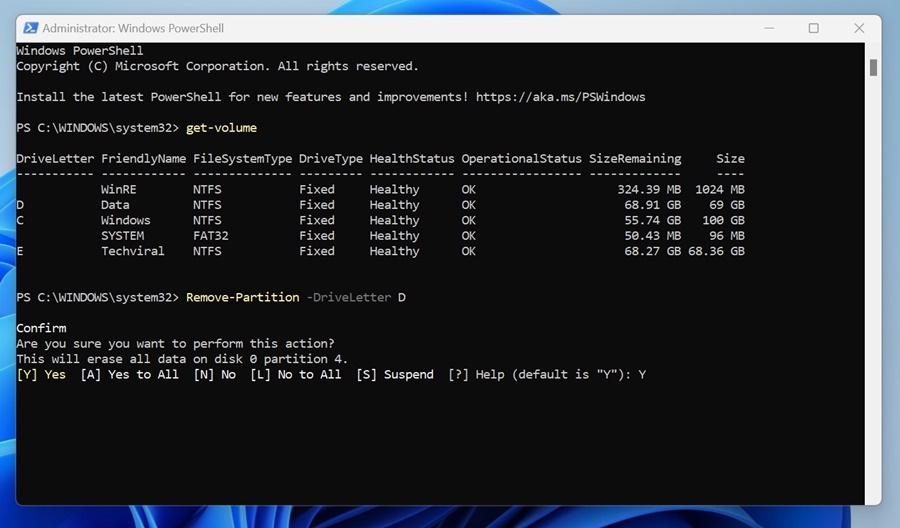
5. Type Y and press Enter to confirm the action.
4. Delete Drive Partition on Windows 11 with Command Prompt
PowerShell and Command Prompt are command-line utilities, but the steps to delete a drive partition differ. Here’s how to delete a drive partition on Windows with a command prompt.
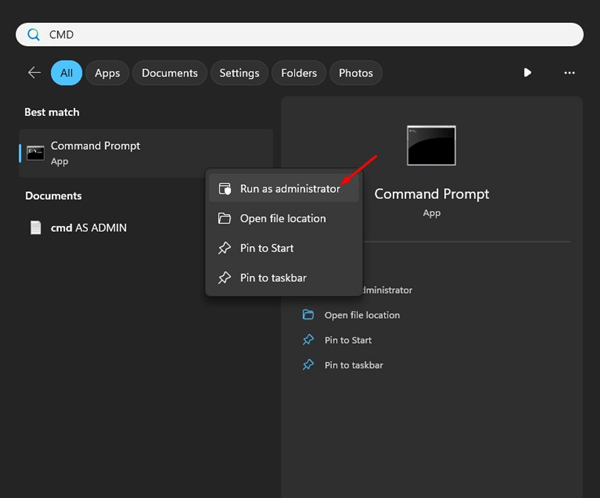
1. Type Command Prompt in Windows 11 Search. Next, right-click on the CMD and select Run as administrator.
2. Execute the following commands one by one:
diskpart
list volume
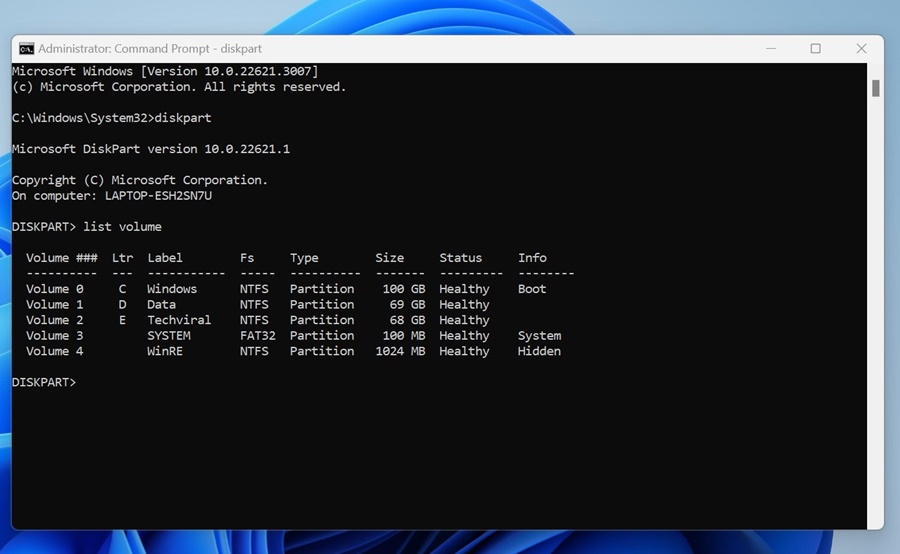
3. Note the number associated with the drive you want to delete.
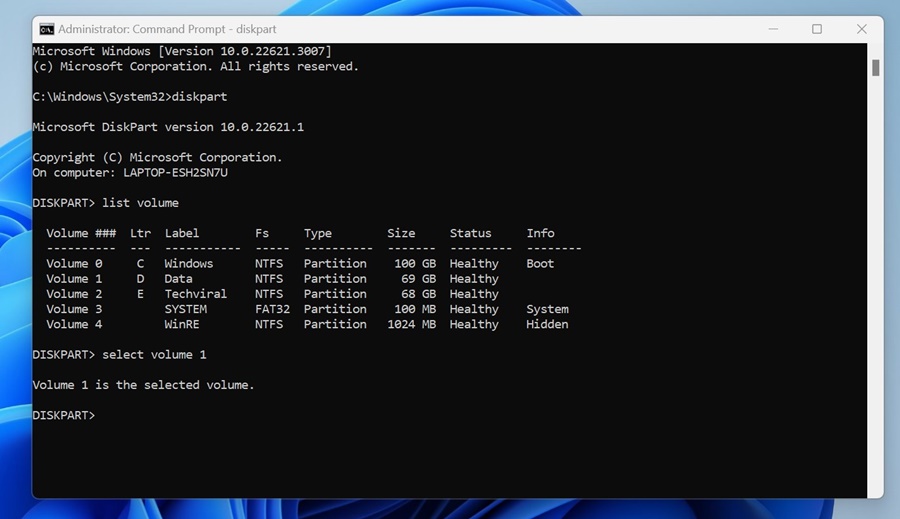
4. Execute the given command by replacing N with the drive number you’ve noted.
select volume N
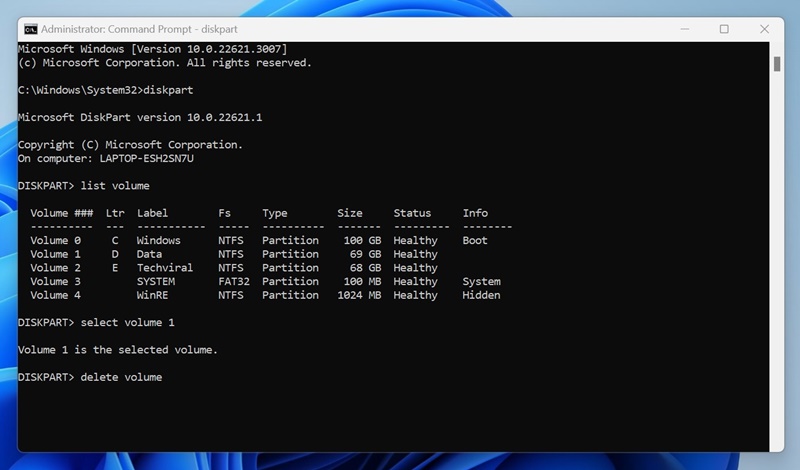
5. Execute this command:
delete volume
These are the best and easiest methods for deleting a drive partition on a Windows 11 computer. If you need more help, let us know in the comments below.
The post How to Delete a Drive Partition on Windows 11? appeared first on TechViral.
from TechViral https://ift.tt/UPSctBI

