

While updating Google Chrome for desktops, many Windows 11 users have reportedly been getting the error code 1: 0x80004005. The full error message reads, ‘ An error occurred while checking for updates: Update check failed to start (error code 1: 0X80004005—system level’).
If you’ve been getting the same error, here’s what you should do.
1. Relaunch your Chrome Browser
The Chrome Update Tool may be experiencing a problem; hence, it’s not able to search for the update. Restart your web browser to reduce the possibility of bugs and glitches. After the restart, run the Chrome Update tool via Chrome > three dots > Help > About Google Chrome. This should update the web browser.
2. Check if your internet is working
Internet connectivity is very important for the proper functioning of the Chrome browser. You can check whether your internet is working by visiting fast.com. If the internet is an issue, you need to get it fixed.
3. Disable the Windows Security Program
The Windows Security app of Windows 11 can prevent the Chrome update tool from running. To resolve this problem, you can disable the Virus & Threat Protection feature.
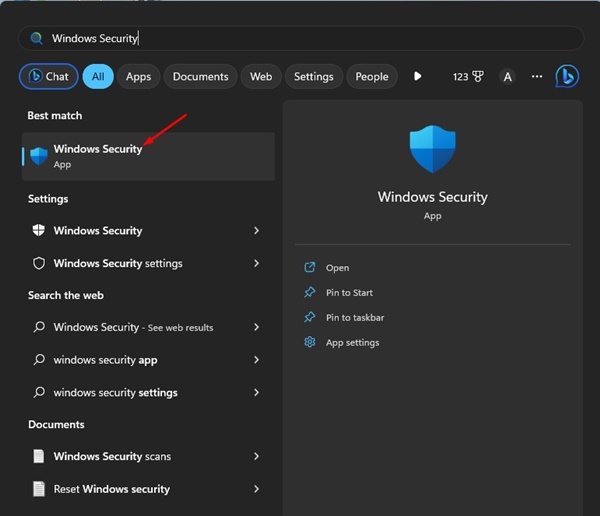
1. Open the Windows Security app from Windows Search.
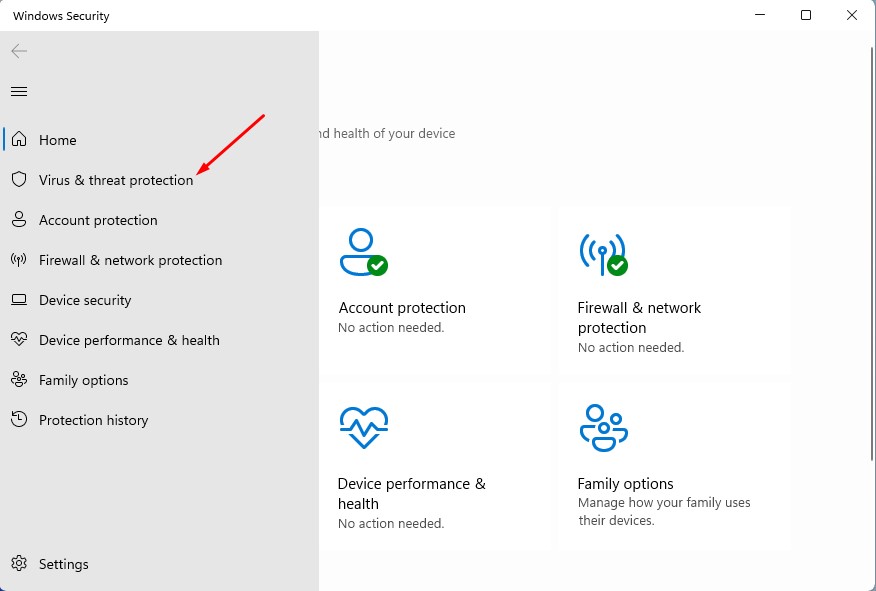
2. Click on Virus & Threat Protection.
3. Click Manage Settings.
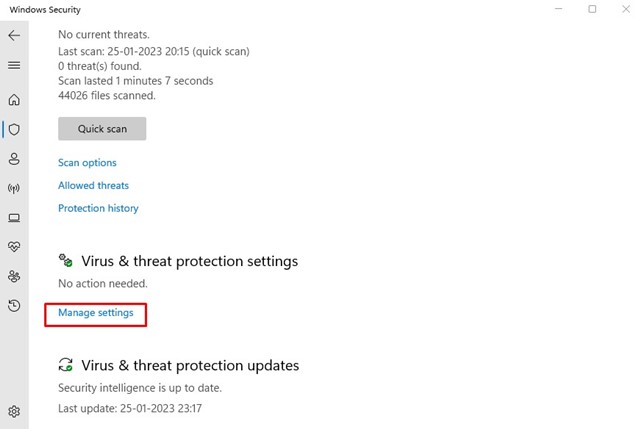
4. On the Virus & Threat Protection Settings, turn off the toggle for Real Time Protection.
4. Disable the Chrome Extensions
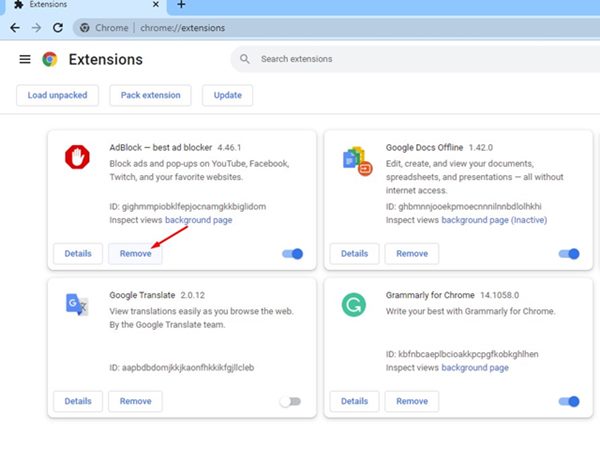
Disabling the Chrome extensions has helped many users fix the error. You can try turning off the Chrome extensions one by one. Once you find the problematic extension, simply disable it from the web browser.
To review the extensions, click the three dots at the top right and navigate to Extensions > Manage Extensions.
5. Clear the Chrome Browser Cache
Many Reddit users claimed to resolve this error by clearing the existing Chrome cache. Hence, if you still get the error, you can try clearing the browser cache.
1. Open the Chrome browser and click on the three dots.
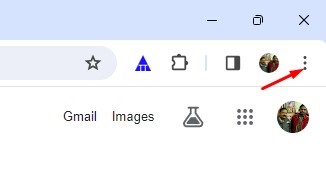
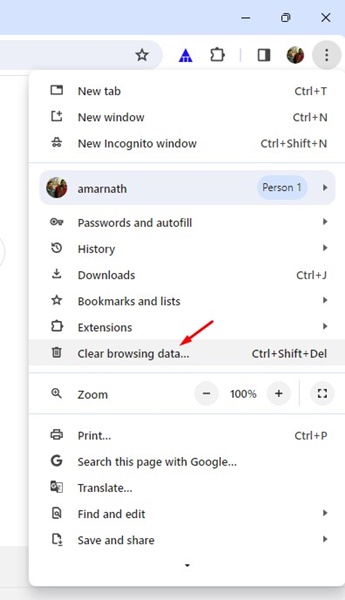
2. Select Clear Browsing Data.
3. Check the boxes next to Cookies and other site data, and Cached images and files.
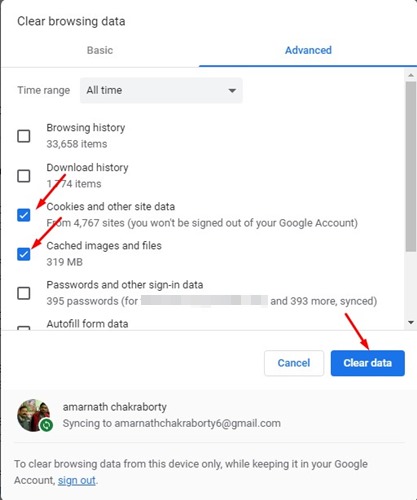
4. Once selected, click Clear Data.
6. Reset the Chrome Settings
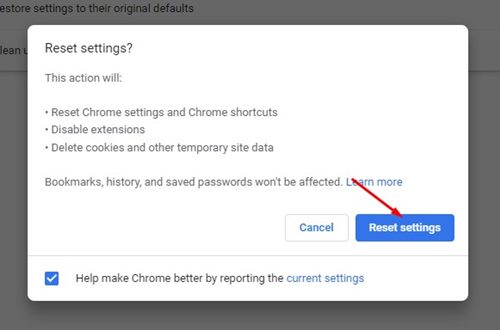
If you have come so far, likely that the Google Chrome Error 1: 0X80004005 is still appearing. The last option is to reset Chrome settings to the default.
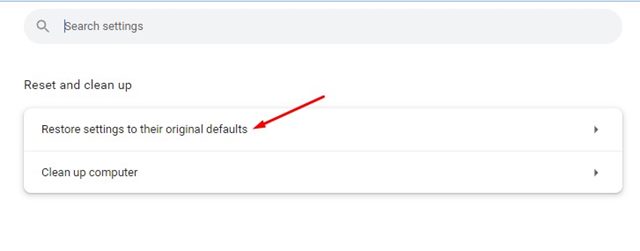
1. Launch the Chrome web browser and visit this web address Chrome://settings/reset.
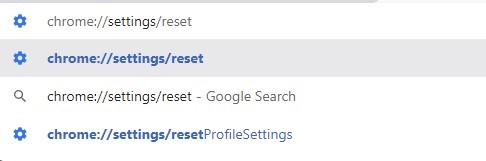
2. Click Restore Settings to their original defaults.
3. Click Reset Settings.
These are simple methods to fix Google Chrome Error 1: 0X80004005. Let us know if you need more help on this topic in the comments.
The post How to Fix Google Chrome Error 1: 0X80004005 on Windows 11 appeared first on TechViral.
from TechViral https://ift.tt/SBLIaQk

