

Let’s admit it, we all have created a Gmail account and later regretted the username. Back then, there was no option to change the Gmail address.
But now it looks like Google rolled out a new feature that allows users to change their @gmail.com email address without losing their account data.
The feature has been rolling out for a few weeks, but it still hasn’t reached everyone. Recently, it’s made more widely available, so you can check whether it’s available to you.
How to Change Gmail Address?
Before you go on and change your Gmail address, keep in mind that your old email doesn’t disappear. Instead, it becomes an alias. This simply means emails sent to both the old and new addresses will arrive in the same inbox.
So, you don’t need to notify everyone immediately once you change your Gmail address.
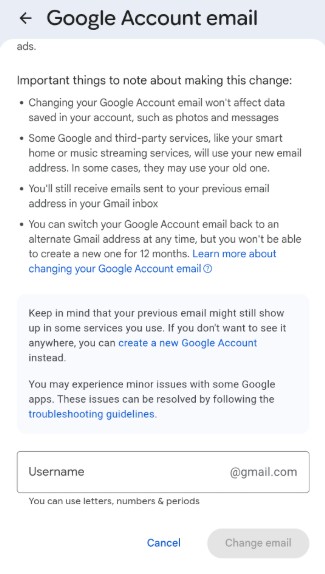
- Open Gmail on desktop or mobile. Next, head to this webpage.
- Click or Tap Personal Info.
- Next, select the Email card.
- On the Google Account email section, click Change your Google Account email address.
- Type the new username and click Change email address.
- Confirm the action and follow the steps to finish the process.
Important Things to Remember
Although the feature was awesome, there are a few limits. Google allows users to change their Gmail address once every 12 months, and only up to three times in total.
As of now, the feature is slowly rolling out to users. If you can’t find this feature, wait for a few more days or weeks. If you need more help on this topic, let us know in the comments.
The post How to Change Your Gmail Address? appeared first on TechViral.
from TechViral https://ift.tt/iKCwbPt

