

If you are facing app incompatibility issues on Windows 11, you can run them in Compatibility Mode. Below are the steps to run old programs in Windows 11 via compatibility mode.
How to Run Older Programs in Compatibility Mode in Windows 11
Also Read: How to Check DirectX Version on Windows 11
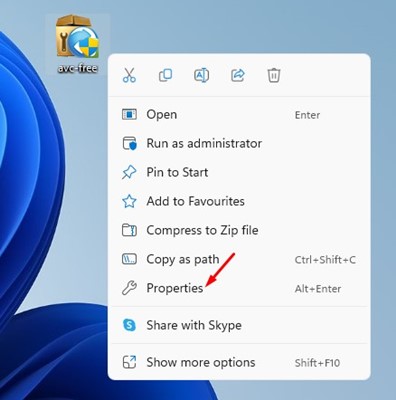
1. Right-click on the program you want to run in compatibility mode and select Properties.
2. Switch to Compatibility.
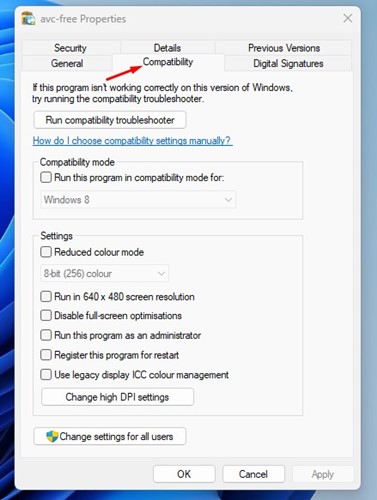
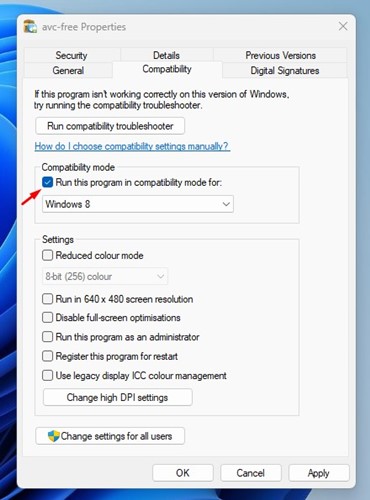
3. Check the box for Run this program in compatibility mode for:
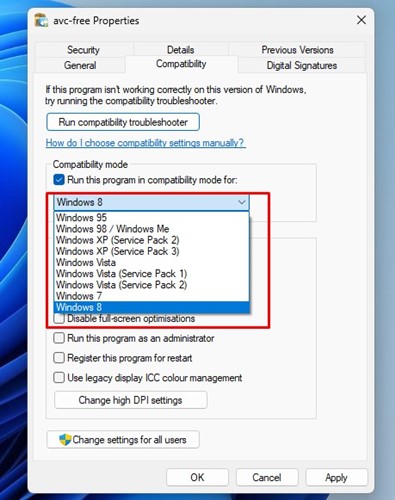
4. Click the drop-down menu underneath it and select the operating system on which the app was working before.
5. Click Apply and OK.
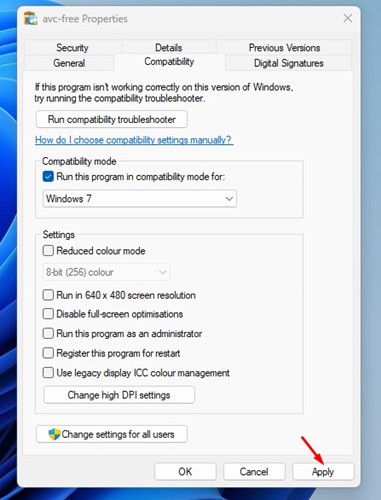
Try running the program. The program should be installed or run now.
If you face problems running older programs, switch the operating system in Step 4.
Similarly, if you are trying to run a game and getting graphics-related errors, you must enable two more options in the App Properties. To do that, open the App Properties page, enable the Reduced Color mode, and Run in 640×480 screen resolution.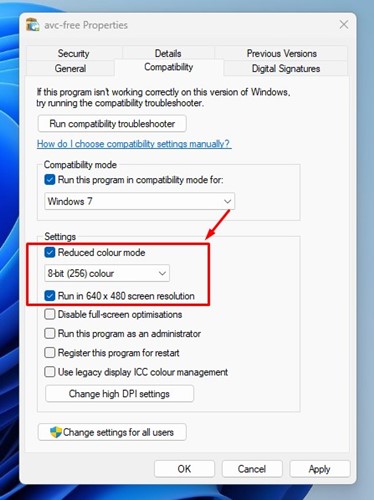
Run Compatibility Troubleshooter
If the program is not running in compatibility mode, you need to run the Compatibility troubleshooter. Open the App properties, switch to Compatibility, and click Run compatibility troubleshooter.
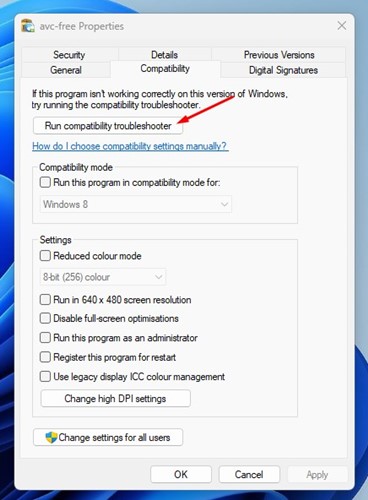
This will run the compatibility troubleshooter in Windows 11. On the Select troubleshooting option, select the Try recommended settings.
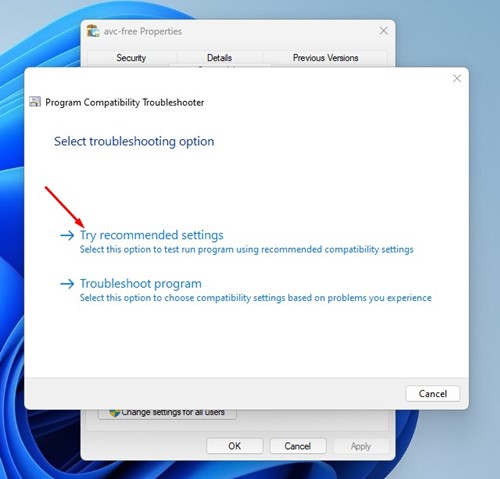
The old program or game should run on your Windows 11 computer via Compatibility mode.
Other Ways to Run Older Programs on Windows 11?
If the compatibility mode isn’t able to run your older programs, you can use a Virtual Machine. The Virtual Machine basically provides you with a sandbox environment to test apps and games. You can install an older version of Windows on a Virtual Machine like VirtualBox and run your older programs.
The problem with virtual machines is that they take up a significant amount of storage space, which can slow down your entire computer.
Also Read: Download the Latest Version of DirectX on Windows 11
This guide explains how to run programs in compatibility mode in Windows 11. If you need more help with Compatibility Mode, let us know in the comments below.
The post How to Run Older Programs in Compatibility Mode in Windows 11 appeared first on TechViral.
from TechViral https://ift.tt/9Kwjdis

