

Almost all apps designed for recording voice calls on iPhone connect with a third-party server or create a conference call with a third party to continue the recording. So, if you’re comfortable with that, you can record calls on your iPhone.
Since call recording is possible with the help of a third-party app, you have various options. Below, we have shared some best ways to record phone calls on an iPhone in easy steps.
1. Use Google Voice to Record Calls on iPhone
If you don’t know, Google Voice is a VoIP service from Google that you can use on an iPhone. Google Voice provides you with a free phone number for making calls.
However, Call recording is not enabled by default to prevent touchscreen devices from accidentally recording a call. You need to enable it first and then record a call.
- Download the Google Voice app for iOS and open it.
- Select a free phone number and the device to use to make the calls.
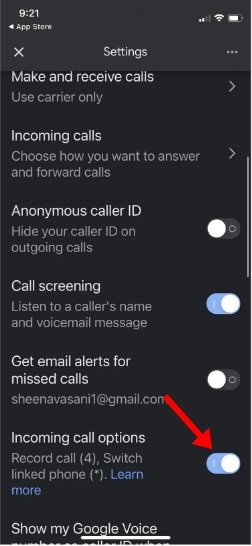
- Open the Settings on Google Voice and select Calls.
- On the Calls, toggle on the Incoming call options.
- Once the call is started, click on the number 4 on the keyboard to start recording the call.
- To stop the recording, click on the number 4 again.
2. Record Calls on iPhone with Voice Memos
Voice Memos is another good option for recording iPhone voice calls. However, this method will only work if you have a second iOS device, such as an iPhone or iPad.
Voice Memos is an app that turns your iPhone into a portable voice recorder. You can install Voice Memos on your second iOS device to record the phone call on your first device.
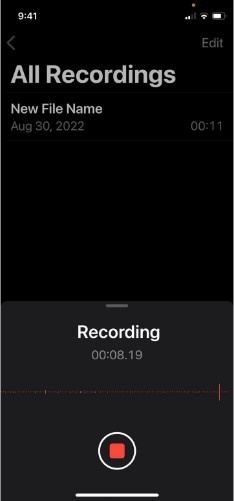
- Download & install the Voice Memos app from the Apple App Store on your iPhone.
- Open the Voice Memos app and keep it close to your first iOS device.
- Tap on the red Record button on the Voice Recorder to start the recording.
- Make a phone call from your first device. When the phone is answered, tap on the Speaker icon so that Voice Memos can hear and record the call.
- Make sure both devices are kept as close as possible.
- Tap the red record button again on the Voice Memos app.
You can now access the Voice Memos app and share the recording with yourself via Google Drive, email, or AirDrop.
3. Record Phone Calls on iPhone with TrueCaller
TrueCaller is a great Caller Identification app available for both Android and iPhone. The latest version of the app has a call recording feature that can record both incoming and outgoing calls.
Since it’s a third-party app, it works by creating a conference call and calling its recording line. Here’s how to record incoming and outgoing calls on an iPhone with TrueCaller.
- Download & install TrueCaller on your iPhone.
- Answer the incoming call, open the TrueCaller app, and head to the Search tab.
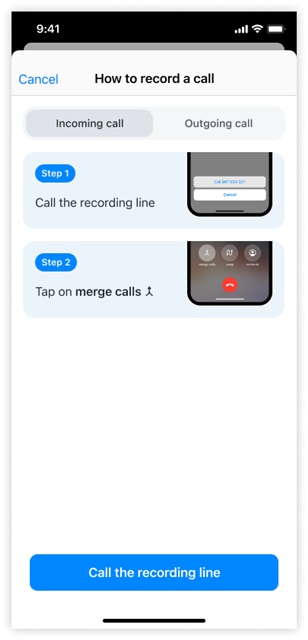
- Tap the Record a Call button and call the recording line.
- On the Call screen, you will find a merge calls option. Tap Merge Call to merge those two calls.
- After the call ends, you will receive a push notification that the recording is ready.
- Similarly, you can record outgoing iPhone calls as well.
TrueCaller will store the recording on your iPhone’s internal storage and will also save the recording to your iCloud.
4. How to Record Calls on iPhone Without Any App
If you want to record calls on an iPhone without any app, use a secondary device. The additional device could be an Android, an iPhone, or a portable voice recorder.
- Start a call on your iPhone.
- Once the call is answered, put it on Loudspeaker mode.
- Enable the voice recording on your secondary device (Android).
- Once the call is finished, you can stop the recording on your second device.
The goal is to put the iPhone in loudspeaker mode to amplify the sound and then record it with another device. The benefit of this method is that there will be no call recording announcement.
Frequently Asked Questions:
You can record a live conversation on your iPhone by following our shared methods. However, none of the methods work in the background, meaning the receiving end will know you’re recording the call.
There’s an option to record calls on an iPhone without call recorder apps. However, for that, you need to rely on the Voice Memos app on iPhone. The third method in the article is what you need to follow.
There’s no way to set your iPhone to automatically record calls. Although there are various apps for this purpose, none of them work well.
Yes, the Rev Call Recorder app for iPhone is 100% free to download and use. It not only records your calls, but also provides you with transcription services.
Also read: 10 Best Video Converter Apps for iPhone
These are some effective ways to record phone calls on an iPhone. Almost all the methods we have shared work today and would help you record incoming and outgoing calls. If you cannot record iOS calls, let us know in the comments.
The post How to Record Calls on iPhone appeared first on TechViral.
from TechViral https://ift.tt/bhzrae4

