

Bluetooth not working or failing to connect with your devices is a complicated problem to fix because there is no single cause. It could be a system-level bug or faulty hardware. There is also the possibility of incorrect Bluetooth configuration, hardware faults, etc. Anyway, if you’re experiencing problems with Bluetooth, here’s what you should do.
1. Turn Off/On the Bluetooth
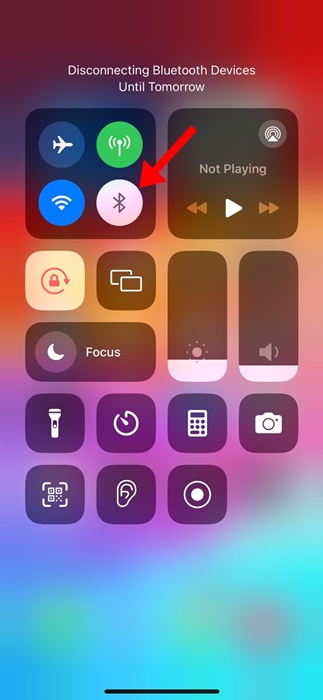
To remove system-level bugs & glitches, you should turn off/on the Bluetooth. Most of the time, this trick solves the problem of the iPhone failing to connect with a specific Bluetooth device.
Open the Control Center on your iPhone and turn off the Bluetooth toggle. Once turned off, turn it on again.
2. Restart your iPhone
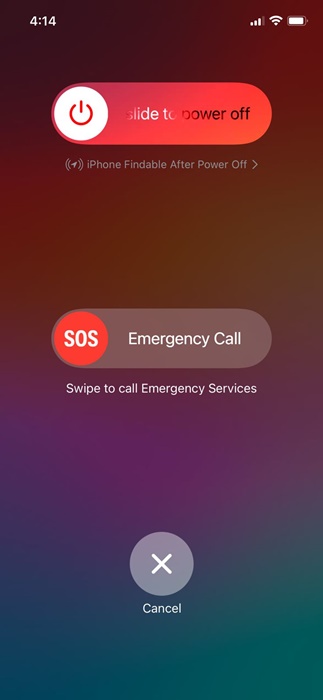
Sometimes, toggling on/off Bluetooth connectivity fails to remove all system-wide bugs and glitches. Hence, you should restart the iPhone as well.
A simple restart will fix minor software bugs that may prevent the Bluetooth device from pairing with your iPhone. To restart your iPhone, press and hold the Power button and select the Slide to Power Off option. Once powered off, turn on your iPhone again.
3. Disconnect & Reconnect the Bluetooth Device
The next best thing to do is to disconnect & reconnect the Bluetooth device on your iPhone. You need to do this for every Bluetooth device that your iPhone is not connecting with.
1. Launch the Settings app.
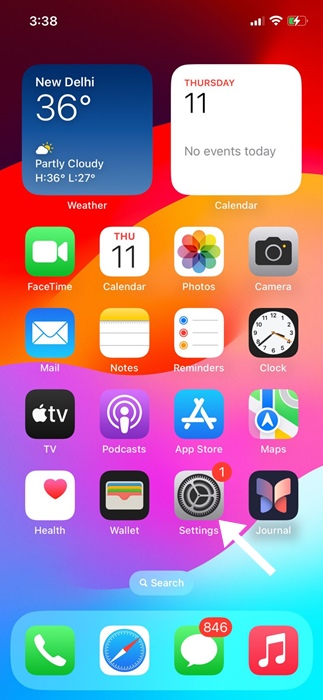
2. Tap on Bluetooth.
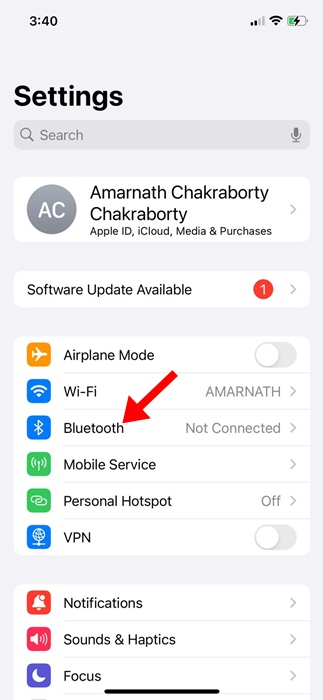
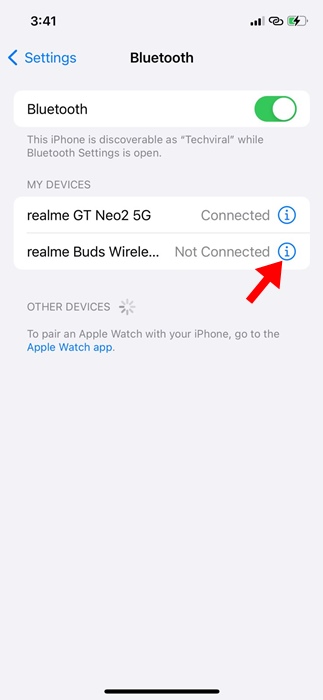
3. Find the device that is failing to connect. Tap the info icon (i) next to the device name.
4. Tap Disconnect.
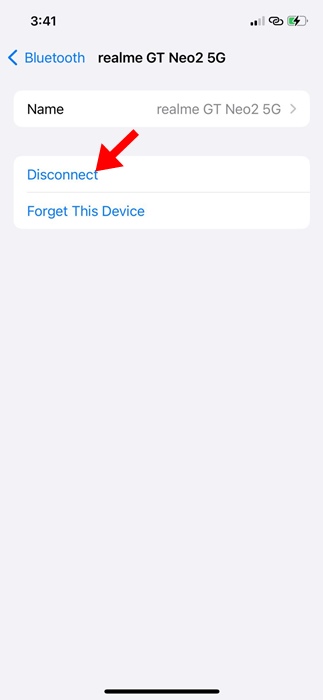
5. Turn off the Bluetooth device and turn it on again. Once done, connect the device with your iPhone again.
4. Forget the Bluetooth Device
If your iPhone still cannot connect to a specific Bluetooth device, it’s time to unpair the device and pair it again.
1. Launch the Settings app.
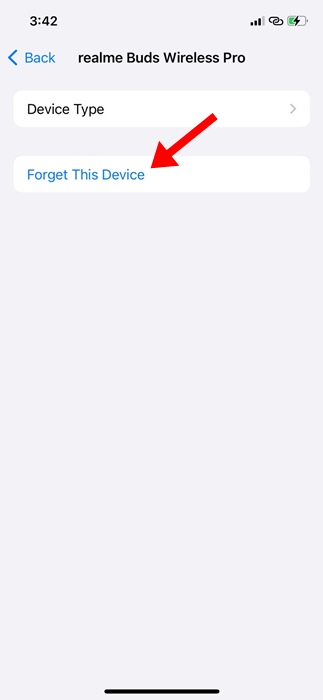
2. Select the Bluetooth device that isn’t connecting. Tap the Info icon (i) next to the device name.
3. Tap on Forget This Device.
4. Tap on Forget Device.
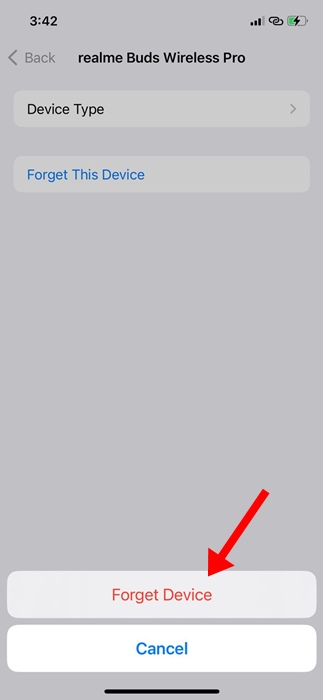
5. Once done, pair the Bluetooth device to your iPhone again.
5. Check for Problems in the Bluetooth Accessory
If a Bluetooth accessory – be it a headphone or a smartwatch – is still not pairing or showing up on your iPhone’s Bluetooth, there could be a problem with the accessory.
Make sure the accessory is fully charged and discoverable. You can also connect the Bluetooth accessory with any other device, like a computer or an Android phone, and check if it’s working.
If the Bluetooth accessory does not work on any other device, you need to have the device checked by a technician.
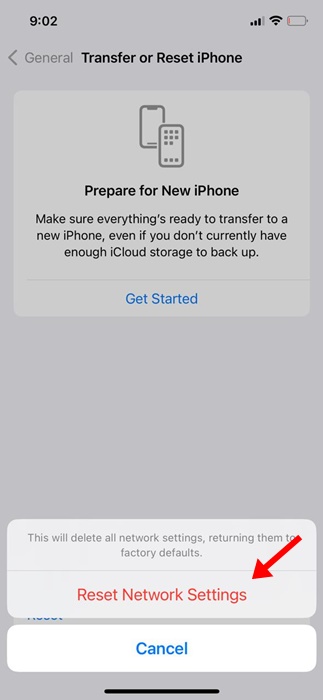
6. Reset the Network Settings on iPhone
If the Bluetooth accessory works fine on other devices but not your iPhone, try resetting the Network Settings.
1. Launch the Settings app.
2. Tap on General.
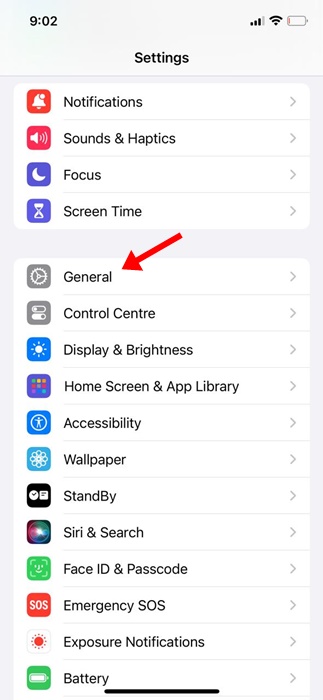
3. Tap Transfer or Reset iPhone.
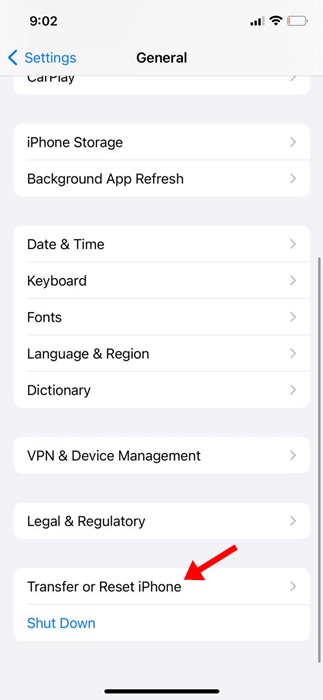
4. Tap on Reset at the bottom of the screen.
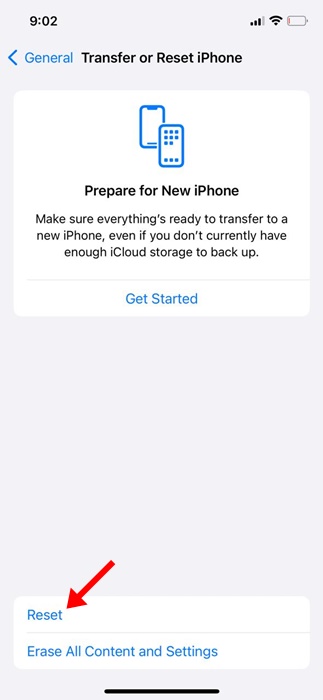
5. Select Reset Network Settings.
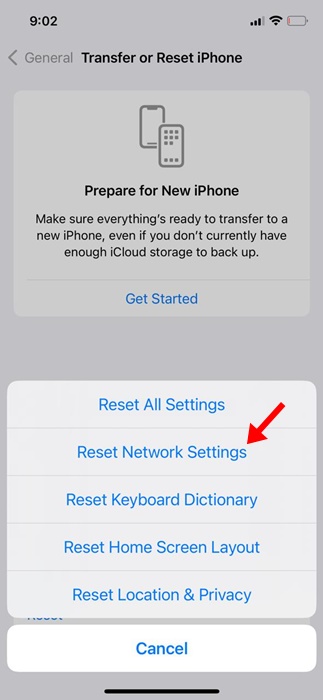
6. Enter the passcode and confirm the action by tapping the Reset Network Settings again.
7. Update your iPhone

You’re getting the Bluetooth issue after installing the latest iOS Update, right? A system update can break or make things worse, so if any iOS update is pending installation, you should install it immediately.
System-level bugs & glitches are usually fixed by system updates. So, head to Settings > General > Software Updates and install all pending updates.
8. Reset your iPhone
If nothing works in your favor, the last resort is to restore your iPhone to factory settings. Before you reset, make sure to have a backup of your iPhone.
1. Launch the Settings app.
2. Tap General.
3. Tap Transfer or Reset iPhone.
4. Tap on Reset at the bottom of the screen.
5. Select Reset All Settings.
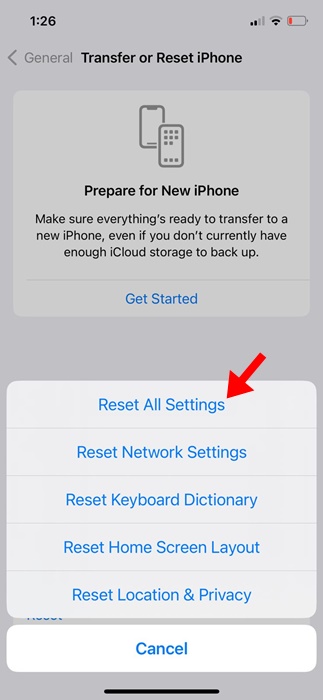
Once done, confirm the action by entering your passcode. This will complete the reset process.
These are simple methods to fix Bluetooth issues after installing the latest iOS Update. Let us know if you need more help on this topic in the comments.
The post Bluetooth Issues After iOS Update? 8 Ways to Fix it appeared first on TechViral.
from TechViral https://ift.tt/G7rbj5F

