

If you are using Windows 11 and looking for ways to encrypt PDF files, you have landed on the right page. Here are the best ways to password-protect PDF files on Windows 11.
1. Password-Protect PDF on Windows 11 using Adobe Web Editor
Adobe offers you a web-based PDF editor that you can use to password-protect a PDF file. Adobe’s online PDF editor is free and has no file limitations or restrictions.
1. Open your favorite web browser and visit this website.
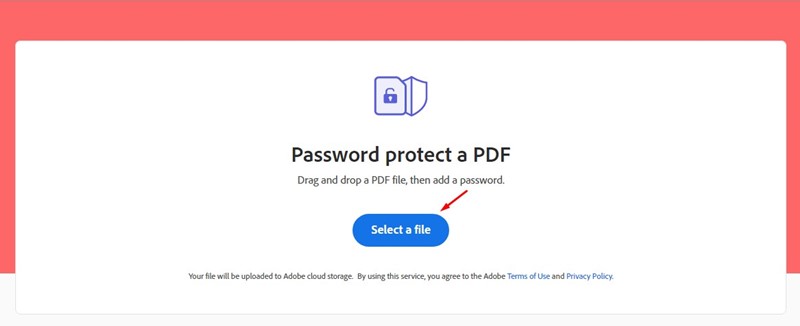
2. Click on the Select a file button and select the PDF file you want to password-protect.
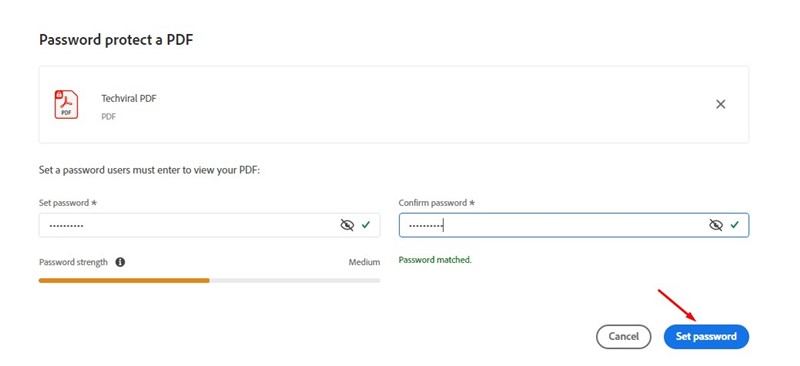
3. On the Password Protect a PDF screen, set the password, and confirm it. Once done, click on the Set password.
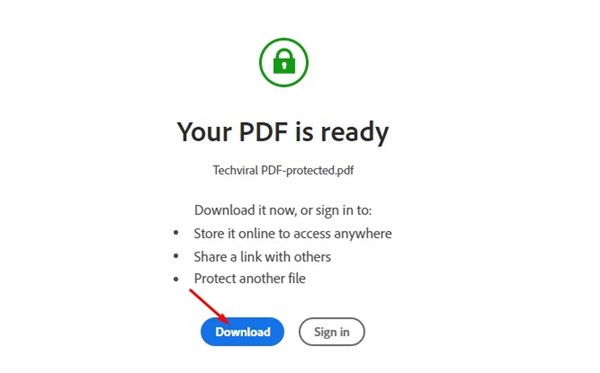
4. You must wait until the web tool password protects your PDF file for a few seconds.

5. Click the Download button to download the password-protected PDF file.
2. Password Protect a PDF file using iLovePDF
iLovePDF is the best web-based PDF editor, allowing you to encrypt your PDF files with a password.
1. Open your favorite web browser and visit this webpage.
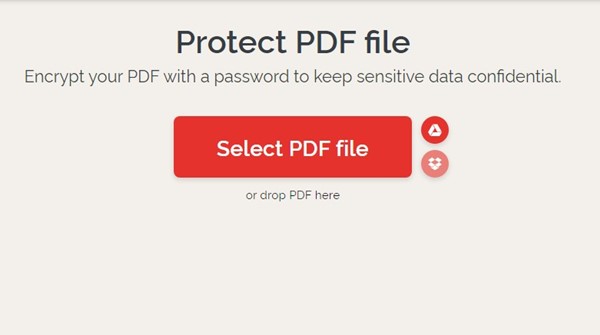
2. Click the Select PDF file button.
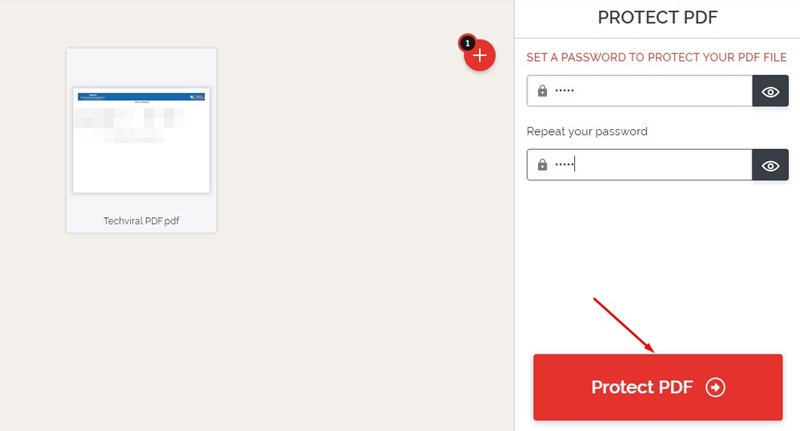
3. Type the password you want to set, repeat your password, and click on the Protect PDF.
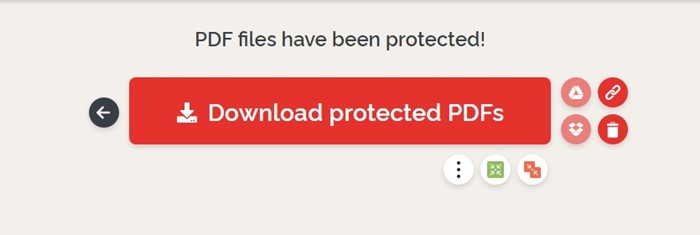
4. Click the Download protected PDFs button to download the PDF file.
3. Password-protect PDF files using Smallpdf
Like iLovePDF, SmallPDF also allows you to password-protect PDF files in easy steps.
1. Open your favorite web browser and visit the SmallPDF website.
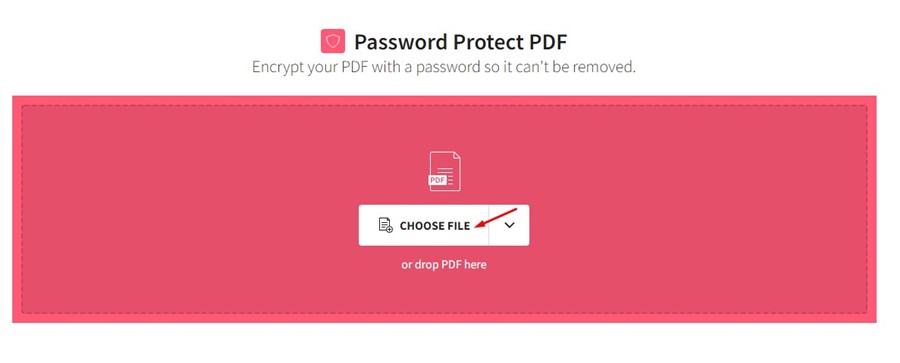
2. Click on the Choose File button and select the PDF file you want to password-protect.
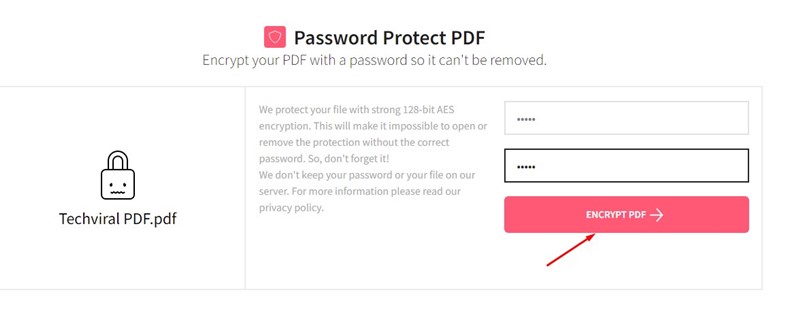
3. Enter your password and repeat it in the Choose your password field. Once you’ve done this, click the Encrypt PDF.
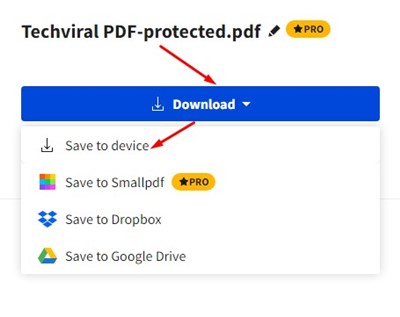
4. Click the Download drop-down and select Save to the device.
Also read: How to Password Protect PDF Files on Android
Password Protecting PDF Files in Windows
While password-protecting PDF files may look complicated, these web tools make things much easier. The benefit of using these web tools is that they eliminate the need for installing dedicated PDF softwares.
Whenever you want to password-protect a PDF file, access any of these tools and password-protect it for free. If you need more help on this topic, let us know in the comments.
The post How to Password Protect PDF files on Windows 11 appeared first on TechViral.
from TechViral https://ift.tt/TOXiYIE

