

One useful feature of the new Snipping tool is hiding text from screenshots. Today, we will discuss how to redact sensitive information from a screenshot. Let’s get started.
1. Open the Snipping Tool on your Windows 11 computer. To open the Snipping tool, press the Windows + Shift + S button on your keyboard.
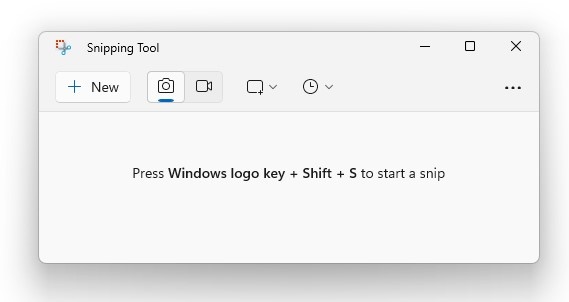
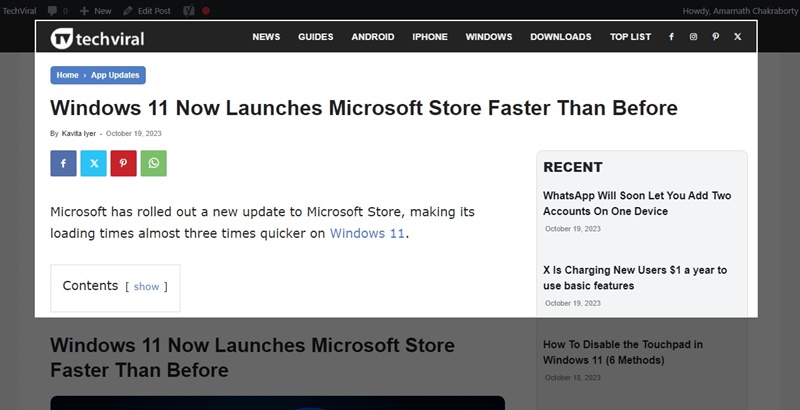
2. This will open the Snipping Tool on your computer. Select the capture mode and capture the screenshot.
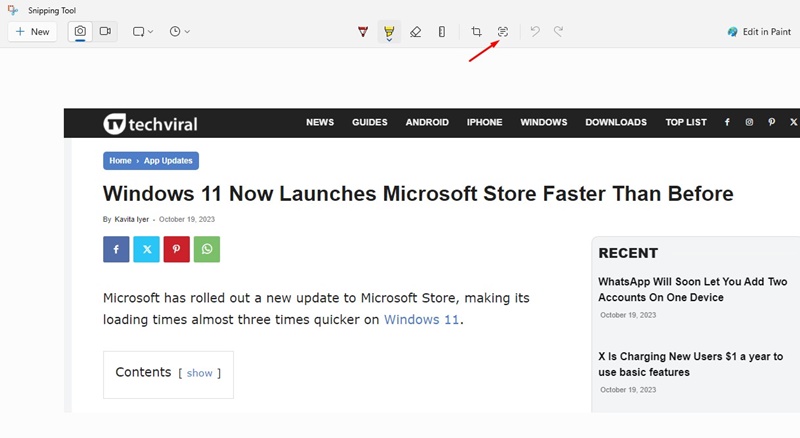
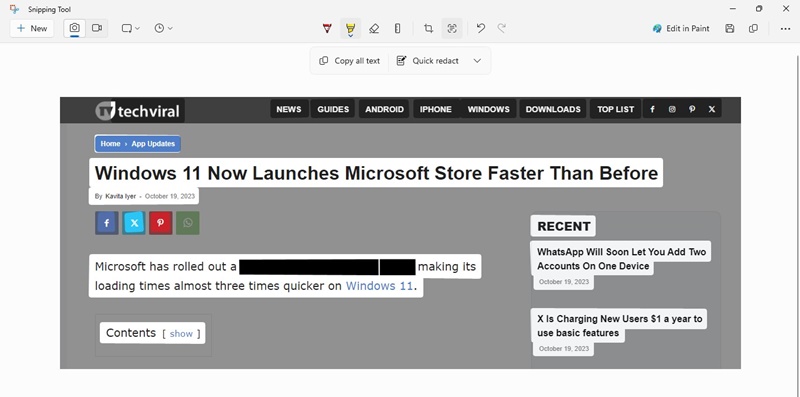
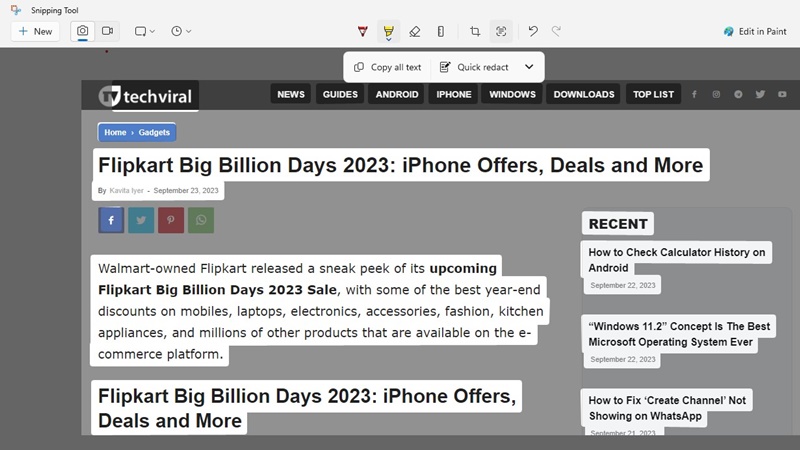
3. Click the Text Actions button at the top toolbar.
4. The Snipping Tool will automatically extract the text. Select the text you want to hide.
5. Right-click on the text you want to hide and select the Redact Text.
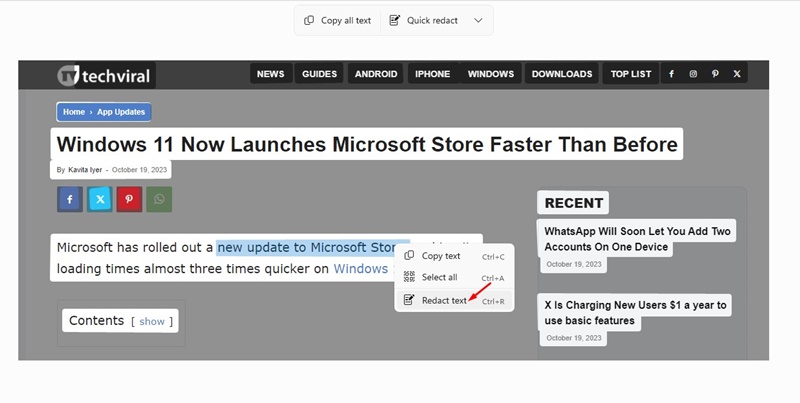
6. If you want to hide emails & phone numbers, click on the Quick Redact.
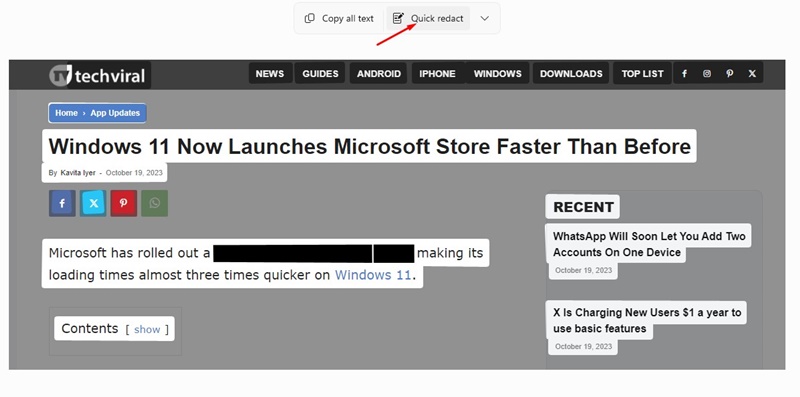
7. As you click on the Redact Text or Quick Redact option, your text will be hidden.
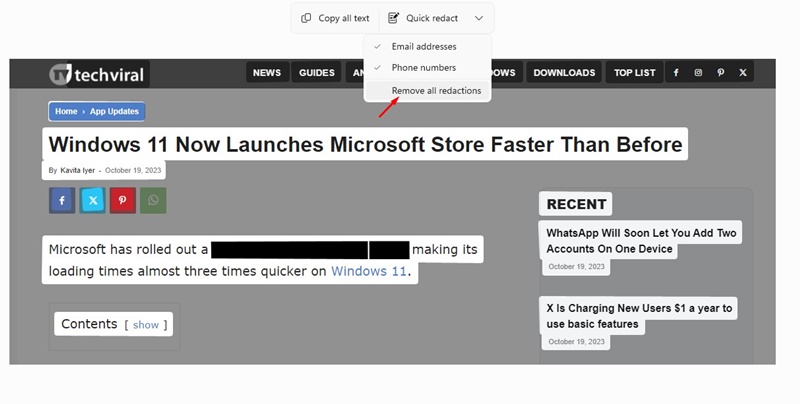
8. To remove the redactions & to bring back the texts, choose the Remove all redactions option on the Text actions menu.
How to Extract Texts from Screenshots?
Several OCR apps are available for Windows 11, providing text extraction options. However, most of them require a premium purchase. So, using the Snipping tool for text extractions from images is best.
1. Press the Windows + Shift + S key on your keyboard. This will open the Snipping Tool on your keyboard.
2. Capture the screenshot. Once captured, click the Text Actions button at the top toolbar.
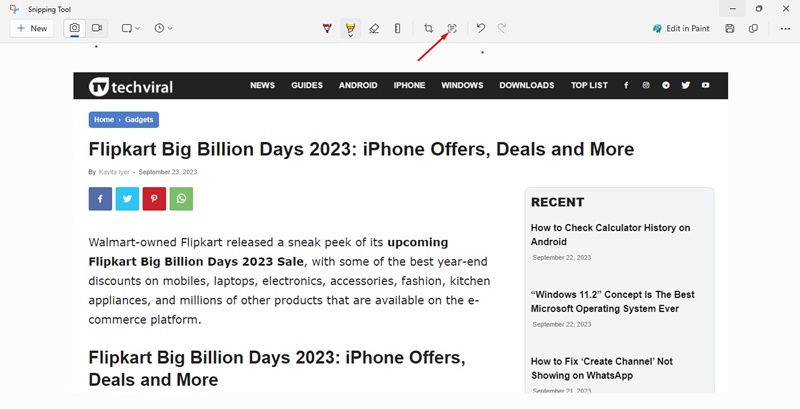
3. The Snipping tool will automatically select the text. You can manually select the text & copy it from the context menu.
This guide explains how to hide text from screenshots using the Snipping tool for Windows 11. This feature is great and can eliminate third-party image editing tools.
The post How to Hide Text from Screenshots on Windows 11 appeared first on TechViral.
from TechViral https://ift.tt/9HYiadp

