

Even though the outdated drivers can be easily fixed, what if the driver file is corrupted? In this case, the devices that relied on the corrupted driver might become unusable. Therefore, it’s essential to identify and fix corrupted drivers as soon as they are detected.
1. Update the Corrupt Drives via Device Manager
Device Manager seems to be the best option for dealing with outdated or corrupt Windows drivers.
1. Press the Windows Key + R button to open the RUN dialog box. On the RUN Dialog box, enter devmgmt.msc and press Enter.

2. This will open the Device Manager on your PC. Now, you need to check the drivers with a yellow question mark. The mark indicates a problem with the device or driver.
3. Right-click on the corrupted driver and select Update driver.
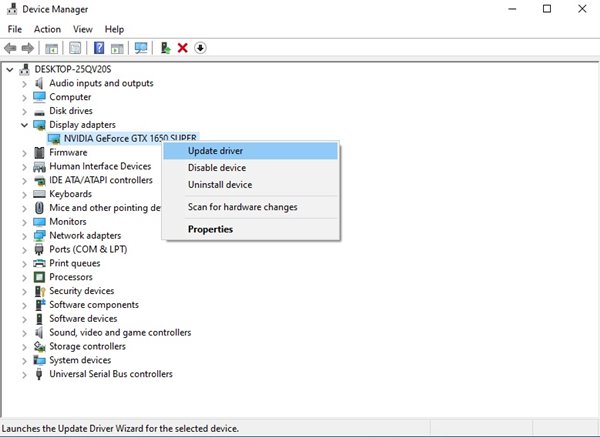
Windows will automatically search for the drivers online and automatically install the most compatible version on your PC.
2. Reinstall Drivers
If updating didn’t help, you could try reinstalling the corrupt drivers.
1. Press the Windows Key + R button to open the RUN dialog box. On the RUN Dialog box, enter devmgmt.msc and press Enter.
2. This will open the Device Manager on your PC. Now, you need to check the drivers with a yellow question mark. The mark indicates a problem with the device or driver.
3. Right-click on the corrupted drive and select Properties.
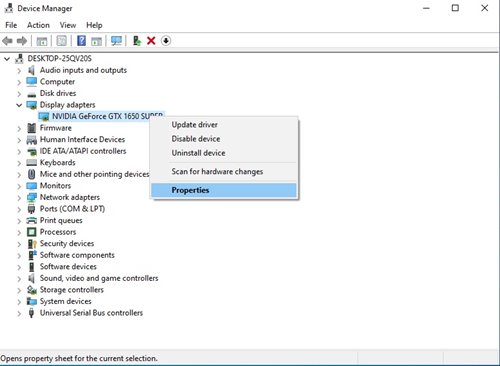
4. Switch to the Driver tab and click Uninstall device.
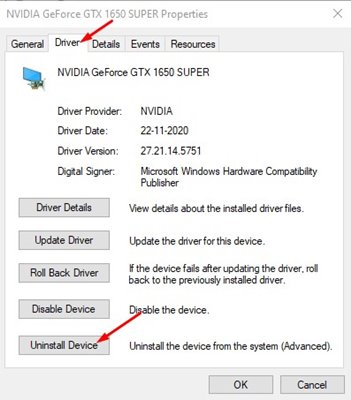
Once uninstalled, restart your computer to install the device again. You can also go to your OEM’s website to install the driver manually.
3. Use Windows Troubleshooter to fix Corrupt Drivers
If you don’t know, the Windows operating system also offers a troubleshooter tool to fix various problems.
1. Press the Windows Key + R button. Type in control and hit the Enter button in the Run Dialog box.
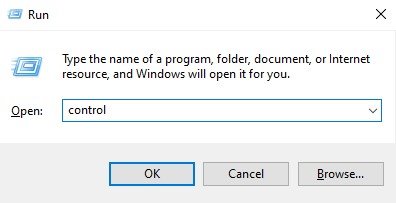
2. Click on Troubleshooting.
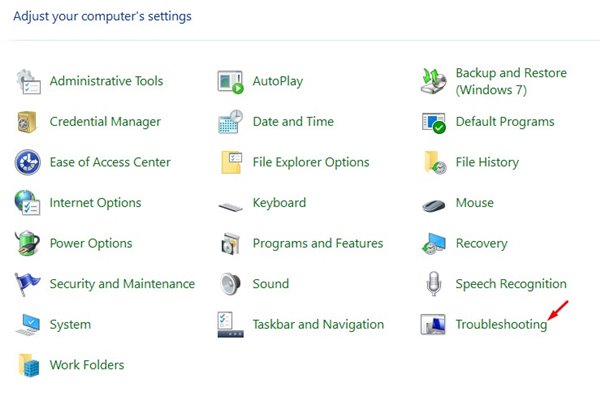
3. Click View All.
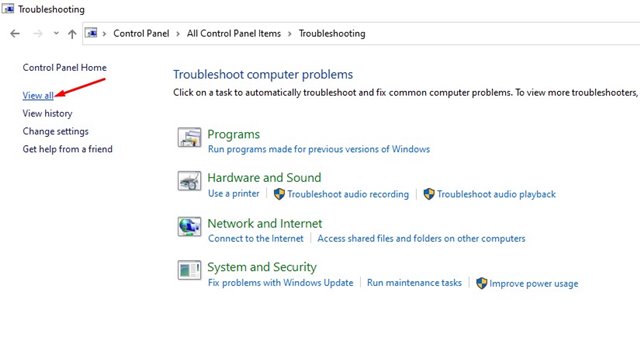
4. The next page will show you a list of ways to fix various problems. From the list, you need to select the problem you are experiencing and click it.
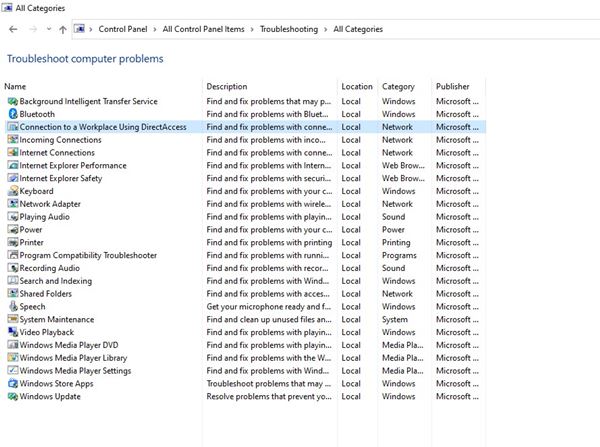
Windows Troubleshooter will run and fix corrupt drivers on your system.
4. Run a Full Scan
Sometimes, malware and viruses on your computer can corrupt the drivers. If you often download files from the internet, it’s best to run a full antivirus scan on your PC.
If any particular driver or device is not working due to a malware attack, it will be fixed immediately. We recommend Malwarebytes, a leading security company, to perform a full scan.
Malwarebytes also scans and removes adware and PUPs from your system. Alternatively, you can use Windows security to scan your system for free.
5. Update Your System
You need to update the operating system to fix driver-related issues. A simple system update can sometimes resolve your Windows PC’s most common driver issues.
Windows also ensures that all your drivers are updated during the system update. So, make sure to update your PC.
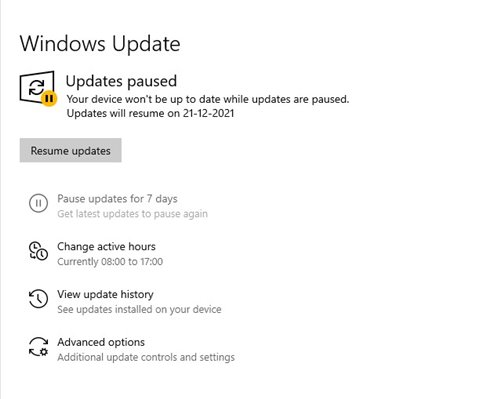
- Press the Windows Key + I button to open the Settings page.
- Head to the Update & Security > Windows Update.
- Click on the Check for updates.
- Expand the optional updates section and install all relevant driver updates.
Windows updates will automatically download and install the selected drivers. After the update, restart your PC to fix the corrupt driver on Windows 10/11.
6. Use the System Restore
System Restore won’t fix the Corrupt drivers on Windows, but it will roll back your device to a previous point where everything is working fine.
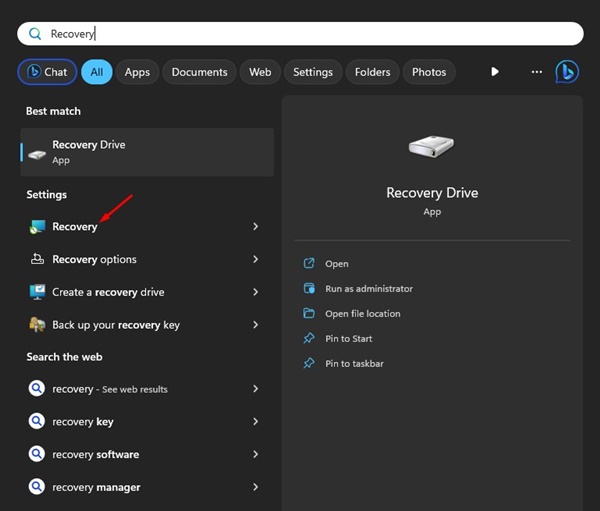
1. Open the Recovery app from the Windows 11 Search.
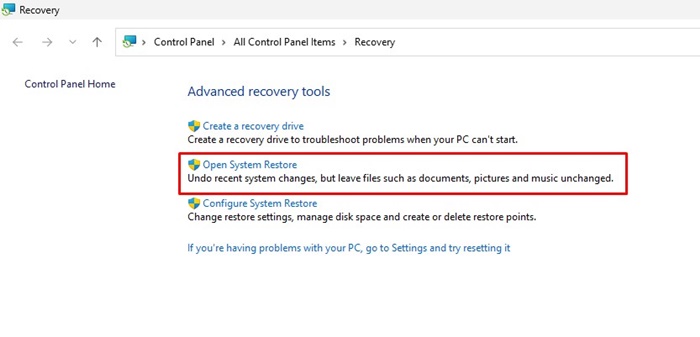
2. Click Open System Restore.
3. Select Choose a different restore point.
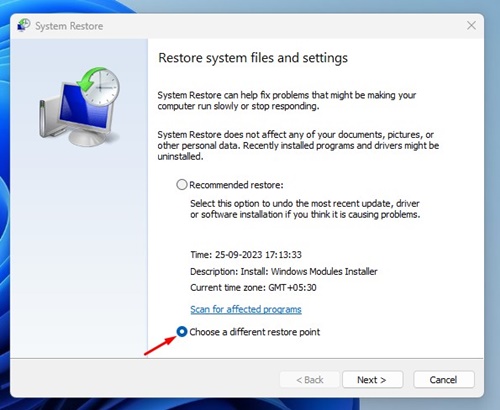
4. Select the Restore point created on the date everything was working well. Once you’ve done this, click Next.
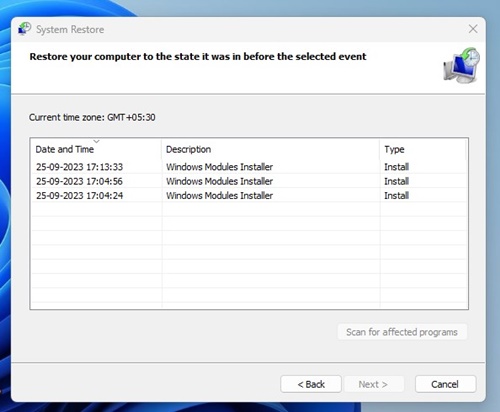
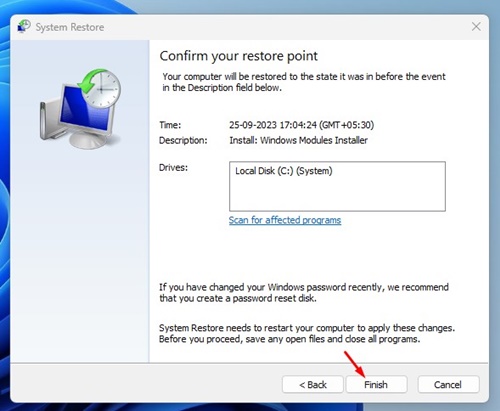
5. Click Finish.
Corrupt drivers might cause many problems with your PC and even hamper your system’s performance. So, it’s always best to find and fix corrupt drivers.
The post How to Fix Corrupt Drivers on Windows appeared first on TechViral.
from TechViral https://ift.tt/j3K9bpB

