

Before exploring the troubleshooting methods, let’s know why the Error Code 3: 0x80040154 — system-level error message appears. Here is the most common reason for the Google Chrome error while updating.
- The Google Chrome updater tool can’t connect to the server.
- You have just installed a VPN or Proxy Server.
- Chrome Files are Corrupted.
- Malware/Virus on Windows PC
These are some of the most probable reasons for the error code, and here’s how you can get rid of it.
1. Restart the Chrome Browser
The very first thing you should do after encountering the error message is to restart your Chrome browser.
You may get error code 3: 0x80040154 because of a bug or glitch. The best way to deal with such bugs is to restart the web browser. Close the Chrome browser and end all its processes from the Task Manager.
2. Restart your PC
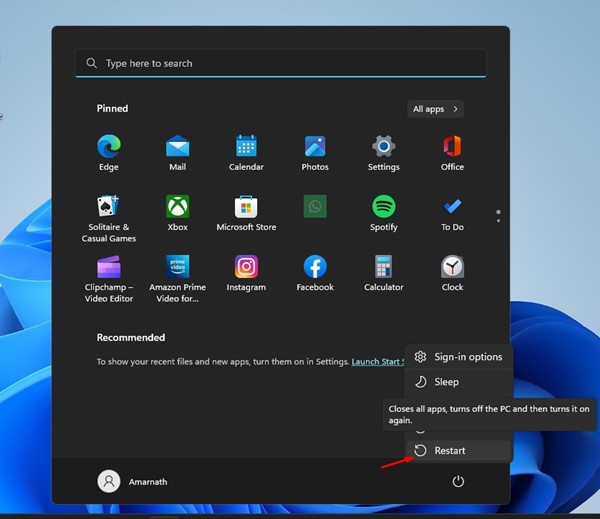
The second best thing you should do if the restarting Chrome browser fails to resolve the error code is to restart your computer.
Restarting the computer will resolve temporary glitches that might prevent the Google Update Service from running. To do so, click the Windows Start button and select ‘Restart.’
3. Turn Off VPN or Proxy
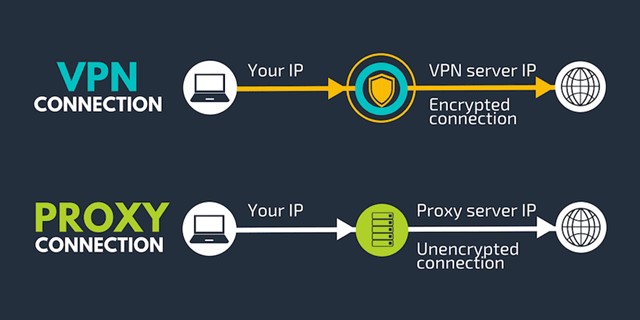
There are various reasons why Chrome Update Service may fail to run, and the most prominent one is using a VPN or Proxy.
Sometimes VPNs, especially the free ones, prevent Google Update Service (gupdate) from connecting to the server, leading to the error message.
4. Start the Google Update Service
Viruses and Malware can prevent the Google Update Service from running. The best way to deal with viruses and malware is to run a full scan using Windows Security. After scanning, you need to start the Google Update Service manually.
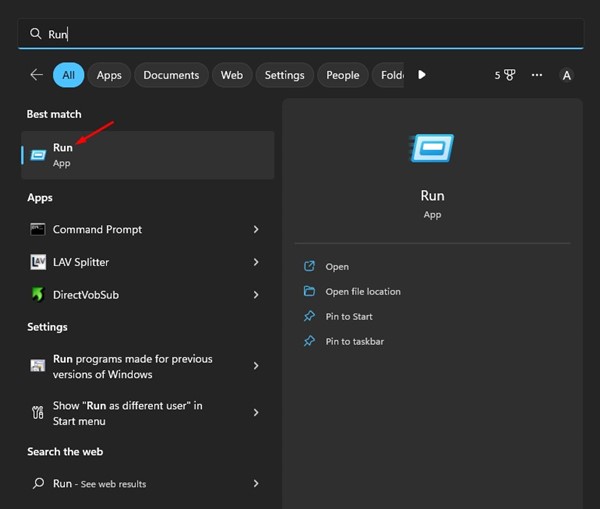
1. Click on Windows Search and type in RUN. Then, select RUN from the list of options to open the RUN dialog box.
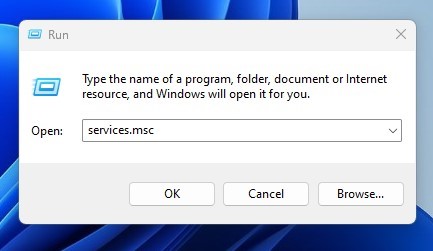
2. Type services.msc and press Enter.
3. On the List of services, find and double-click on the Google Update Services (gupdate).
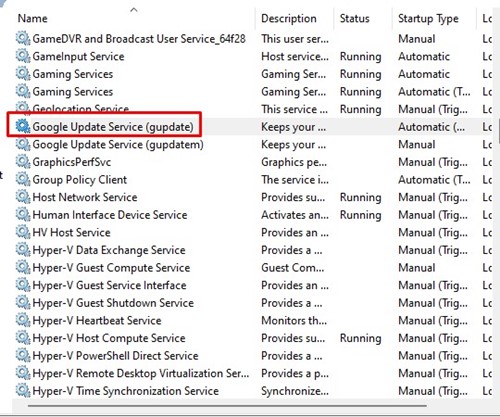
4. On the Startup type, select Automatic (Delayed Start), then on the Service Status, click on Start.

5. Enable Chrome Update from the Windows Registry
If the Services method doesn’t work, you can enable Chrome updates from the Registry Editor.
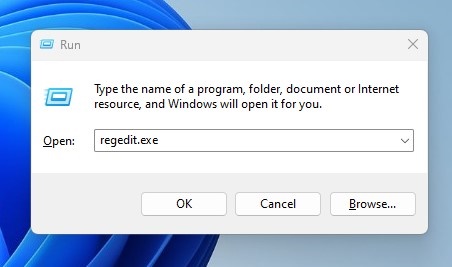
- Press the Windows Key + R button on your keyboard. Type regedit.exe in the RUN dialog box and press Enter.
- When the Registry Editor opens, navigate to this path:
HKEY_LOCAL_MACHINE\SOFTWARE\Policies\Google\Update
- Double-click on the UpdateDefault Key
- In the Value data field, type 1 and click Ok.
- Close the Registry Editor & restart your computer.
This will enable the Chrome update services on your computer.
6. Whitelist Google Chrome in Windows Firewall
Apart from Viruses and malware, Windows Firewall can also prevent the Google Chrome Update Service from running. This happens when Windows Firewall blacklists the Google Chrome Update Service. You should whitelist Google Chrome on the Windows firewall to resolve the issue.
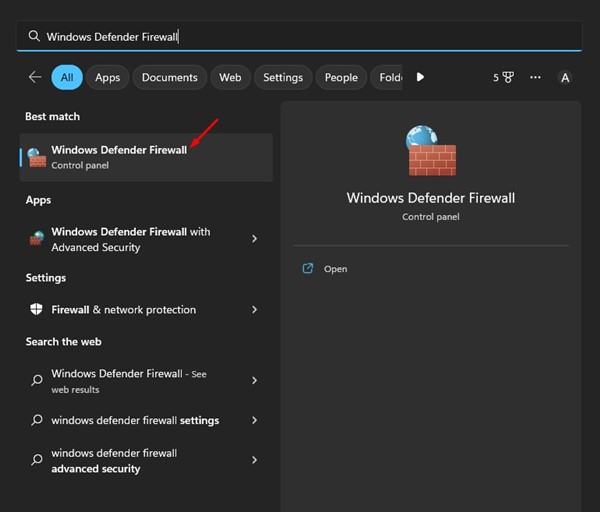
1. Open the Windows Defender Firewall from the Windows Search.
2. Click Allow an app or feature through Windows Defender Firewall on the right.
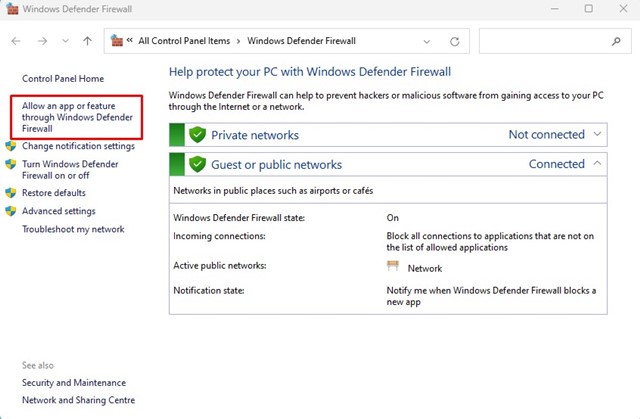
3. You must allow tools.google.com and dl.google.com to run through the Firewall. Otherwise, you can just allow Google Chrome to run through the Firewall.
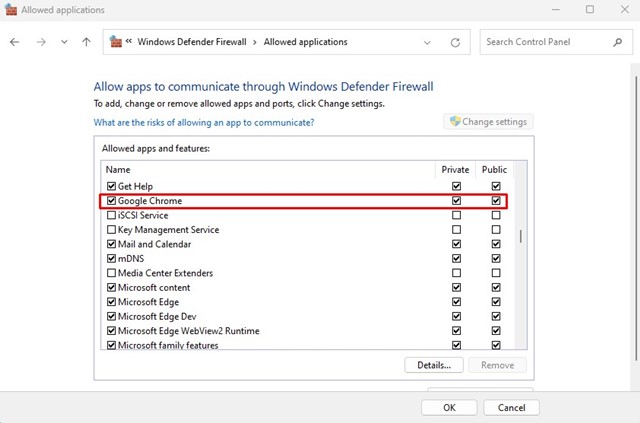
Restart your Windows Computer and try to update Chrome again.
7. Reinstall the Google Chrome Browser
If all the methods failed to resolve the error code 3: 0x80040154 error, you must reinstall the Chrome browser. Reinstalling Chrome is easy; open the Control Panel and find Google Chrome. Right-click on it and select Uninstall.
Once uninstalled, head to the official Chrome homepage and download the latest web browser version. Once downloaded, install it. This way, you will have the latest version of Google Chrome. After installing, sign in with your Google Account to get back your data.
Also Read: How To See Saved Passwords On Google Chrome
These are simple ways to resolve error code 3: 0x80040154 on the Google Chrome browser. Let us know if you need more help fixing Chrome update errors in the comments.
The post How to Fix Error Code 3: 0x80040154 on Google Chrome appeared first on TechViral.
from TechViral https://ift.tt/tua8eh6

