

While the Clipboard history feature is great, it can expose your copied items to other users and apps. For this reason, it’s best to periodically clear the Clipboard history on Windows 11.
1. Clear Clipboard History via Windows Terminal
We will use the Windows Terminal app to clear the Clipboard history in Windows 11.
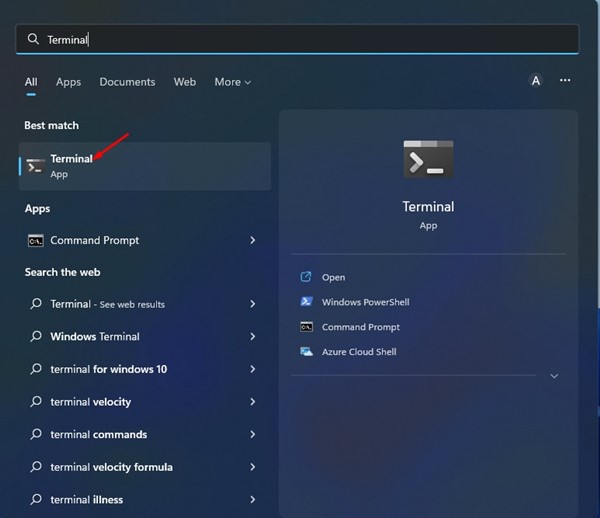
1. Open the Terminal app from the Windows 11 Search.
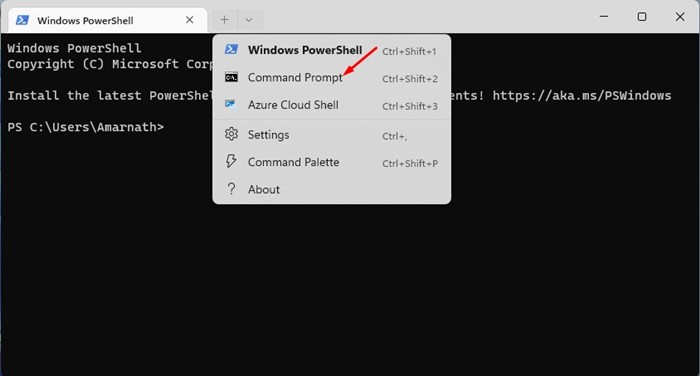
2. Click the drop-down arrow and select Command Prompt.
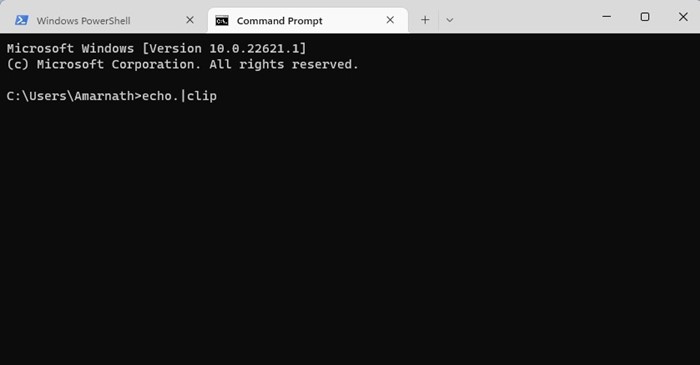
3. Type in echo.|clip and press Enter.
2. Clear a desktop shortcut to clear Clipboard data
You can create a desktop shortcut to clear your clipboard data. After creating a shortcut, you must run it to remove all saved items on your Clipboard.
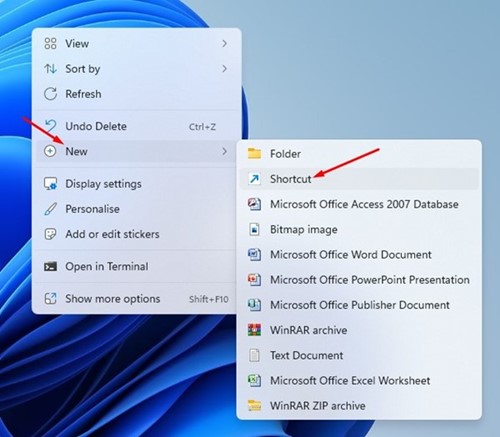
1. Right-click on a blank screen and select New > Shortcut.
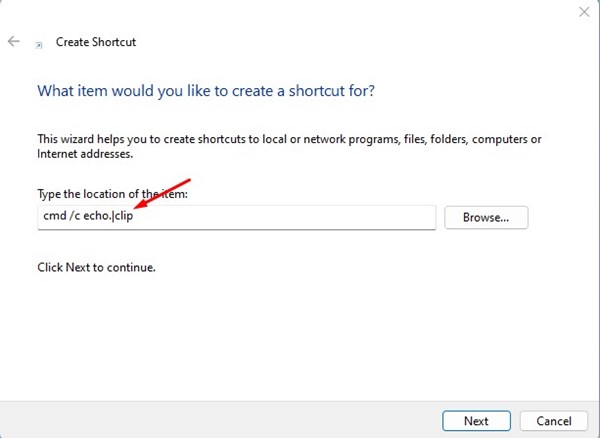
2. On the Create Shortcut window, type in cmd /c echo.|clip on the target field and click Next.
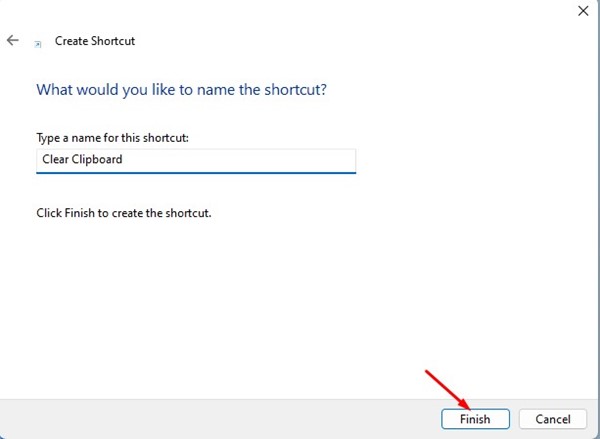
3. Name your shortcut and click Finish.
3. Clear Clipboard History from Clipboard Flyout
Well, the Clipboard manager provides you with an option to clear all saved items. You must press the Windows + V button to bring the Clipboard flyout to the front.
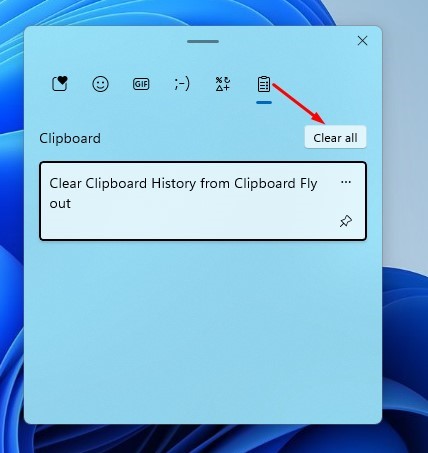
Now you can see all saved items; click on Clear all.
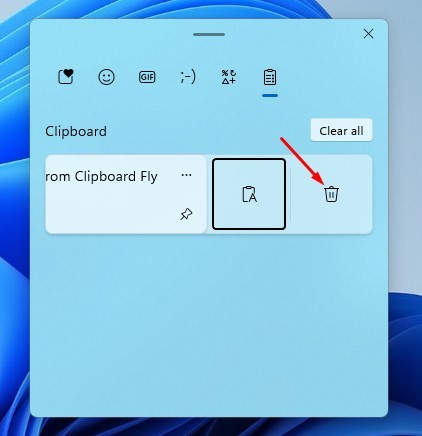
You can also remove a specific item; for that, click on the three dots next to the item you want to remove and click on the Delete icon.
4. Clear Clipboard History on Windows 11 via Settings App
Windows 11’s Settings app also has an option to clear all saved items on the Clipboard.
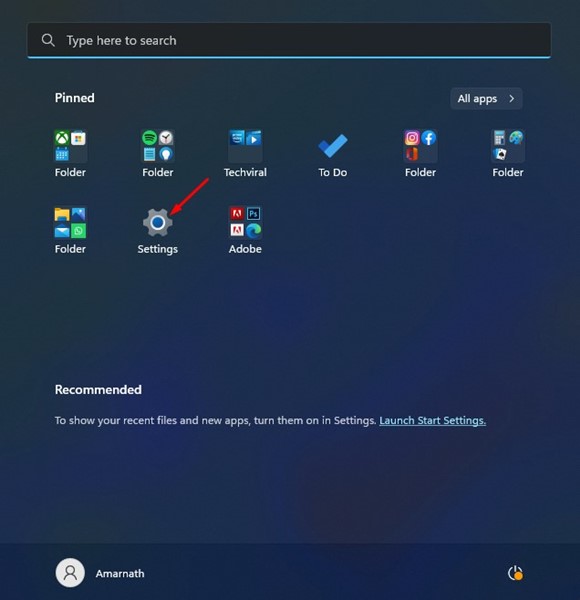
1. Click on the Windows 11 Start button and select Settings.
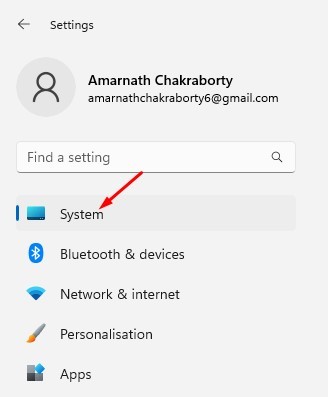
2. Switch to the System.
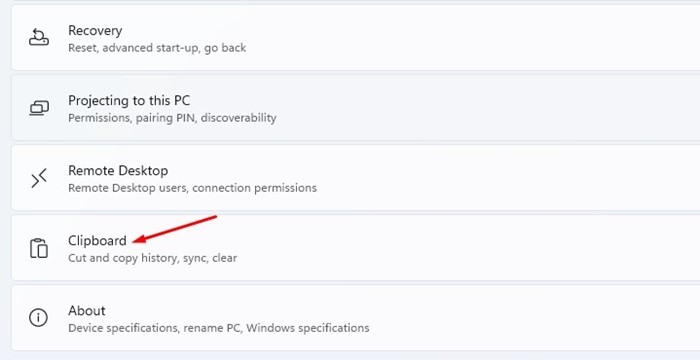
3. Scroll down and click Clipboard.
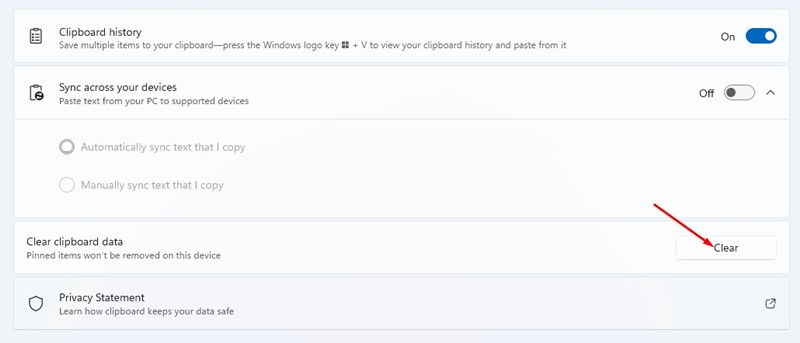
4. On the Clipboard screen, click on the Clear button behind the Clear clipboard data.
Also Read: Download Windows 11 ISO
These are the best ways to clear your clipboard data on Windows 11. If your PC is often left unattended, it’s best to remove the clipboard data periodically.
The post How to Clear Clipboard History in Windows 11 appeared first on TechViral.
from TechViral https://ift.tt/lKGs2yb

