

You can configure Windows 11 to open folders when your PC starts automatically. There are two different methods to open folders at startup in Windows 11. Here are some of them.
1. Add Folders to the Startup Folder
This is the easiest method. To use it, move the folder you want to open to the Startup folder.
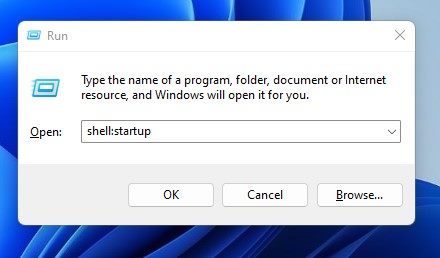
1. Press the Windows Key + R button on your keyboard. This will open the Run dialog box, type shell:startup, and press Enter.
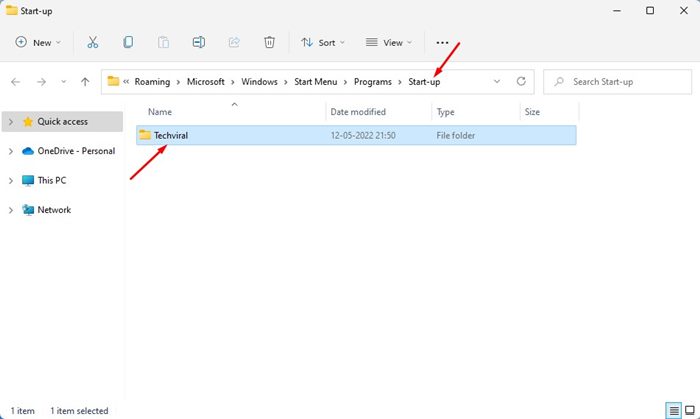
2. This will open the Startup folder on Windows 11. In this folder, move the folder you want to open at startup.
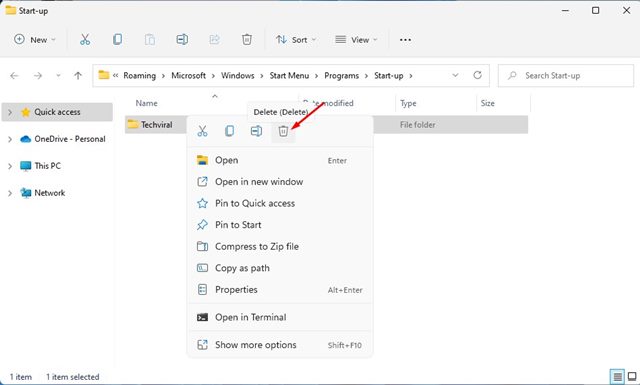
3. If you wish to stop the folder from opening at startup, delete the folder from the Startup folder.
The next time you reboot or turn on your computer, the folder will open automatically.
2. Automatically Open Folder via Task Scheduler
This method is for those who can’t access the Startup folder of Windows 11. You will need to create a task in Task Scheduler and schedule it to run at Startup.
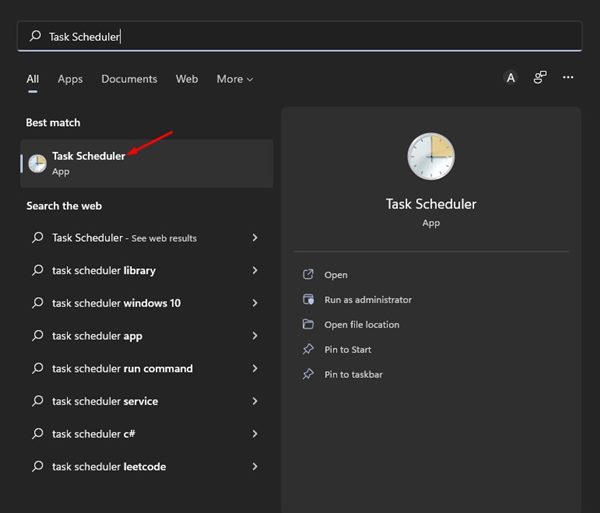
1. Open Task Scheduler from the Windows Search.
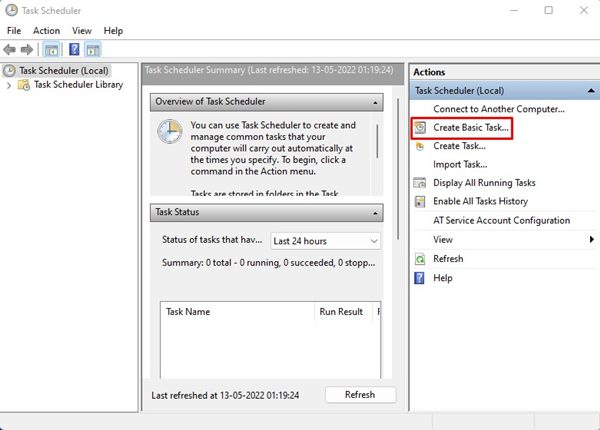
2. Click the Create Basic Task on the right pane.
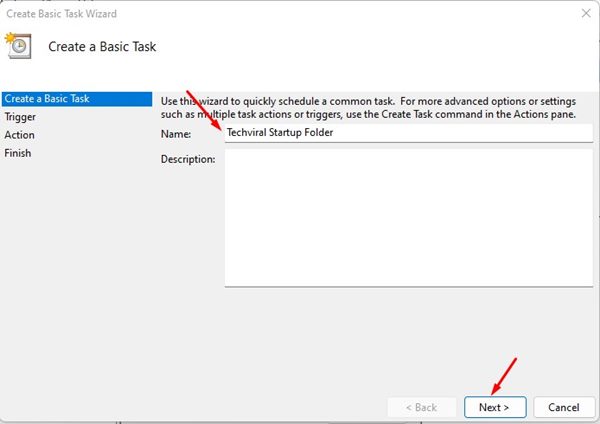
3. On the Create a Basic Task Window, type a name for your task in the Name field. Once done, click Next.
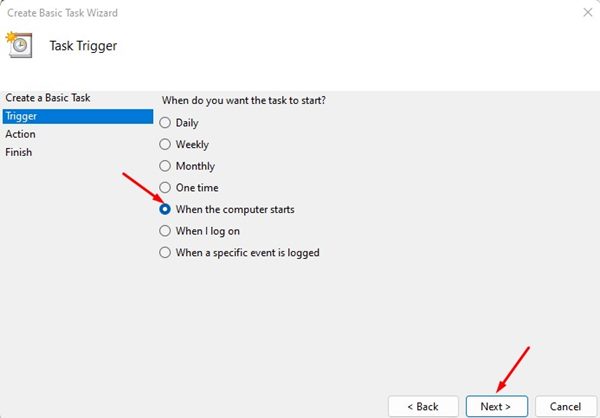
4. Select When the computer starts and click Next.
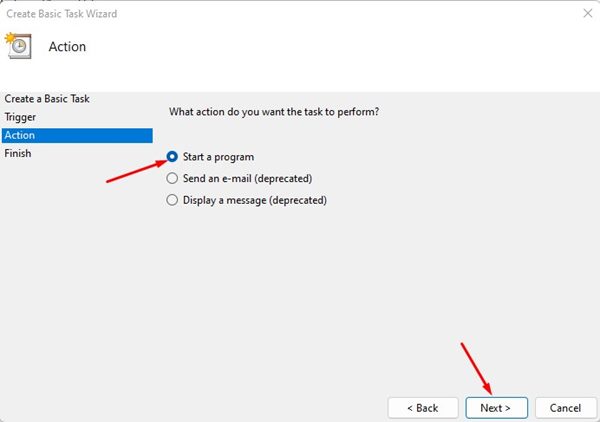
5. Select the Start a program option on the Action screen and click Next.
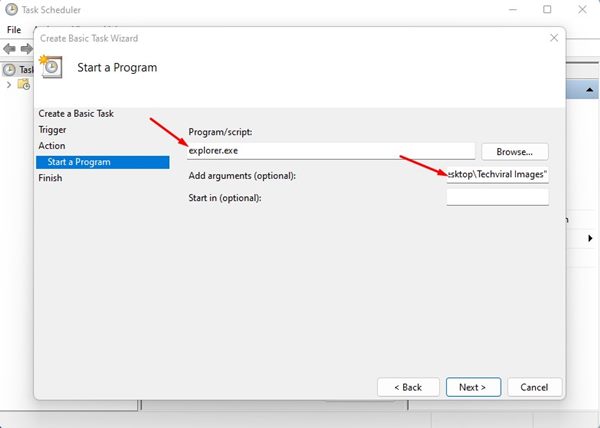
6. Under the Program/script, type in explorer.exe. In the Add arguments field, enter the path of the folder you want to open at startup. Click on Next.
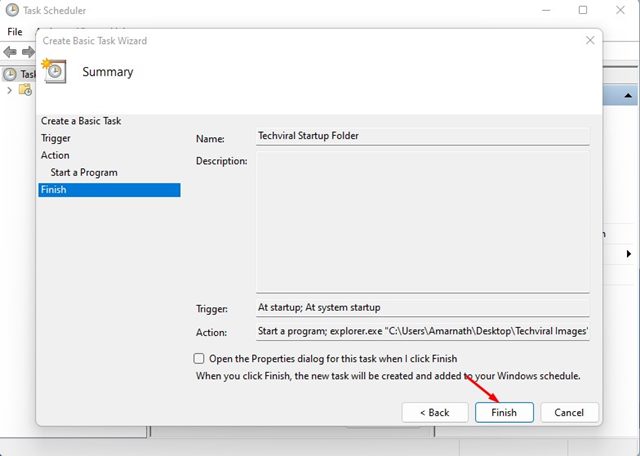
7. Check the Summary and click the Finish button. Once you’ve done this, close the Task Scheduler.
The folder will automatically open when Windows 11 starts.
These are the best ways to open a folder when Windows 11 starts. If you need more help in this topic, let us know in the comments.
The post How to Open Folders at Startup in Windows 11 appeared first on TechViral.
from TechViral https://ift.tt/GVoLM4J

