

During a system upgrade, a few files from Windows Photos or Photo Viewer don’t get updated, leading to the ‘Invalid Value for Registry’ error. If you also get the error while opening an image or video file, follow these steps.
1. Use a Different Photo Viewer Application
The easiest way to fix the Invalid Value for Registry error is to view the image in a different photo viewer application. You can use any photo viewer app to view your JPG/JPEG images.
With different photo viewer apps installed, you just need to right-click on the JPG/PNG image and select Open with > Choose Another App and select a different photo viewer.
2. Reset the Photos App
You need to reset the built-in Photos app to fix the ‘Invalid Value for Registry’ error.
1. Open Settings and navigate to System > Apps & Features. There, find the Photos app.
3. Click on Photos > Advanced Options. Under Advanced options, click on the Reset button.
Restart your computer for the changes to take effect.
3. Update the Device Drivers
Outdated device drivers create problems like Invalid Values for the Registry. So, you should update all device drivers as well.
1. Download & install Driver Booster on your Windows PC.

2. Open the app and see an interface like the one below. Here, you need to hit the Scan button.
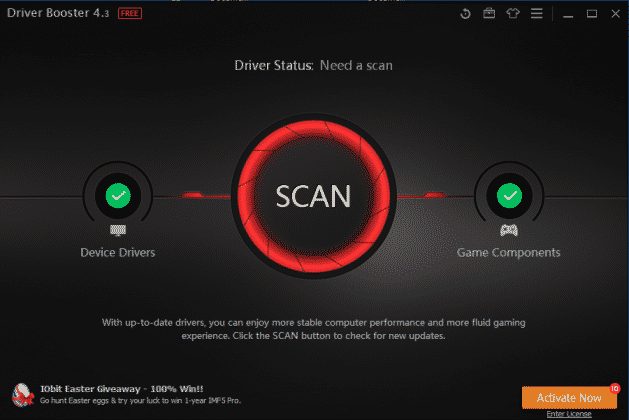
3. You must wait for a few seconds until Driver Booster scans for outdated drivers.
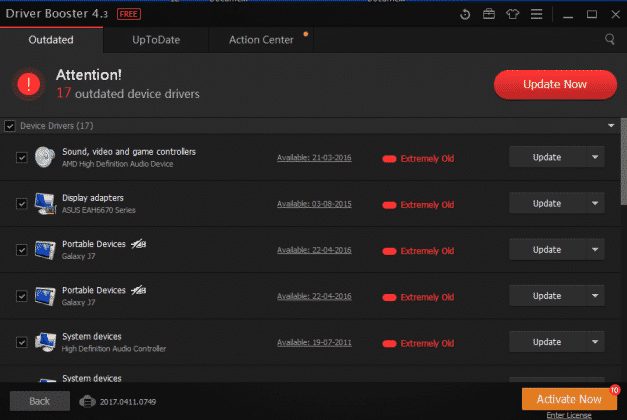
4. It will show you the list of outdated drivers. Not just that, it will also provide you with the driver update links.
4. Update Photos or Photo Viewer App
Sometimes, updating the Windows Photo Viewer app seems to fix the error on Windows. So, you should update the built-in Windows Photo Viewer tool.
- Go to Start > Settings > Update & Security.
- Click on Windows Update and select Check for Updates.
- Select the option Photo Viewer and then click on Install Updates.
- Wait until the update installs.
Restart the computer to fix the ‘Invalid Value for Registry’ error.
5. Scan for Corrupted System Files
System file corruption is another reason for this error. You can run the SFC command to fix the corrupted system files.
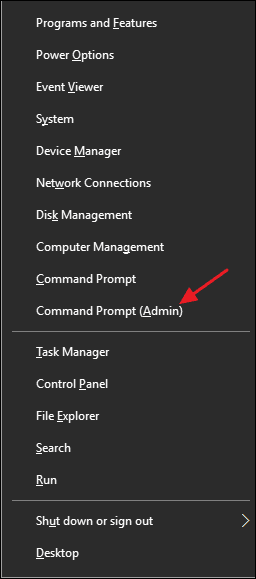
- Right-click on the Windows button and select Command Prompt(Admin).
2. This will open up the Command Prompt window with administrator rights. You need to enter the command: sfc /scannow
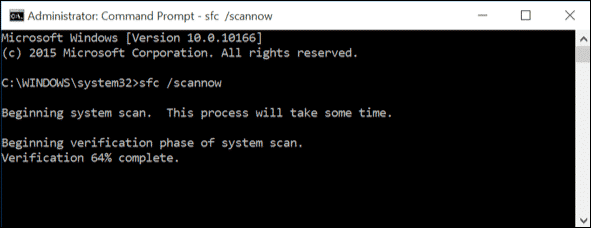
3. Wait for a few seconds until the Scan completes. Once done, restart your computer.
6. Clear Windows Store Cache
If nothing helped yet, you should clear the Windows Store Cache and check.
1. Press Windows Key + R on your computer. This will open up the RUN Dialog box.In
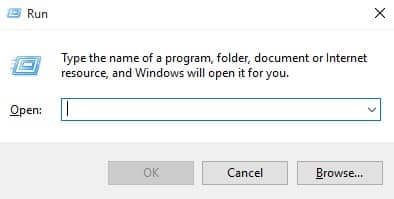
2. On the RUN Dialog box, type WSReset.exe and press Enter.
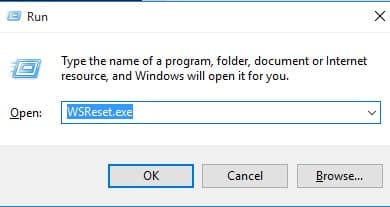
3. The Windows Store will open automatically, and you will see the message The cache for the Store was cleared.
7. Update the Windows Version
While updating the Windows operating system isn’t a surefire fix, it’s still best to keep it.
Keeping the operating system up-to-date removes various errors and enhances overall performance. Windows updates also eliminate many stability issues.
It’s best to update the Windows operating system. To update Windows, open Settings > Windows Updates and click the Check for Updates button.
These are the best methods for fixing the Invalid Value for Registry in Windows. If you know any other working method to prevent the error message from appearing, please let us know in the comment box below.
The post How To Fix ‘Invalid Value for Registry’ Error From Windows appeared first on TechViral.
from TechViral https://ift.tt/MX0cT5R

