

It’s absolutely possible to launch multiple apps at once on Windows 11, but you will need to create a batch file. The batch file will contain the paths to the apps you want to open. Here’s a detailed guide on launching multiple apps at once on Windows.
Launch Multiple Apps At Once on Windows
Important: Please note that this script may not work on every Windows 10/11 build.
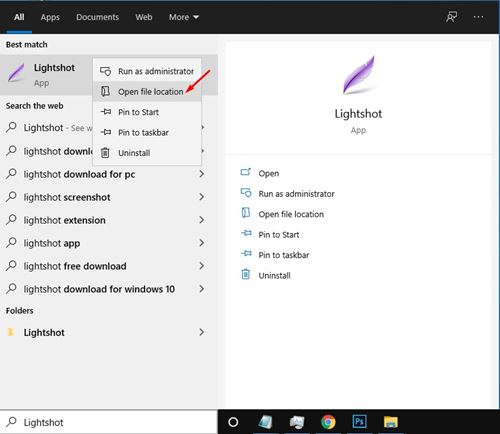
1. Search for the apps that you want to include in the batch file. Right-click on the app and select Open File Location.
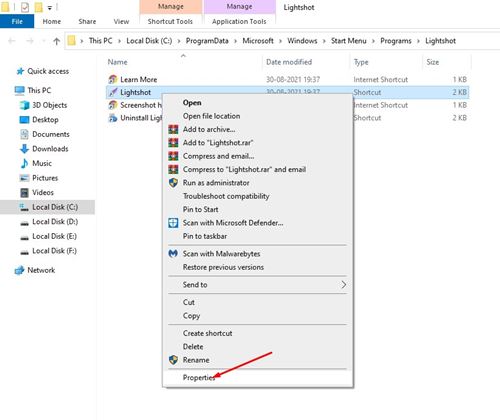
2. This will open the folder where the program has been installed. Right-click on the shortcut and select Properties.
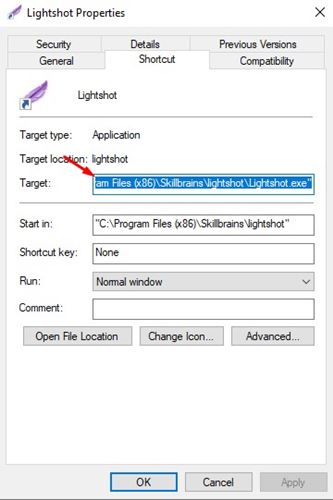
3. Copy the Target field. Press CTRL+C to copy the value of this field.
4. Open Notepad and paste the code given below.
@echo off

cd "PATH"
start FILE

exit
Important: Replace PATH with the path to your app. Next, you need to replace FILE with the executable file name.
5. The complete command would look like this
@echo off

cd "C:\Program Files (x86)\Skillbrains\lightshot\Lightshot.exe"
start Lightshot.exe

exit

6. You can add more programs to the batch file. You need to use the same code for all your other apps. For example, I want to launch Lightshot and Avidemux at once. So, the code would look like
@echo off

cd "C:\Program Files (x86)\Skillbrains\lightshot\Lightshot.exe"
start Lightshot.exe

cd "C:\Program Files\Avidemux 2.7 VC++ 64bits\avidemux.exe"
start avidemux.exe

exit
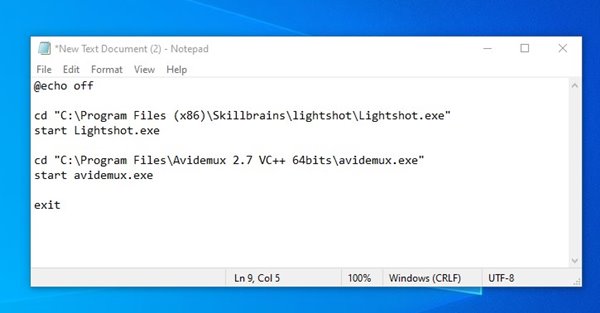
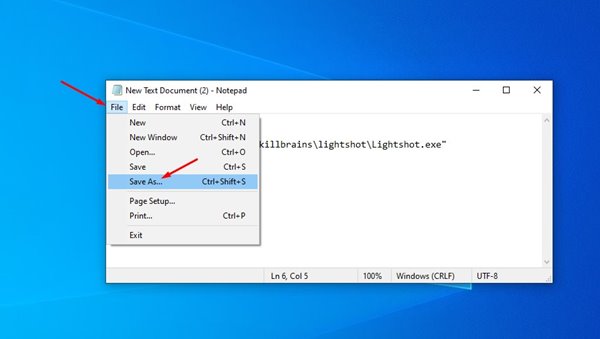
7. Click on the File menu and select Save As.
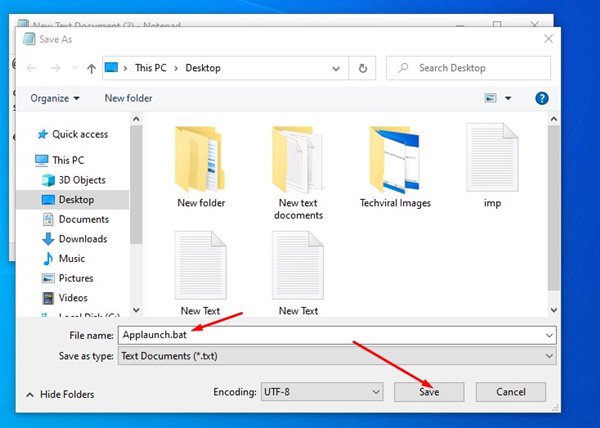
8. You need to give the batch file a name. You can name the batch file anything; make sure to add the ‘.bat’ at the end of the file. For example, Applaunch.bat
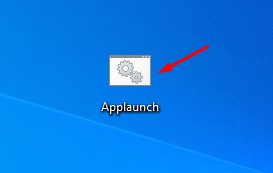
Whenever you wish to launch your favorite apps, double-click on the .bat file.
This guide explains how to launch multiple apps at once on Windows. If you have any doubts, let us know in the comment box below.
The post How to Launch Multiple Apps At Once on Windows appeared first on TechViral.
from TechViral https://ift.tt/lYNSvf2