

If you’re facing constant issues with WiFi connectivity on your phone, you should reset the network settings. Resetting the network settings on Android restores all network-related settings to their original state. Here’s how you can reset Network Settings on Android.
Reset Network Settings on Android
Important: Please back up your WiFi network username/passwords, mobile data settings, and VPN settings before resetting the network settings. Once you reset, you will lose all those things.
1. Launch Settings.

2. Tap System Settings.
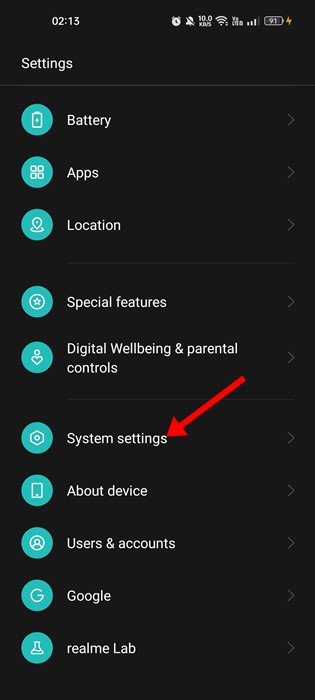
3. Tap Backup & Reset.
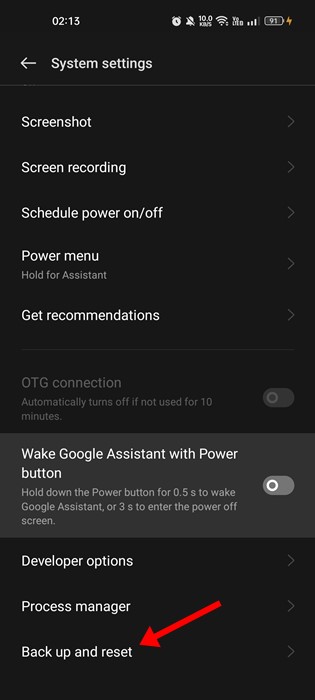
4. Tap Reset Network Settings.
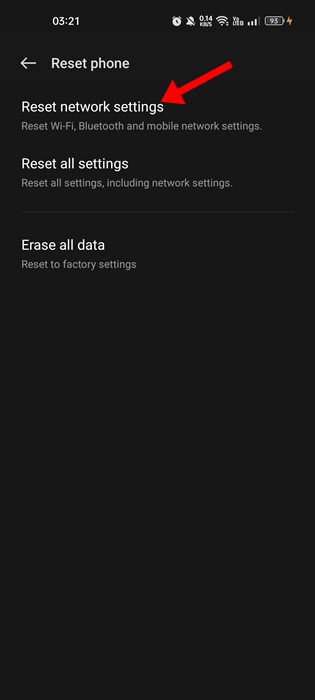
5. Tap Reset Network Settings again.
Note: The Reset option might vary from device to device. This guide will give you an overall idea of how and where to find the reset network settings on Android. It’s usually under the System Settings or General Management page.
Reset Network Settings Samsung
The steps to reset the Network Settings of a Samsung smartphone are a bit different. Here’s what you should do.
1. Open the Notification Shutter and tap Settings.
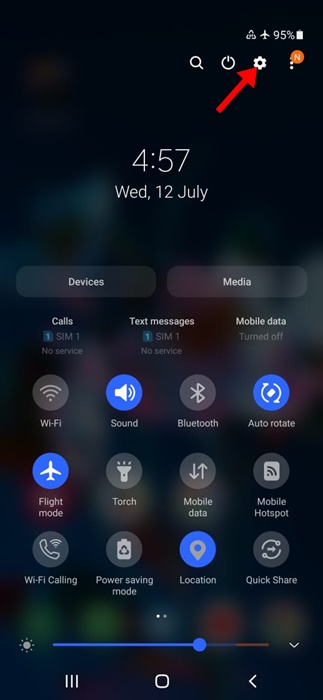
2. Scroll down and tap General Management.
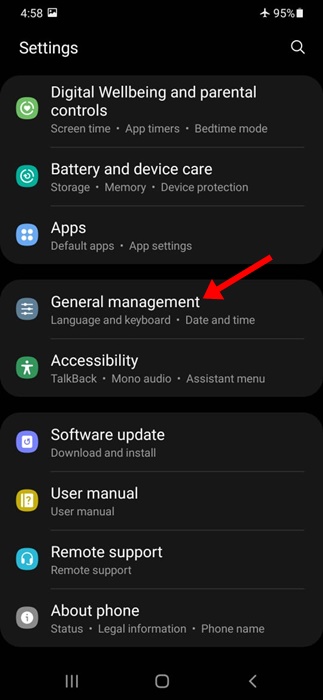
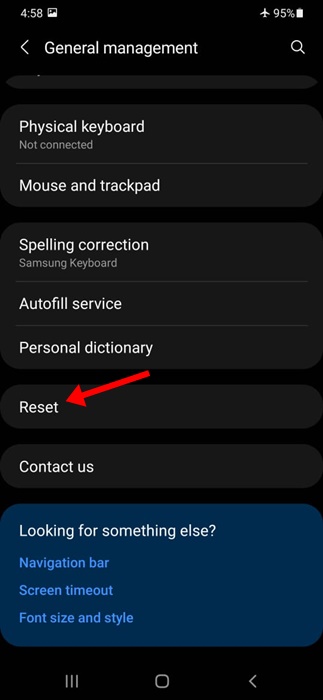
3. Scroll down and tap Reset.
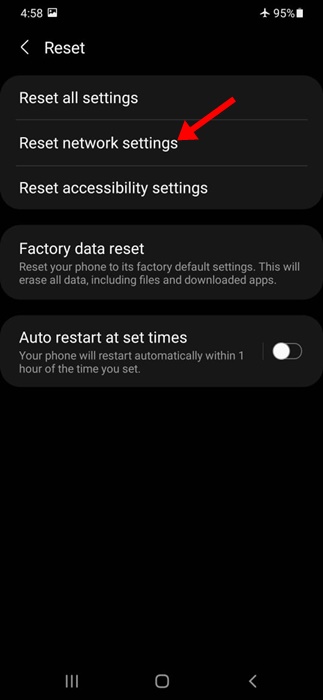
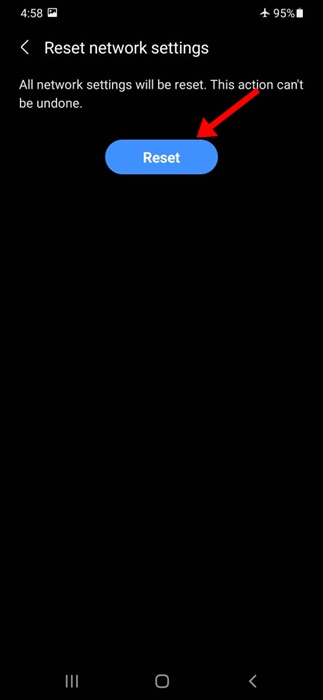
4. Tap Reset network settings.
5. Tap Reset Settings.
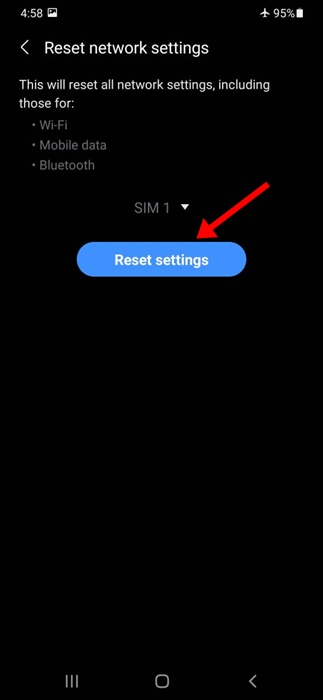
6. Tap the Reset button at the bottom again.
If you face network-related problems, reset the network settings to their default. This guide is about resetting Android network settings. If you have any doubts, let us know in the comment box below.
The post How to Reset Network Settings On Android appeared first on TechViral.
from TechViral https://ift.tt/Gfj2roH

