

Windows Update Delivery Optimization (WUDO) is a necessary process that allows your Windows 11 PC to receive updates from Microsoft’s servers and other sources. It can scan other PCs on your local network or PCs on the Internet that download duplicate files and receive updates from them.
Similarly, your Windows 11 PC can send updates to other PCs on your local network or the Internet if you have allowed it. While this feature is helpful, you may like to disable it if you have limited internet access.
1. Disable Delivery Optimization on Windows 11
You can make some changes to the Windows update settings to disable Delivery Optimization.
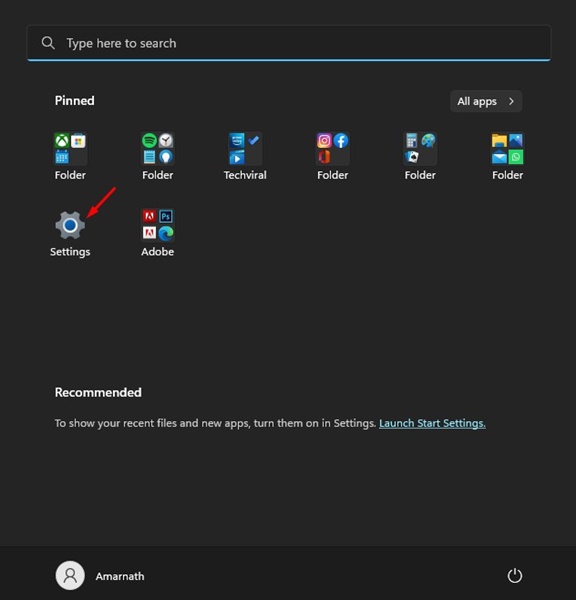
1. Click the Windows 11 Start button and select Settings.
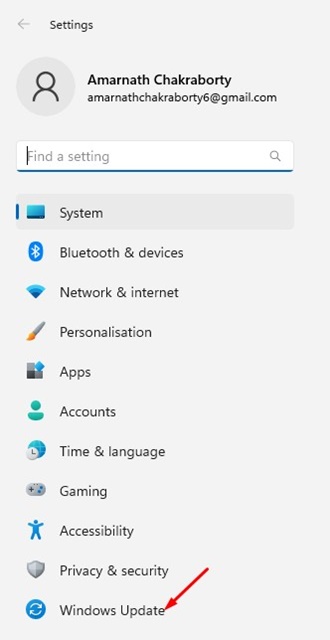
2. Click Windows Update.
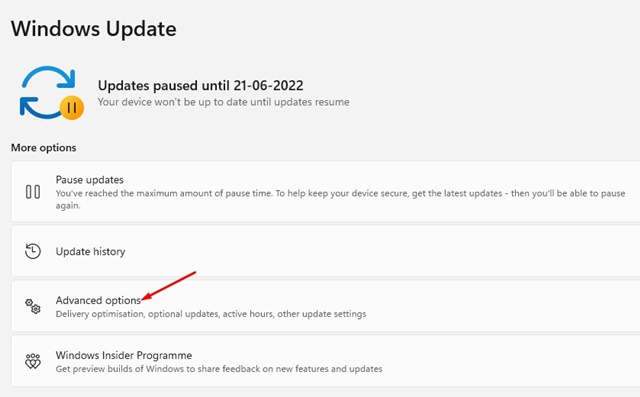
3. Click Advanced.
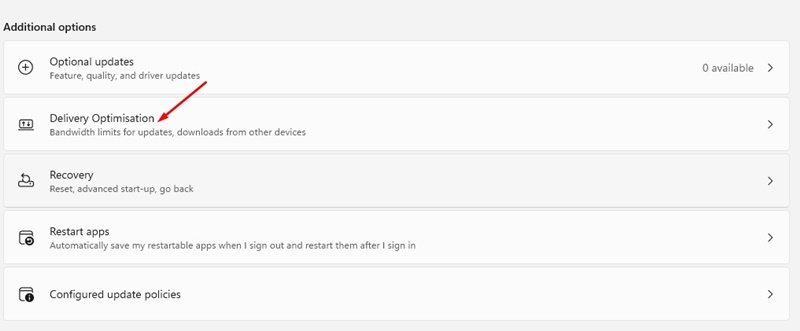
4. Scroll down and click on Delivery Optimization.
5. Turn off the toggle for Allow downloads from other PCs
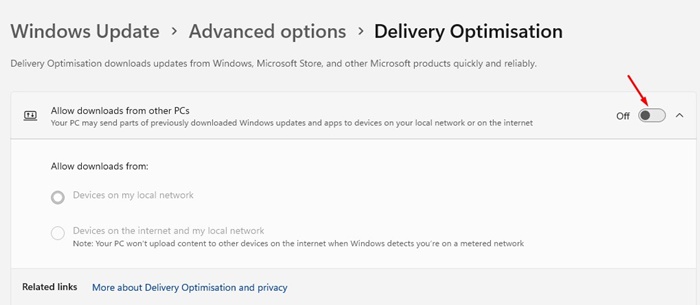
From now on, your Windows 11 PC will not send parts of previously downloaded Windows updates and apps to devices on your local network or the Internet.
2. Disable Delivery Optimization from Windows Services
If you’re unable to access settings, here’s how you can disable Delivery Optimization from the Windows Services.
1. Open the Services app from the Windows Search.
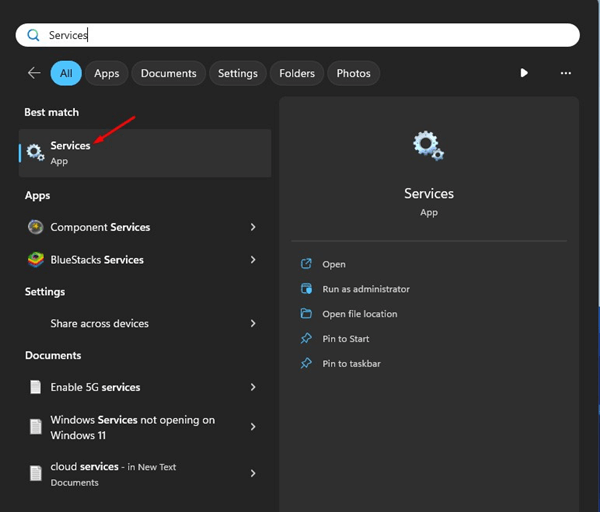
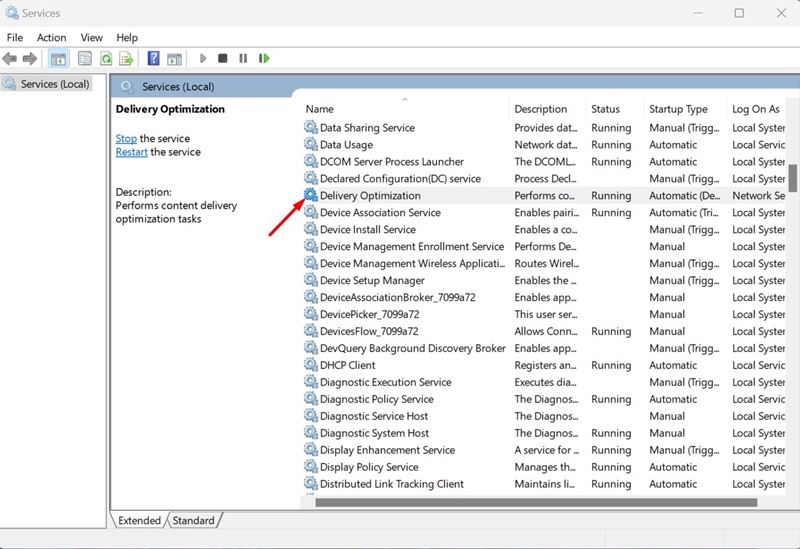
2. Find Delivery Optimization. Double-click on the service to open its Properties.
3. Click on the drop-down next to Startup type and select Disable.
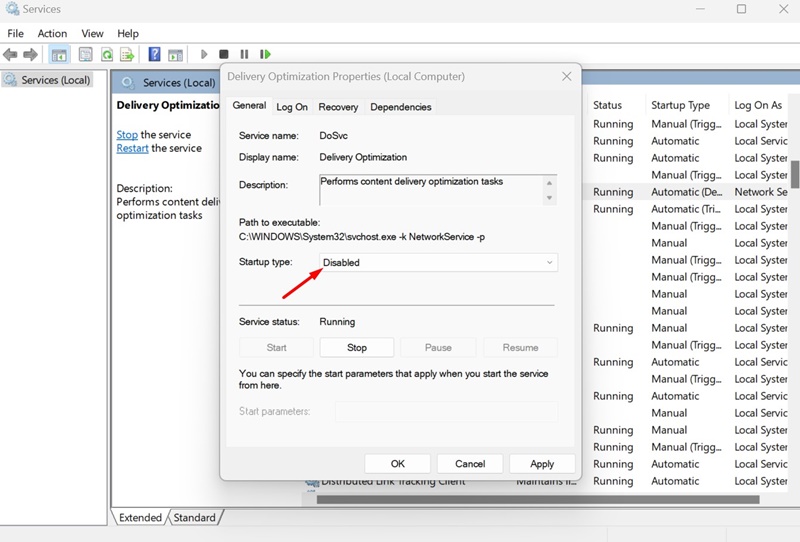
4. Once done, click Apply and OK.
3. Disable Windows Update Delivery Optimization via Registry
You can also use the Registry Editor to disable the Windows Update Delivery Optimization.
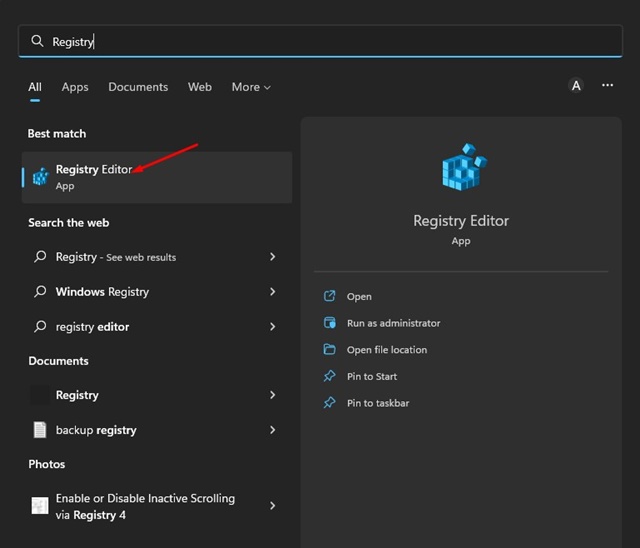
1. Open the Registry Editor from the Windows Search.
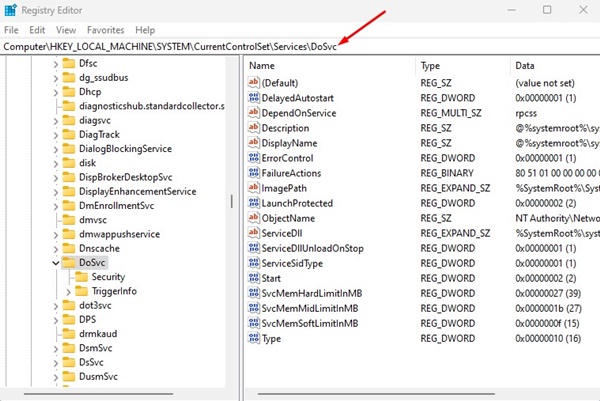
2. Navigate to the following path:
HKEY_LOCAL_MACHINE\SYSTEM\CurrentControlSet\Services\DoSvc
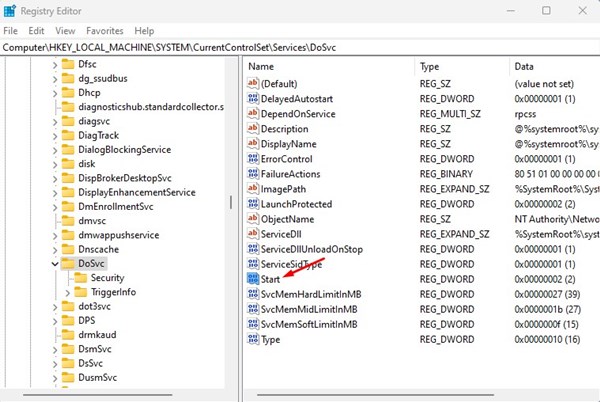
3. Find and double-click on the Start REG_DWORD key.
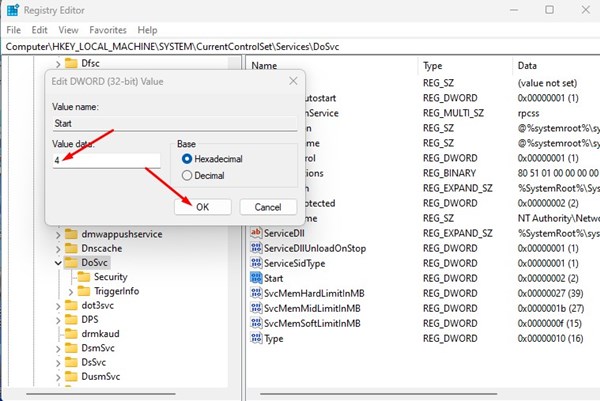
4. In the Value data field, enter 4 and click OK.
Frequently Asked Questions
Yes! It’s safe to delete the Delivery Optimization files from your system. Deleting these files won’t affect your PC’s performance because they only help users with system updates.
Yes! It’s completely safe to disable the delivery optimization feature. By doing so, you can reduce your data usage.
Deleting the delivery optimization files will not affect your PC’s speed, but it will free up some storage space, leading to better performance. The boost in speed will be minimal.
These are the best ways to turn off update delivery optimization on Windows 11. If you have limited internet bandwidth and want to rule out security issues, turn off Delivery Optimization on Windows 11.
The post How to Turn Off Delivery Optimization on Windows 11 appeared first on TechViral.
from TechViral https://ift.tt/p08ENfQ

