

You may want to find your PC’s serial number for various reasons. You can find it on the warranty card of your device, the back of your laptop, in the BIOS, etc. Here’s an easier way to find your PC’s serial number using Command Prompt.
Find PC’s Serial Number via CMD
If you’re comfortable handling CMD, you can easily find your PC’s serial number with it. Here’s what you need to do.
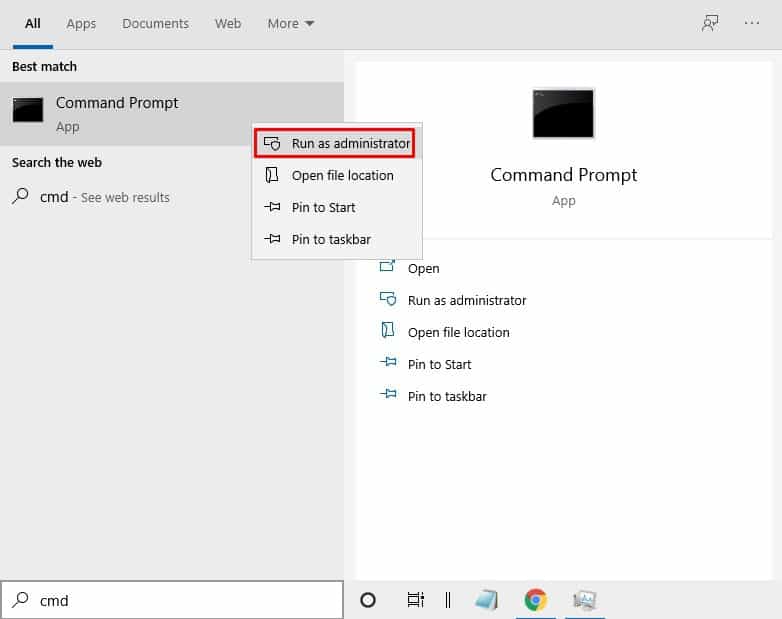
- Open Command Prompt with admin rights (right-click > Run as administrator).
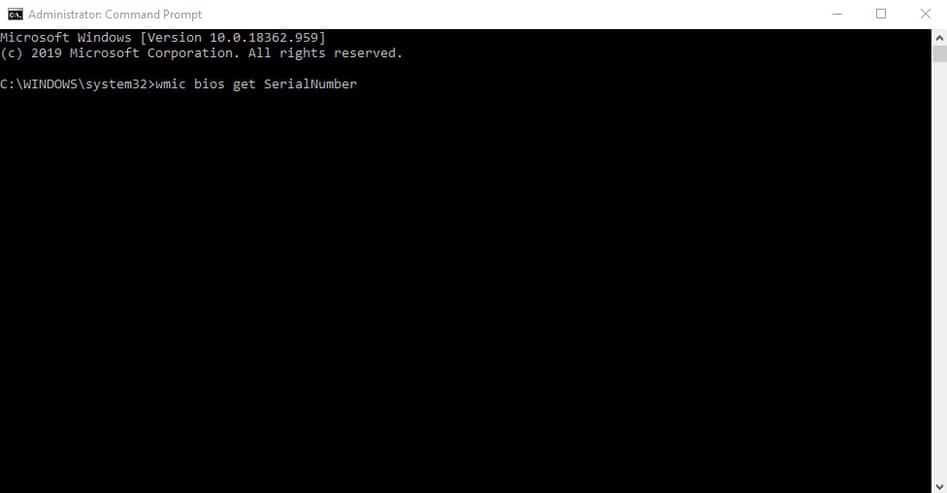
2. Paste the given command and press Enter.
wmic bios get SerialNumber
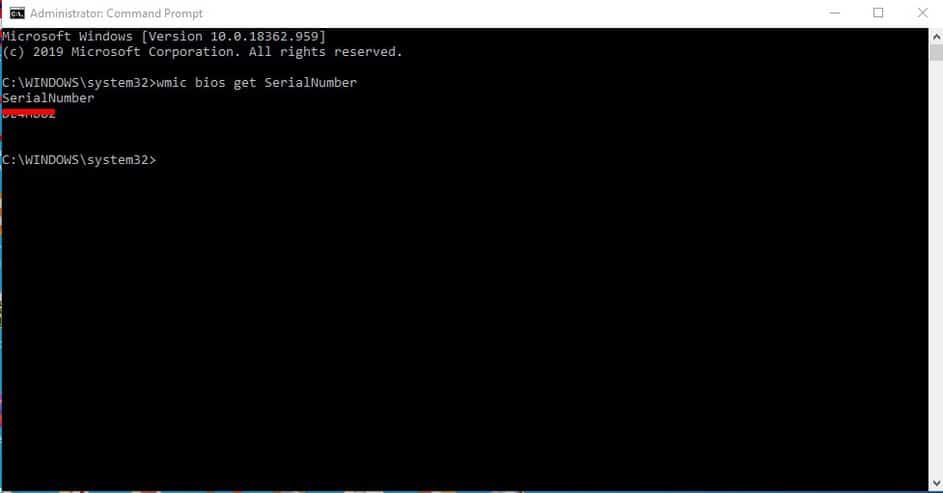
3. The command line will return the serial number.
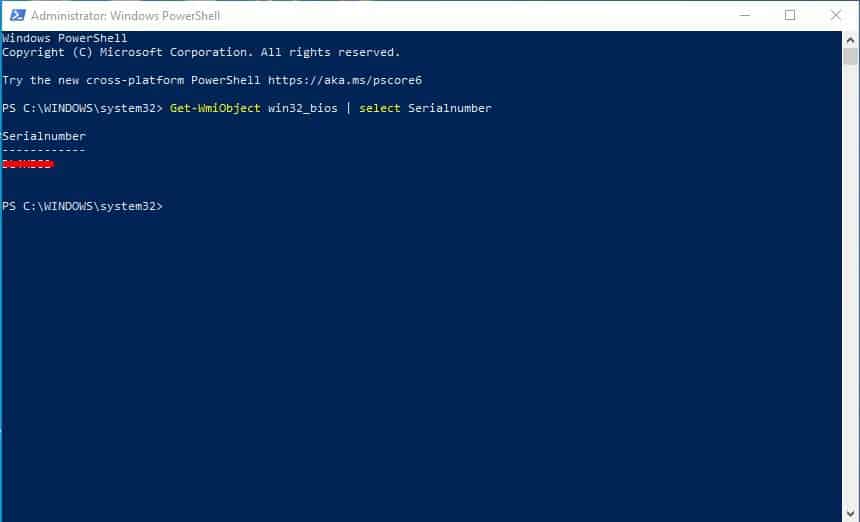
4. To find the PC’s serial number via PowerShell, run it as an administrator and enter the command –
Get-WmiObject win32_bios | select Serialnumber
This article explains how to find a PC’s serial number via Command Prompt. Whenever you want to find your PC’s serial number, follow these simple steps.
The post How To Find PC’s Serial Number via CMD appeared first on TechViral.
from TechViral https://ift.tt/Ex4UPHr